In this article, you’ll learn how to view individual member data in Thrive Apprentice—including finding members, viewing their course enrollment and progress, managing their access, and accessing member-specific reports.
Accessing the Members Section
- In your WordPress dashboard, navigate to Thrive Dashboard > Thrive Apprentice.
- Click Members in the left sidebar.
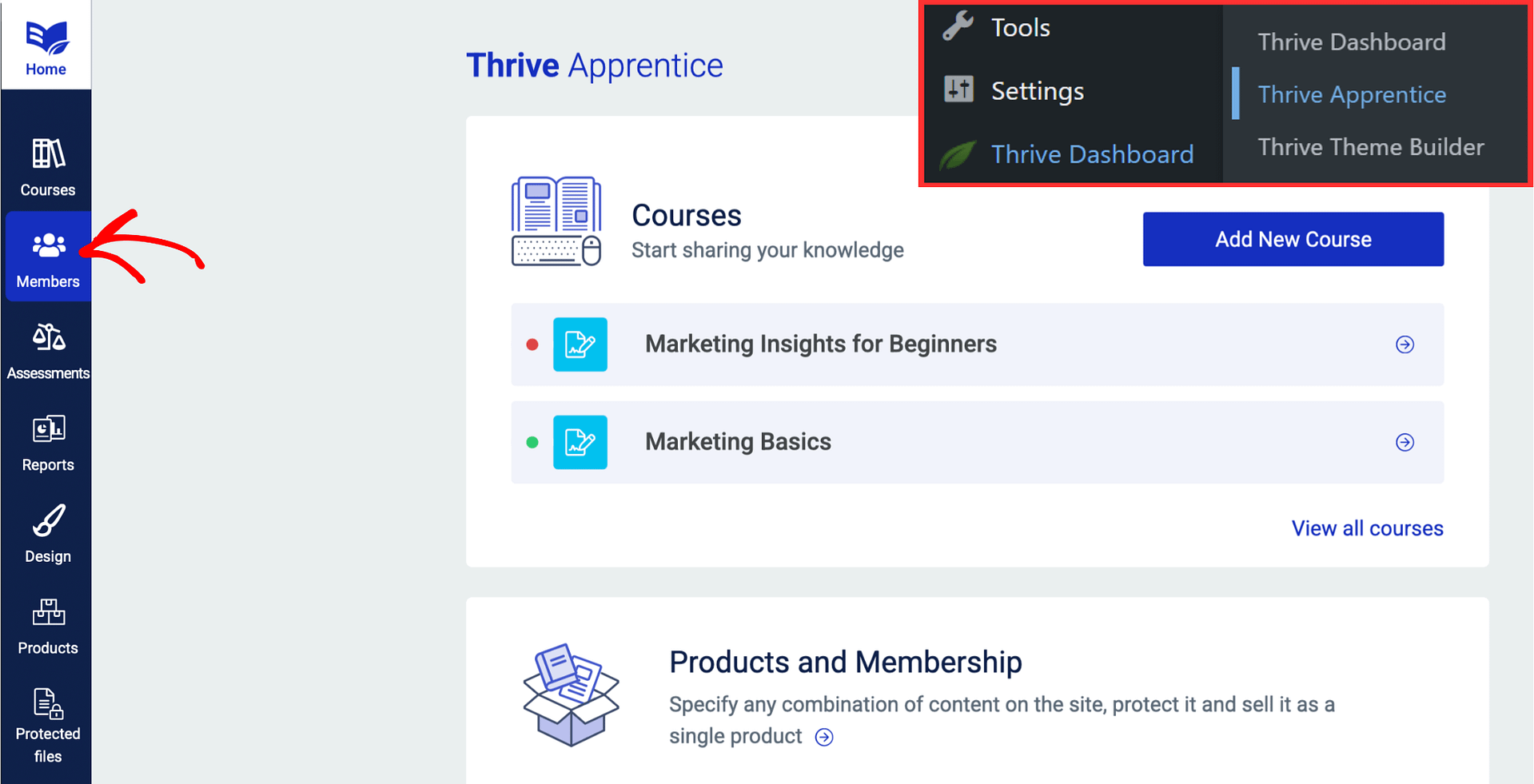
The Members section displays a list of all registered users who have interacted with your courses. You can scroll through the list or use the search bar to quickly find a specific student by name.
Finding a Member
- In the Members list, use the search bar at the top to type the member’s name.
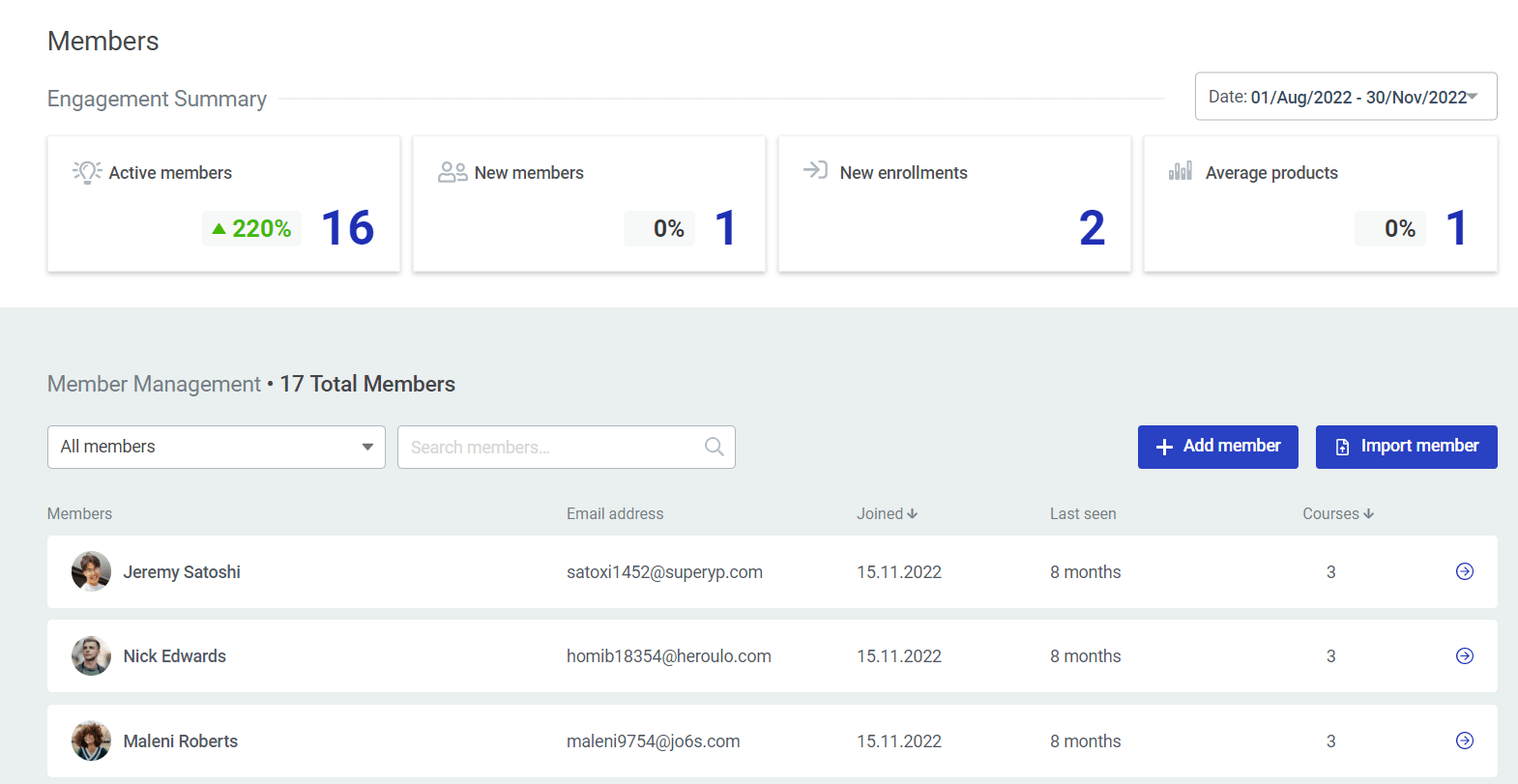
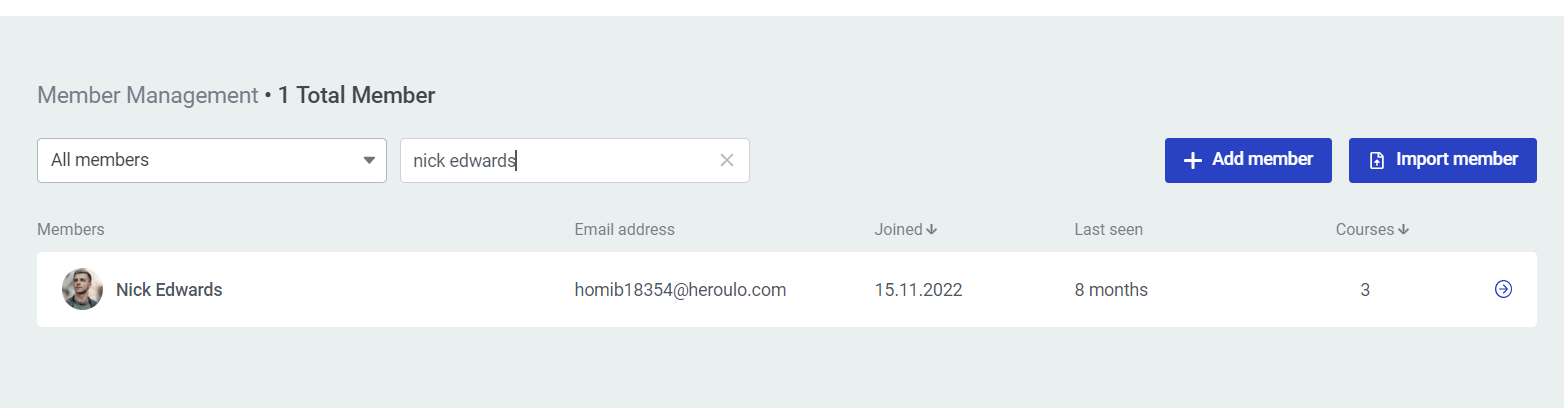
- The list will filter as you type, showing matching members.
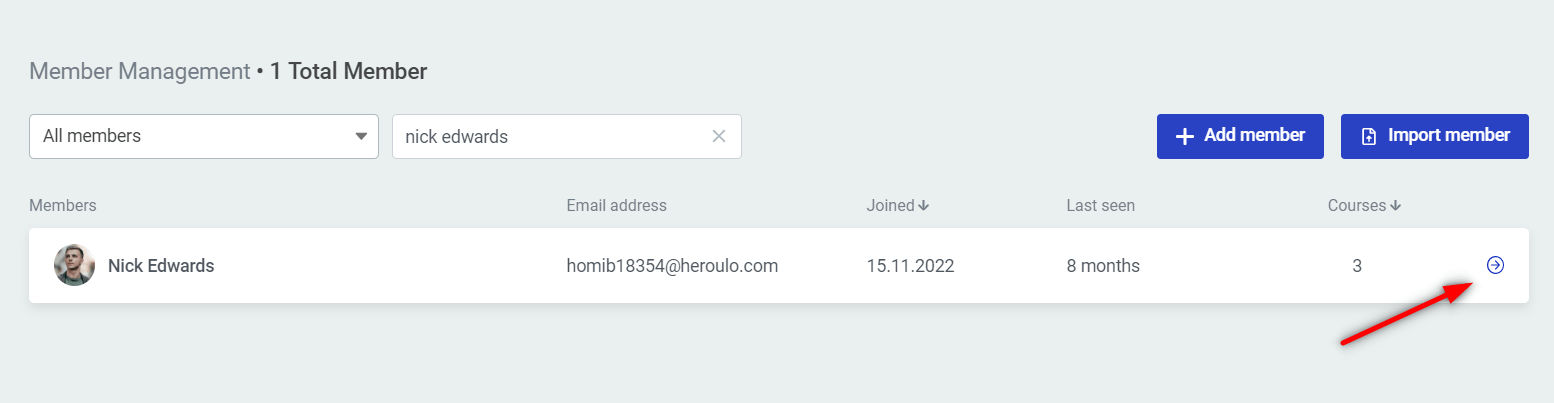
- Click the arrow next to the member’s name to open their detailed dashboard.
Viewing a Member’s Dashboard
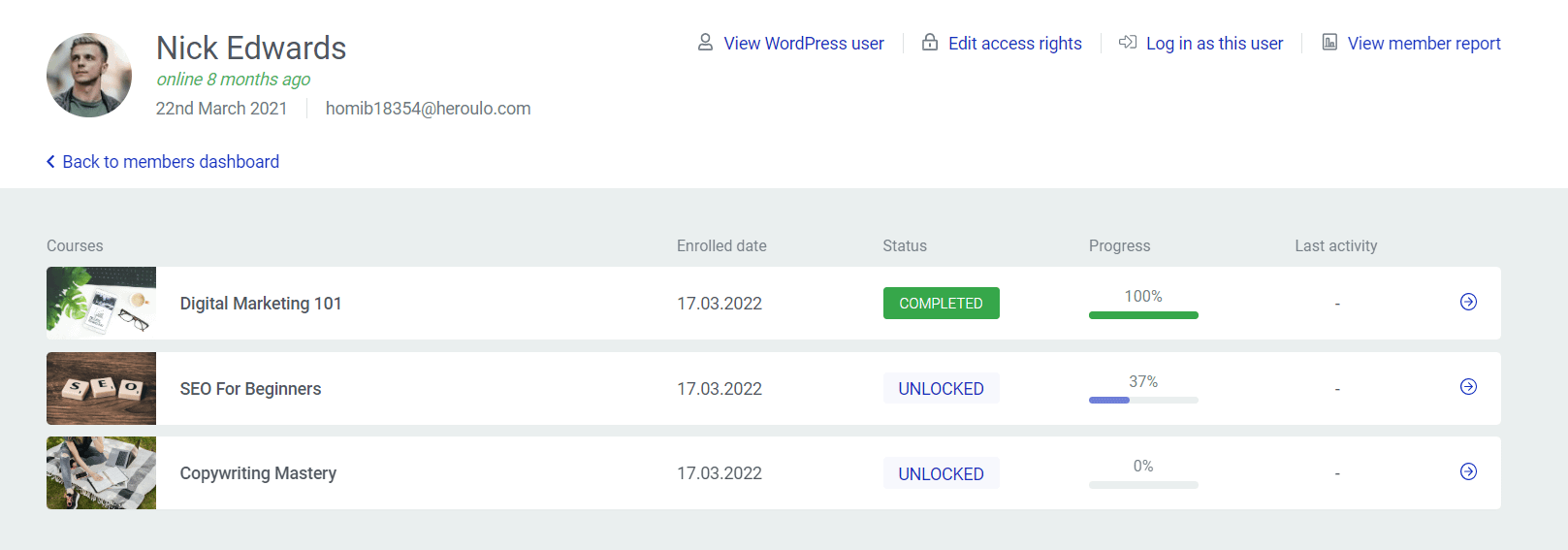
When you open a member’s dashboard, you can see the courses they are enrolled in along with key details for each course, including:
- The course name and enrollment status.
- Progress through the course.
- Enrollment date.
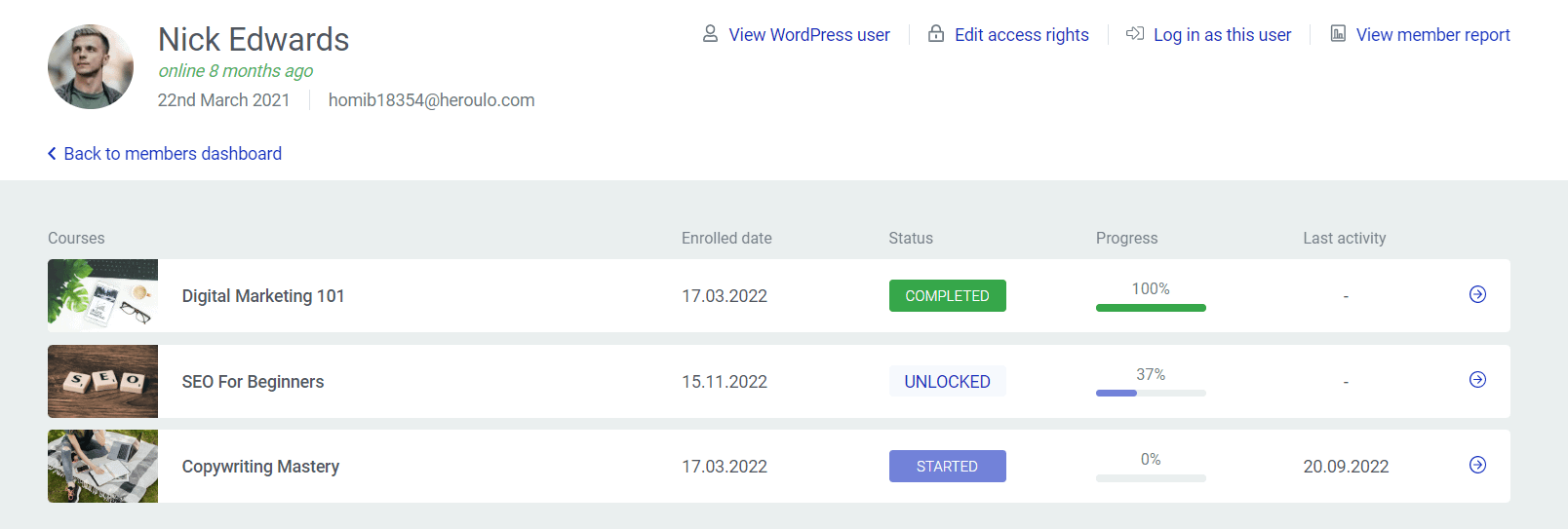
At the top of this dashboard, you’ll find four action buttons:
View WordPress User
Click this to view or edit the member’s WordPress user profile. This redirects you to the WordPress Users section where you can modify their account details.
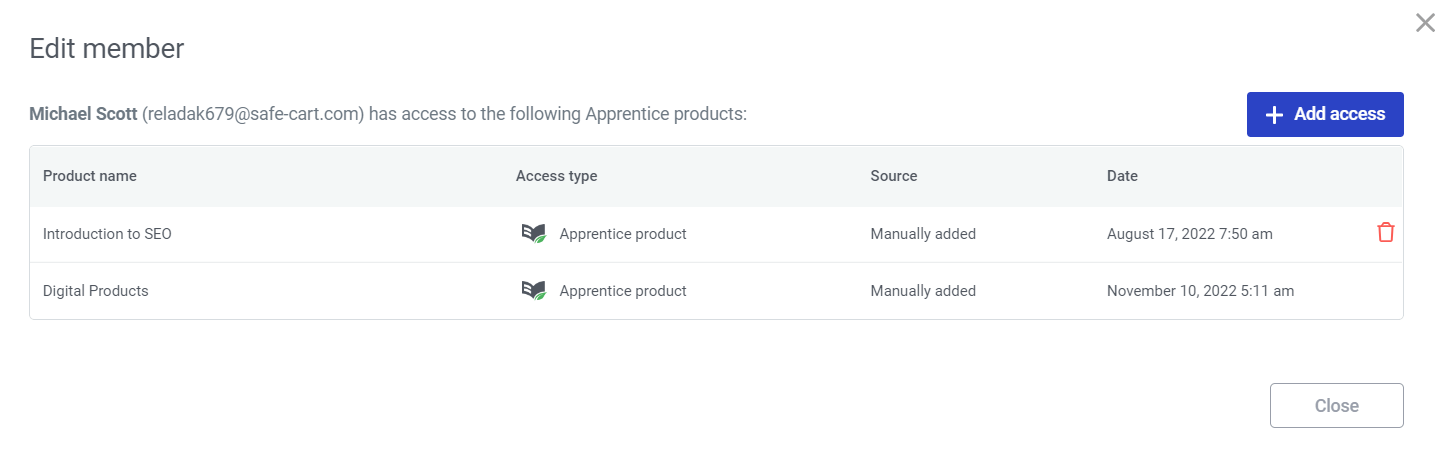
Edit Access Rights
Click this to open a lightbox where you can revoke or grant access to your Thrive Apprentice Products for this member. This is useful for manually adjusting what courses a student can access.
Log In as This User
Click this to log in as the selected member. You’ll be asked to confirm the action before proceeding. This is helpful for troubleshooting issues a student may be experiencing.
View Member Report
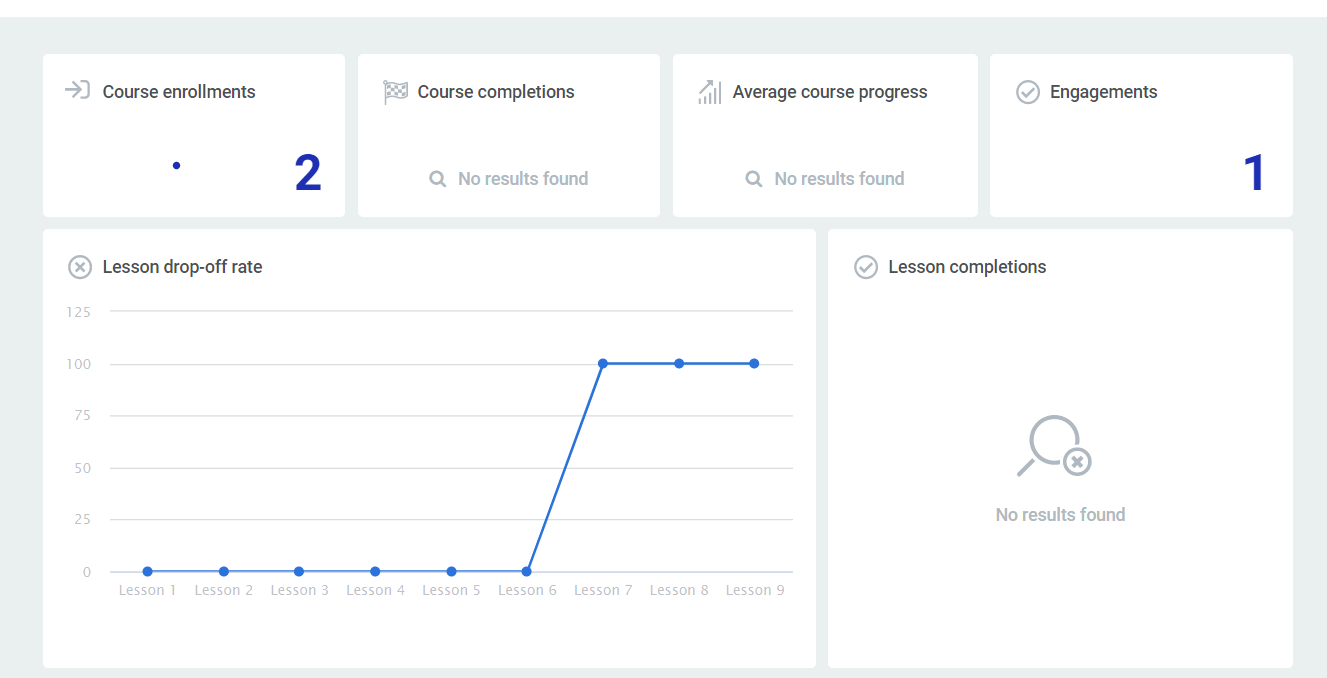
Click this to go to the main Course Dashboard in the Reports section, with the data automatically filtered to show only the selected member’s activity. From there, you can click through the available sub-menus to see enrollment dates, progress, drop-off rates, and more—all specific to this one student.
Viewing Course Details for a Member
To see how a specific member is progressing through a course:
- On the member’s dashboard, click on one of the listed courses.
- This expands the course to show the actual status of each module and lesson within that course.
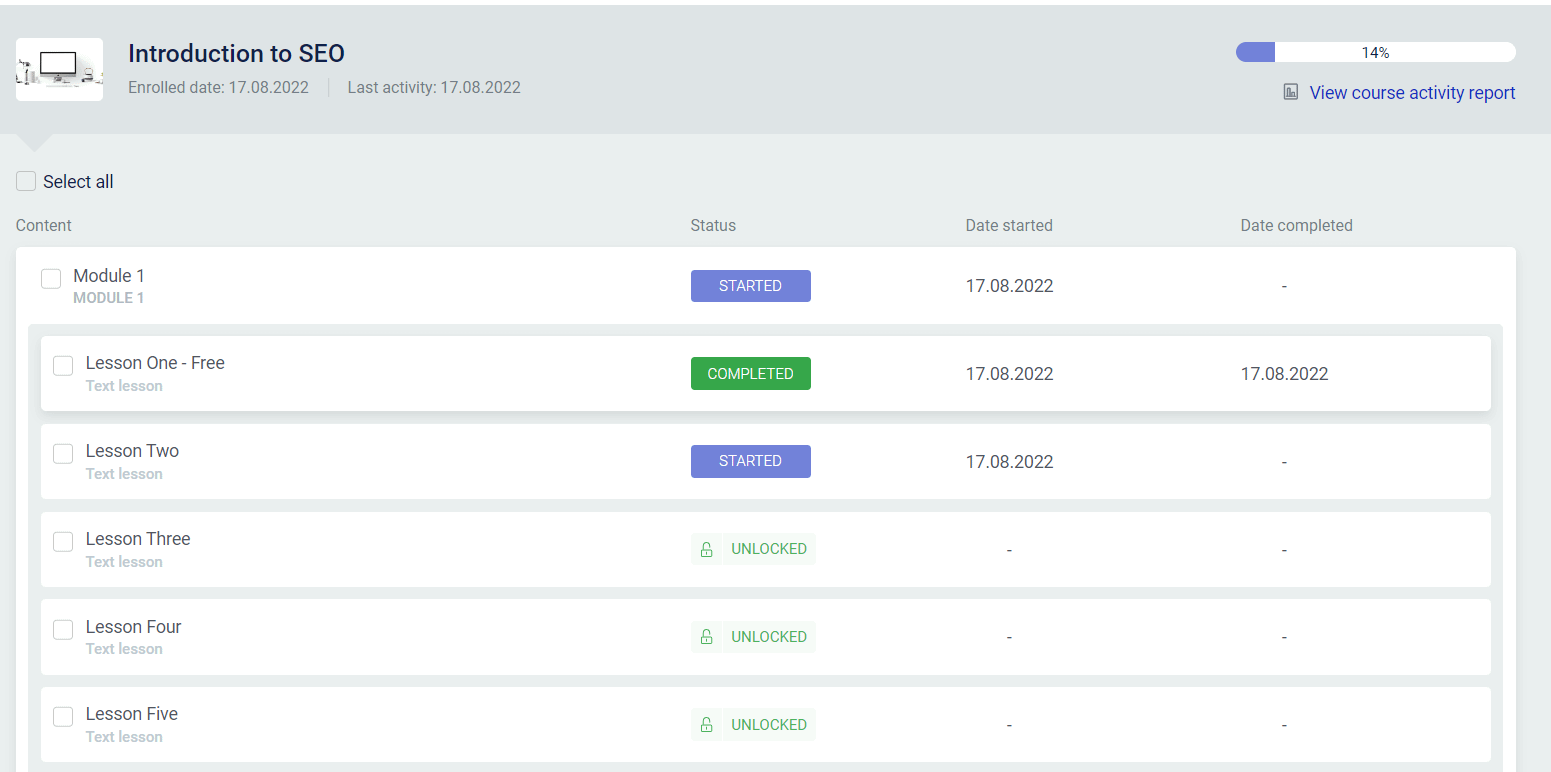
- A progress bar on the top right displays the overall completion level as a percentage.
Managing Lesson Status for a Member
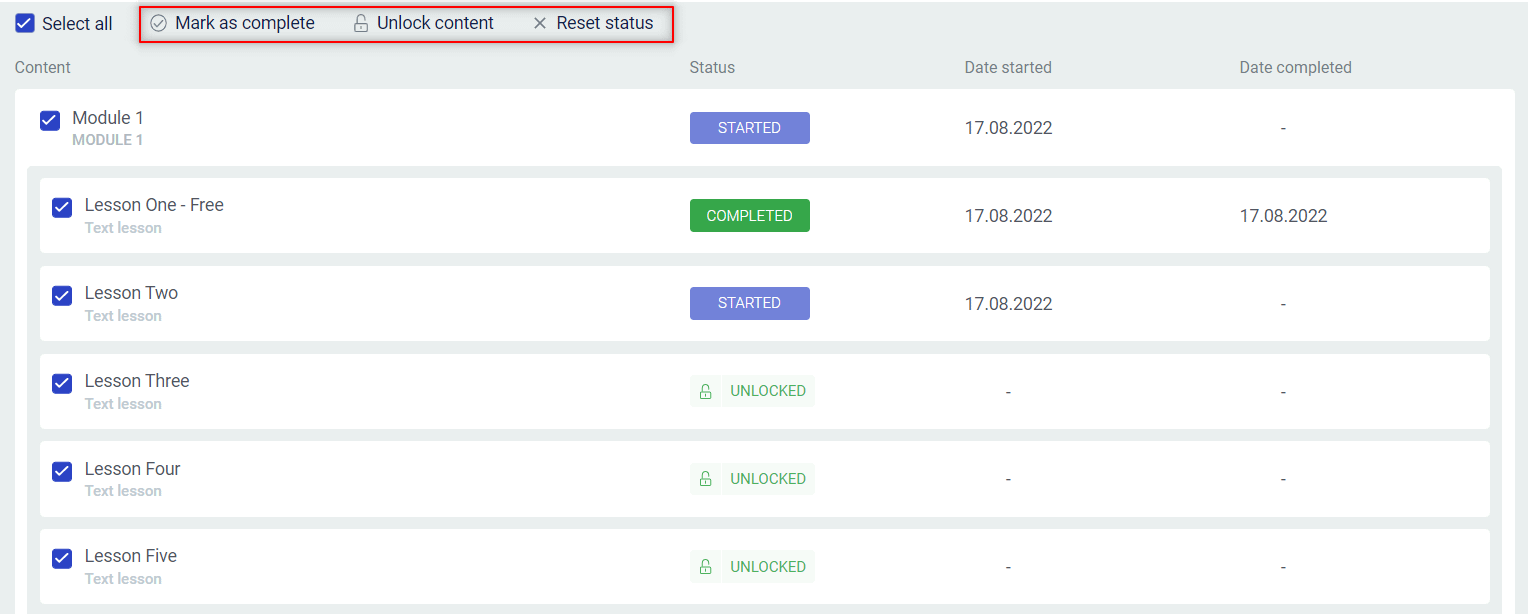
You can manage individual lessons or bulk-select multiple lessons from the course detail view. Select one or more lessons using the checkboxes (or use the Select all checkbox) to reveal the following actions:
- Mark as complete — Mark the selected lessons as complete on behalf of the student. The system will ask you to confirm the action and explain what will happen.
- Unlock content — Unlock locked lessons or modules for the student, bypassing any Drip schedule restrictions. You’ll be prompted to confirm before proceeding.
- Reset status — Reset the completion status of selected lessons, allowing the student to redo them. A confirmation prompt will appear before the reset is applied.
Viewing Course Activity Report
From the course detail view, click the View course activity report link to go to the Reports section filtered by this member and course. This gives you detailed insights into the student’s activity and progress within that specific course.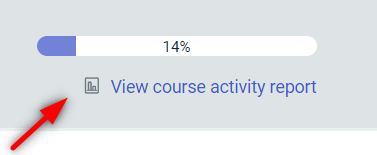
For more information about the Reports section, see How to Use the Reports Section in Thrive Apprentice.
That’s it! You now know how to view member data, manage lesson statuses, and access member-specific reports in Thrive Apprentice.
Related Resources
- Reports Section: Use the Reports section for aggregated data across all courses and students.
- Sorting by Enrollment Date: Learn how to sort students by enrollment date for quick organization.
- Managing Members: Review how to manage members and adjust course access.
- Certificates: See how to issue course completion certificates that appear in member profiles.