In this article, you’ll learn how to display featured images in your Thrive Theme Builder templates and why Thrive Theme Builder doesn’t have recommended featured image sizes.
Why There Are No Recommended Image Sizes
Unlike traditional WordPress themes that specify optimal featured image dimensions (e.g., 1200×628), Thrive Theme Builder does not provide recommended sizes. This is because Thrive Theme Builder is a visual builder—you can design any layout and size your images to fit your specific design.
Since every user’s template layout is different, a one-size-fits-all image recommendation wouldn’t be useful. Instead, consider the following when choosing featured image dimensions:
- Your template’s content width — If your content area is 800px wide, images wider than that will be scaled down.
- Your layout type — Full-width templates can use wider images than templates with sidebars.
- Retina displays — For sharp images on high-DPI screens, upload images at 2× the display size (e.g., if the image displays at 800px wide, upload it at 1600px wide).
- File size — Larger images increase page load times. Optimize images before uploading.
Displaying Featured Images at the Template Level
You control featured image display at the template level—meaning the setting applies to all pages or posts using that template.
Method 1: Using the Featured Image Element
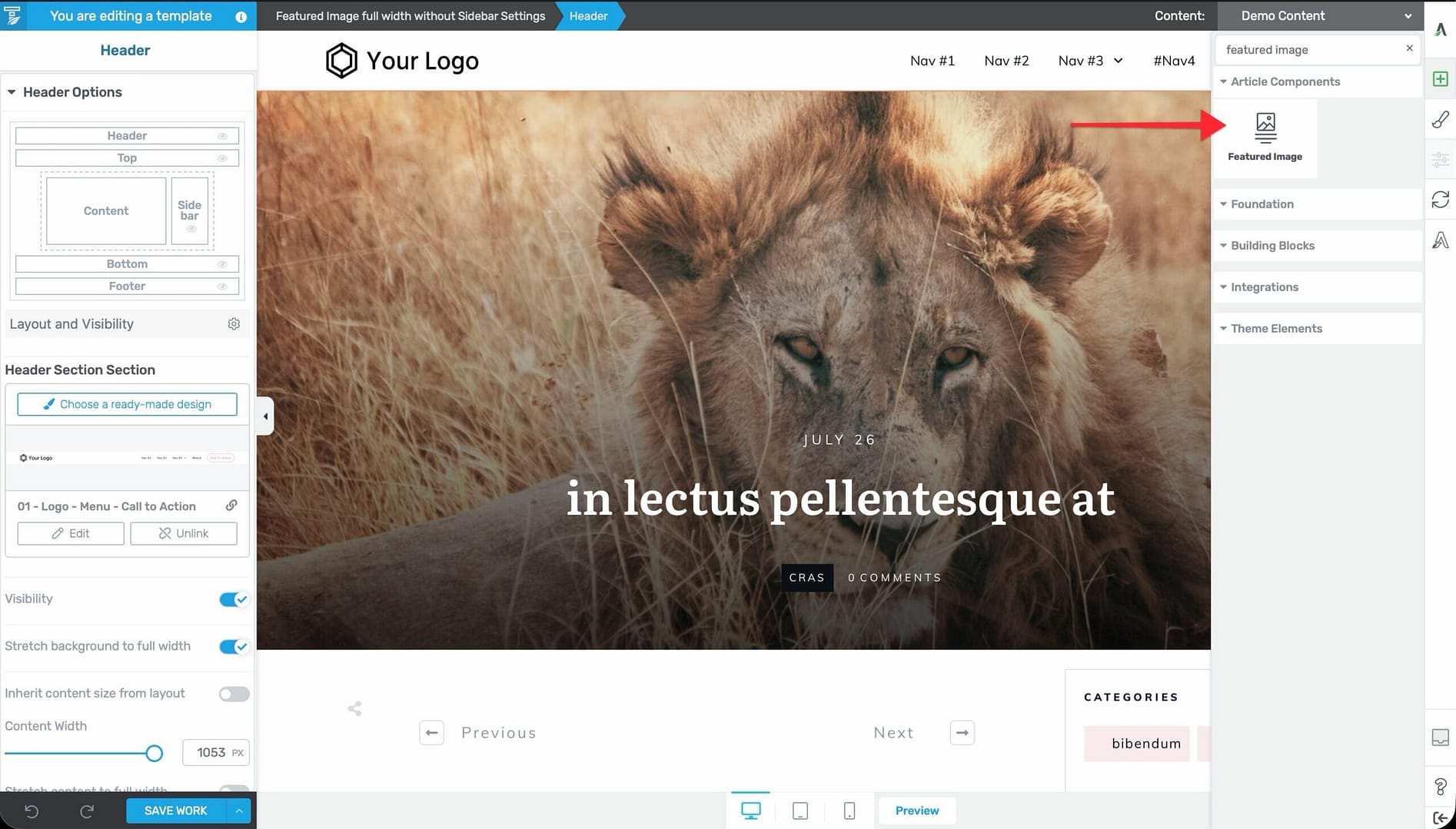
- Open the template in the Thrive Theme Builder editor.
- Click the plus (+) icon in the right sidebar to open the element panel.
- Search for Featured Image and drag the element to the desired position in the template.
- Configure the element’s size, alignment, and styling in the left sidebar.
To hide the featured image, simply remove the Featured Image element from the template.
Method 2: Using a Dynamic Image Element
You can also use a standard Image element with dynamic data to display the featured image:
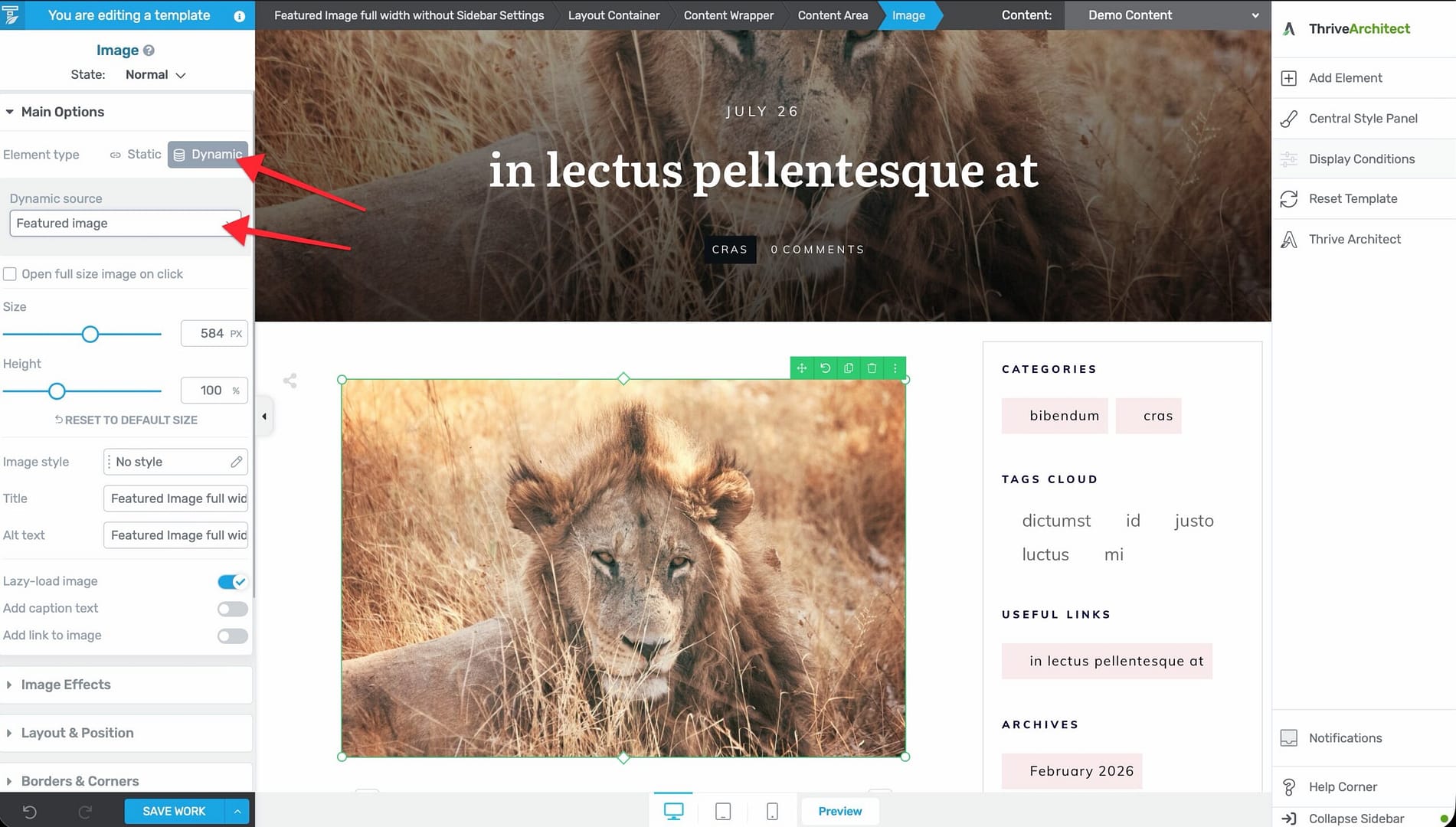
- Add an Image element to the template.
- In the image settings, link the image source to the Featured Image dynamic field.
- The element will dynamically pull the featured image from each post or page.
This method gives you more control over the image’s styling and behavior compared to the dedicated Featured Image element.
Displaying Featured Images at the Post/Page Level
For featured images to display on any template, the post or page must have a featured image set in its WordPress settings.
Setting a Featured Image on a Post or Page
- Open the post or page in the WordPress editor.
- In the right sidebar, locate the Featured Image section.
- Click Set Featured Image and select or upload an image from the Media Library.
- Save or update the post.
Controlling Featured Image Visibility
At the Template Level
- Show — Add the Featured Image element to the template. All posts/pages using that template will display their featured images.
- Hide — Remove the Featured Image element from the template. No featured images will display for content using that template.
At the Individual Post/Page Level
If the template includes a Featured Image element but you want to hide it on a specific post:
- Simply don’t set a featured image on that post. The element will show a placeholder or be empty.
- Alternatively, use conditional display settings (if available) to control visibility per post.
Best Practices
- Use consistent aspect ratios — Upload featured images with the same aspect ratio across your blog posts for a uniform look on archive pages and post lists.
- Optimize for web — Compress images before uploading to keep page load times fast. Tools like TinyPNG or ShortPixel can reduce file sizes without visible quality loss.
- Test with the template — After adding a Featured Image element to a template, preview it with several different posts to make sure the layout works with varying image sizes.
- Consider the blog list — Featured images appear not only on individual posts but also on your blog page and archive templates. Make sure images look good at both full size and thumbnail size.
Related Resources
- Creating Post Templates: Learn how to create and customize post templates.
- Using the Thrive Theme Builder Editor: Learn about the editor tools and interface.
- Template Settings & Defaults: Learn how to configure template settings.