In this article, you’ll learn how to install and activate Thrive Architect on your WordPress website using the Thrive Product Manager.
Thrive Architect is installed and managed through the Thrive Product Manager plugin—a centralized dashboard that handles all Thrive products on your site.
Prerequisites
Before installing Thrive Architect, make sure you have:
- An active Thrive Suite subscription or a standalone Thrive Architect license
- The Thrive Product Manager plugin installed and connected to your Thrive Themes account
- WordPress 5.0 or higher
- PHP 8.1 or higher
If you haven’t installed the Thrive Product Manager yet, log in to your Thrive Themes Member Dashboard and download it from there. Upload it via Plugins > Add New > Upload Plugin in your WordPress admin.
Installing Thrive Architect
- In your WordPress admin dashboard, click Product Manager in the left sidebar.
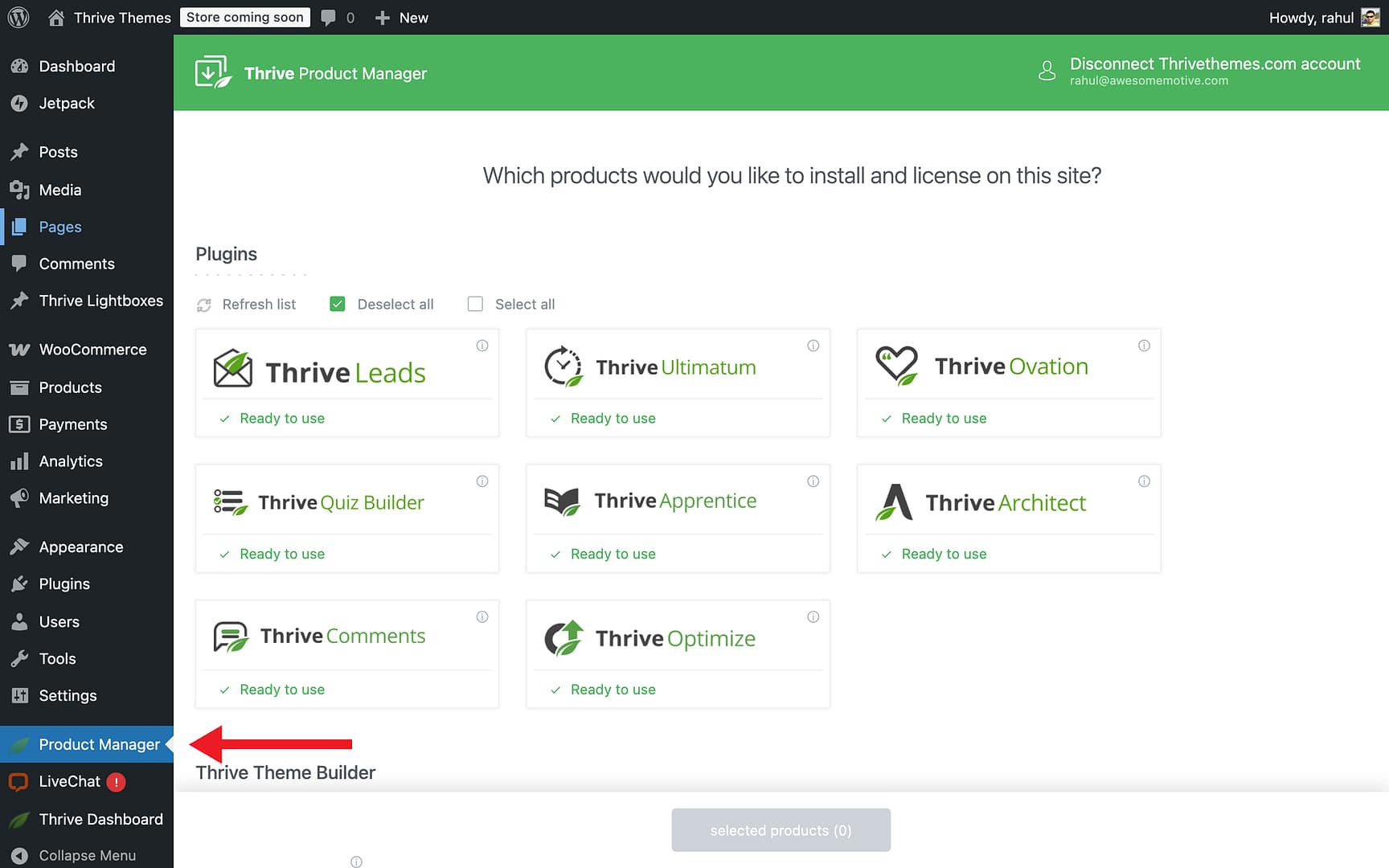
- In the Plugins section, find Thrive Architect in the list of available products.
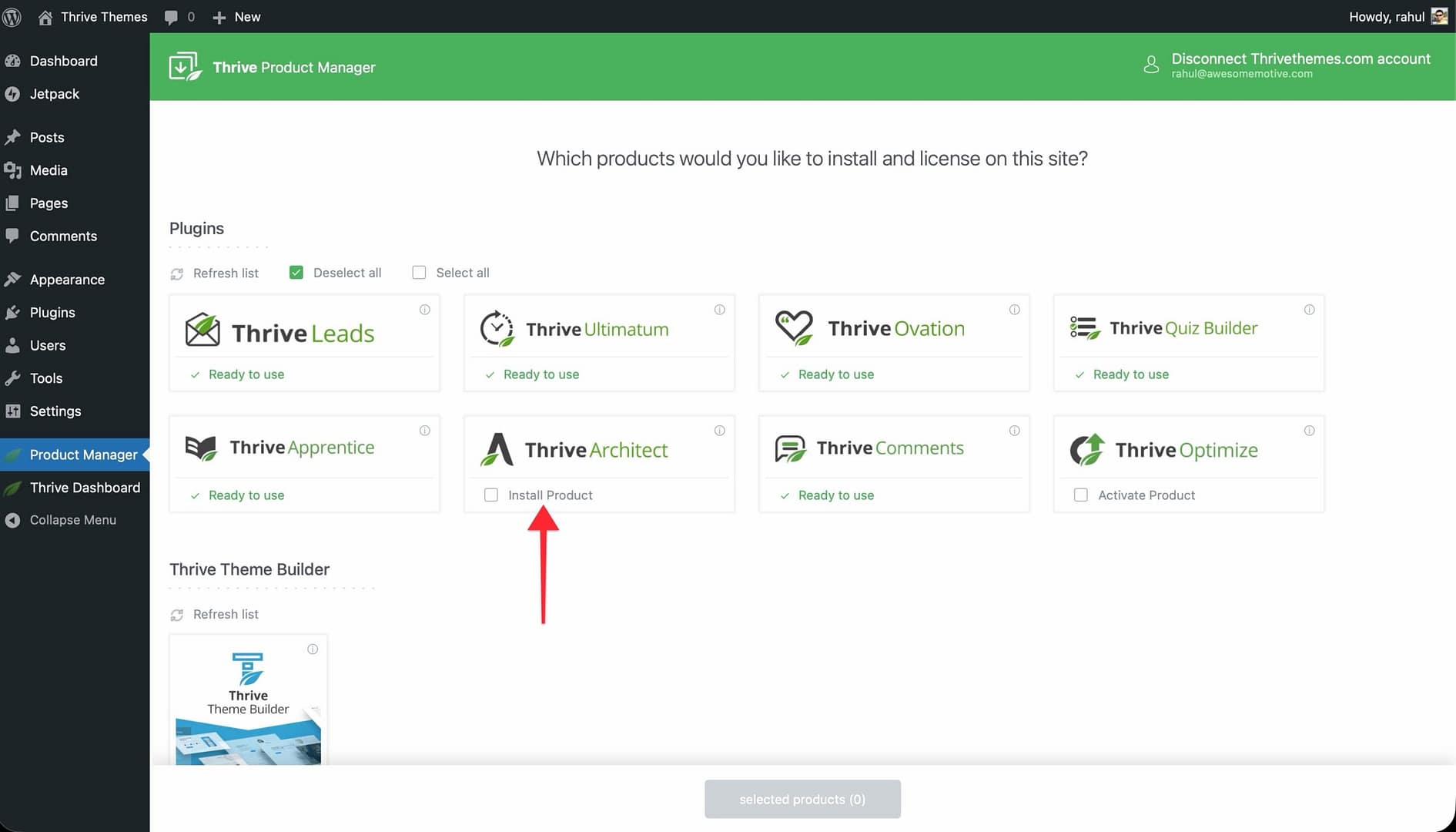
- Check the Install product checkbox next to Thrive Architect.
- Scroll down and click the Install selected products button.
- The installation process takes a few seconds. Once complete, the status will change to Ready to use.
Thrive Architect is now installed and activated on your website. You can start editing any page or post by clicking Launch Thrive Architect or Edit with Thrive Architect.
Verifying the Installation
To confirm Thrive Architect is working correctly:
- Go to Pages > Add New in your WordPress admin.
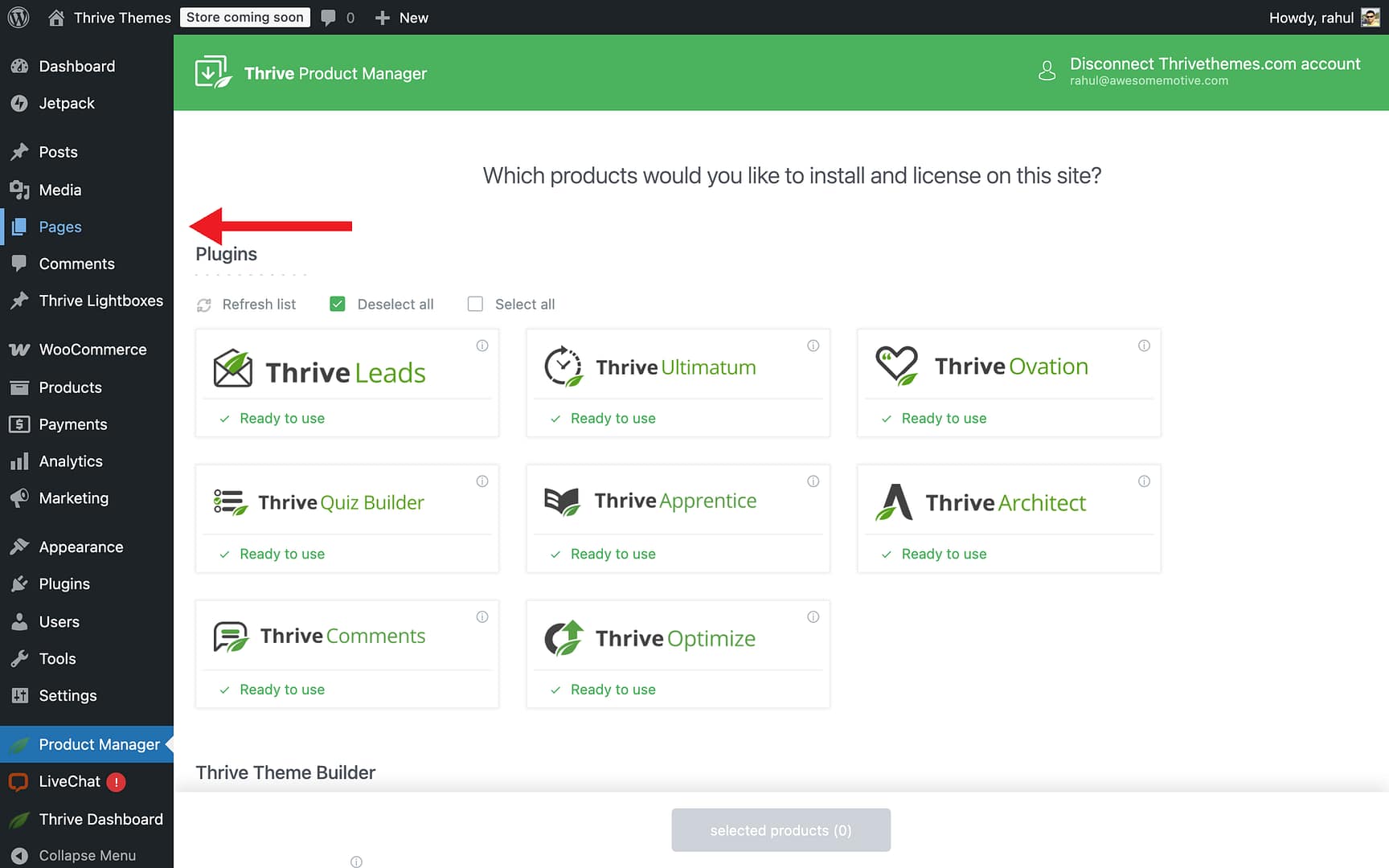
- Enter a title for the page.
- You should see the Launch Thrive Architect button below the title field.
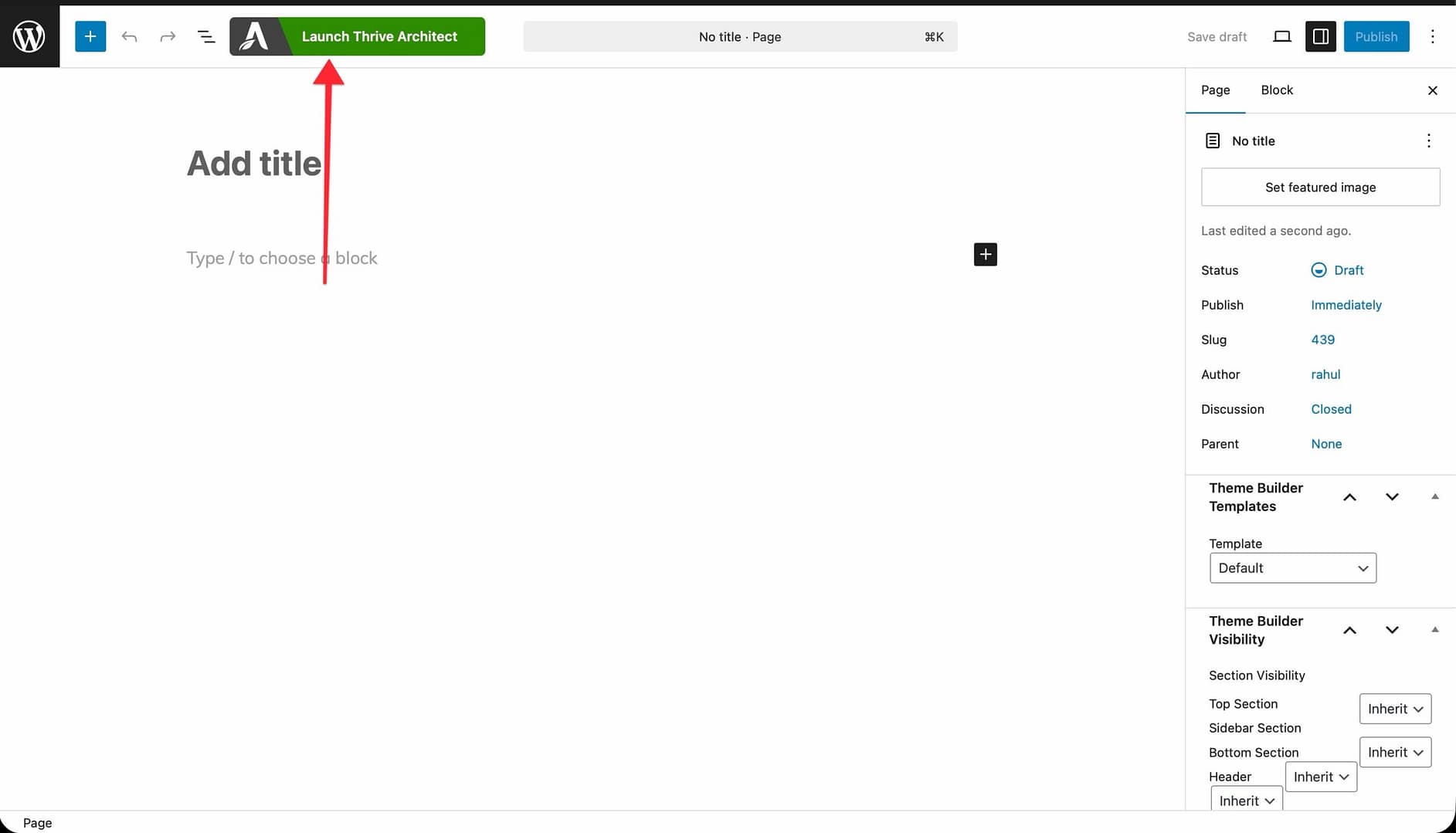
- Click it to open the visual editor. If the editor loads successfully, the installation is complete.
Updating Thrive Architect
Thrive Architect updates are delivered through the Thrive Product Manager:
- Go to Product Manager in the WordPress admin sidebar.
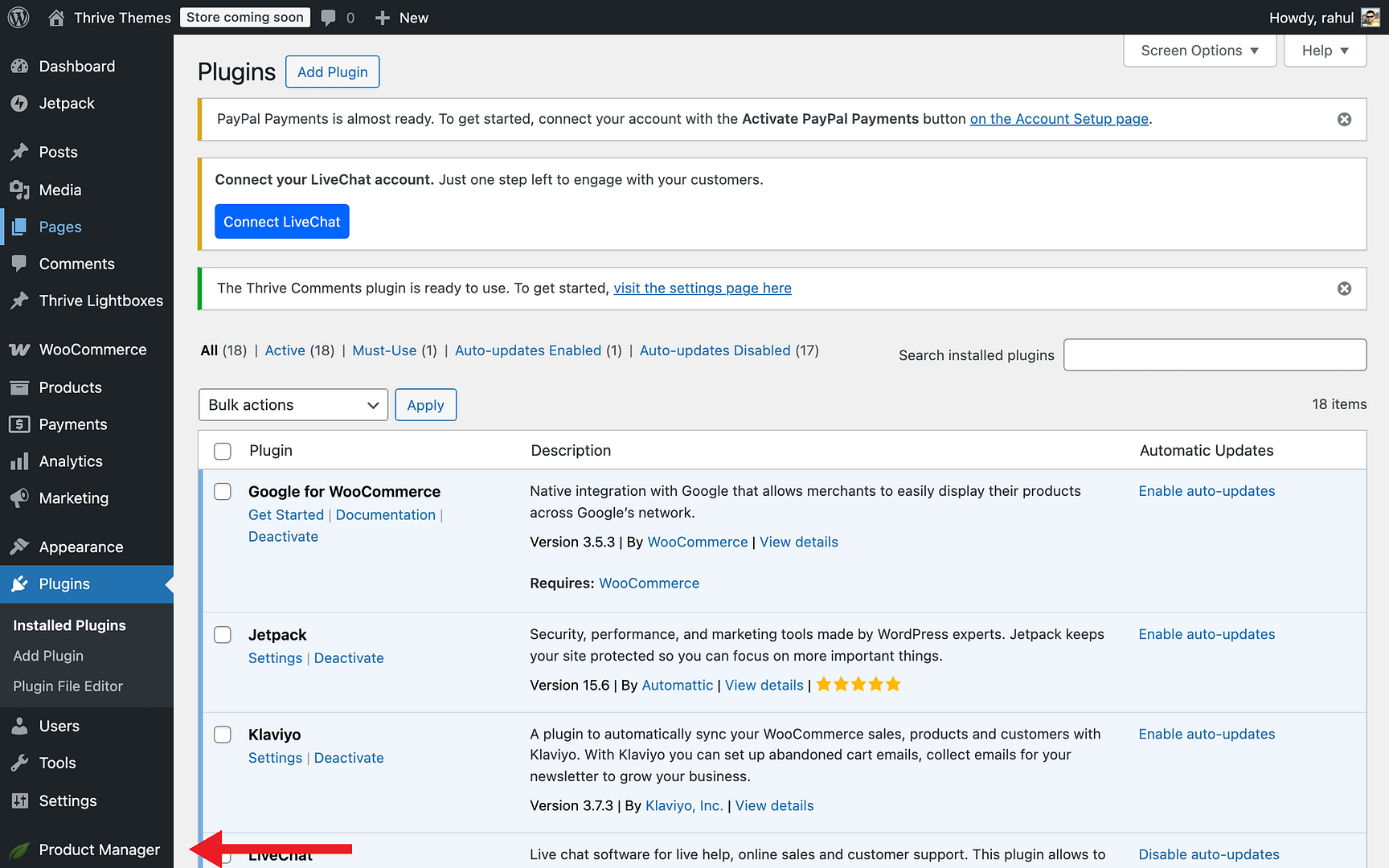
- If an update is available, you’ll see a notification next to Thrive Architect.
- Click Update to install the latest version.
You can also check for updates manually by going to Plugins in the WordPress admin and clicking Check for updates below the Thrive Architect plugin entry.
Related Resources
- Getting Started: Learn how to use the Thrive Architect editor and its interface.
- Editing Pages: Learn how to edit new and existing pages with Thrive Architect.