In this article, you’ll learn how to control which visitors see your forms, specifically how to hide forms from existing subscribers to improve user experience.
Hiding Forms for Already Subscribed Users
You don’t want to annoy your loyal subscribers with popups asking them to join a list they are already on. There are two ways to handle this.
Method 1: The “Already Subscribed” State (Recommended)
This relies on a cookie placed on the user’s browser after they sign up.
- Open your form in Thrive Architect.
- In the bottom right, click the Plus (+) to add a new state.
- Select Already Subscribed.
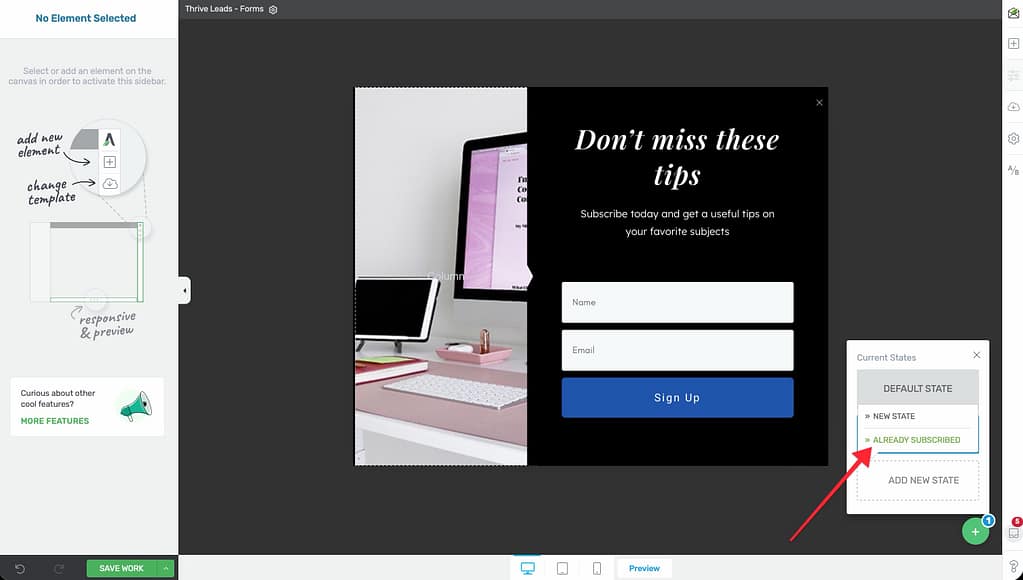
- Customize:
- Leave this state completely empty (delete all content) to show nothing.
- Or, add a small text link saying “You’re already subscribed! Click here to download.”

- Thrive Leads will automatically show this state instead of the default form if the visitor has the subscription cookie.
Method 2: Smart Links
Smart Links allow you to generate a special URL. If a visitor arrives via this URL, Thrive Leads knows they are a subscriber.
Using Smart Links
Use Case: You send a newsletter to your existing subscribers linking to a blog post. You want to ensure they don’t see the “Subscribe Now” popup on that post.
- Go to Thrive Dashboard > Thrive Leads.
- Click Advanced Features (top right) > Smart Links.
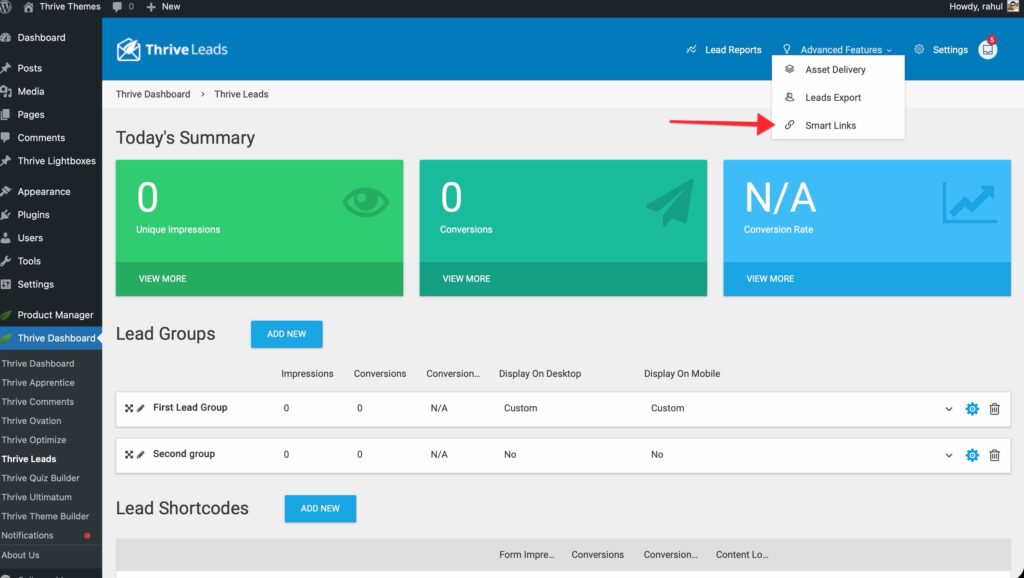
- Step 1: Where to go?: Enter the URL of the page you are sending them to (e.g., your new blog post).
- Step 2: Target: Choose which Lead Group to affect (usually “All groups”).
- Step 3: Action: Choose Hide all forms (or “Show already subscribed state”).
- Result: Thrive Leads generates a link like
yourdomain.com/blog-post?tl_hide=1.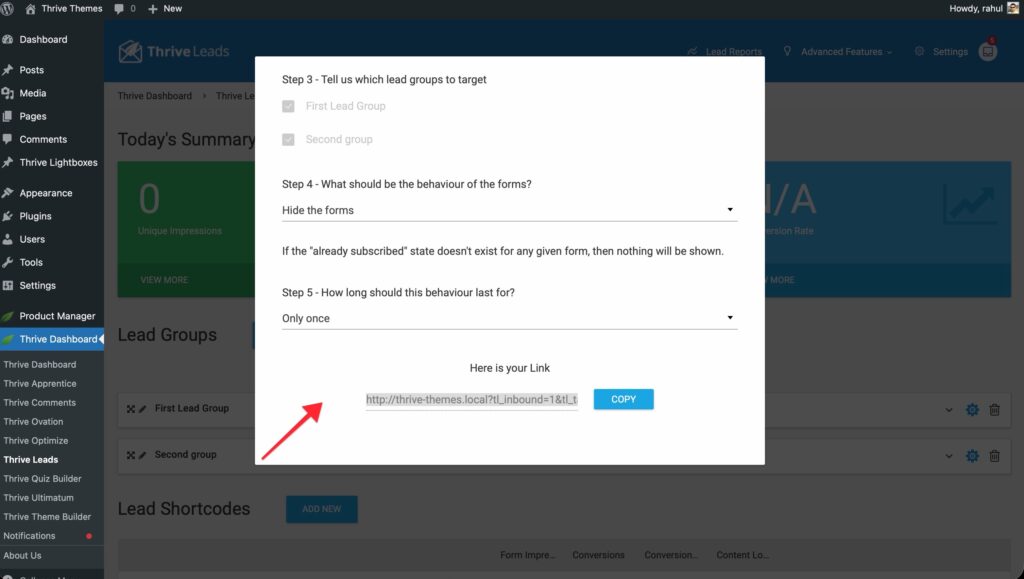
- Copy this link and use it in your email campaign.
Signup Segue (One-Click Signup)
Signup Segue allows you to register existing subscribers for new offers (like a webinar) without making them fill out a form again.
- Create a Signup Segue campaign in the Thrive Leads Dashboard.
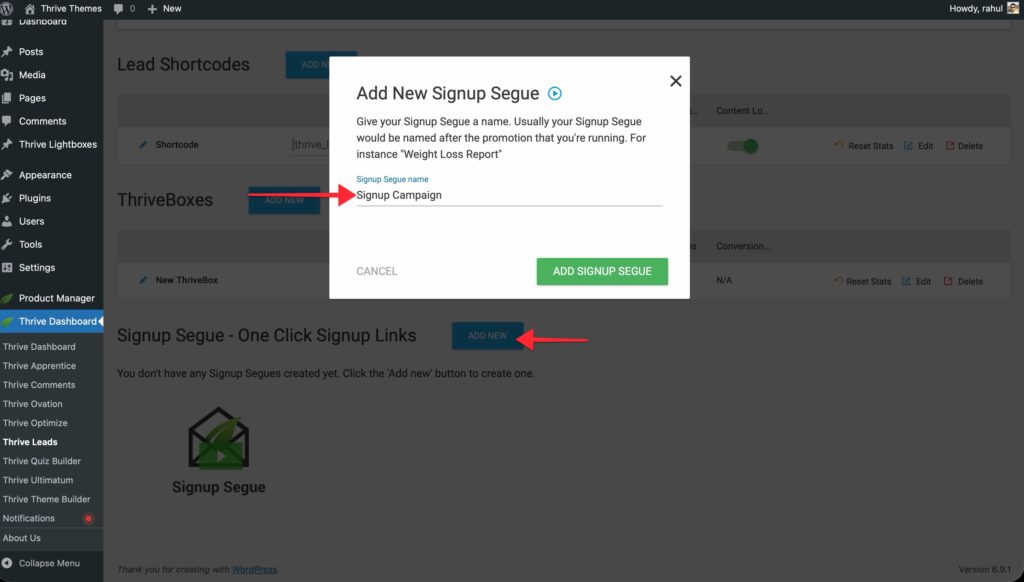
- Configure the “Target URL” (Thank You page for the webinar).
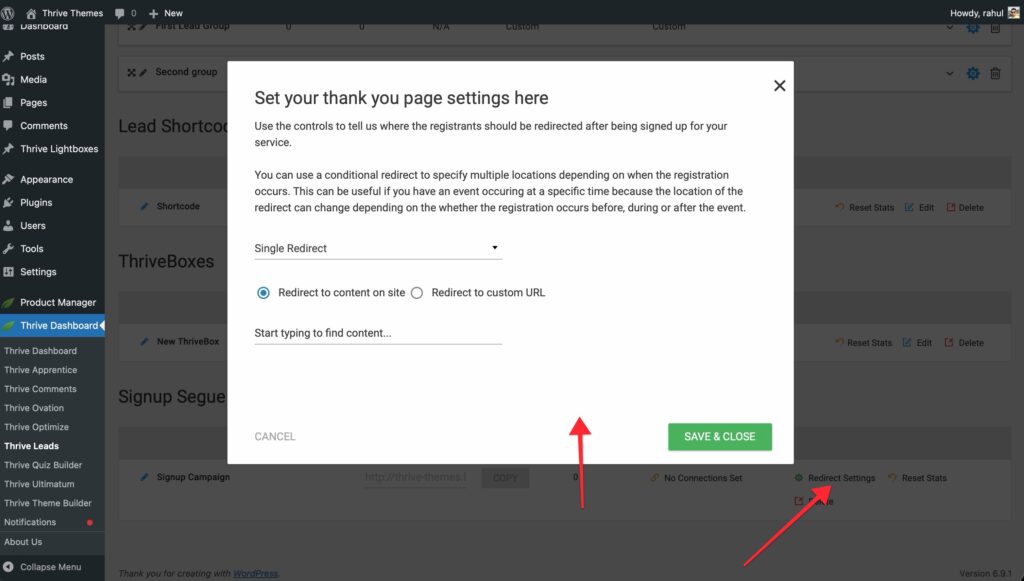
- Thrive Leads generates a specialized link.
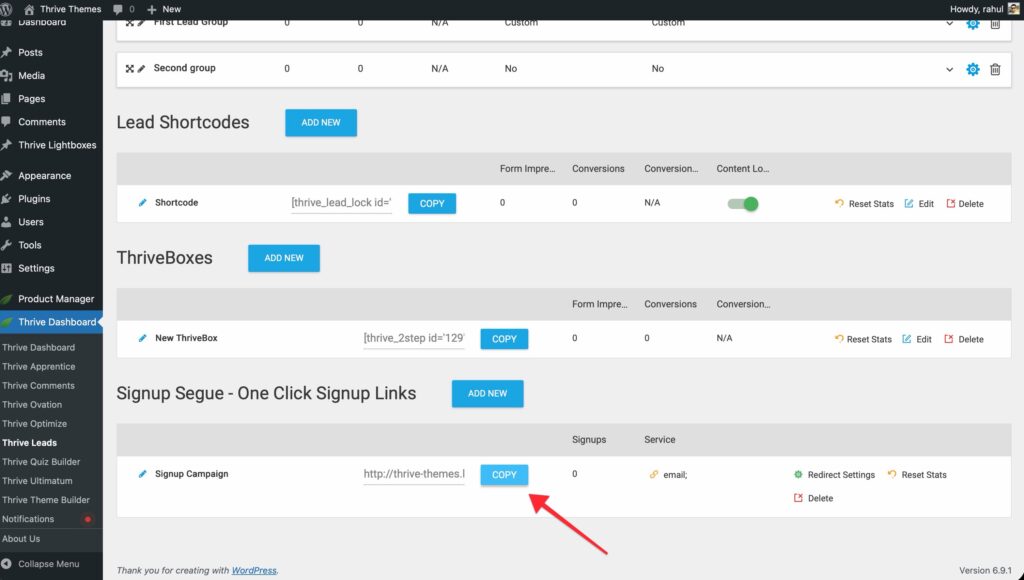
- Send this link to your email list. When they click it, they are automatically added to the new list/group and redirected to the Thank You page.
That’s it! You now have full control over what your subscribers see.