Building a great quiz is only half the battle. In this article, you’ll learn how to display your quiz on your website using Thrive Architect, shortcodes, or by triggering it from a button.
Method 1: Using the Thrive Architect Quiz Element
If you are using Thrive Architect to build your pages, this is the most flexible and recommended method.
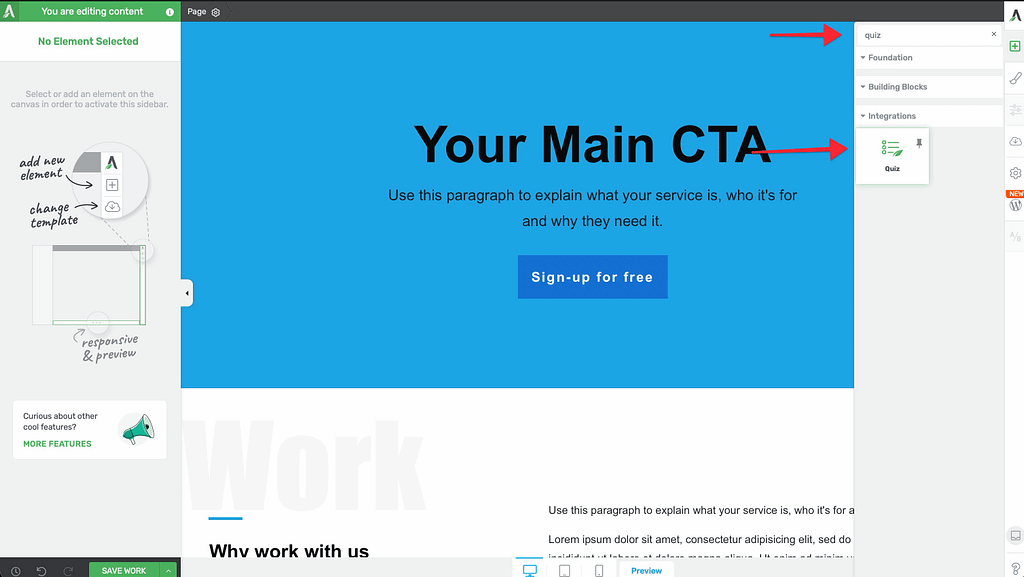
- Open any page or post in the Thrive Architect editor.
- Click the Add Element (+) button in the right sidebar.
- Search for the Quiz element and drag it into your content area.
- In the pop-up that appears, select the quiz you want to display.
- Click Select Quiz.
Customizing the Display
Once the element is added, you can adjust the Alignment, Margins, and Responsiveness settings in the sidebar, just like any other Architect element.
Method 2: Using a WordPress Shortcode
If you are using the WordPress block editor (Gutenberg) or a different page builder, you can use a shortcode.
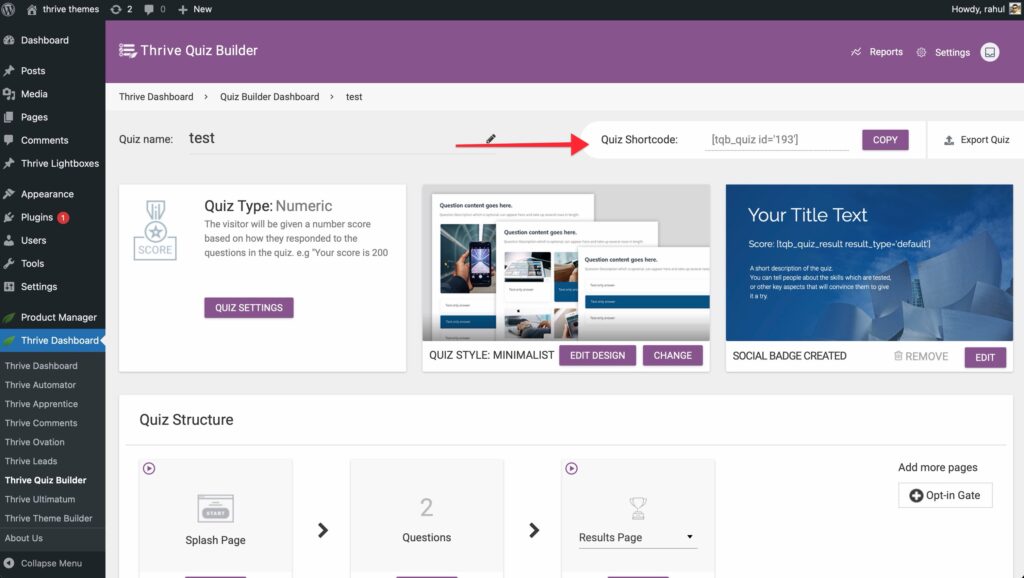
- Navigate to your Thrive Quiz Builder dashboard.
- Locate your quiz and find the Shortcode card.
- Copy the code (it will look like
- Paste this code into a Shortcode Block, a Custom HTML block, or any text editor on your site.
Method 3: Triggering a Quiz from a Button (Popup)
You can launch your quiz in a lightbox (popup) when a user clicks a button. This is a great way to save space while keeping the quiz easily accessible.
- Create a Thrive Lightbox (or a ThriveBox in Thrive Leads) and paste your Quiz Shortcode inside it.
- On your main page, select the Button element you want to use as a trigger.
- In the sidebar, go to Main Options > Animation & Action.
- Click the Pencil Icon next to the action list.
- Select Thrive Lightbox and choose the lightbox you created in Step 1.
- Click Apply.
Method 4: Displaying Quizzes in Thrive Apprentice
You can add quizzes directly to your course lessons to test student knowledge.
- In the Thrive Apprentice course editor, open a Lesson.
- Drag and drop the Quiz element into the lesson content.
- Choose your quiz.
- Pro Tip: Under Apprentice options in the sidebar, you can enable a toggle to mark the lesson as complete only after the student completes the quiz.
Related Resources
- Getting Started: How to Build Your First Quiz Using Thrive Quiz Builder
- Navigation: Quiz Navigation, Progress Bars & Flow Control
- Results: How to Customize Your Quiz Results Page
- Thrive Quiz Builder Documentation: Explore the full Thrive Quiz Builder knowledge base