In this article, you’ll learn how to navigate the Templates section in the Thrive Theme Builder dashboard—including viewing, filtering, searching, editing, and managing your templates.
Accessing the Templates Section
- In the WordPress admin dashboard, hover over Thrive Dashboard in the left sidebar.
- Click Thrive Theme Builder.
- Click Templates in the left sidebar of the Thrive Theme Builder dashboard.
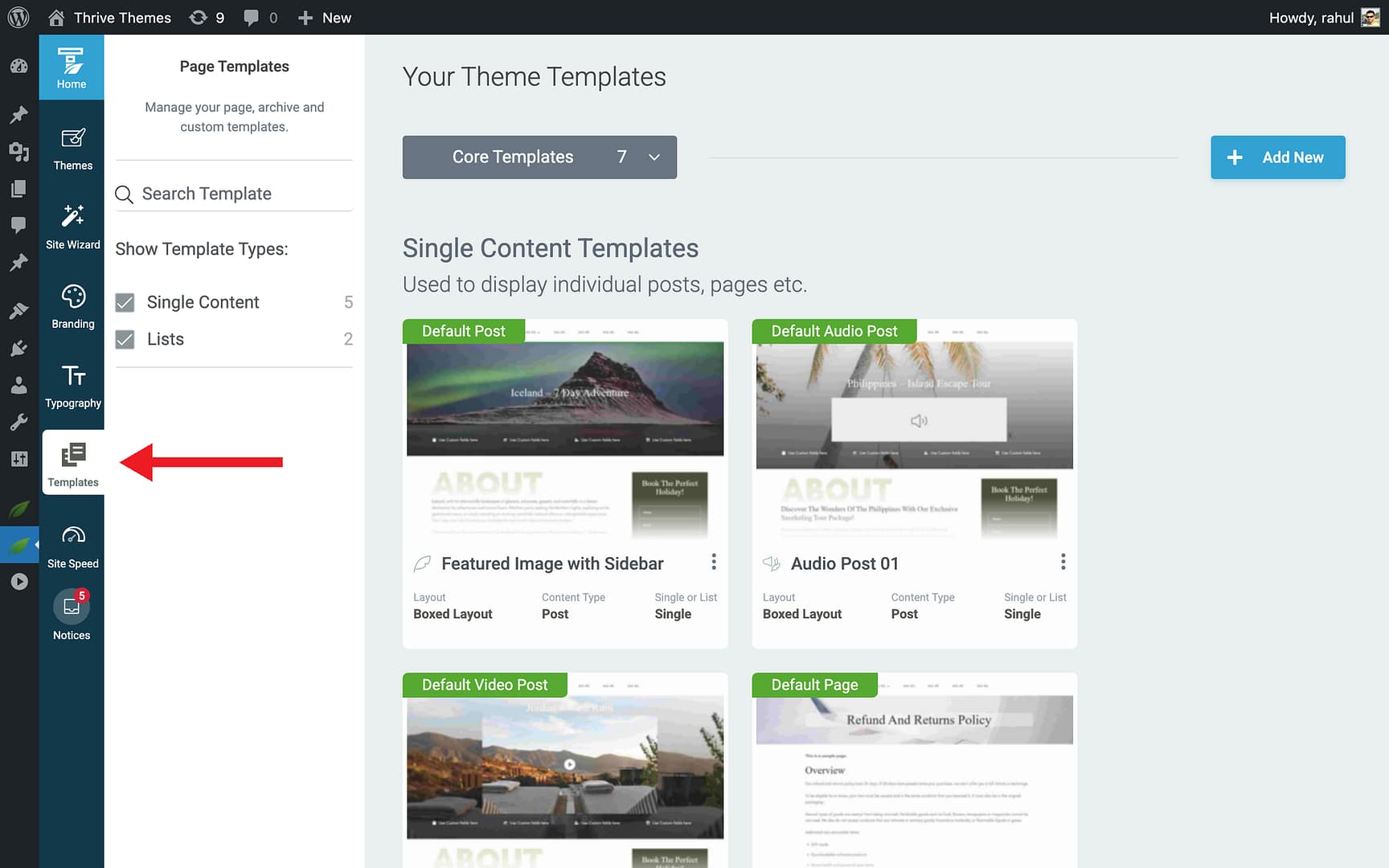
The Templates section displays your templates in a grid view, with the Core Templates group selected by default.
Viewing Template Groups
Use the dropdown at the top of the template list to switch between template groups:
- Click the Core Templates dropdown field at the top of the template list.
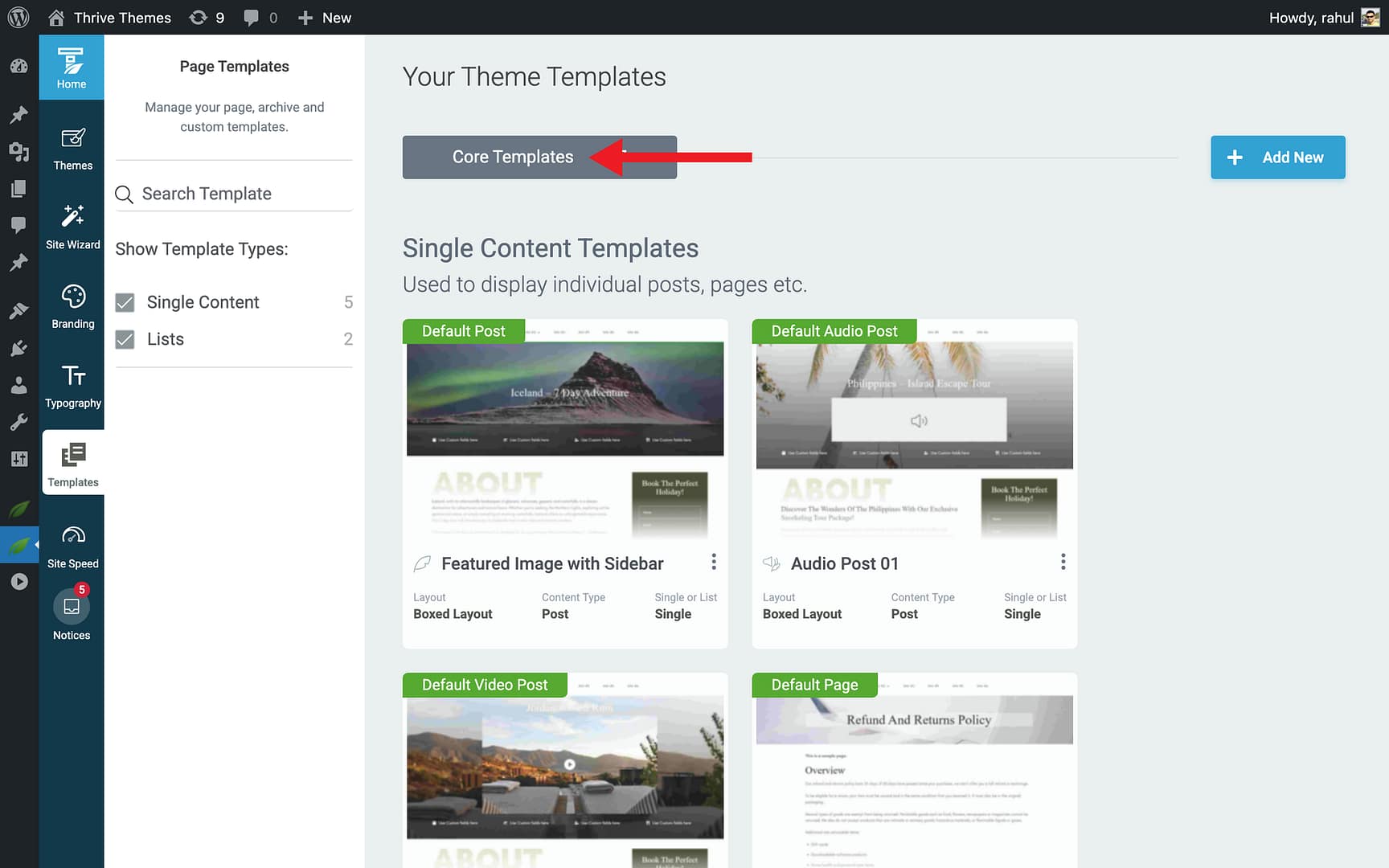
- Select the group you want to view:
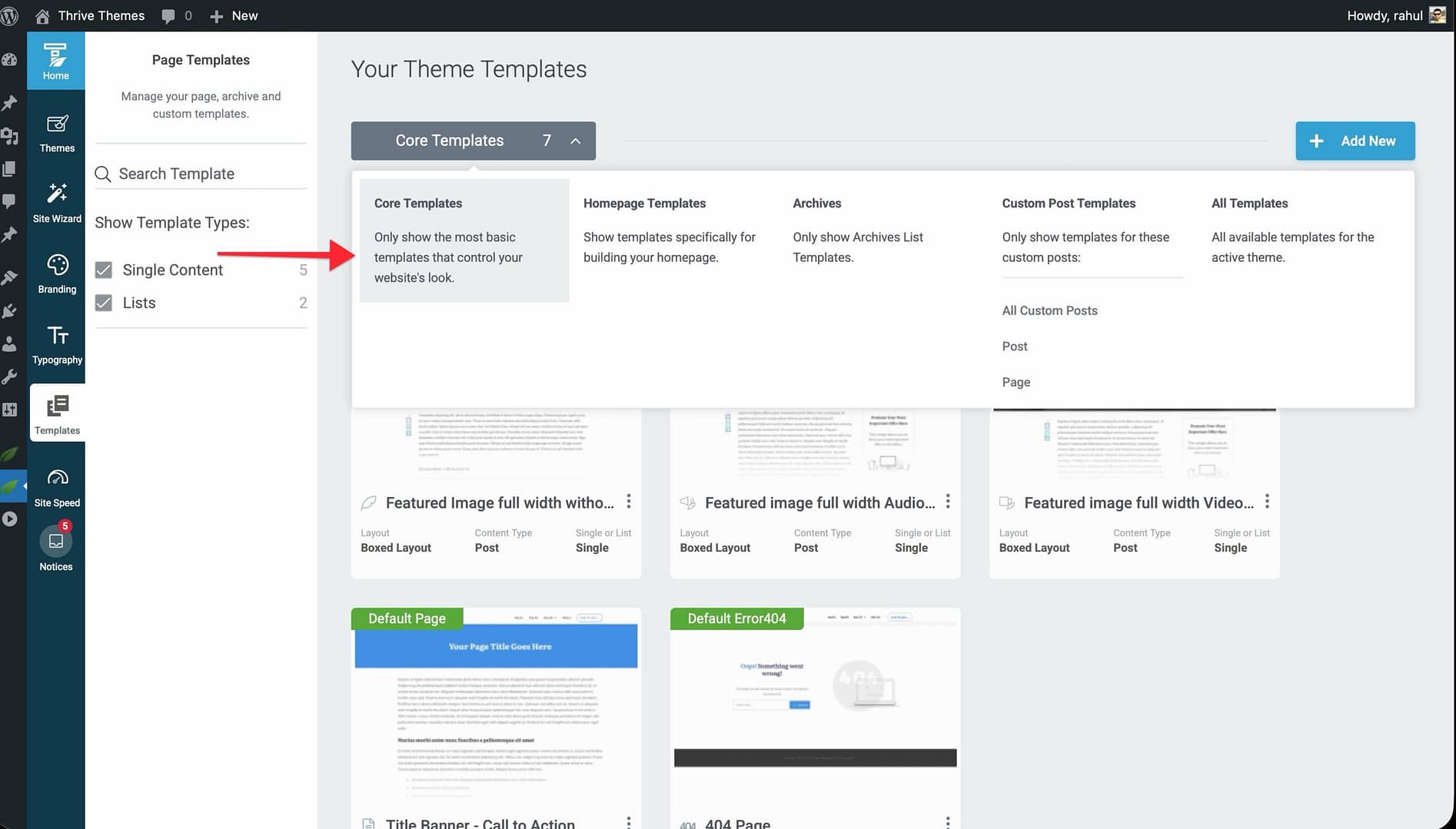
- Core Templates — The default templates for each content type.
- Homepage Templates — All homepage template variations.
- Archives — All list templates (blog, archives, search).
- Custom Post Templates — Templates organized by content type (All Custom Posts, Posts, Pages).
- All Templates — Every template in the theme.
Note: Your selected view persists. The group you choose remains active until you select a different one.
Filtering Templates
The left sidebar includes a Show Template Types filter that lets you control which template types are visible in the grid.
- Look for the Show Template Types section on the left side of the Templates page.

- Click a template type to toggle its visibility. A checkmark appears next to selected types.

- Only templates matching the selected types are displayed in the grid.

This is useful when you want to focus on a specific type—for example, showing only list templates or only post templates.
Searching for a Template
- Locate the Search Template field on the left side of the Templates page.
- Start typing a template name.

- The template grid filters in real-time to show matching results.

Editing a Template
- Hover over the template you want to edit.
- Click the Edit button that appears.
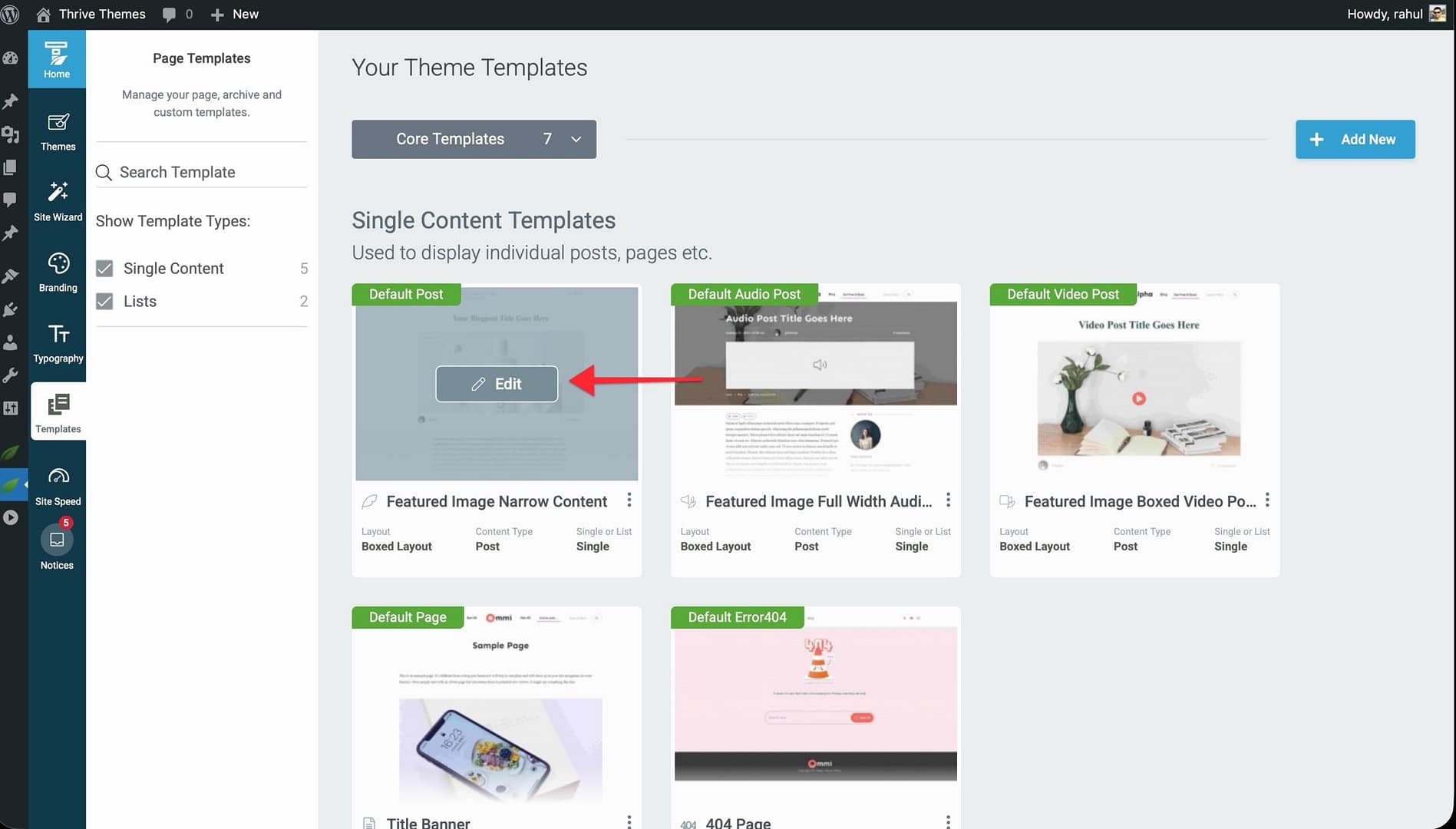
- The template opens in the Thrive Theme Builder editor, where you can modify the design, layout, and content elements.
Managing Templates
Hover over any template and click the More option (three-dots icon) to access management actions:
- Preview — View how the template looks with sample content without making changes.
- Set as default — Make this template the default for its content type. All new pages or posts of that type will use this template unless a different one is manually assigned.
- Rename — Change the template’s name.
- Delete — Permanently remove the template. This cannot be undone.
- Duplicate — Create a copy of the template. The duplicate is independent—changes to the copy do not affect the original.
- Reset — Revert the template to its original design (the design it had when first created or downloaded from the cloud).
Important: You cannot delete a template that is set as the default. To delete it, first set another template as the default, then delete the old one.
Adding a New Template
- Click the Add New button in the top-right corner of the Templates section.
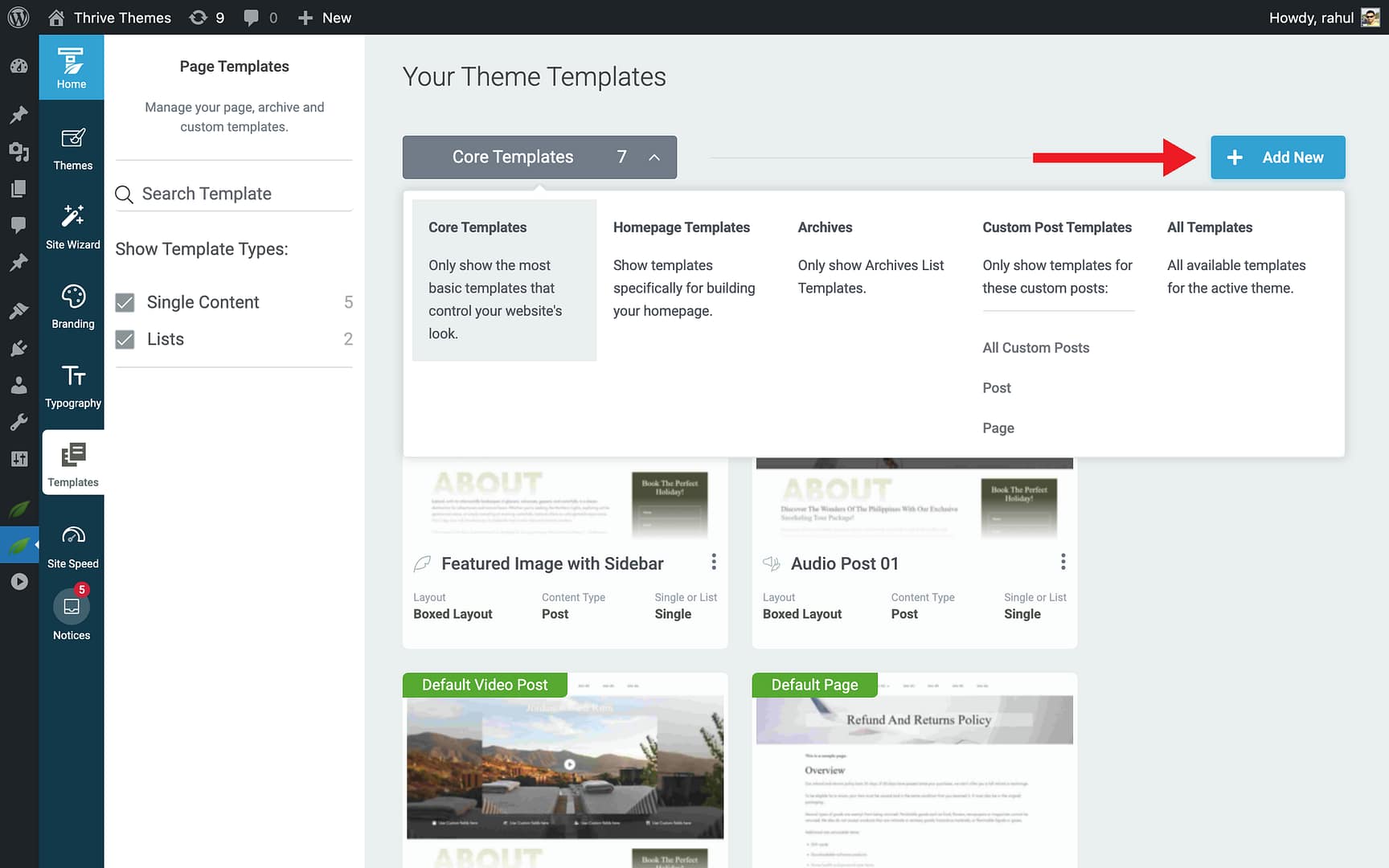
- A popup opens where you configure the new template:
- New Template Name — Enter a descriptive name.
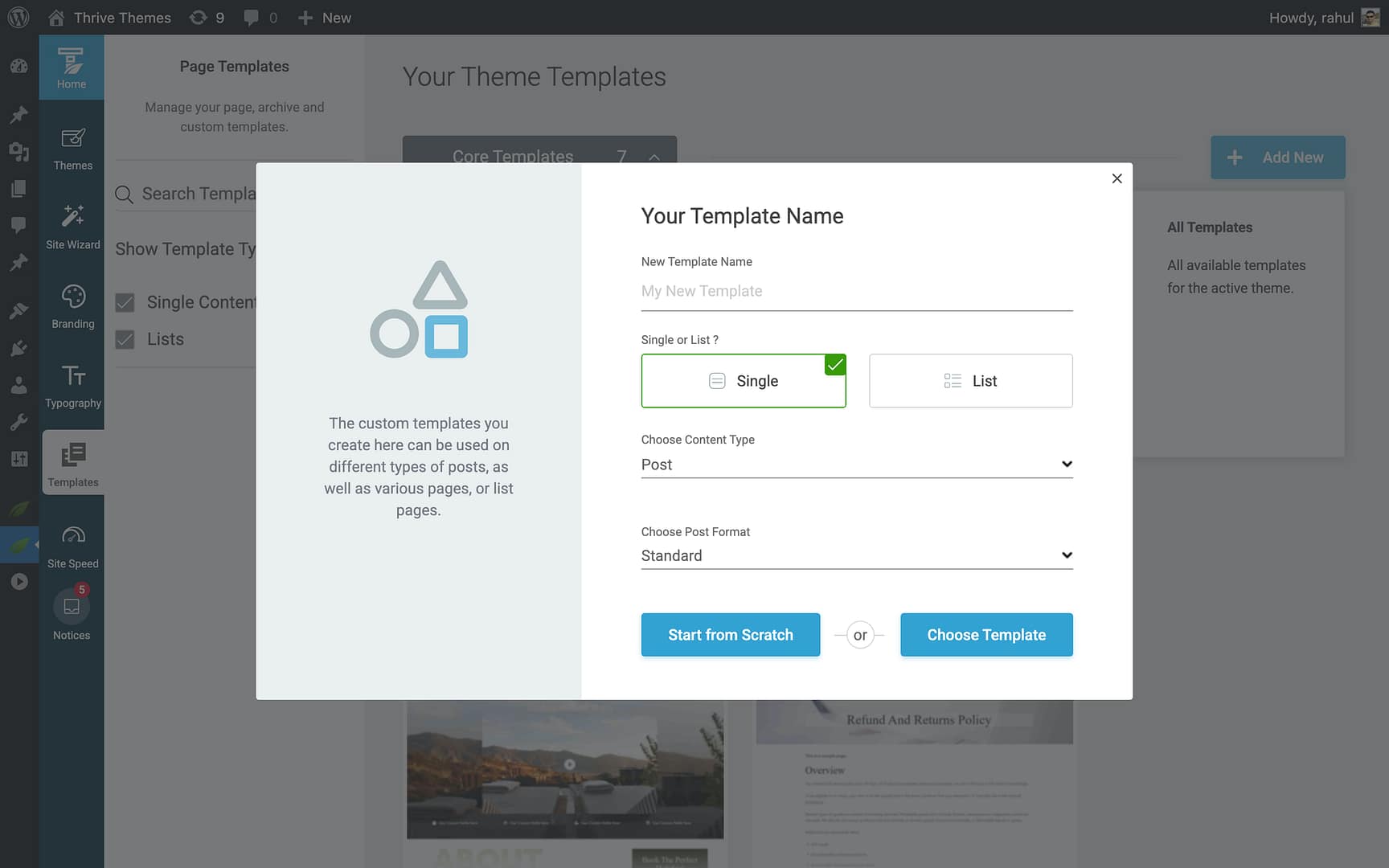
- Single or List? — Click Single (for individual pages or posts) or List (for archive and list pages).
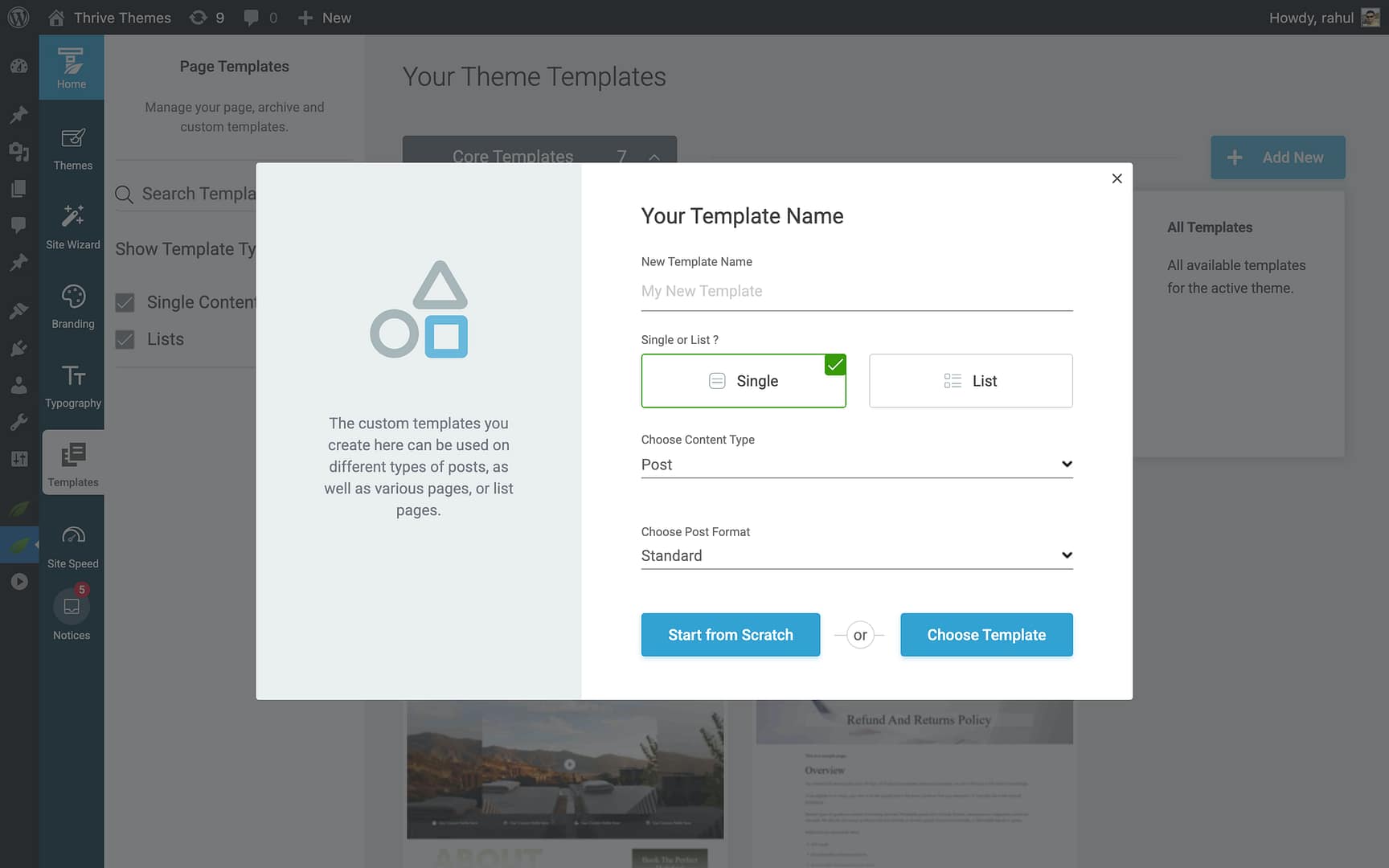
- If you selected Single: A Choose Content Type dropdown appears where you select the content type (Post, Page, Homepage, 404, or any custom post type). If you select Post, a Choose Post Format dropdown appears where you select Standard, Image, Video, or Audio.
- If you selected List: Dropdowns appear for configuring the list type (Post Types, Archives, or Search).
- New Template Name — Enter a descriptive name.
- Choose how to start:
- Start from Scratch — Creates a blank template that you design from the ground up.
- Choose Template — Opens the template library with pre-designed templates you can use as a starting point.
For detailed instructions on creating specific template types, see the related resources below.
Related Resources
- Understanding Templates: Learn about template types, core templates, and how templates work.
- Creating Post Templates: Learn how to create and customize post templates.
- Creating Page Templates: Learn how to create and customize page templates.
- Creating List & Archive Templates: Learn how to create list and archive templates.