Syncing quiz results with your email marketing service (CRM) allows you to build highly targeted marketing campaigns. In this article, you’ll learn how to map quiz results to custom fields in your autoresponder.
Step 1: Connect Your Service
Before you can sync data, ensure your email marketing service (e.g., ActiveCampaign, Mailchimp, HubSpot) is connected to your Thrive Dashboard via API.
Step 2: Map Quiz Results to Custom Fields
Once connected, you can tell Thrive Quiz Builder exactly which “bucket” or field in your CRM should store the user’s quiz result.
- Open your Opt-in Gate or Results Page in the Thrive Architect editor.
- Select the Lead Generation element.
- In the sidebar, click on Form Fields.
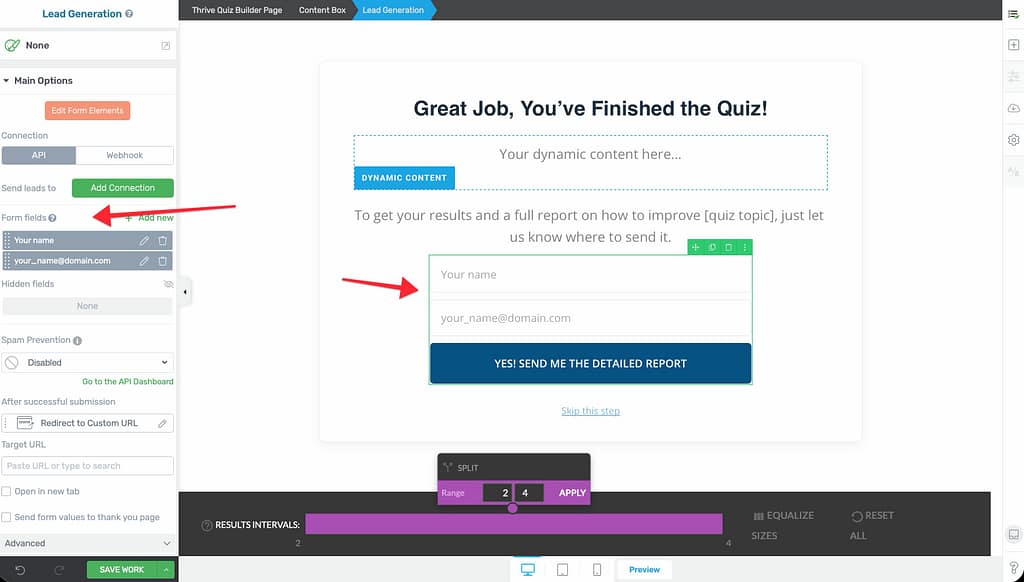
- Click the Add New button to create a new field.
- Change the Field type to Result of quiz.
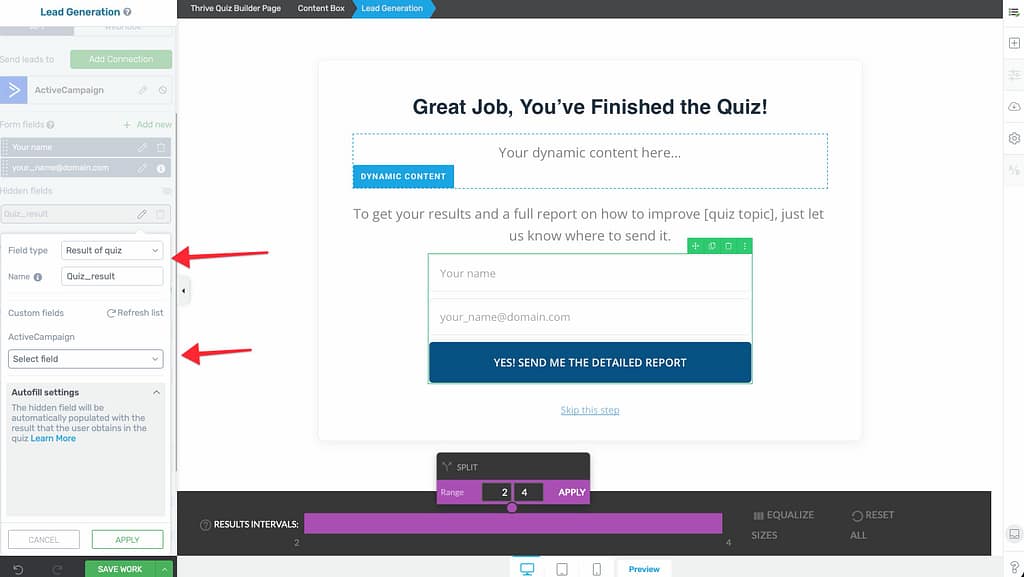
- In the Select field dropdown, look for the custom field you created in your CRM to store this data.
- Click Apply.
Step 3: Sending the Data
When a user submits the opt-in form:
- Their email and name are sent to your mailing list as usual.
- The Result of quiz value (their specific score or category name) is automatically updated in the custom field you mapped in Step 2.
Why Use Custom Fields?
Mapping results to custom fields is superior to basic tagging for several reasons:
- Dynamic Personalization: You can use the custom field value to personalize the “To:” name or body text of your automated email sequences.
- Specific Scoring: If your quiz is a “Percentage” type, you can store the exact number (e.g., 85) to trigger different automation paths based on high vs. low scores.
- Cleaner Data: It keeps your tagging system lean while providing a dedicated home for quiz-specific performance data.
Related Resources
- Segmentation: Building Tagged Answers for Audience Segmentation
- Opt-in Gates: Using the Opt-in Gate in Thrive Quiz Builder
- Notifications: Setting Up Automated Email Notifications
- Thrive Quiz Builder Documentation: Explore the full Thrive Quiz Builder knowledge base