In this article, you’ll learn how to edit template settings, set a template as the default for its content type, and configure the layout of a template to full-width.
Editing Template Settings
Template settings let you customize how a template behaves and what it includes. All template types—post, page, list, homepage, 404, and search—share a similar set of settings.
Accessing Template Settings
- In the Thrive Theme Builder dashboard, click Templates in the left sidebar.
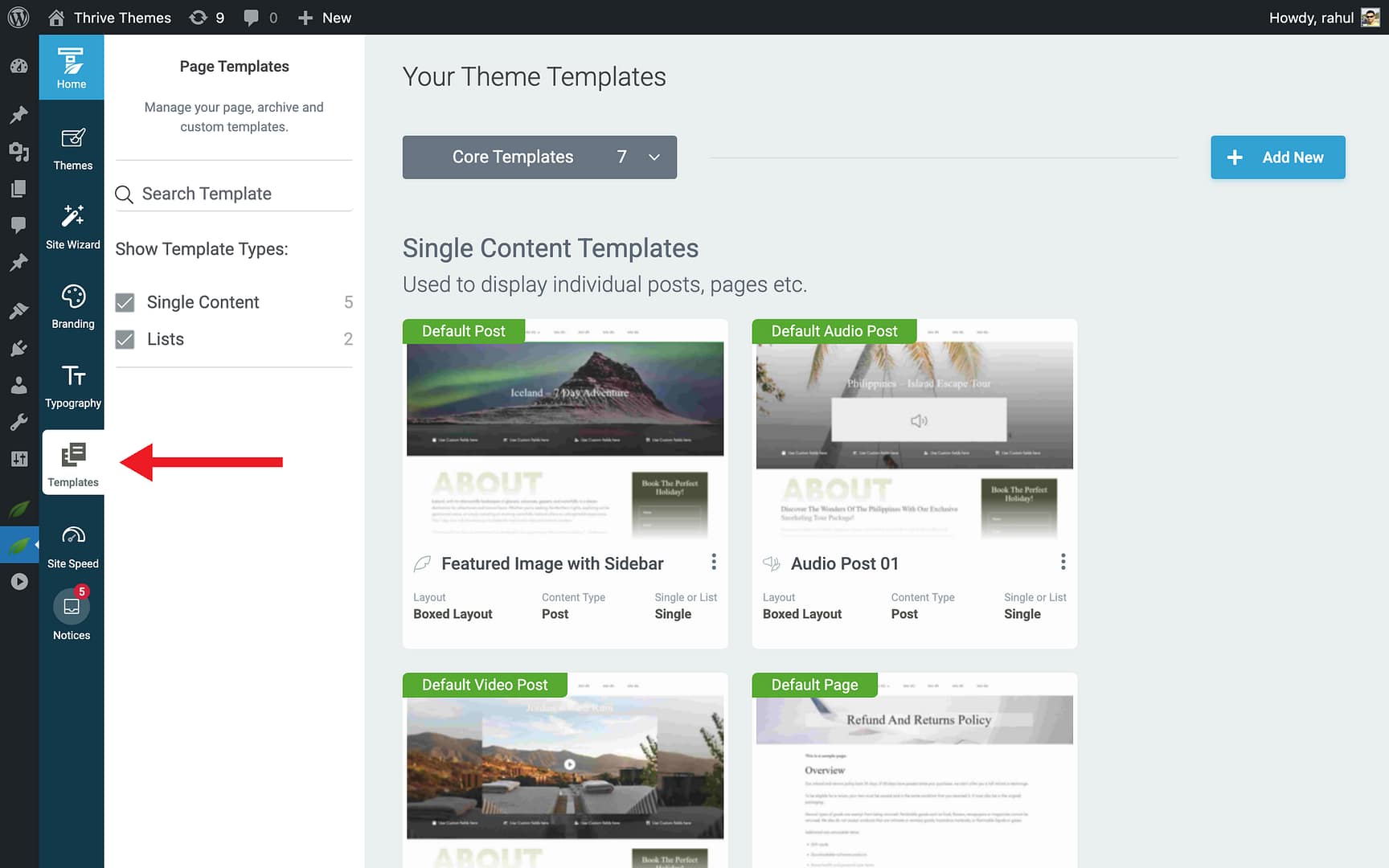
- Hover over the template you want to configure and click Edit.
- The template opens in the Thrive Theme Builder editor.
- The left sidebar displays the template’s settings and options.
Available Settings
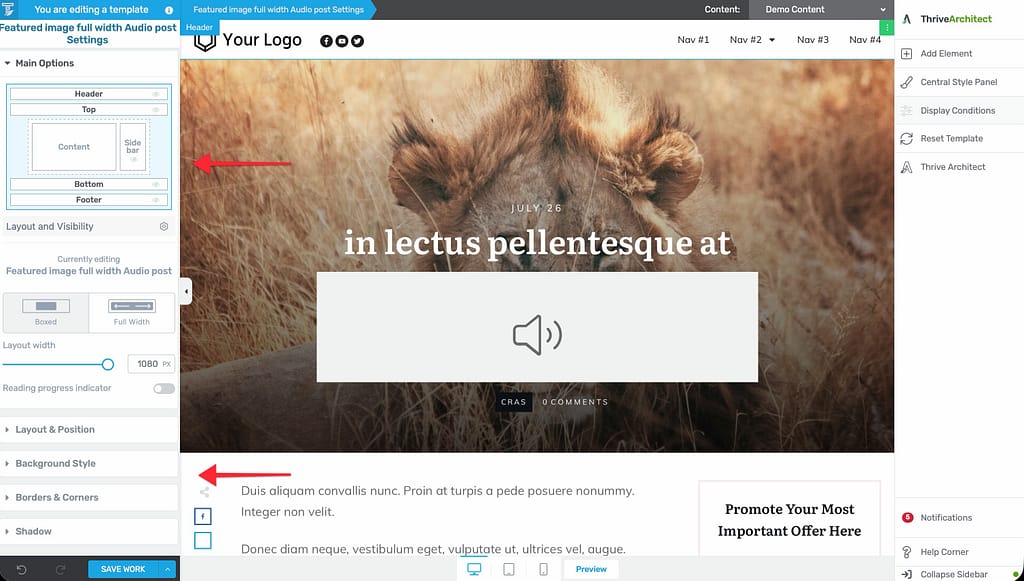
When editing a template, the left sidebar provides options to configure:
- Layout and Visibility — Control the page structure, sidebar visibility, and content width.
- Sections — Manage which header and footer sections are used.
- Typography — Override the theme’s default typography settings for this specific template.
- Colors — Override the theme’s color palette for this template.
You can also access structural elements through the breadcrumbs at the top of the editor—[Template Name] Settings, Layout Container, and Content Wrapper—each with its own settings.
Setting a Template as the Default
The default template is used automatically for all content of that type unless a different template is manually assigned to a specific page or post.
How to Set a Default Template
This process works the same for all template types—post templates, page templates, and list templates.
- In the Thrive Theme Builder dashboard, click Templates in the left sidebar.
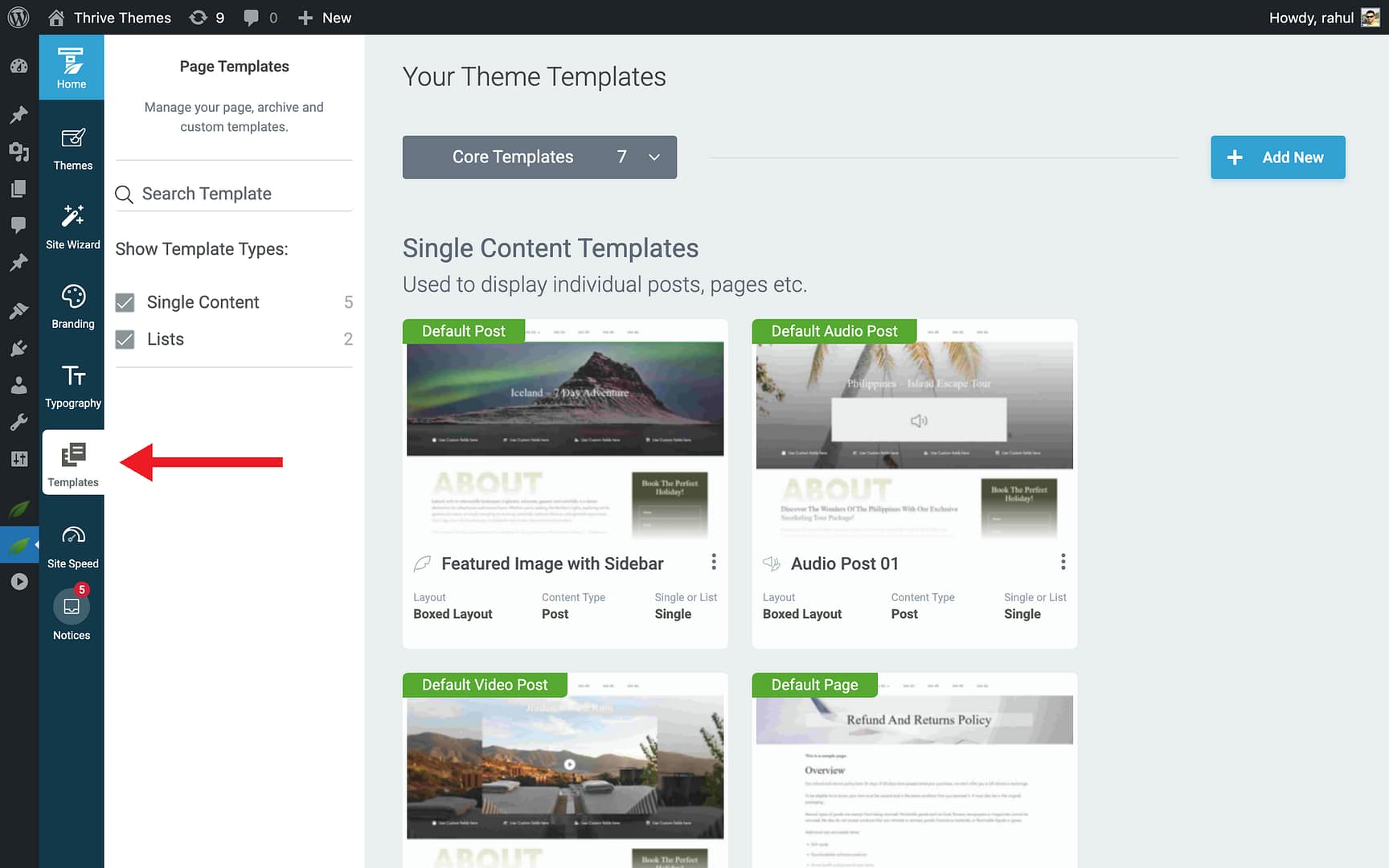
- Locate the template you want to make the default. If it doesn’t exist yet, create one first (see Creating Post Templates, Creating Page Templates, or Creating List Templates).
- Hover over the template and click the More option (three-dots icon).
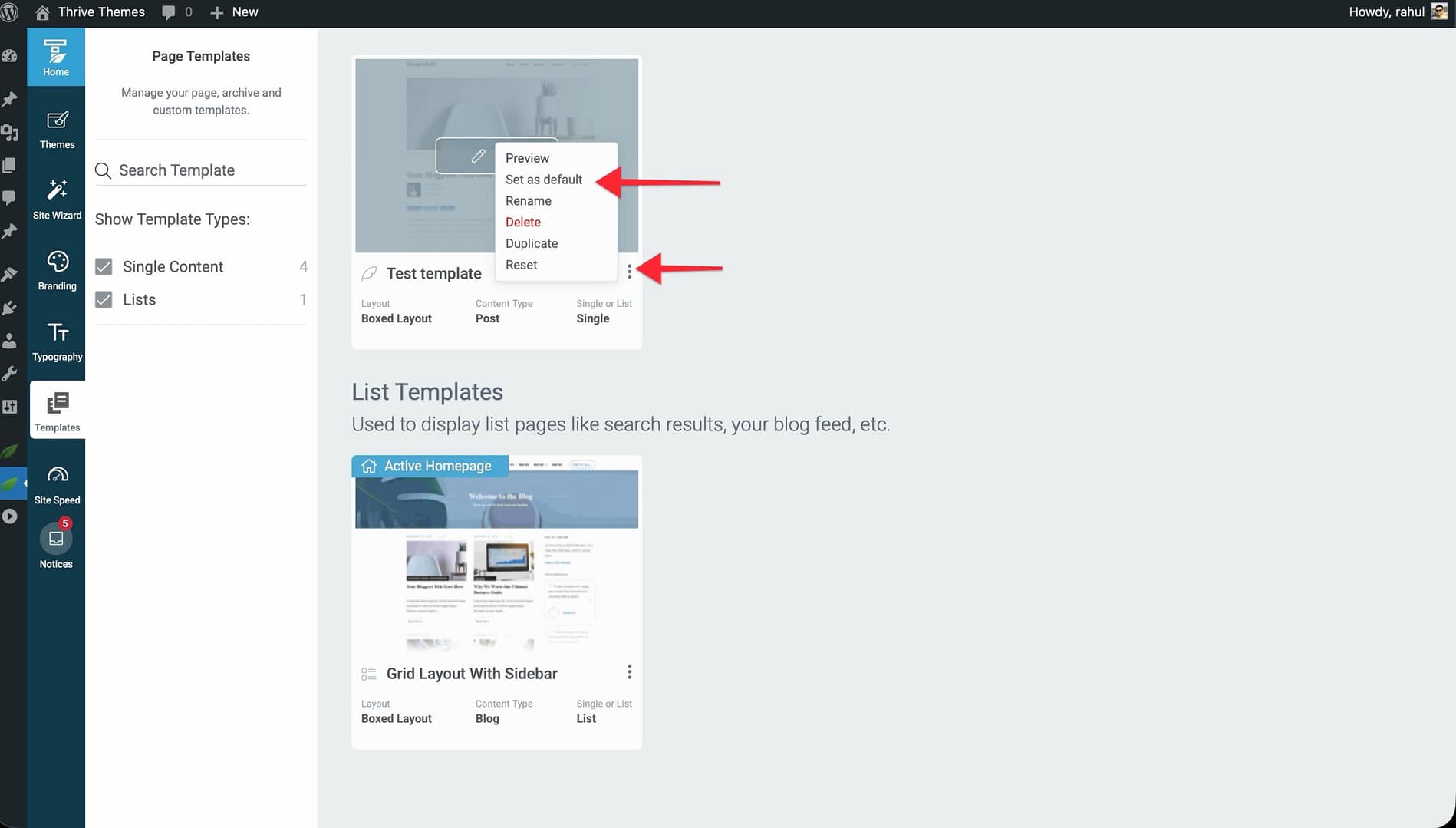
- Select Set as default.
The template is now marked as the default and will be used for all matching content.
What Happens When You Set a New Default
- The previously default template loses its default status but is not deleted.
- All pages or posts using the old default template automatically switch to the new default—unless they have a manually assigned template.
- Manually assigned templates are not affected by default template changes.
Setting a Template Layout to Full-Width
By default, templates may include a sidebar and a contained content width. You can switch any template to a full-width layout.
How to Set Full-Width
- In the Thrive Theme Builder dashboard, click Templates in the left sidebar.
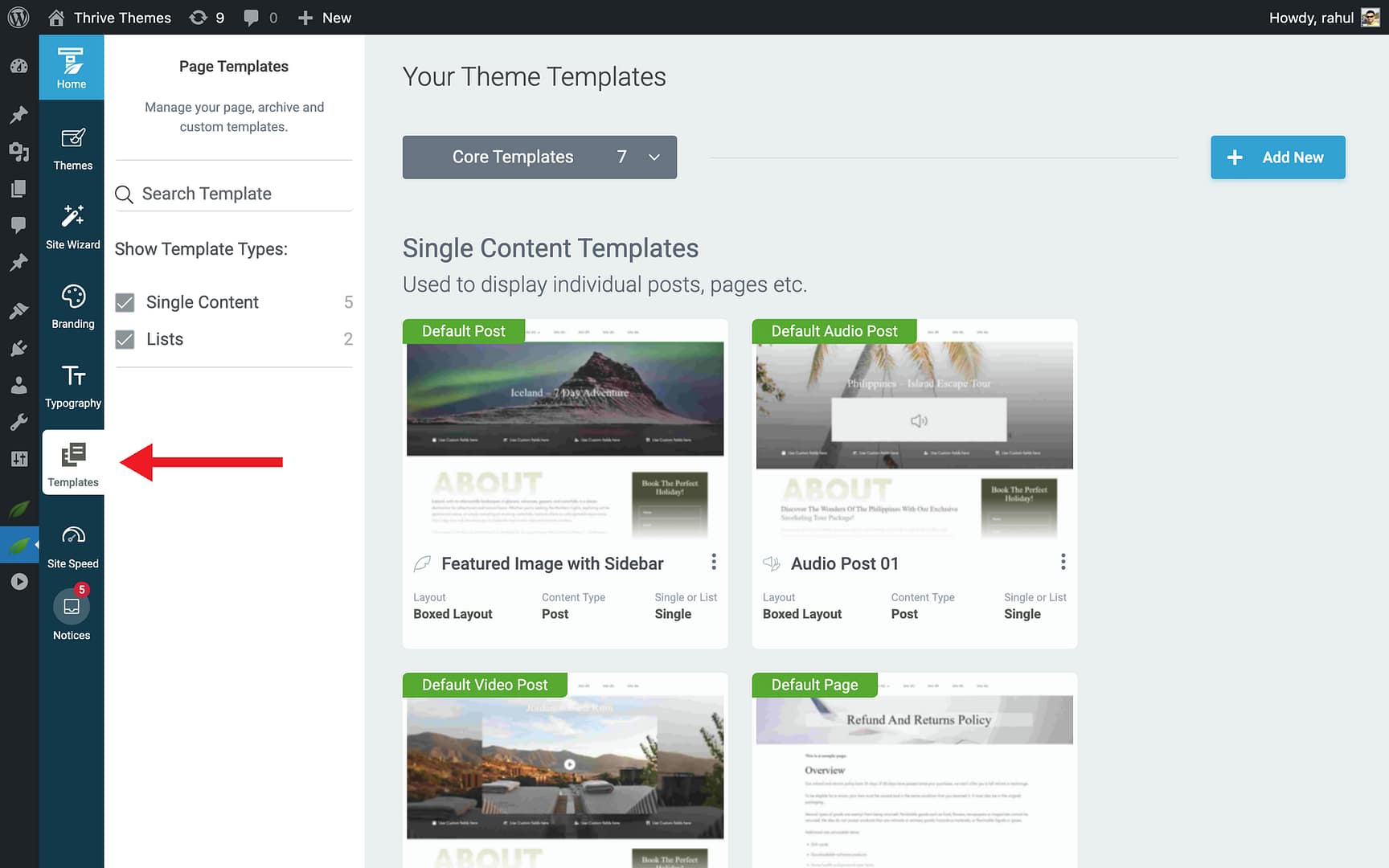
- Hover over the template and click Edit to open it in the editor.
- Click on the Layout Container in the breadcrumbs at the top of the editor.
- In the left sidebar, select the Full Width option (as opposed to Boxed).
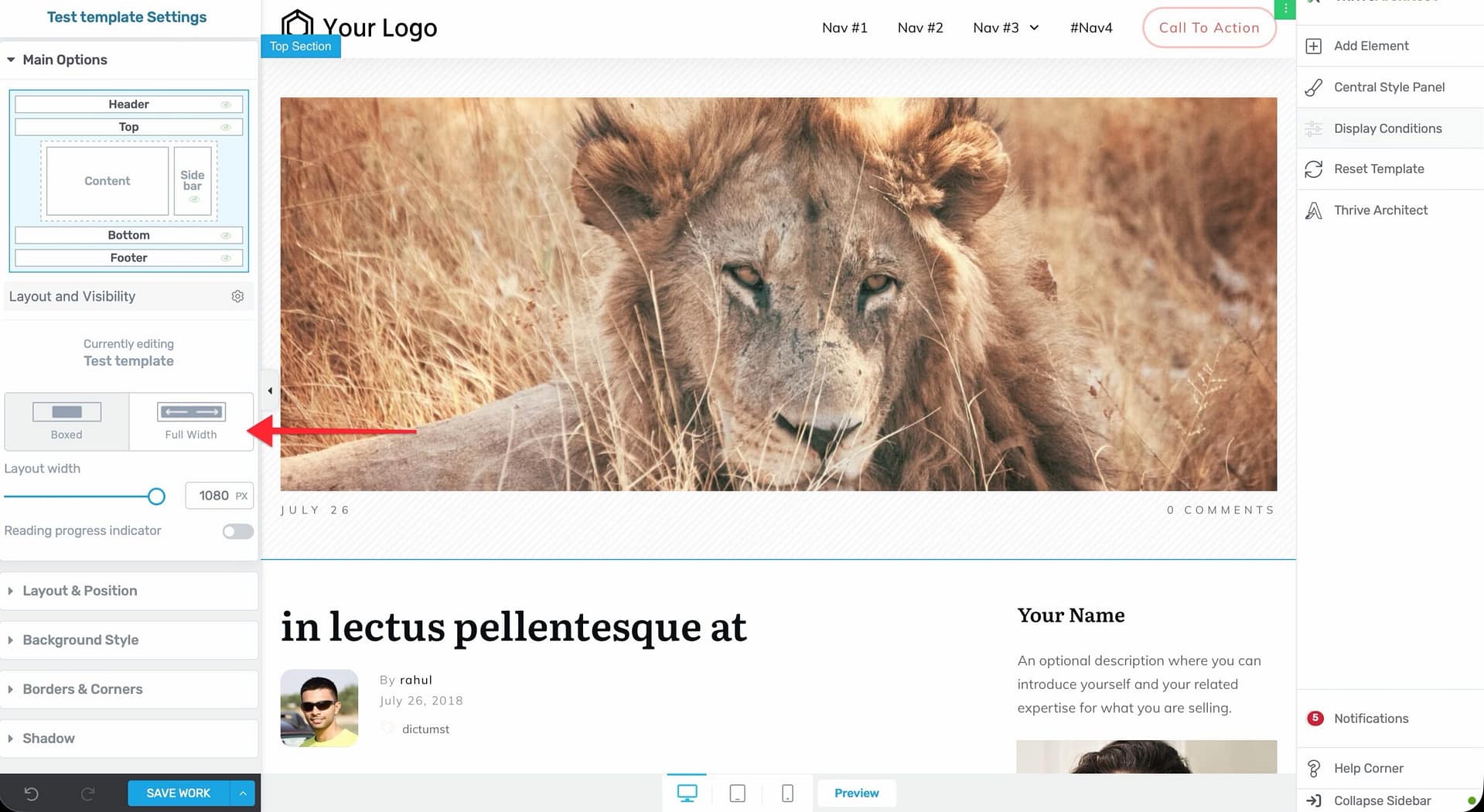
- To also remove the sidebar: click on the Content Wrapper in the breadcrumbs, then disable the Sidebar Visibility toggle.
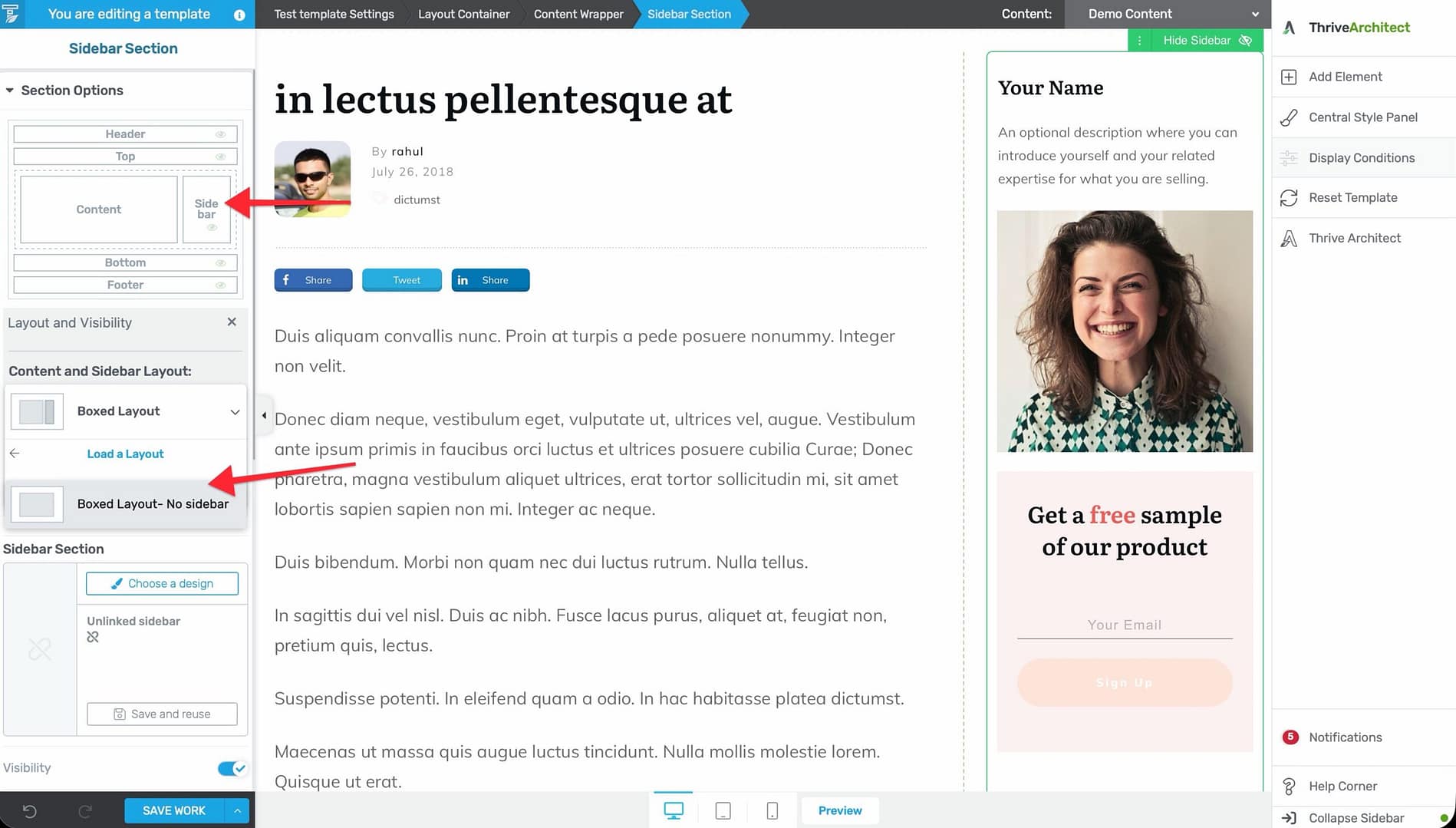
- Save the template.
The template now uses a full-width layout, and the content area spans the full width of the page.
Layout Controls
Template layout is controlled through two separate structural elements:
Layout Container (click in breadcrumbs) provides:
- Boxed — Content is contained within a centered container with a defined maximum width.
- Full Width — Content spans the full page width.
Content Wrapper (click in breadcrumbs) provides:
- Sidebar Visibility — Toggle the sidebar on or off.
- Position — When the sidebar is visible, choose whether it appears on the Left or Right.
- Gutter — Control the spacing between the content and sidebar.
Resetting a Template
If you’ve made changes to a template and want to revert it to its original design:
- In the Templates section, hover over the template.
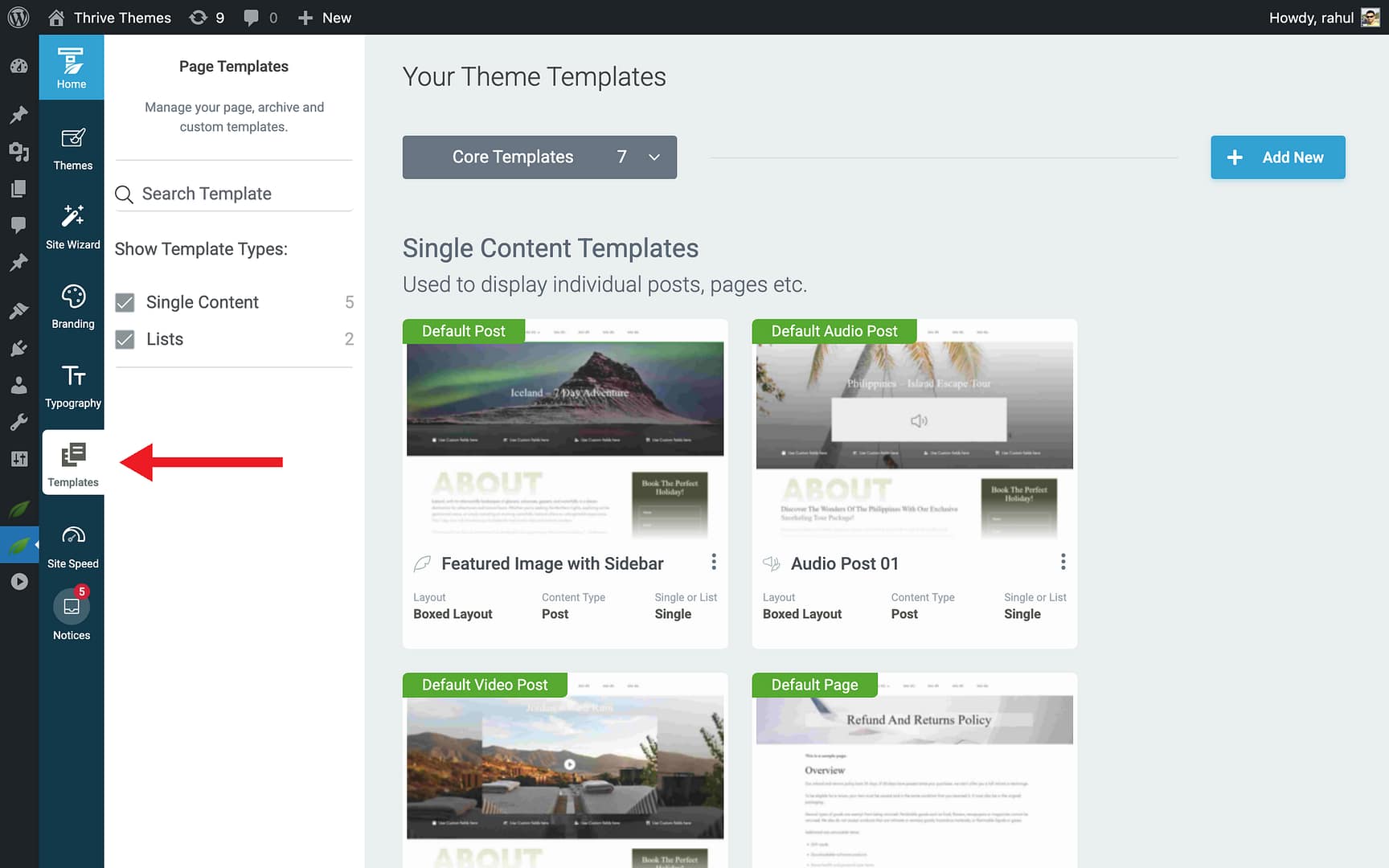
- Click the More option (three-dots icon).
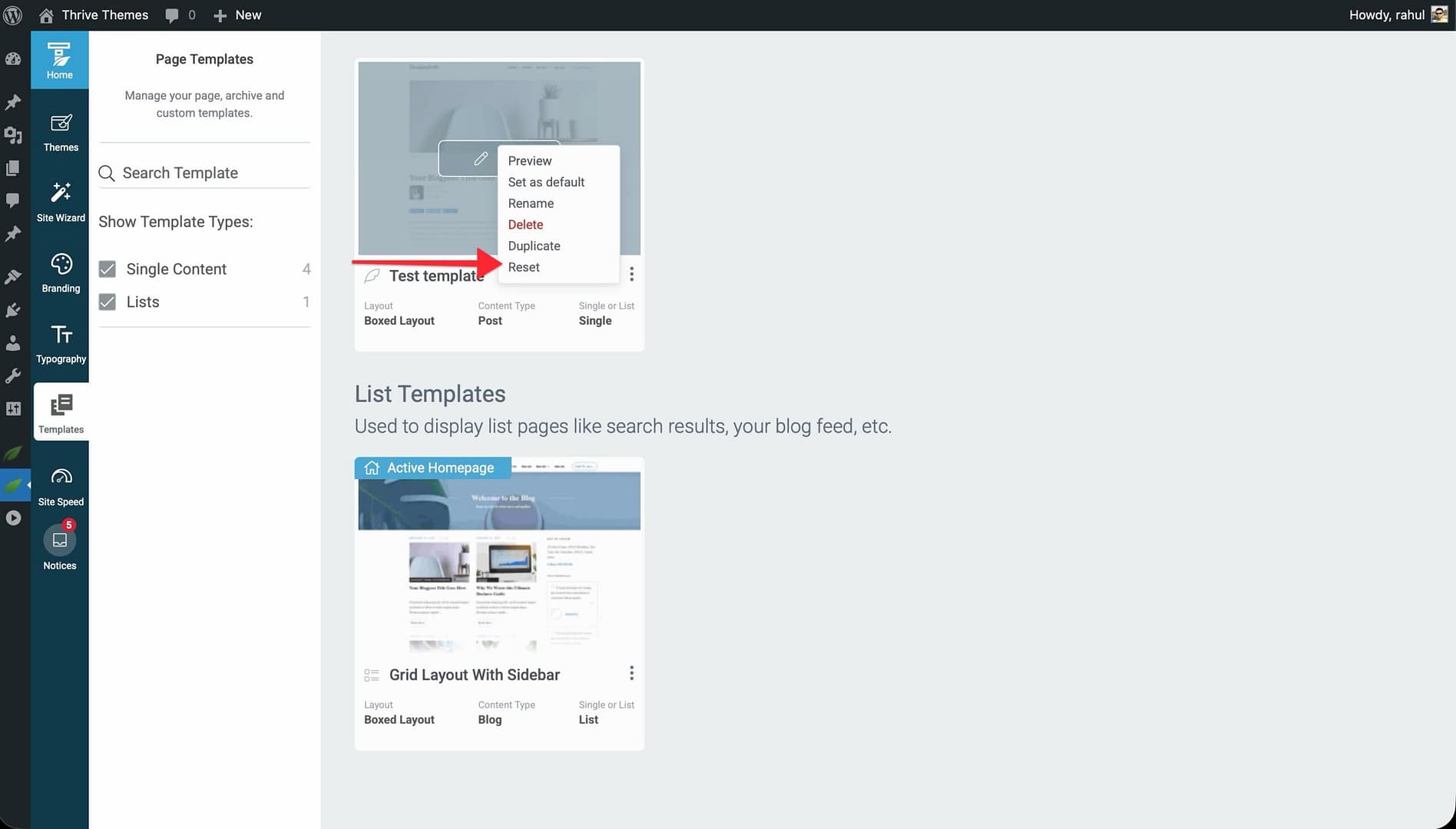
- Select Reset.
- Confirm the reset.
Best Practices
- Set defaults early — Decide which templates should be the defaults for each content type during your initial theme setup. This ensures consistency across your site.
- Use full-width for landing pages — Full-width layouts work well for homepage templates and special landing pages where you want maximum design control.
- Keep sidebars for content-heavy pages — Blog posts and archive pages often benefit from a sidebar with navigation, categories, or a search bar.
- Test after changing defaults — After setting a new default template, check your key pages and posts to make sure they look correct with the new design.
Related Resources
- Understanding Templates: Learn about template types and how they work.
- Applying Templates to Pages & Posts: Learn how to assign templates to specific content.
- Navigating the Templates Section: Learn how to browse, filter, and search templates.