In this article, you’ll learn how to use the Thrive Theme Builder editor—including the right sidebar options, the central style panel, and how to save your work.
Accessing the Editor
- In the Thrive Theme Builder dashboard, click Templates in the left sidebar.

- Hover over the template you want to edit and click Edit.
- The template opens in the Thrive Theme Builder editor.
The editor provides a visual, drag-and-drop environment for designing templates. It is built on top of Thrive Architect, so many of the editing tools and interactions will feel familiar if you’ve used Architect before.
The Right Sidebar
The right sidebar is the central hub for editor functionality. It provides three primary features:
Adding Elements
Click the plus (+) icon in the right sidebar to open the element panel. This displays all available design elements you can add to your template—text, images, buttons, columns, and theme-specific elements like Post Content, Post Meta, and Featured Image.
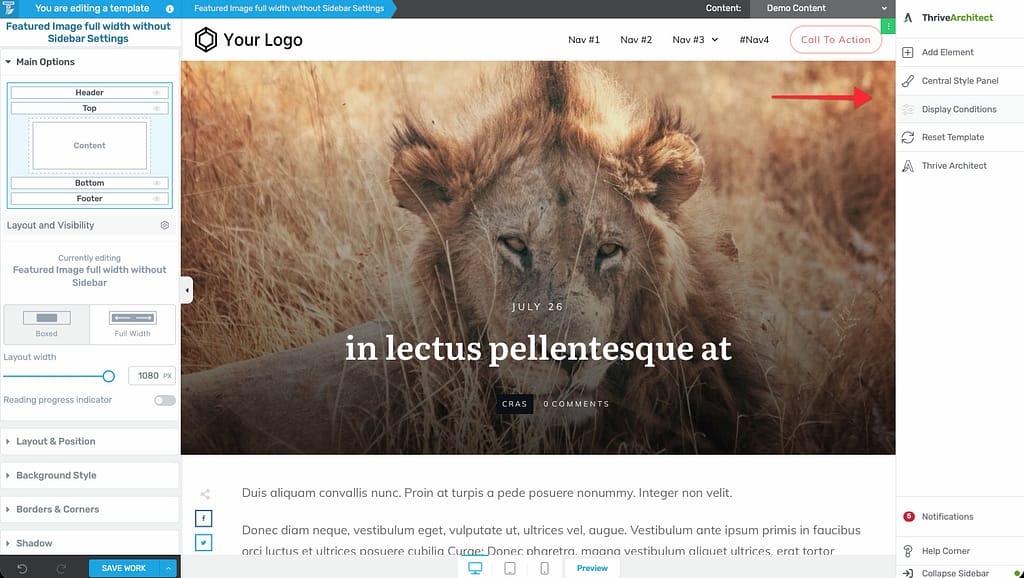
To add an element:
- Click the plus (+) icon in the right sidebar.
- Browse or search for the element you need.
- Drag the element from the panel and drop it into position on the template.
Theme Colors
The right sidebar provides access to your theme’s color settings. You can modify the theme’s color palette and master colors directly from the editor, and changes will apply across all templates using those colors.
Switching to Thrive Architect
The right sidebar includes an option to switch between the Thrive Theme Builder editor (for template design) and Thrive Architect (for content editing). This is useful when you need to edit actual page or post content rather than the template design.
The Central Style Panel
The central style panel appears within the right sidebar and provides theme-wide styling controls. In the Thrive Theme Builder template editor, the central style panel focuses on:
- Colors — Modify your theme’s color palette, including primary, secondary, and accent colors (also called skin variables).
Note: Typography and Global Styles settings are managed from the Thrive Theme Builder dashboard (under Thrive Theme Builder > Typography or Global Styles), not from within the template editor. The central style panel in the template editor only provides access to color/skin variable controls.
Changes made in the central style panel apply globally—affecting all templates that use the theme’s default colors. This is different from editing individual element colors, which only affect that specific element.
The Left Sidebar
When you select an element or section on the template, configuration options appear in the left sidebar. These options are organized into groups:
- Main Options — Core settings for the selected element (text content, image source, link settings, etc.).
- Layout & Position — Control the element’s width, alignment, padding, margins, and positioning.
- Responsive — Adjust element settings for different device breakpoints (desktop, tablet, mobile).
- Animation & Action — Add entrance animations, scroll-triggered effects, or hover/click actions.
The left sidebar is context-sensitive—the options shown depend on what you’ve selected on the template.
The Breadcrumbs
At the top of the editor, the breadcrumbs show the structural hierarchy of the currently selected element. For a typical template, the hierarchy is:
- Layout Container — The outermost structural container.
- Content Wrapper — The container that holds the content area and sidebar.
- Content Area — The region where page or post content appears.
- Selected Element — The specific element you’re editing.
Click any level in the breadcrumbs to select that container and access its settings in the left sidebar. This is especially useful for adjusting layout-level settings like content width, sidebar position, and background.
Saving Your Work
The Save Work button is located in the bottom-left corner of the editor. It’s the primary green button you use to save all changes made to the template.
Save Options
Click the upward arrow next to the Save Work button to reveal additional saving options:
- Save Work — Saves all current changes to the template.
- Save and Preview — Saves changes and opens a front-end preview of the template.
- Save and Return to Template Dashboard — Saves changes and exits the editor, returning to the Thrive Theme Builder dashboard.
- Exit without saving — Discards all changes made since the last save and exits the editor.
A separate Revision Manager icon (clock icon) is also available in the bottom toolbar. Click it to access saved versions (revisions) of the template and restore a previous state.
Tip: Save frequently while making changes. Use Save Work after completing each significant design change to avoid losing work.
Best Practices
- Use the central style panel for theme-wide changes — When you want to change fonts or colors across your entire site, use the central style panel rather than editing individual elements.
- Use the breadcrumbs for layout adjustments — To change the content width or sidebar position, click the appropriate level in the breadcrumbs rather than trying to select the container directly.
- Save before previewing — Always save your template before previewing it to see the latest changes.
- Learn the keyboard shortcuts — The editor supports standard shortcuts like Ctrl+Z (undo) and Ctrl+S (save) for faster editing.
Related Resources
- Creating Mobile Responsive Templates: Learn how to design templates for all devices.
- Adding Custom CSS: Learn how to add custom CSS in the editor.
- Understanding the Content Area, Content Wrapper & Layout Container: Learn about the structural elements of a template.