A/B testing (or split testing) allows you to compare different versions of your quiz pages to see which one performs better. In this article, you’ll learn how to set up tests for your Splash Page, Opt-in Gate, and Results Page.
Why A/B Test Your Quiz?
Small changes in your headline, button color, or lead magnet offer can significantly impact your quiz’s success. A/B testing takes the guesswork out of optimization.
How to Set Up an A/B Test
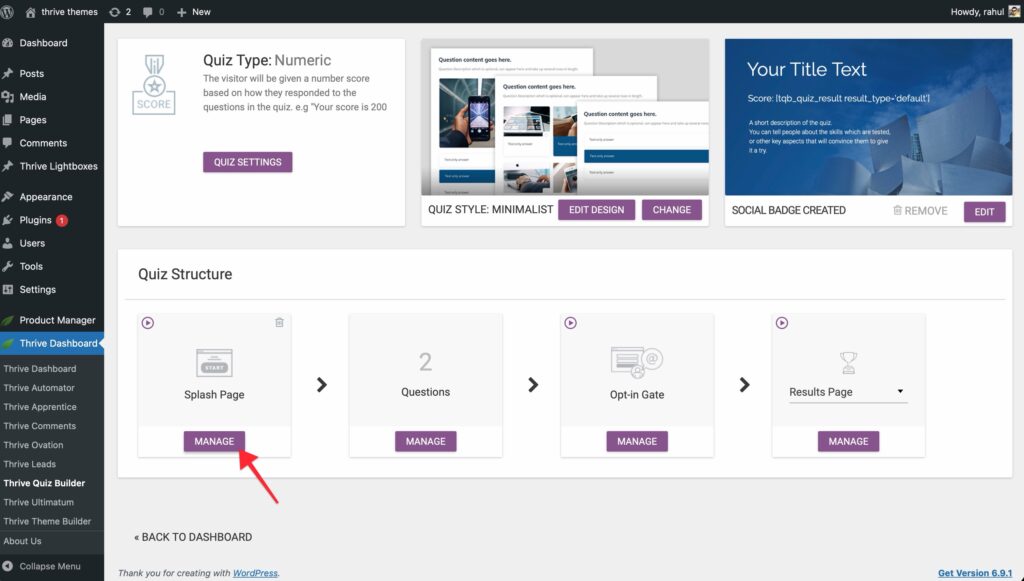
You can start a test from the individual cards in your quiz dashboard (Splash Page, Opt-in Gate, or Results Page).
- On the card you want to test, click the Manage button.
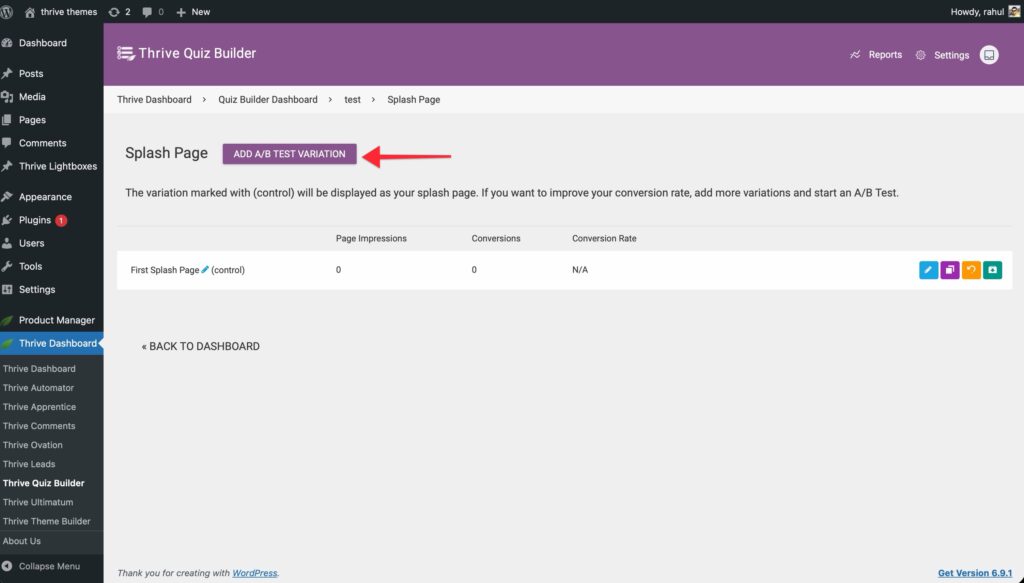
- Click Add A/B Test Variation.
- Choose to Clone Control (to make small changes to the current design) or Choose a different template.
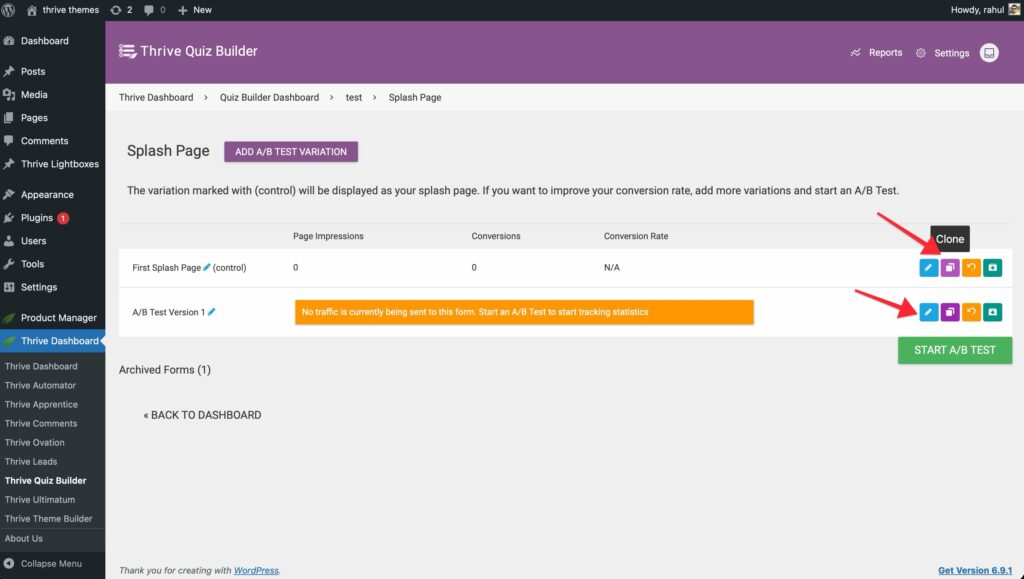
- Open the new variation in the Thrive Architect editor and make your changes (e.g., change the headline or the button text).
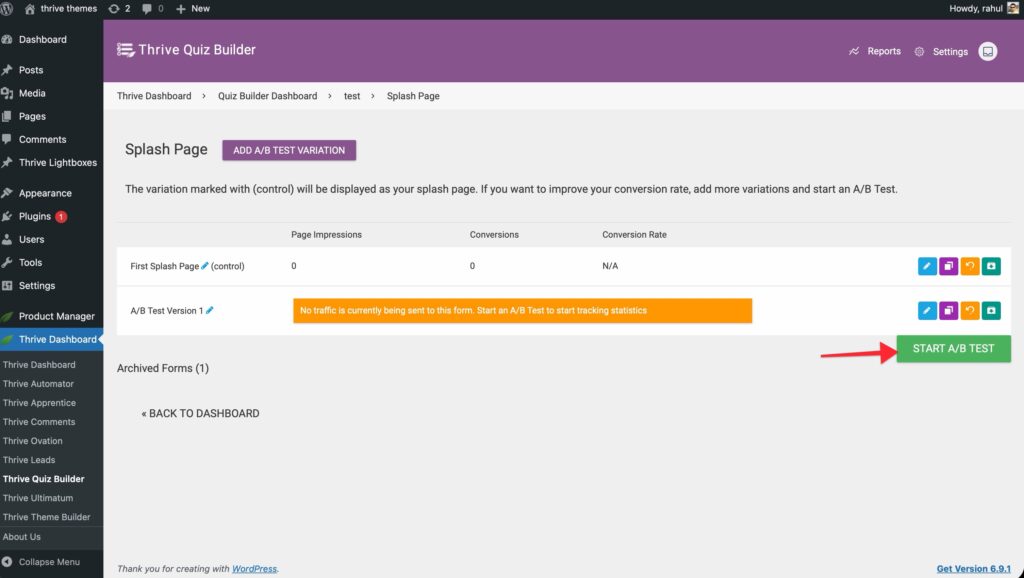
- Click on Start A/B Test button
Picking a Winner
Once the test has gathered enough data, you can choose which version should become the new permanent page.
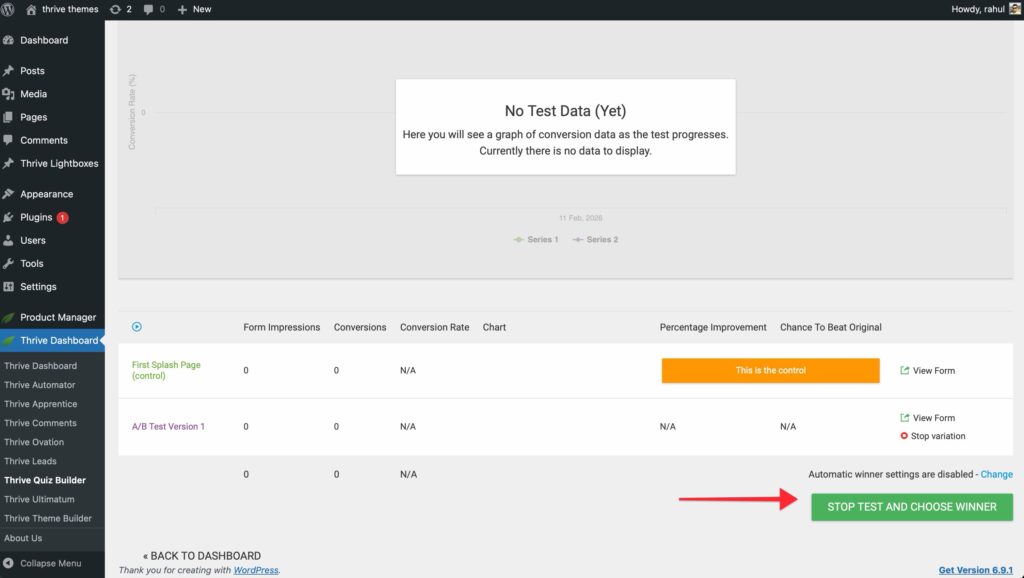
- Navigate to the A/B Test dashboard for that page.
- Review the Conversion Rate and Improvement statistics for each variation.
- Click the Stop Test And Choose Winner button. Pick a winner from the popup.
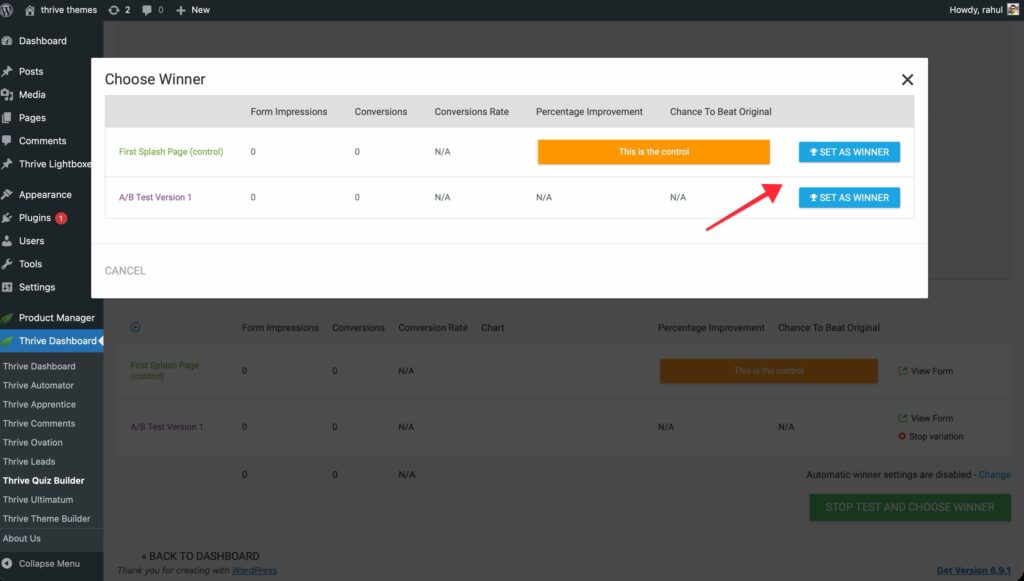
- The losing variations will be archived, and the winner will now be shown to 100% of your visitors.
Advanced: Conversion Tracking Scripts
Sometimes you need to track conversions using external tools like the Facebook Pixel or Google Analytics.
- Standard Tracking: Add your tracking code to the Results Page to track every quiz completion.
- Segmented Tracking: If you have multiple results, you can add different tracking scripts to different Results Page variations or intervals to track specific audience segments.
- Standard Tracking: Add your tracking code to the Results Page to track every quiz completion.
- Segmented Tracking: If you have multiple results, you can add different tracking scripts to different Results Page variations or intervals to track specific audience segments.
- Custom HTML: Use the Custom HTML element within the Thrive Architect editor to place your tracking scripts exactly where they are needed.