What’s new in Thrive Suite 10.9.3
Thrive Apprentice now accepts PayPal payments natively — alongside Stripe and Square — without routing course sales through a third-party checkout.
In this article, you’ll learn how to connect your PayPal account to Thrive Apprentice, add PayPal pricing to your products, and sell courses with one-time payments or subscriptions.
Prerequisites
Before you begin, make sure you have:
- A PayPal business account
- Thrive Apprentice installed and activated on your WordPress site (Thrive Suite 10.9.3 or later)
- At least one product or course created in Thrive Apprentice
Connecting your PayPal account
- Go to Thrive Dashboard → Thrive Apprentice.
- Click Settings in the left sidebar.
- Open Payments → PayPal.
- Click Connect PayPal.
- Complete PayPal’s onboarding flow in your browser and authorize the connection.
- When you return to Thrive Apprentice, the page shows Connected for Live or Sandbox mode.
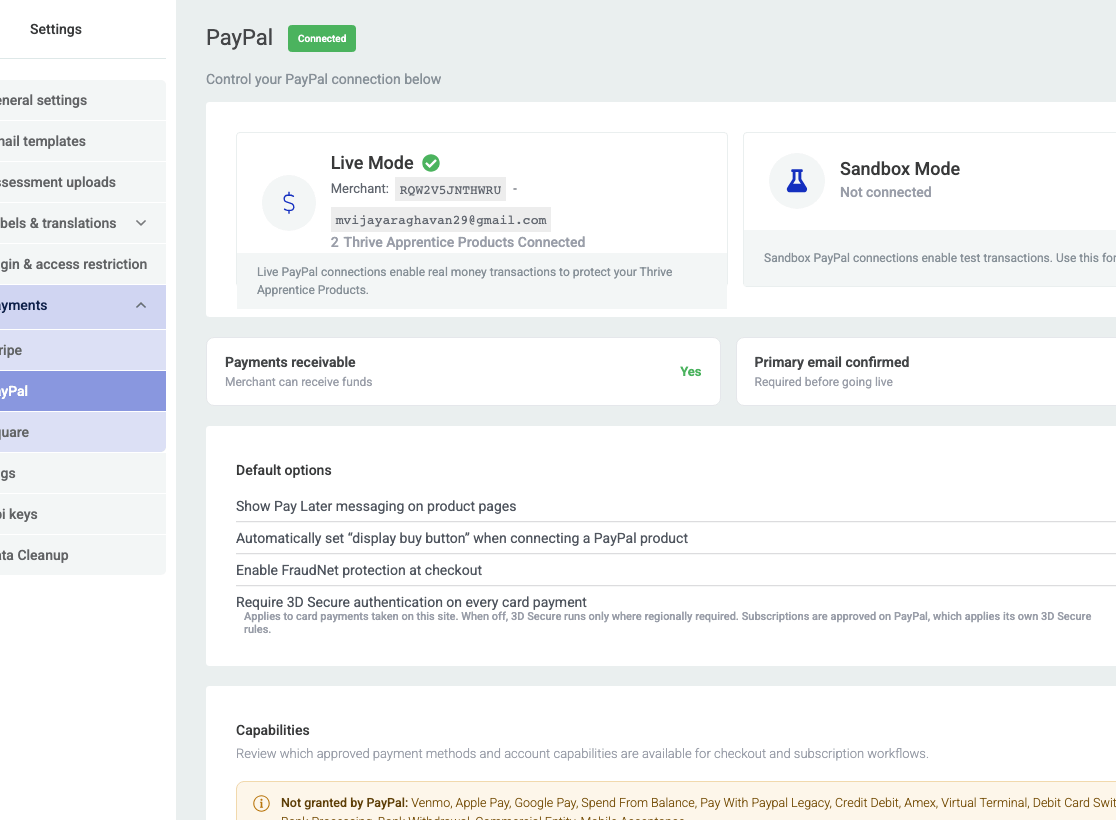

Action required: If PayPal asks you to confirm your merchant email, complete that step in PayPal before accepting live payments. Thrive Apprentice shows a warning on the PayPal settings page until your email is confirmed.
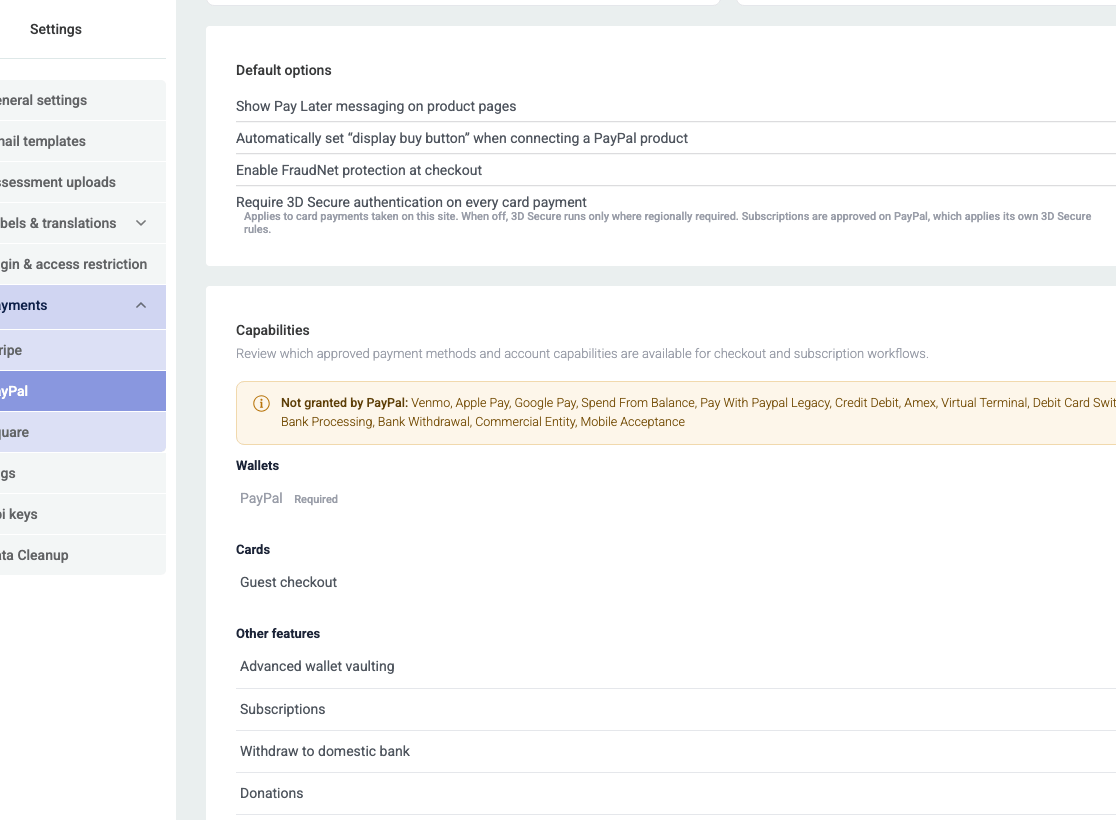
After connecting, review the payment method capability grid on the same page. It shows which checkout options PayPal has enabled for your account (for example, PayPal wallet, card payments, Google Pay). Items marked Pending or Denied may need action in your PayPal account.
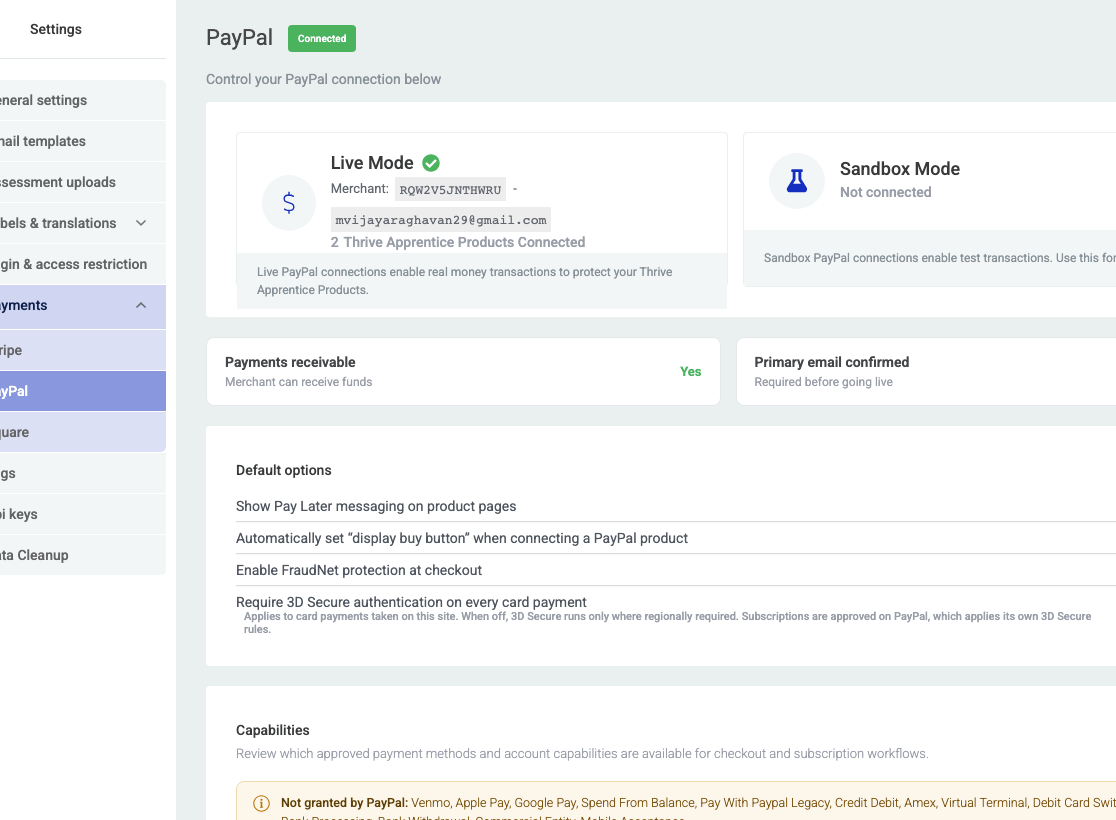
Tip: PayPal onboarding detects whether you are connecting in Live or Sandbox mode. Use Sandbox first to test purchases without processing real charges.
Adding PayPal pricing to a product
- Go to Thrive Dashboard → Thrive Apprentice → Products.
- Select a product or click Add New.
- Open the Access requirements tab.
- Expand the PayPal row (connect PayPal first if you see Connect PayPal).
- Under Product Pricing, choose or create a price:
- One-time payment — single charge for access
- Subscription — recurring billing (monthly, yearly, or custom interval)
- Free trial — optional trial period before the first subscription charge
- Save your product.
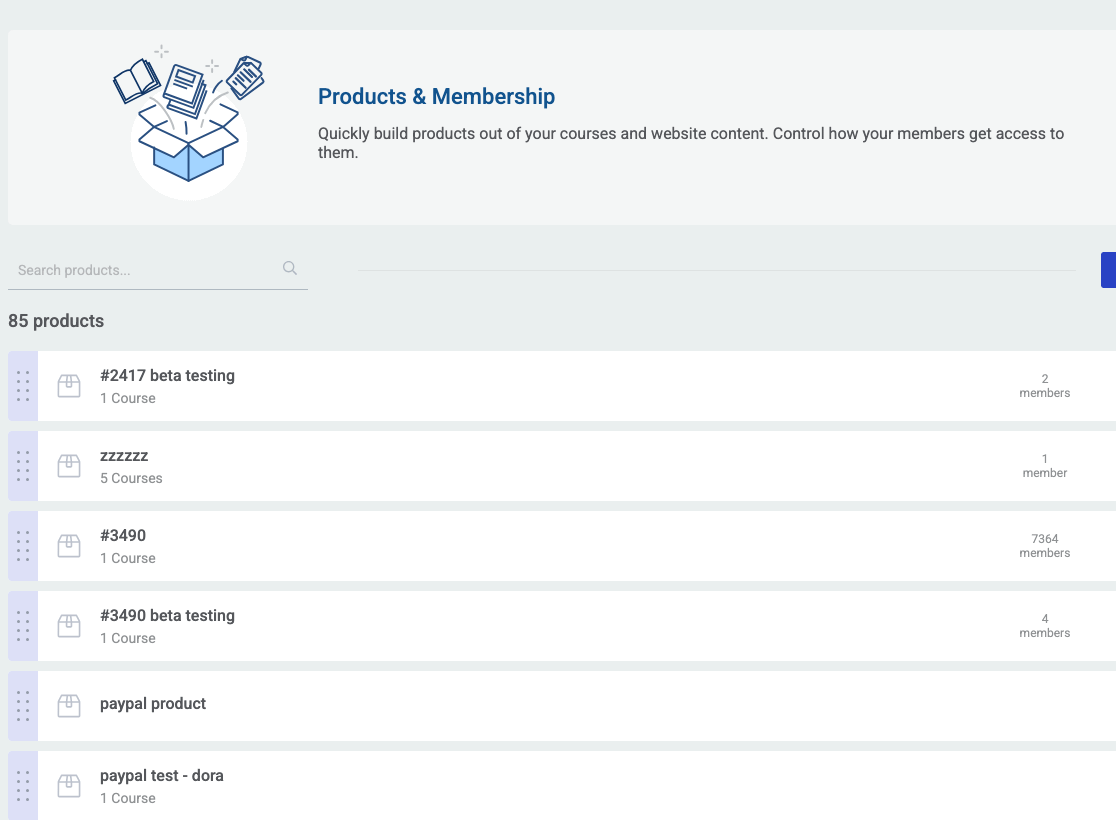
Make sure your course purchase button uses Buy now → PayPal in the product access rules. Thrive Apprentice shows a reminder in the product editor if the buy button is not configured for PayPal.
Configuring checkout methods
On Settings → Payments → PayPal, use the checkout method controls to choose what buyers see at checkout:
- PayPal — pay with a PayPal balance or PayPal account
- Card — pay with a debit or credit card (including guest checkout where PayPal allows it). The card form is collapsed by default and expands when the buyer selects it.
- Google Pay — available when PayPal enables it for your account
- Venmo — follows your Venmo checkout-method toggle when enabled
- Pay Later messaging — eligible buyers may see PayPal Pay Later messaging on the product page and in checkout when their PayPal account supports it
Buyers complete one-time products through an embedded PayPal checkout on your course page — they do not need to leave your site for a separate checkout page.
How access works with PayPal
Once PayPal is configured, the customer experience looks like this:
- A visitor clicks the purchase button on your course or product page.
- The embedded PayPal checkout opens on the page.
- The customer pays with PayPal, a card, Google Pay, or Venmo (depending on your settings).
- PayPal processes the payment and notifies Thrive Apprentice.
- Thrive Apprentice creates a user account if needed and grants course access.
For subscriptions, PayPal handles recurring billing automatically. If a payment fails, Thrive Apprentice applies a grace period while PayPal retries. If all retries fail, access is revoked.
Allowing members to cancel PayPal subscriptions
Unlike Stripe, PayPal subscriptions do not use the Stripe Customer Portal. To let members cancel their own PayPal subscription from your site:
- Edit your course or student account page in Thrive Architect.
- Add a button or text link.
- Set the link to Dynamic Link → PayPal → Cancel subscription.
- Publish the page.
Thrive Apprentice also shows this reminder in the product editor when you select a recurring PayPal price.
See also How to Enable the Stripe Customer Portal for Thrive Apprentice Members for Stripe subscription self-service.
Refunding orders and viewing PayPal transaction details
From the WordPress admin:
- Go to Thrive Apprentice → Members.
- Open a member and click Edit Access / Refund.
- Find the PayPal order. Subscriptions appear as a grouped entry with trial or subscription badges; expand it to see charge history.
- To issue a full refund, open the order menu and click Refund. Confirm the refund — this removes the member’s access and cancels any linked subscription.
PayPal orders display a Debug ID in the order details. Include this ID when contacting PayPal or Thrive support about a specific transaction.
See How to View Member Related Data in Thrive Apprentice for the full member admin walkthrough.
Disconnecting PayPal
If you disconnect PayPal from Settings → Payments → PayPal, Thrive Apprentice winds down active subscriptions cleanly:
- Each active subscription is cancelled at the end of its current billing period (buyers keep access for the period they already paid for).
- Before you confirm, you see how many subscriptions will be affected.
Testing your setup
- Connect PayPal in Sandbox mode first.
- Add PayPal pricing to a test product.
- Complete a test purchase on your site using PayPal’s sandbox buyer account.
- Confirm course access was granted to the test member.
- Switch to Live mode when you are ready to accept real payments.
Troubleshooting
- PayPal shows “Not Connected” after onboarding: Wait for the connection to finalize, then refresh the PayPal settings page. If it persists, disconnect and reconnect.
- “Confirm your PayPal email” warning: Log in to PayPal and confirm the merchant email address shown in your PayPal account settings.
- A capability is Pending or Denied: Open PayPal and complete any required verification for that payment method (for example, advanced card processing).
- Buy button does not appear: Set the product action button to Buy now → PayPal in access rules.
- Member did not receive access: Check the order under Members → Edit Access / Refund. See A Member Did Not Get Access to a Purchased Course – Troubleshooting.
That’s it! You can now sell Thrive Apprentice courses with PayPal — including subscriptions, free trials, and embedded checkout on your own pages.
For help choosing between PayPal, Stripe, Square, or an external integration, see How to Choose the Right Integration for Thrive Apprentice.