In instances when a member has purchased your Thrive Apprentice course, but he/she was not granted access for some reason, please use the “Members” section to give them access.
Here is how you can do this:
Access the “Members” section
In your Thrive Apprentice navigation bar, click on the “Members” section:

The “Members” dashboard will open. Here is where you can access the full list of members that have purchased courses:

Grant access to the course
From here, you have two ways of granting access to the member:
1. Member already on the list
First, you can use the “Search members” field, to see if the member is already on your list:
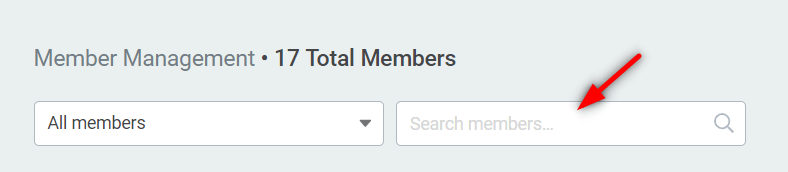
If you found that the member is already on the list, click on the member name:

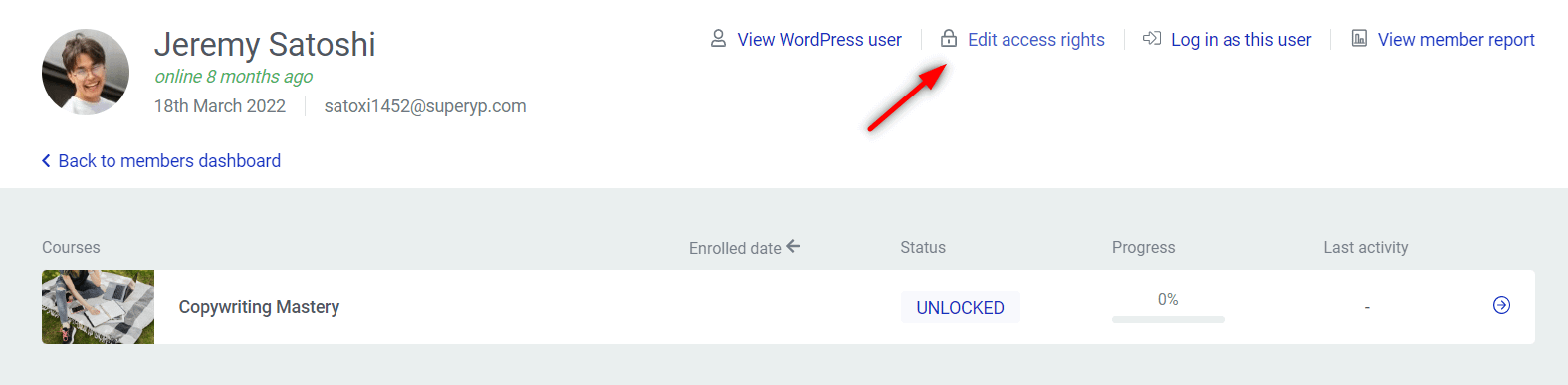
In the new dashboard, click on the “Edit access rights” from the top of the page:
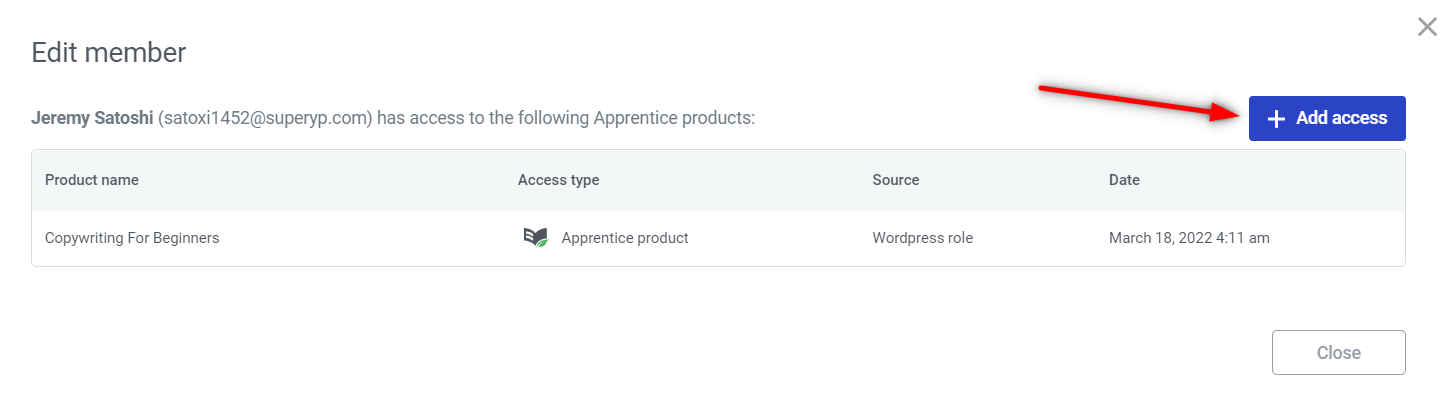
A pop-up window will open, in which you can see if other courses have already been purchased by the member:
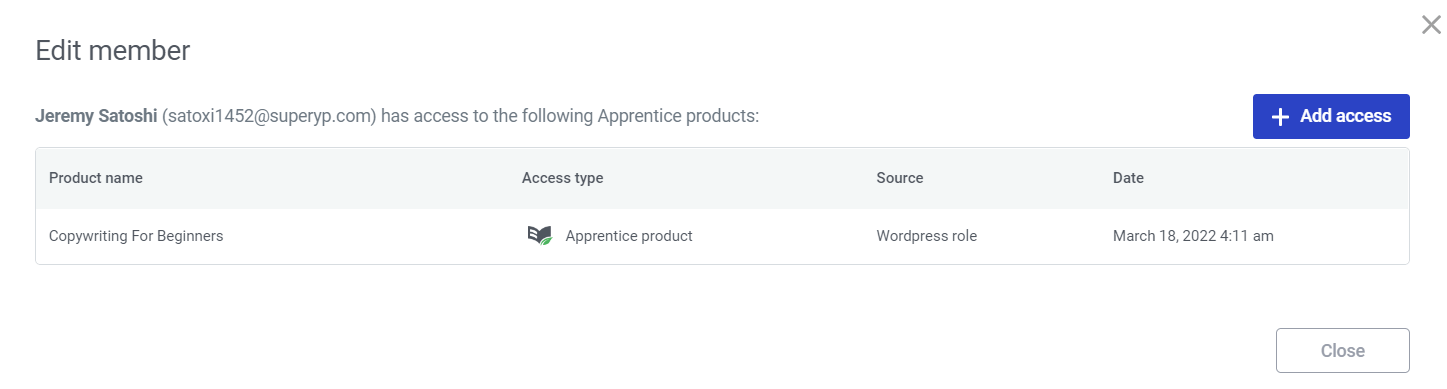
From the same window, you will be able to grant access to the member to any other product or bundle that you have created. To do that, click on the “Add access” button:
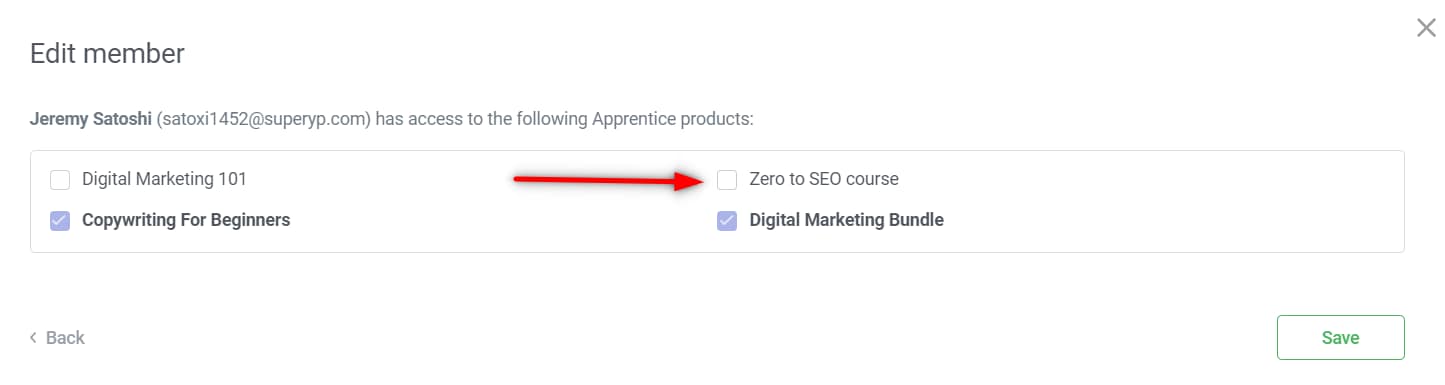
Look for the product that the member has purchased and make sure to check the box next to it. Then, click on the “Save” button and the member will be granted access to the selected product:
2. The member is not on the list yet
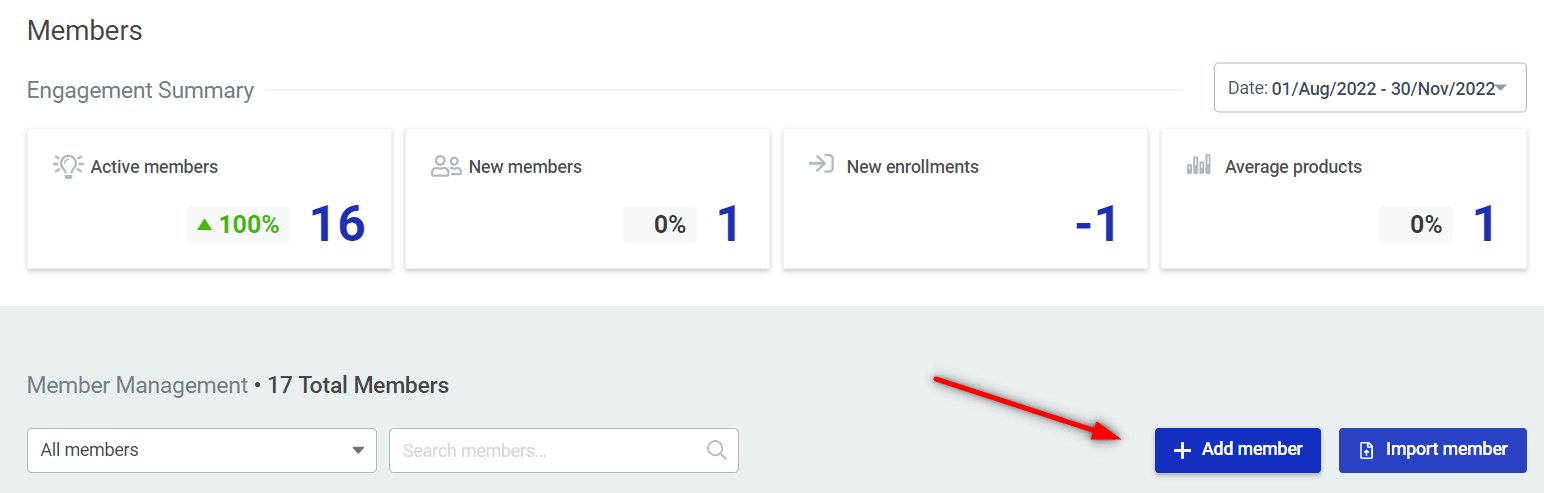
If the member is not on the list yet, then you will have to add him/her manually first. Click on the “Add member” option from the top right side of the page:
A pop-up window will open. Complete the necessary steps: fill in the name and the email address of the new member you want to add:
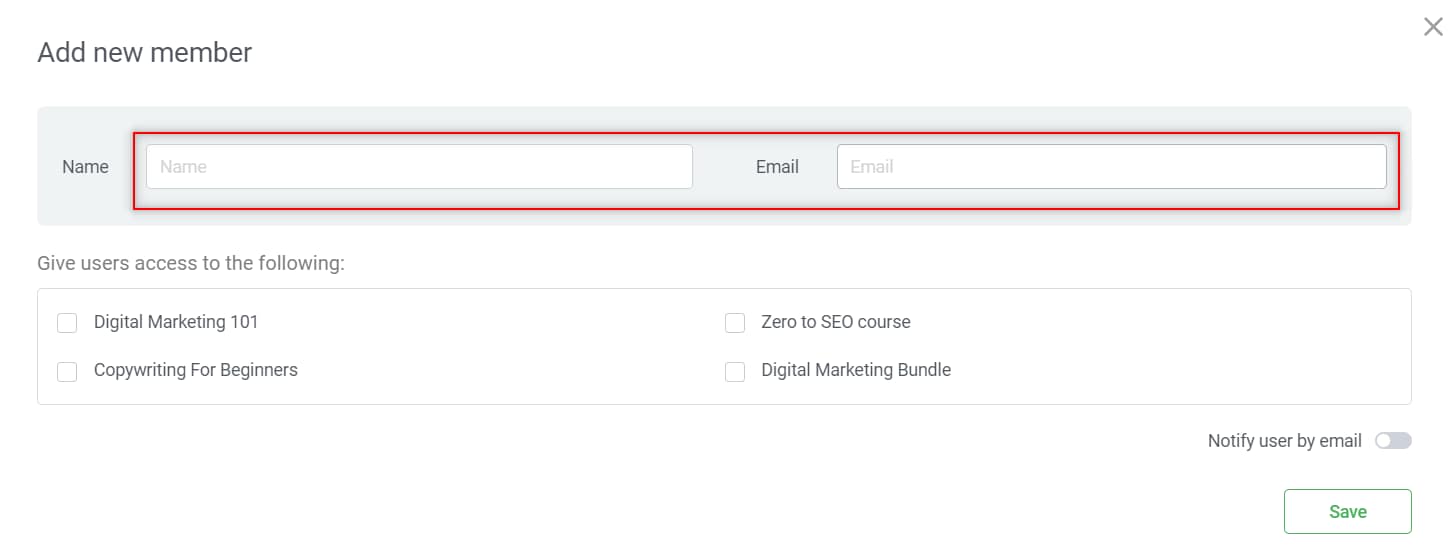
Then, select the products/bundles you want him/her to have access to. Make sure to choose the product that the member has purchased, but does not have access to it so far:
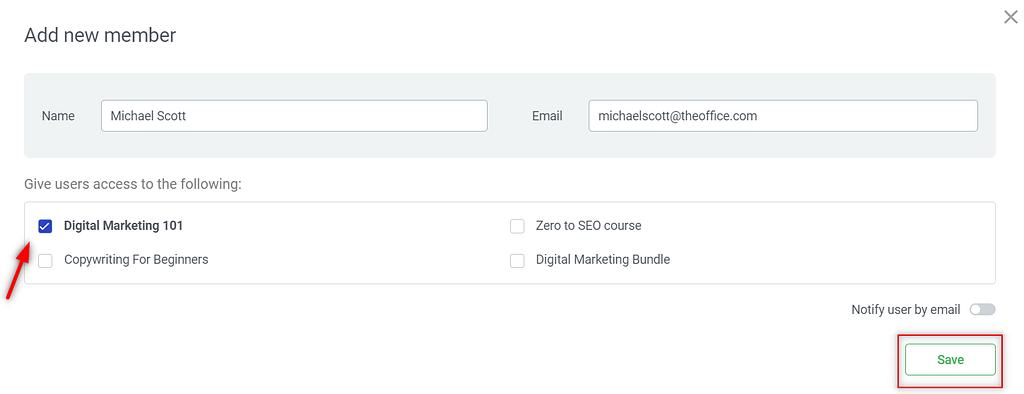
You also have the option of notifying the member via e-mail that he has been granted access to the course. Just activate the toggle next to “Notify user by email” and then click on “Save”:
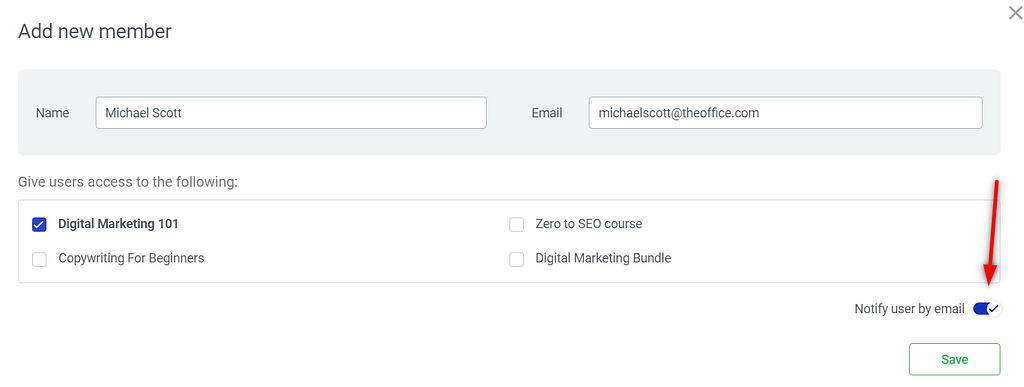
The member will be added to your “Members” list and he/she will have access to the purchased product.
PayPal purchases
If the member paid through PayPal (Thrive Suite 10.9.3+):
- Go to Thrive Apprentice → Members and open the member.
- Click Edit Access / Refund and confirm a completed PayPal order exists.
- If payment succeeded but access is missing, grant access manually via Edit Access Rights while investigating.
- Note the order Debug ID when contacting support — it helps trace the transaction in PayPal’s logs.
See How to Set Up PayPal in Thrive Apprentice and How to View Member Related Data in Thrive Apprentice.
If you want to find out more about how the “Members” section works, check out these articles from our knowledge base: