Thrive Quiz Builder provides several tools to help you manage, duplicate, and transfer your quizzes between sites. In this article, you’ll learn how to use the dashboard statistics, clone existing quizzes, and use the import/export feature.
Understanding the Quiz Dashboard
When you open the Thrive Quiz Builder dashboard, each quiz is represented by a card. This card provides a quick snapshot of your quiz’s performance:
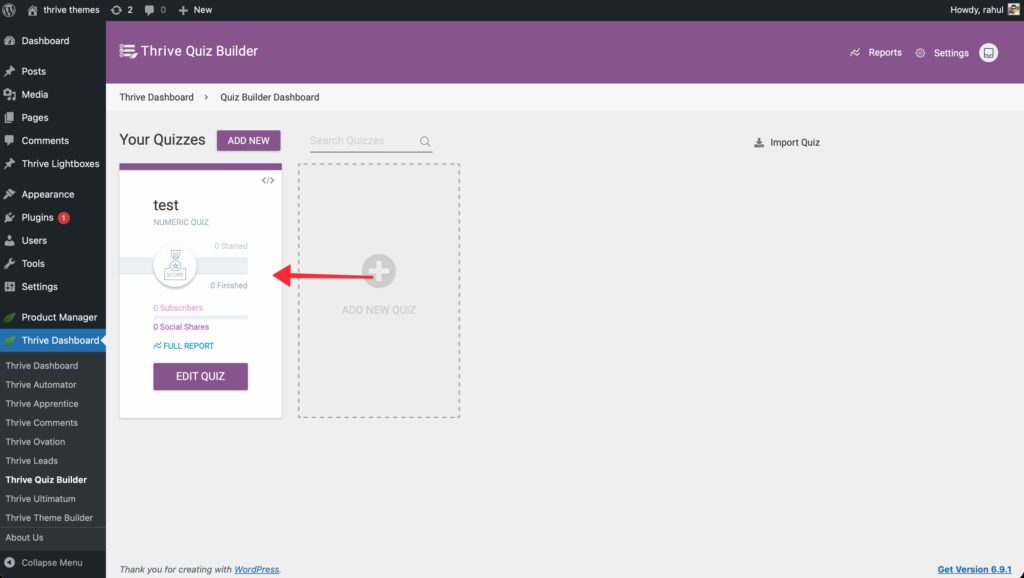
- Started: The total number of users who began the quiz.
- Finished: The number of users who reached the final results page or redirect.
- Subscribers: The number of leads captured via the Opt-in Gate.
- Social Shares: How many times the quiz was shared on social media.
Cloning a Quiz
Cloning is useful for creating variations of a quiz or testing different configurations without starting from scratch.
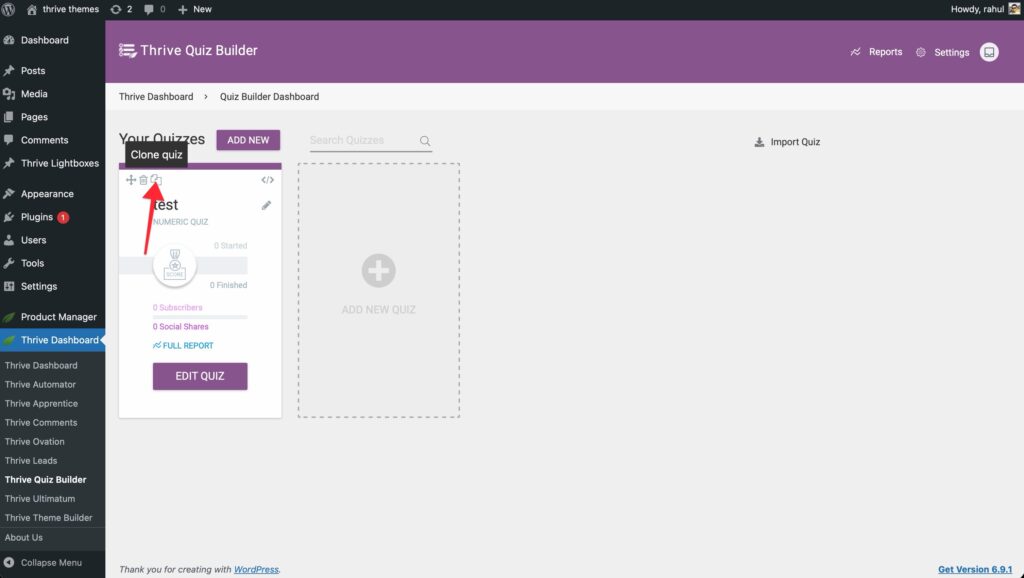
- Hover over the quiz card in your dashboard.
- Click the Clone (duplicate) icon.
- A new quiz will appear with “[Copy]” at the beginning of the title.
Importing and Exporting Quizzes
You can move quizzes between different WordPress sites that have Thrive Quiz Builder installed.
1. Exporting a Quiz
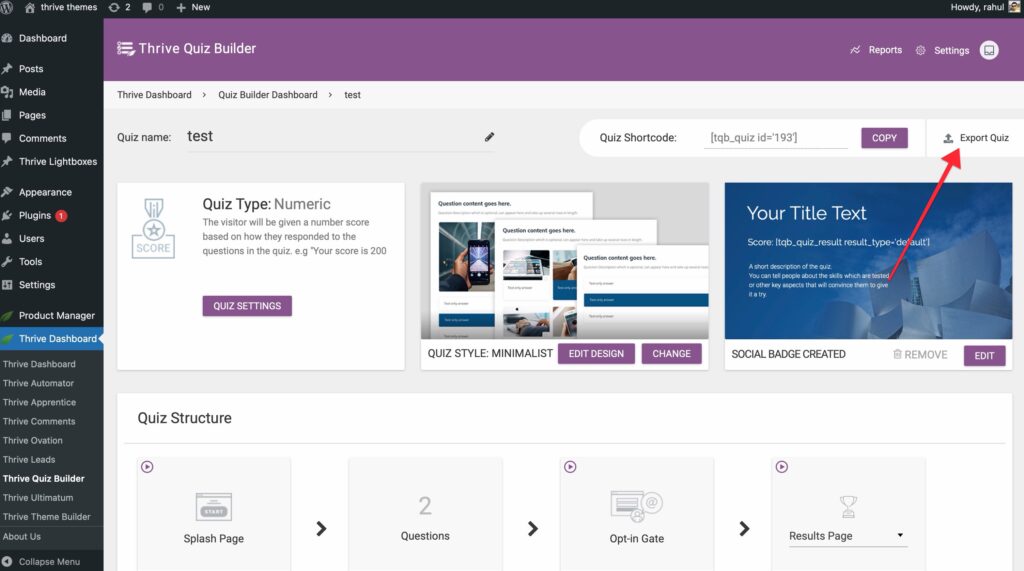
- Open the quiz you want to export.
- In the top-right corner, click the Export Quiz button.
- A .zip file containing your quiz structure and design will be downloaded to your computer.
2. Importing a Quiz
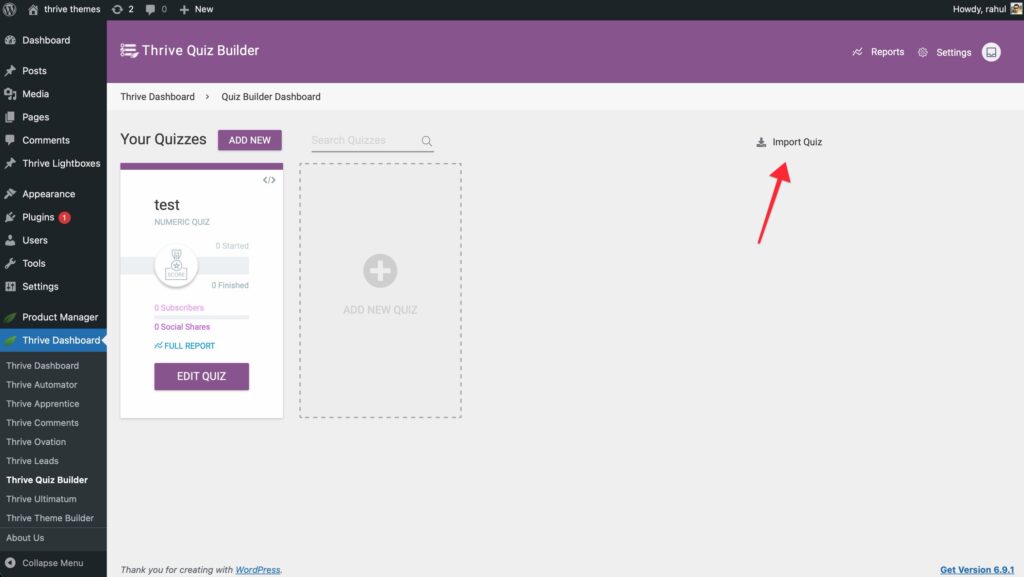
- Navigate to the main Thrive Quiz Builder dashboard on the destination site.
- Click the Import Quiz button in the top-right area.
- Upload the .zip file you exported previously.
Ensuring Quiz Progress is Saved
If you are using quizzes within a course (like Thrive Apprentice), you can allow students to pause and resume their progress.
Requirements
- The user must be logged in to their WordPress account for progress to be tracked.
Setup
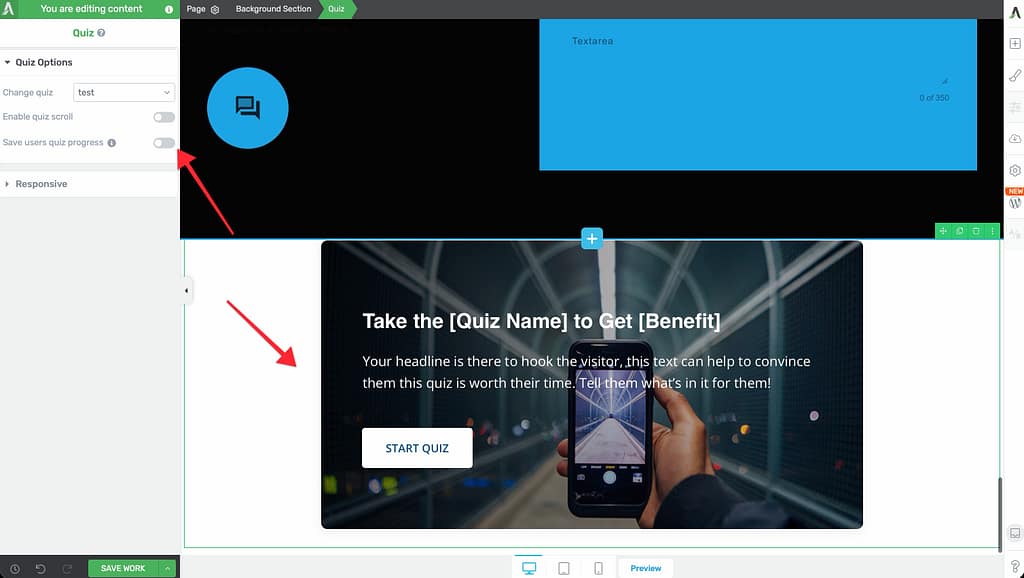
- Open the page (or course lesson) containing your quiz in the Thrive Architect editor.
- Select the Quiz element.
- In the left sidebar, toggle the Save users quiz progress switch to ON.
Related Resources
- Reporting: Overview of the Reporting Suite in Thrive Quiz Builder
- A/B Testing: A/B Testing Your Quiz Pages for Higher Conversions
- Publishing: How to Publish and Display Your Quiz
- Thrive Quiz Builder Documentation: Explore the full Thrive Quiz Builder knowledge base