Would you like to see every quiz that runs automatic actions, and switch them on or off from one screen?
In this guide, we’ll walk you through the Quiz Triggers dashboard in Thrive Quiz Builder. We’ll cover adding a quiz, reading its status, and turning its triggers on or off. All you need is Thrive Quiz Builder and at least one quiz.
- Opening the Quiz Triggers Dashboard
- Adding a Quiz
- Reading Each Quiz’s Status
- Finding a Quiz
- Turning a Quiz’s Triggers On or Off
- Deleting a Quiz’s Triggers
- Frequently Asked Questions
Before you get started, make sure Thrive Quiz Builder is installed and activated on your WordPress site.
Requirements: Quiz Triggers need Thrive Quiz Builder 11.4 or newer.
Opening the Quiz Triggers Dashboard
To get started, we’ll open the dashboard where every quiz with triggers is listed. In your WordPress admin sidebar, go to Thrive Dashboard » Thrive Quiz Builder.
Next, click Triggers in the Thrive Quiz Builder menu at the top of the screen.
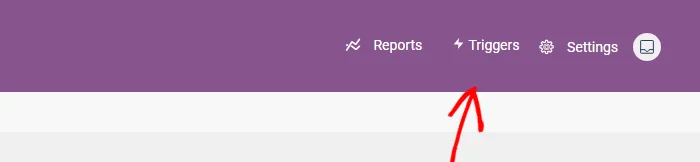
The Quiz Triggers dashboard opens. Until you add a quiz, it shows an Add your first quiz message.
Adding a Quiz
A quiz needs to be on this dashboard before it can run any triggers. At the top right of the dashboard, click Add a quiz.

The Add a quiz window lists your quizzes with their quiz type. Quizzes that are already on the dashboard don’t appear in it. To narrow the list, type part of a quiz name in the search box.
Next, click the quiz you want to add.
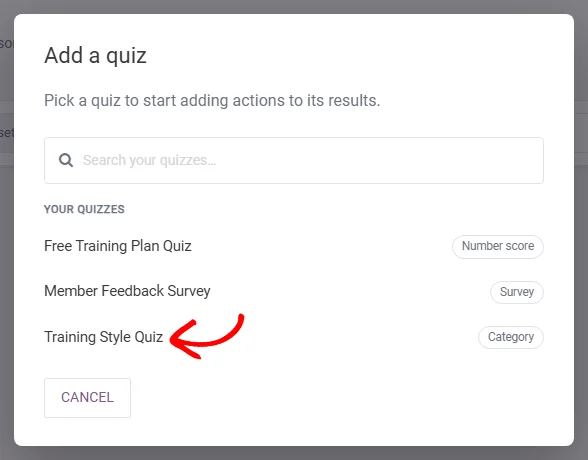
The quiz’s setup screen opens right away, so you can add its first actions.
What you set up depends on the quiz type. Number score and Percentage quizzes use score ranges. Right / Wrong, Category, and Survey quizzes use fixed outcomes.
To come back to the dashboard, click Back to triggers at the top of the setup screen.

Once you’re back, the quiz appears on the dashboard as its own row.
Reading Each Quiz’s Status
Each row shows the quiz name and type. A short line describes its scoring, such as “Pass / Fail · 2 questions.” The row also sums up the actions set up for it, such as “2 actions across 2 results.”
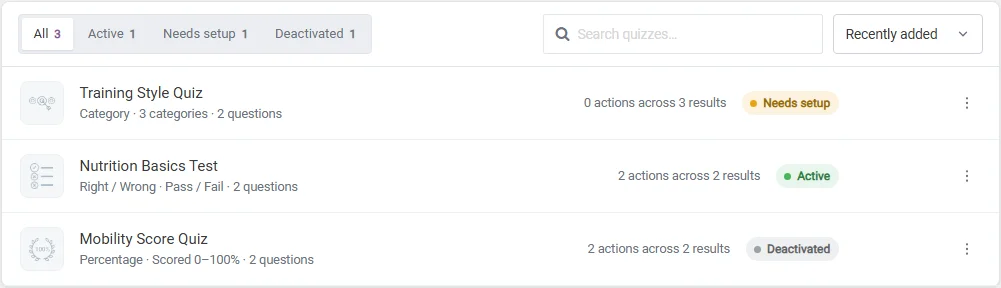
The colored label on the right is the quiz’s status. There are 3 statuses:
- Active means triggers are on and every range or result has at least one action.
- Needs setup means triggers are on, but at least one range or result has no action yet. A new quiz starts here.
- Deactivated means triggers are off for this quiz, so no actions run.
A Needs setup quiz still runs the actions you’ve already added. The status is a reminder that some results don’t do anything yet.
To open a quiz’s setup, click anywhere on its row.
Finding a Quiz
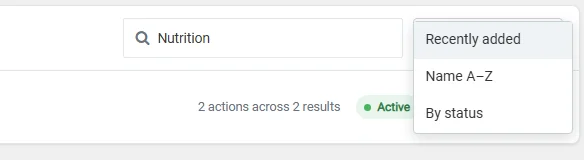
Once you have several quizzes, the toolbar helps you find one. The buttons along the top show how many quizzes have each status. To show only one status, click its button, such as Needs setup.
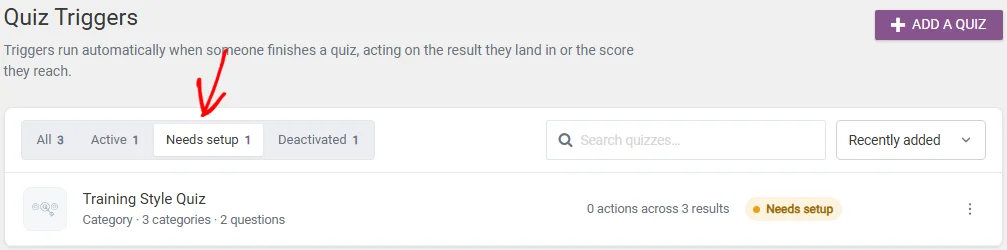
On the right of the toolbar, the search box finds quizzes by name. Next to it, the sort menu orders the list by Recently added, Name A–Z, or By status. The list starts sorted by Recently added.
With the right quiz in view, you can switch its triggers on or off.
Turning a Quiz’s Triggers On or Off
Turning triggers off pauses a quiz without losing its setup. This is useful while you edit the quiz or plan a new offer. On the quiz’s row, click the menu icon on the far right.

In the menu, click Deactivate triggers. The status changes to Deactivated and a “Triggers deactivated.” message appears.

To turn the triggers back on, open the same menu and click Activate triggers. The change takes effect right away.
A deactivated quiz shows a red banner on its setup screen. It reads “Triggers for this quiz are deactivated, so no actions will run.” To turn them on from there, click Activate triggers in the banner.

On the setup screen, the on and off switch is saved together with your other changes. After you click Activate triggers there, a “Triggers will be activated when you save.” message appears. Click Save triggers at the bottom of the screen to make it take effect.
When you turn triggers off on the setup screen, the red banner appears right away, before you save.

Turning a quiz’s triggers off also cancels its delayed actions that are still waiting to run. The execution log shows each one as Skipped.
Deleting a Quiz’s Triggers
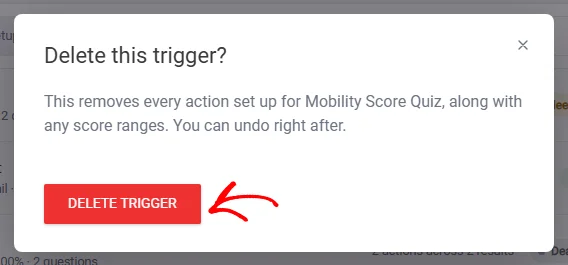
Deleting a trigger removes the quiz from this dashboard together with all its ranges and actions. The quiz itself stays in Thrive Quiz Builder. On the quiz’s row, open the menu and click Delete trigger.

A confirmation window explains what will be removed. To go ahead, click Delete trigger in the window.
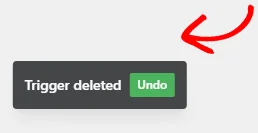
A “Trigger deleted” message then appears at the bottom of the screen with an Undo button. Clicking Undo within 5 seconds puts the quiz back on the dashboard with its full setup.
Deleting a trigger also cancels its delayed actions that are still waiting. Clicking Undo brings those waiting actions back.
You can also delete the trigger from the quiz’s setup screen. Clicking Undo there puts the quiz back in its old place on the dashboard.
After the message closes, the quiz is gone from the dashboard. To use triggers on it again, add it with Add a quiz and set it up from the start.
That’s it! You now know how to add quizzes to the Quiz Triggers dashboard, read their status, and switch their triggers on or off. Next, learn how to set up score ranges for a Number score or Percentage quiz.
Frequently Asked Questions
Below, we’ve answered some of the most common questions about the Quiz Triggers dashboard.
What happens to the triggers when I duplicate a quiz?
The copy keeps the whole trigger setup and appears on the Quiz Triggers dashboard. It starts as Deactivated, so it doesn’t run anything until you turn it on. To turn it on, see Turning a Quiz’s Triggers On or Off above.
Why can’t I find my quiz in the Add a quiz window?
The window only lists quizzes that aren’t on the dashboard yet. If the quiz is already on the dashboard, use the search box on the dashboard to find it. When every quiz is added, the window reads “All your quizzes already have triggers.”
Why does my quiz say Needs setup?
At least one of its ranges or results has no action yet. To fix it, open the quiz and add an action to each empty range or result. Once every one has an action, the status changes to Active.
Who can open the Quiz Triggers dashboard?
Anyone with access to Thrive Quiz Builder can open it. To give other user roles access, see using the User Access Manager. The View log option is only shown to administrators.