Would you like people who score high on your quiz to get a different follow-up than people who score low?
In this guide, we’ll walk you through setting up score ranges for Quiz Triggers in Thrive Quiz Builder. All you need is a Number score or Percentage quiz that you’ve added to the Quiz Triggers dashboard.
- Opening the Quiz’s Score Ranges
- Starting From a Layout
- Adding or Editing a Range
- Covering Every Score
- Adding Actions to a Range
- Saving Your Ranges
- Frequently Asked Questions
If the quiz isn’t on the dashboard yet, see our guide on managing quizzes on the Quiz Triggers dashboard.
Before you get started, make sure Thrive Quiz Builder is installed and activated on your WordPress site.
Requirements: Quiz Triggers need Thrive Quiz Builder 11.4 or newer. Score ranges are only for Number score and Percentage quizzes.
Opening the Quiz’s Score Ranges
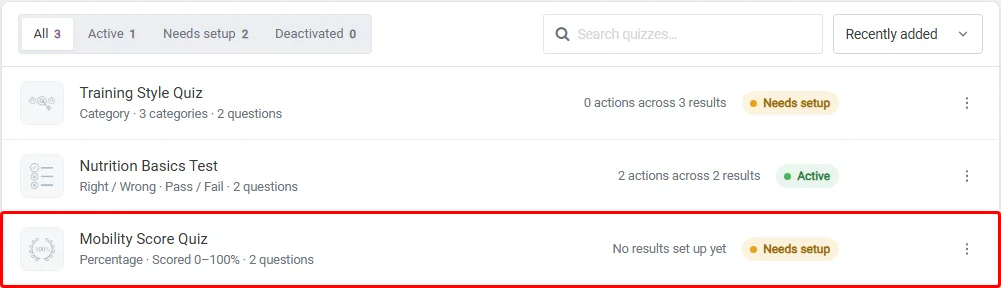
To get started, we’ll open the quiz’s setup screen. In your WordPress admin sidebar, go to Thrive Dashboard » Thrive Quiz Builder and click Triggers in the top menu. Then click the quiz’s row.
At the top of the setup screen, the Score map shows the quiz’s full score scale. For a Number score quiz, the scale runs from the lowest to the highest score its questions allow. For a Percentage quiz, it runs from 0 to 100%.
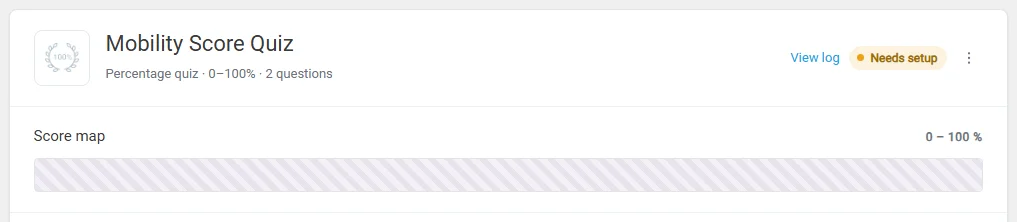
A range is one band on that scale, such as 0 to 100 points. Each range gets its own actions. When someone finishes the quiz, the range their score falls in decides what runs.
Starting From a Layout
A quiz without ranges offers 3 starting layouts under Score ranges:
- Pass / Fail splits the scale into 2 ranges at the midpoint.
- Low / Mid / High splits the scale into 3 even ranges.
- Start blank adds no ranges, so you build each one yourself.
A layout is the quickest start when your bands are even. Start blank suits uneven bands, such as a pass mark at 80%. In this example, we’ll click Low / Mid / High.
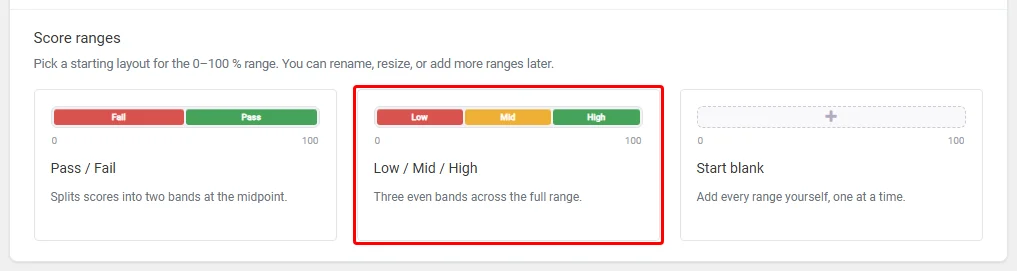
On a 0 to 100 scale, Pass / Fail gives 0 to 49 and 50 to 100, so a score of 50 passes. Low / Mid / High gives 0 to 32, 33 to 66, and 67 to 100.
The ranges appear on the score map and as cards below it. You can rename, resize, or delete each one afterward.
To clear all ranges and pick a layout again later, click Start over with a layout and confirm with Yes, start over. This also removes the actions set up for those ranges.

Adding or Editing a Range
Every range has a name and a lowest and highest score. A new range needs free scores, so if your ranges already cover the whole scale, delete or shrink one first. In this example, we deleted High. To create a range, click Add range below the range cards.
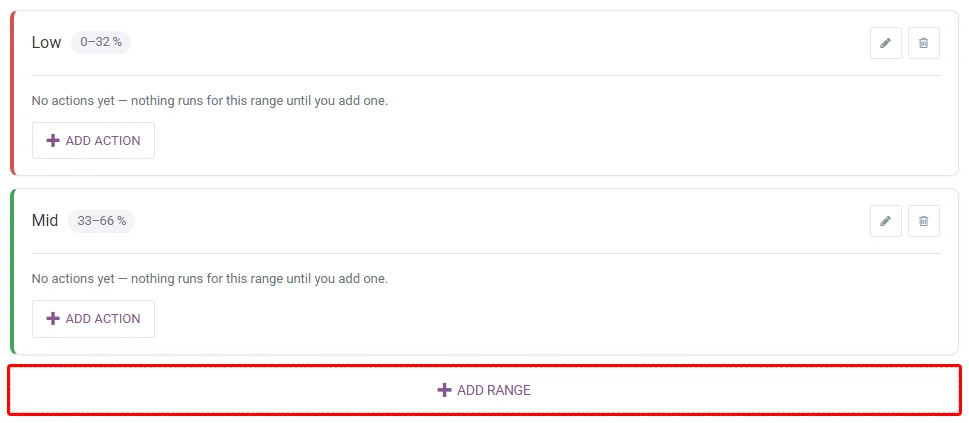
The New range editor opens. In the Range name field, type a name your team will recognize, such as “Certified.” The range can’t be saved without a name.

Next, set the scores the range covers. To do that, drag the 2 handles on the slider, or type the numbers in the Min and Max fields. Both numbers are included in the range.
While you type, the other field stays as it is. If your number passes the other one, the other field moves to match when you press Enter or click away.
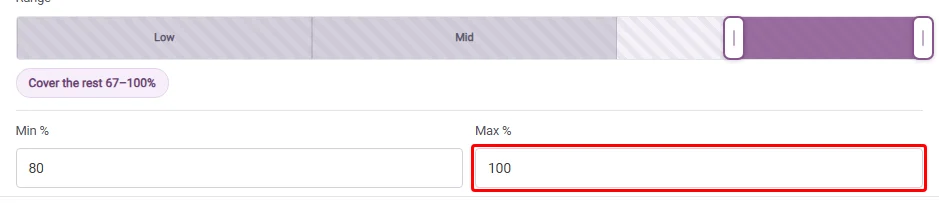
Below the slider, quick-fill buttons such as Fill the gap or Cover the rest set the range to an empty part of the scale. Ranges can’t overlap, so the editor keeps each new range inside the free scores.
When the range looks right, click Save range.
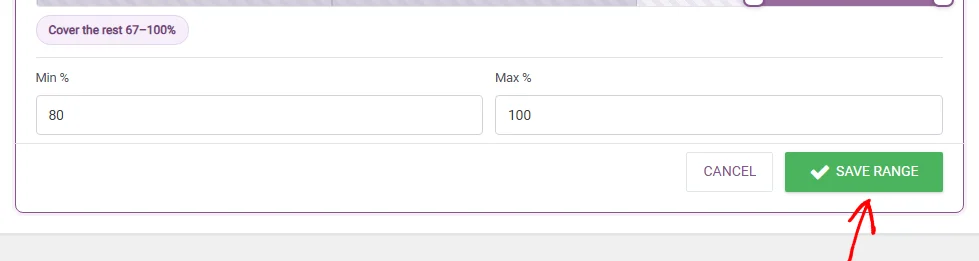
To change a range later, click the pencil icon on its card. To remove it, click the trash icon and confirm. A “Range deleted.” message then lets you undo for 5 seconds.

Covering Every Score
A score that falls outside every range runs no actions. The execution log still records it as “No range matched.”
When part of the scale has no range, a warning above the cards shows which scores aren’t covered.
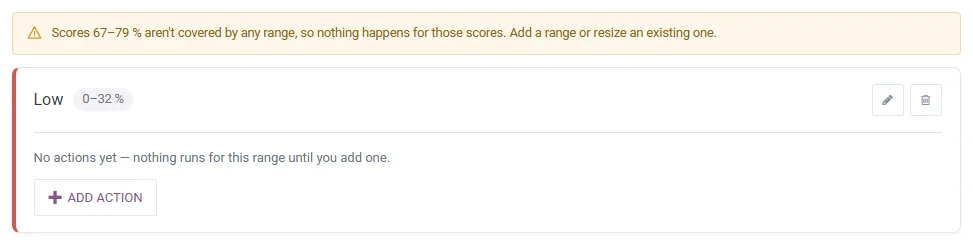
A gap can be on purpose, for example when low scores shouldn’t trigger anything. Otherwise, add a range or resize an existing one until the warning goes away.
When every score is covered, Add range shows “Every score is already covered. Remove a range to add a new one.”
Adding Actions to a Range
Each range runs its own actions. A new range shows “No actions yet,” and nothing runs for it until you add one. On the range’s card, click Add action.

Then pick and set up the action. Each action has its own guide:
- Applying an email tag
- Sending a webhook
- Granting Thrive Apprentice access
- Starting a Thrive Ultimatum campaign
A range can have up to 3 actions, and each action type once. When a score lands in the range, its actions run in the order listed. Each action runs on its own, so one failing doesn’t stop the others.
Saving Your Ranges
Ranges and actions aren’t live until you save them. The bar at the bottom of the screen reads “Unsaved changes” while you have changes. When you’re done, click Save triggers.

Thrive Quiz Builder saves the setup, takes you back to the Quiz Triggers dashboard, and shows a “Triggers saved” message.
If you leave the screen with unsaved changes, a window asks whether to Save & leave or Leave without saving.
That’s it! You now know how to split a quiz’s scores into ranges and give each range its own actions. Next, learn how to add a delay and a condition to a quiz trigger action.
Frequently Asked Questions
Below, we’ve answered some of the most common questions about score ranges.
What happens to my ranges if I change the quiz’s questions?
If the quiz’s highest possible score drops, a warning tells you that ranges beyond the new maximum never fire. Those ranges show a “beyond the max” label. Edit or delete them so they fit the new scale.
A range that starts above the new maximum never fires and shows “beyond the max.” A range that only crosses it still fires up to the new maximum and shows “partly beyond the max.” The score map only draws the part inside the new scale.
Why can’t I add ranges to my quiz?
The quiz needs scored questions first. Without them, the setup screen asks you to add questions in the quiz editor.
Right / Wrong, Category, and Survey quizzes use outcomes instead of ranges. For those, see running actions for quiz outcomes.
Can I run an action for only some scores inside one range?
Yes. To do that, add a condition to the action, such as “Score is at least 250.” See our guide on adding a delay and a condition.