Would you like to run a different action for people who pass your quiz, for each personality result, or for everyone who finishes a survey?
In this guide, we’ll walk you through setting up outcomes for Right / Wrong, Category, and Survey quizzes in Quiz Triggers. All you need is one of these quizzes added to the Quiz Triggers dashboard.
- Opening the Quiz’s Outcomes
- Setting the Pass Mark for Right / Wrong Quizzes
- Using Category Results
- Running Actions When a Survey Is Completed
- Adding Actions to an Outcome
- Frequently Asked Questions
If the quiz isn’t on the dashboard yet, see our guide on managing quizzes on the Quiz Triggers dashboard.
Before you get started, make sure Thrive Quiz Builder is installed and activated on your WordPress site.
Requirements: Quiz Triggers need Thrive Quiz Builder 11.4 or newer. Number score and Percentage quizzes use score ranges instead of the outcomes in this guide.
Opening the Quiz’s Outcomes
To get started, we’ll open the quiz’s setup screen. In your WordPress admin sidebar, go to Thrive Dashboard » Thrive Quiz Builder and click Triggers in the top menu. Then click the quiz’s row.
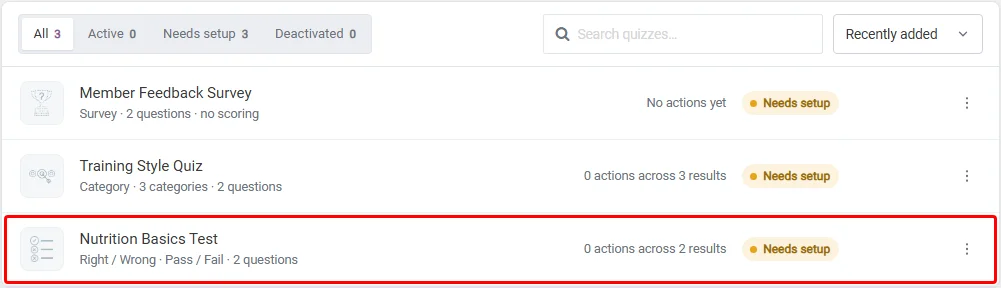
These quiz types don’t use score ranges. Instead, Thrive Quiz Builder sets up the outcomes for you, based on the quiz type:
- Right / Wrong quizzes get a Passed outcome and a Failed outcome.
- Category quizzes get one outcome for each result in the quiz.
- Survey quizzes get one On completion outcome.
Jump to the section for your quiz type below.
Setting the Pass Mark for Right / Wrong Quizzes
A Right / Wrong quiz shows 2 cards under Pass / Fail results: Passed and Failed. Next to the heading, a note shows the pass mark, such as “at least 50% correct.”
The pass mark starts at 50%. To raise or lower it, type a new number from 1 to 100 in the percentage field in the note.
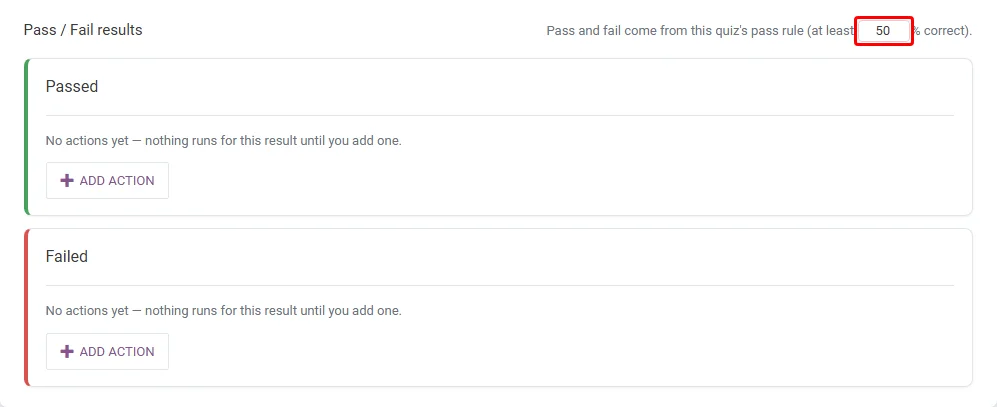
A higher pass mark suits exams and certificates, where only strong results count as a pass. The pass mark only decides which outcome runs here. It doesn’t change how the quiz shows results to the person taking it.
Using Category Results
A Category quiz, also called a personality quiz, shows one card under Category results for each result in the quiz. Each card runs actions for the people who get that result.
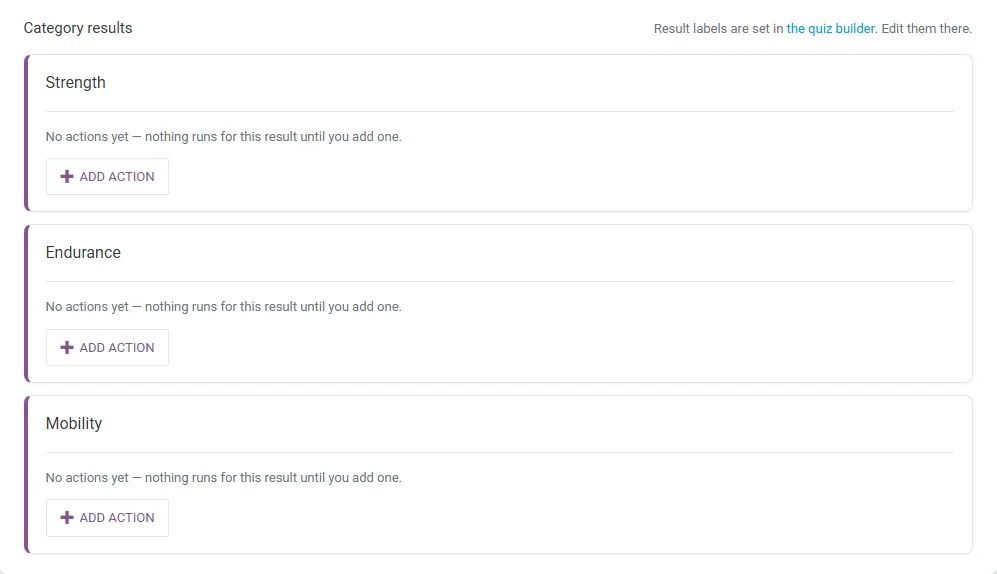
The result names come from the quiz itself. To rename or add a result, edit it in the quiz builder. The Quiz Triggers screen picks up the change.
If you delete a result from the quiz, its card stays with the warning “This result was deleted from the quiz. Its actions never fire.” To remove the card, click its trash icon and confirm.
Running Actions When a Survey Is Completed
A survey has no right answers or results, so it has one outcome: On completion. A note above it explains that “These actions run for everyone who completes the survey, no matter which answers they pick.”
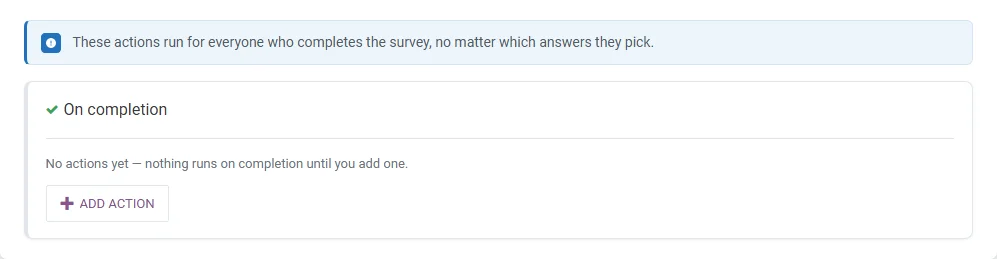
To act on single survey answers instead, use Tagged Answers in the quiz editor.
Adding Actions to an Outcome
Every outcome starts without actions, so nothing runs for it yet. On the outcome’s card, click Add action.
The action picker then asks what should happen “when someone gets this result.” For a survey, it asks about “when someone completes the survey.”

Then pick and set up the action. Each action has its own guide:
- Applying an email tag
- Sending a webhook
- Granting Thrive Apprentice access
- Starting a Thrive Ultimatum campaign
An outcome can have up to 3 actions, and each action type once. The quiz shows as Active on the dashboard once every outcome has an action.
When you’re done, click Save triggers at the bottom of the screen. Nothing runs until you save.

That’s it! You now know how to run actions for Passed and Failed results, Category results, and completed surveys. Next, learn how to apply an email tag when a quiz is completed.
Frequently Asked Questions
Below, we’ve answered some of the most common questions about quiz outcomes.
Do I need actions on both Passed and Failed?
No. An outcome without actions simply runs nothing. The quiz shows as Needs setup on the dashboard until every outcome has an action, but the actions you’ve added still run.
What happens when I add a result to my Category quiz?
A new card appears for it on the Quiz Triggers screen, with no actions yet. To use it, add an action and click Save triggers.
Can I run different actions for different scores in a Right / Wrong quiz?
Right / Wrong quizzes only have Passed and Failed. For more steps than that, use a Percentage quiz with score ranges.