Would you like to start a limited-time offer countdown for people right after they finish your quiz?
In this guide, we’ll walk you through adding the Ultimatum campaign action to a quiz trigger in Thrive Quiz Builder. All you need is a quiz on the Quiz Triggers dashboard and a running evergreen campaign in Thrive Ultimatum.
- Picking the Ultimatum Campaign Action
- Choosing Start or Stop
- Choosing the Campaign
- Saving the Action
- Who Gets the Countdown
- Frequently Asked Questions
The action is added to a score range or an outcome. If your quiz has neither yet, see our guides on score ranges and quiz outcomes.
Before you get started, make sure Thrive Quiz Builder and Thrive Ultimatum are installed and activated on your WordPress site.
Requirements: Quiz Triggers need Thrive Quiz Builder 11.4 or newer. Thrive Ultimatum must be active with at least one running evergreen campaign.
Picking the Ultimatum Campaign Action
To get started, we’ll open the action picker for the range or outcome that starts the countdown. On the quiz’s setup screen, click Add action on that card.

The Add an action page opens. Next, click Start or stop an Ultimatum campaign.
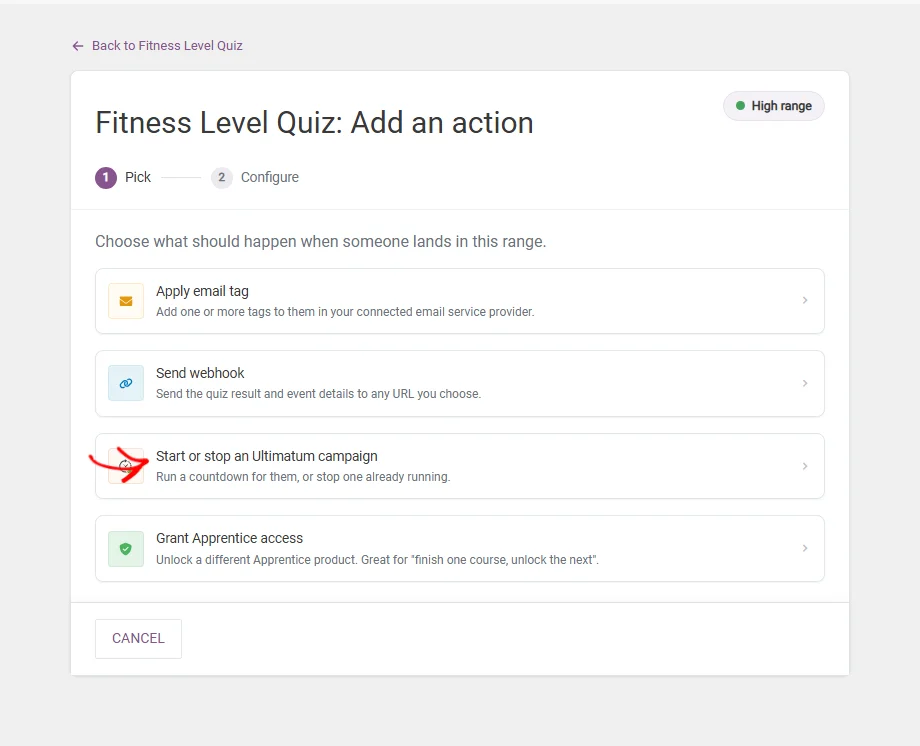
If the action shows Unavailable with “Thrive Ultimatum is not active,” activate Thrive Ultimatum first.
Choosing Start or Stop
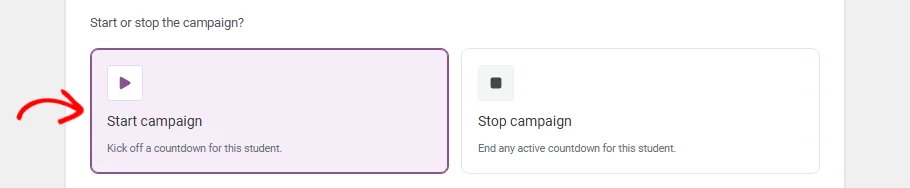
The configure step first asks “Start or stop the campaign?” Each option fits a different goal:
- Start campaign starts a countdown for the person, for example an offer for people who scored high.
- Stop campaign ends a countdown that is already running for them, for example once they’ve taken the quiz the offer was about.
In this example, we’ll click Start campaign.
Choosing the Campaign
Next, pick the campaign in the Ultimatum campaign dropdown. The list shows your running evergreen campaigns, because those are the ones that run a countdown for each person.
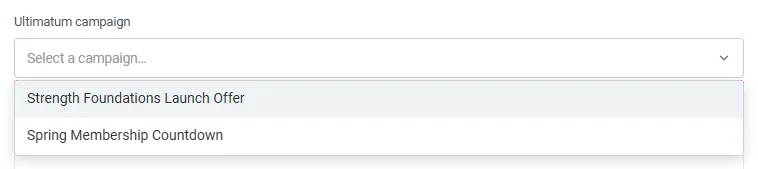
If your campaign isn’t listed, check in Thrive Ultimatum that it is an evergreen campaign and that it’s running. For help setting one up, see getting started with Thrive Ultimatum.
Below the campaign, Advanced settings lets you delay the action or run it only when a condition matches. That is covered in the delay and condition guide.
Saving the Action
The Add action button stays greyed out until a campaign is picked. When it’s set, click Add action.
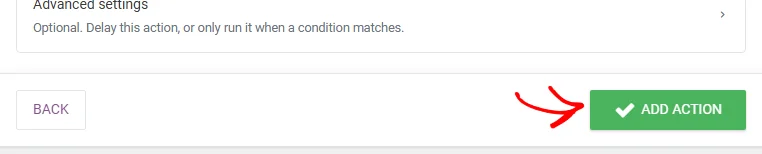
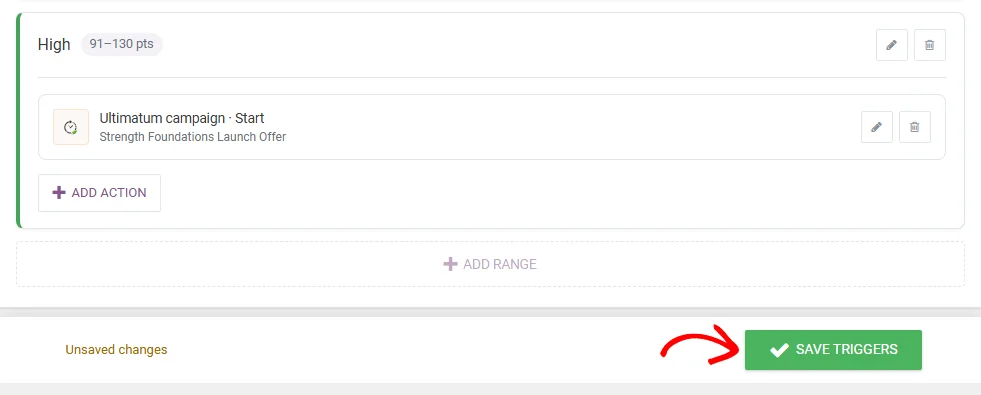
An “Action saved” message appears, and the action shows on the card with the campaign name and Start or Stop. The action isn’t live yet. At the bottom of the screen, click Save triggers.
Who Gets the Countdown
Campaigns are tied to a person’s email, so this action only runs for a confirmed person. The visitor has to be logged in to their WordPress account when they complete the quiz.
If they type an email in the quiz’s opt-in form, it must be their own account email. For a guest who only typed an email address, the action is skipped. The execution log shows that run as Skipped.
That’s it! You now know how to start or stop a Thrive Ultimatum countdown based on a quiz result. Next, learn how to add a delay so the offer starts a little later.
Frequently Asked Questions
Below, we’ve answered some of the most common questions about the Ultimatum campaign action.
Why don’t I see my campaign in the list?
The list only shows evergreen campaigns that are running. Paused campaigns and fixed-date campaigns don’t appear. See Choosing the Campaign above.
What happens if a countdown is already running for that person?
A Start action doesn’t restart it. The execution log shows the run as Skipped, with the reason from Thrive Ultimatum.
Can I start a campaign from a form instead of a quiz?
Yes. Thrive Architect forms have the same action under Thrive Actions. See using Thrive Actions to start Ultimatum campaigns from a form.