In this article, you’ll learn how to cancel your Thrive Themes subscription from your account, including what to do if your billing is managed through PayPal, so you can stop auto-renewal with confidence.
Thrive Suite is a paid collection of products that renew each year. If you cancel, your subscription will not renew at the end of your current billing period, but you can keep using Thrive Themes products until that paid time runs out. You’ll see your renewal date in your account.
- Cancel Your Subscription in Your Thrive Themes Account
- Cancel a PayPal Subscription
- What Happens After You Cancel a Subscription
- Can You Resubscribe After Cancellation
Note: In May 2026, subscription management moved to the updated Thrive Themes account area. The steps below reflect that account experience.
Cancel Your Subscription in Your Thrive Themes Account
You can cancel most Thrive Themes subscriptions yourself from your account. This stops future renewals while keeping your access active until the end of your current billing period.
1. Log in and go to https://thrivethemes.com/account
2. Open the Billing or Subscriptions section.
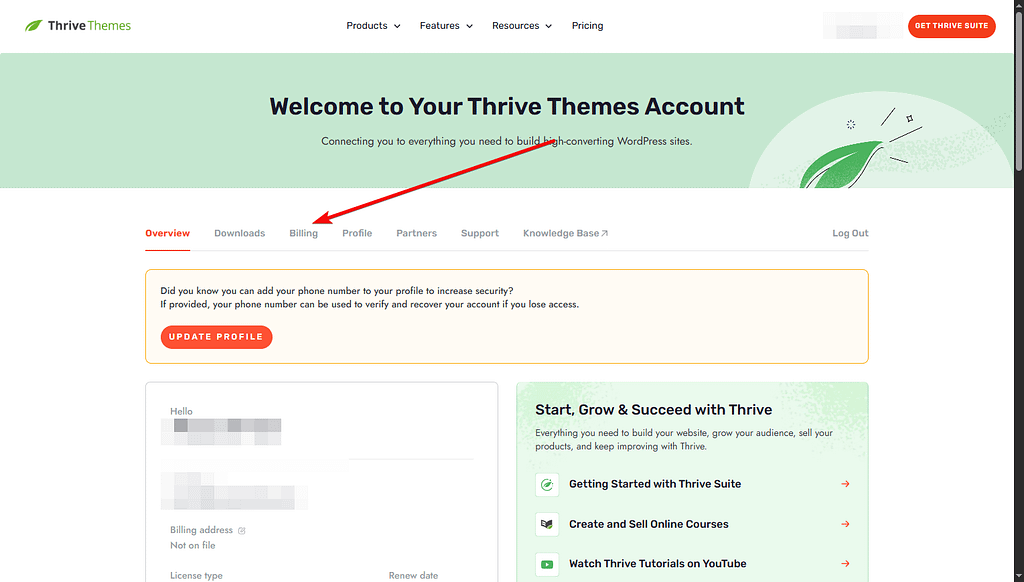
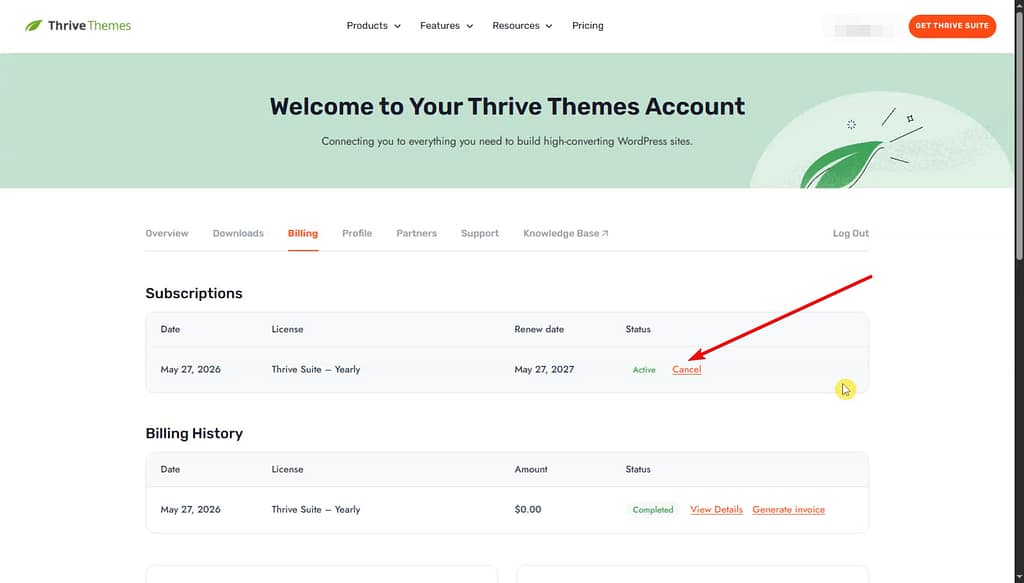
3. Find your active subscription and select Cancel next to it.
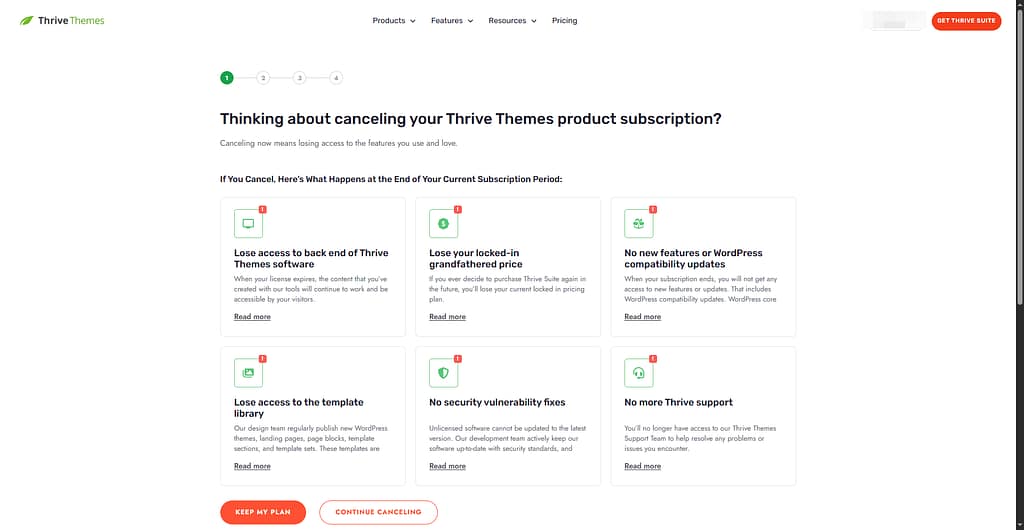
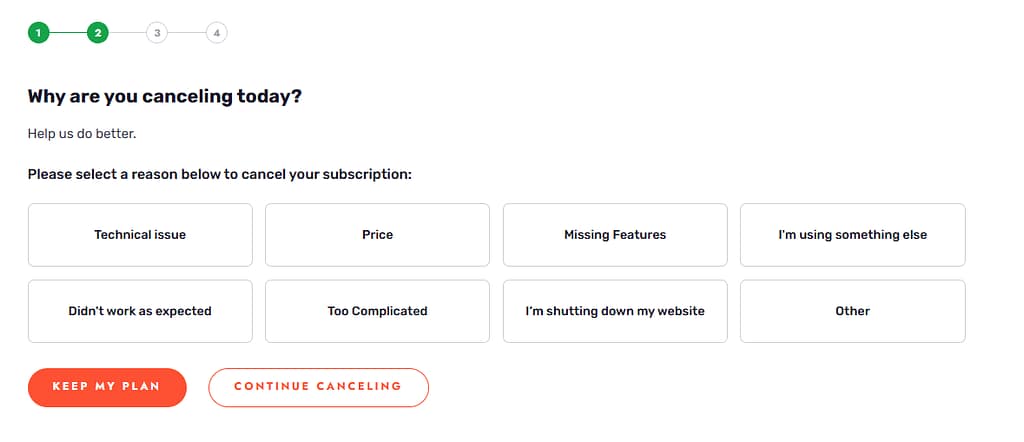
4. Follow the on-screen prompts to confirm cancellation.
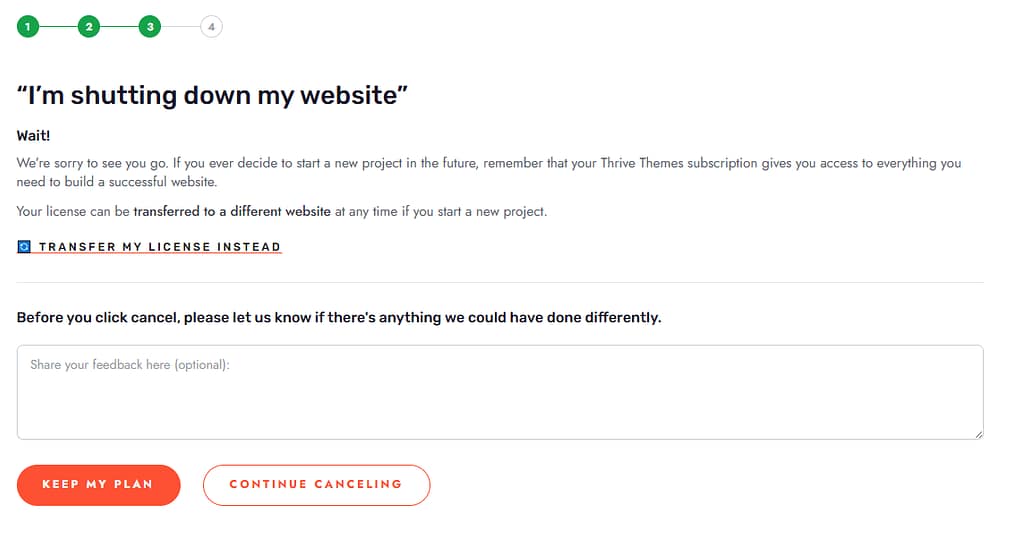
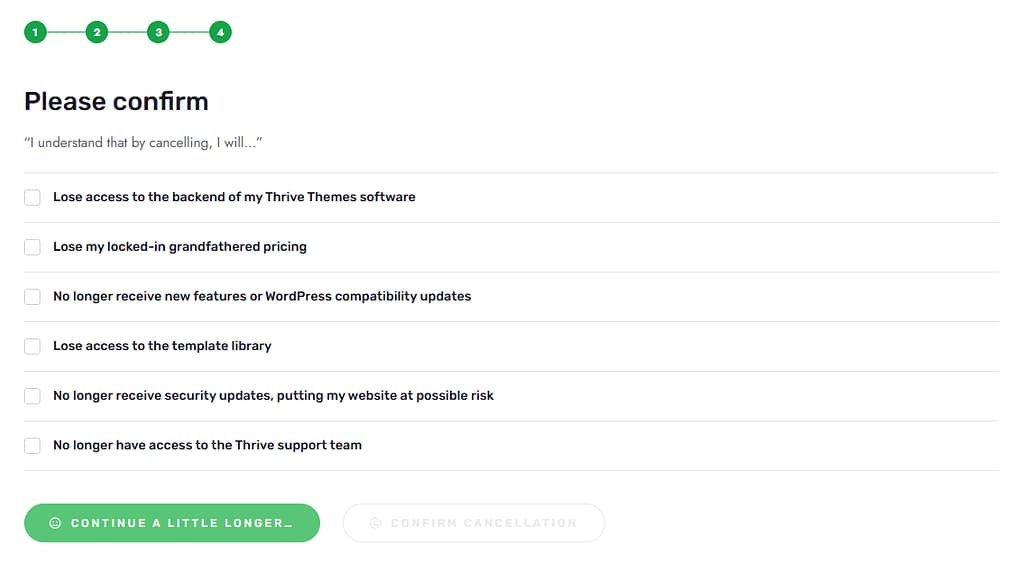

Watch: How to cancel your Thrive Themes subscription
Important: If no Cancel option appears and you are not paying through PayPal, contact Thrive Themes support. A support agent can process the cancellation from our end.
Cancel a PayPal Subscription
Some Thrive Themes subscriptions are billed through PayPal as Pre-Approved Payments. If your subscription is managed in PayPal, you must cancel the payment agreement in PayPal in addition to any cancellation steps in your Thrive Themes account.
- Log in to your PayPal account.
- Go to Settings > Payments > Manage Automatic Payments.
- Find whitesquare GmbH in the list (this is the billing entity for Thrive Themes subscriptions).
- Select the agreement and cancel it.
Tip: After cancelling in PayPal, return to https://thrivethemes.com/account and confirm your subscription shows as cancelled or set not to renew.
What Happens After You Cancel a Subscription
Canceling a subscription affects your license in two ways depending on how much time remains before it expires.
Effect of Canceling an Active Subscription
If you cancel before your subscription expires, you keep access to your products and account benefits for the rest of the paid period.
For example, if you purchased in January and cancel in March, you can continue using your products until January of the following year.
Effect of Canceling an Expired Subscription
Canceling does not cut off an active subscription early. When the paid period ends, you lose access to:
- The ability to add, customize, or use Thrive products
- Updates and new features for installed products
- Thrive Product Manager to install and activate Thrive products
- Ready-made cloud templates built for Thrive products
- Technical support from our team
Existing website content built with Thrive Suite plugins is not removed when your subscription ends. That content continues to display as it does today. You will not be able to use new templates or add and customize Thrive features on the site after the license expires.
However, running expired products can prevent you from accessing new features and may create security risks over time. For more detail, read why you should update the Thrive plugins.
Can You Resubscribe After Cancellation
If you cancel, you will need to make a new purchase to access your account and use Thrive products on new websites. You also lose access to future updates and support after the license expires.
If you cancel and do not plan to renew, see what happens when your license expires for a full overview.