Would you like to find your way around your Thrive Themes account? In this guide, we’ll take a tour of the account dashboard, where you manage your licenses, downloads, billing, and profile. All you need is the email address and password you use to log in.
Opening Your Account Dashboard
Log in at thrivethemes.com/login, and you’ll land on your account dashboard at thrivethemes.com/account. The “Overview” tab greets you with your contact details, billing address, license summary, and quick links to helpful resources:
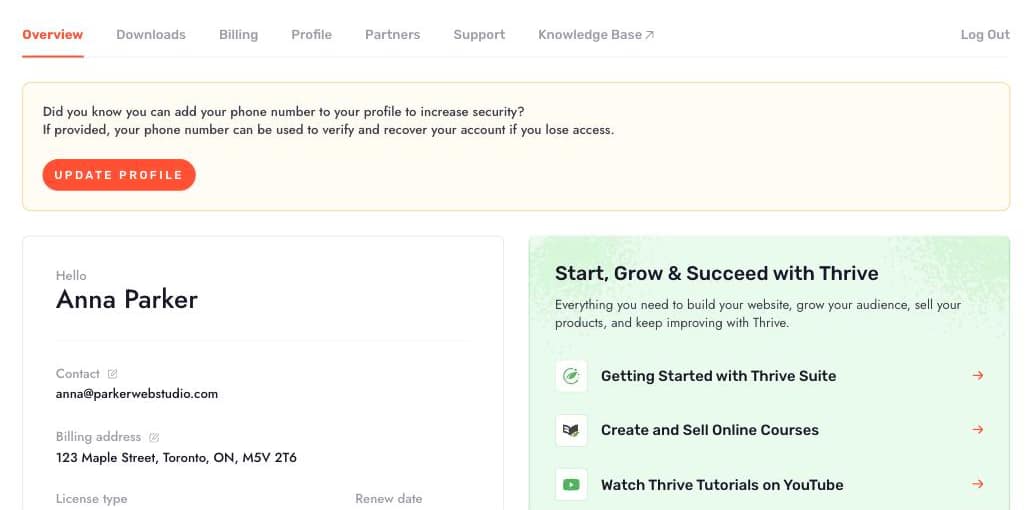
The menu at the top of the dashboard takes you to each section: Overview, Downloads, Billing, Profile, Partners, Support, and Knowledge Base.
Managing Downloads and Licenses
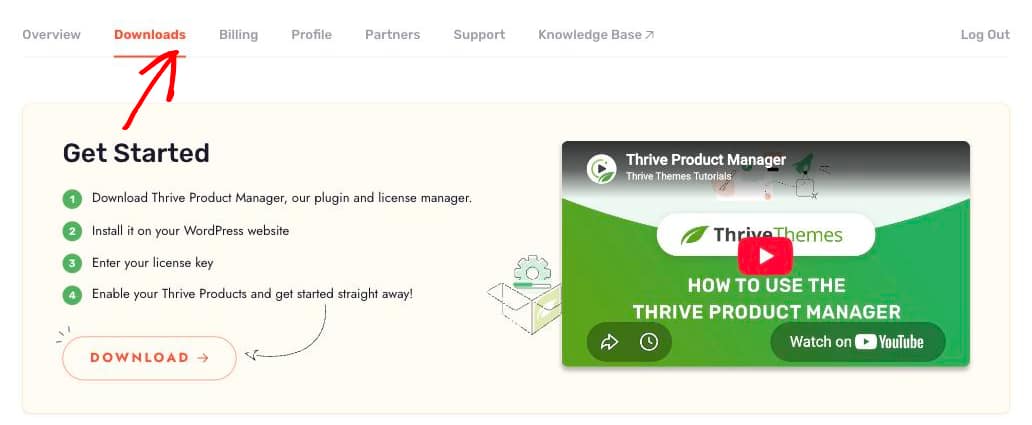
The Downloads tab is where you download the Thrive Product Manager, view your license keys, check your renewal dates, and manage which websites use your license:
You can read more in our guides on installing Thrive plugins with the Product Manager and activating or deactivating your license.
Reviewing Your Billing
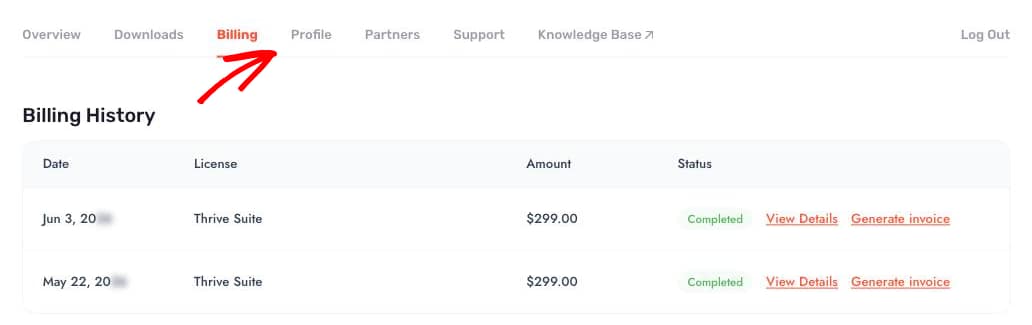
The Billing tab lists your payment history. From here, you can view the details of each payment and generate invoices:
For the full walkthrough, see our guide on finding invoices for your purchases.
Updating Your Profile
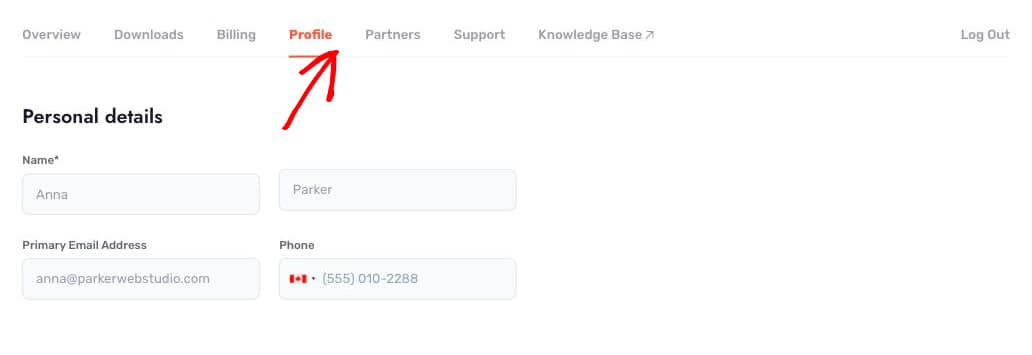
The Profile tab holds your personal details, billing address, and password:
Our guide on changing your account details covers each field.
Getting Help
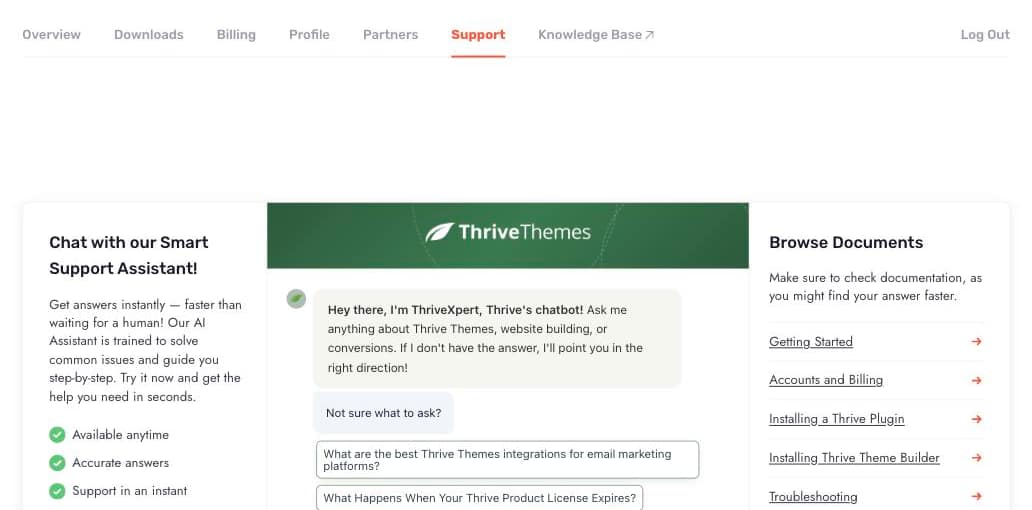
The Support tab gives you three ways to get help: chat with the Smart Support Assistant, browse the documentation, or submit a support ticket to our team:
That’s it! You now know your way around your Thrive Themes account. Next, head to the Downloads tab and follow our guide on installing your first Thrive plugin.