Have you come across an issue while trying to log in to your Thrive Themes account? In this guide, we’ll take a look at the most common login issues and their solutions. All you need is the email address you used when purchasing your Thrive products.
Logging In to Your Account
Your account lives at thrivethemes.com/account, and you can log in at thrivethemes.com/login. Use the email address associated with your purchase. If you’ve forgotten your password, use the reset link on the login page, or update it later from the Profile tab as shown in our guide on changing your account details.
Seeing a License Expired Message on the Plugins Page
Do you see a message that says, “License expired – There is a new version of Thrive Architect available but your license must be renewed to update”?

The update message usually appears when there is an update available, but the “License expired” part isn’t something you should see with an active subscription. In case you have an active subscription and still see this, click the Check license again button. You can confirm your renewal date on the Downloads tab of your account dashboard.
Connecting Your Website Through the WordPress Dashboard
After you install the Thrive Product Manager on your website, you connect it to your Thrive Themes account so you can install your Thrive products. If you’re facing trouble connecting from the WordPress dashboard, here are some solutions:
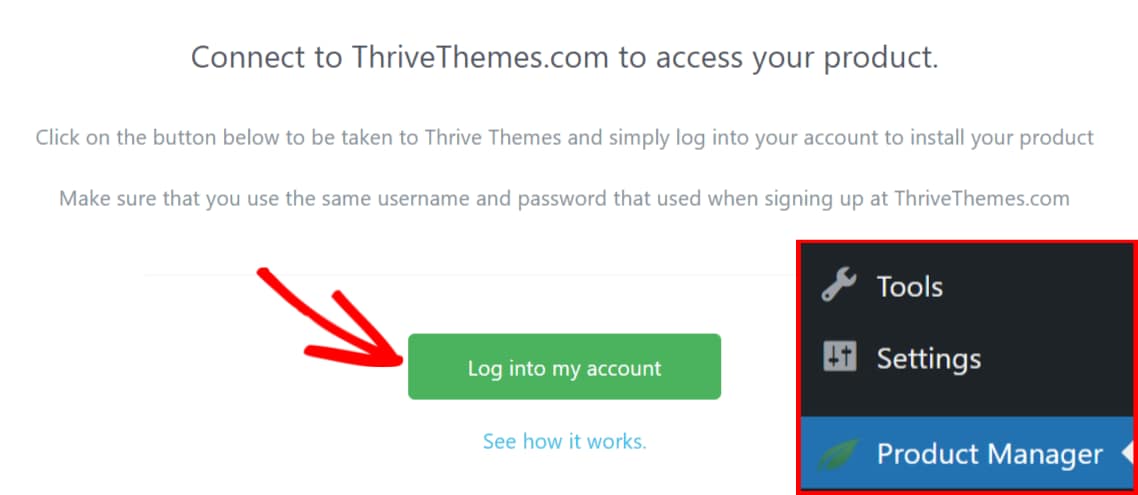
- Log in to your account on the Thrive Themes website in the same browser first, then come back to your WordPress dashboard and try again.
- Make sure you’re using the same email address as the one used to make the purchase.
- Check that your license key matches the one shown on the Downloads tab of your account dashboard.
- If these don’t work, your hosting server IP might have been blocked by our security systems. Open a support conversation from the Support tab of your account so we can whitelist it.
Seeing No Products on the Thrive Product Manager Page
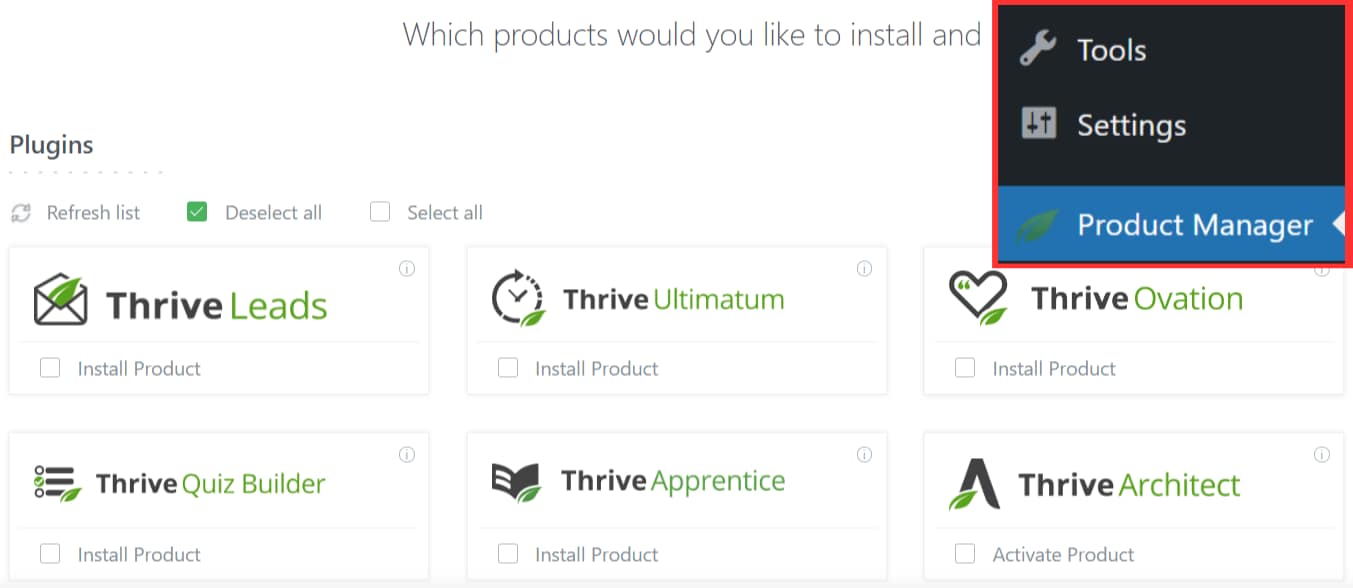
Once you’ve connected the Thrive Product Manager to your account, it lists all of your Thrive products. If the list is empty, here are a couple of solutions you can try:
- Make sure the account you connected is the one that holds your license. You can check your licenses on the Downloads tab of your account dashboard.
- Log out and back in to your Thrive account through the WordPress dashboard.
- Refresh the list of plugins by clicking Refresh List, seen above the plugins list on the Thrive Product Manager page.

That’s it! These solutions should get you back into your account and your products installed. Next, here’s how to install a Thrive Themes plugin using the Product Manager.