Would you like to activate your Thrive Themes license on a new website, or free up a license slot from a site you no longer use? In this guide, we’ll walk you through activating your license and managing your site activations from your Thrive Themes account dashboard. All you need is an active Thrive Themes license and access to your account.
Activating a Thrive License on Your Website
Your license is activated on a website through the Thrive Product Manager plugin. First, you connect the site to your Thrive Themes account with the plugin. After that, you choose the license on the plugin’s License Selection screen.
Our guide on installing a Thrive Themes plugin using the Product Manager covers installing and connecting the plugin in detail.
Once your site is connected, the License Selection screen lists the licenses in your account. From that list, click the checkbox next to the license you want to use on this website.

Then, click Continue below the list.

Thrive Product Manager adds the website to that license in your account. This uses one of the license’s site activations. You then land on the product dashboard, where the “Licenses in use on this site” line lists the license.
Note: If a license has already used all of its site activations, your account doesn’t add the website to it, and Thrive Product Manager shows a message saying so. Free up a site from that license in your account, then try again.
To learn more about combining licenses or keeping spare ones free, see our guide on choosing licenses in Thrive Product Manager.
Checking Your Site Activations
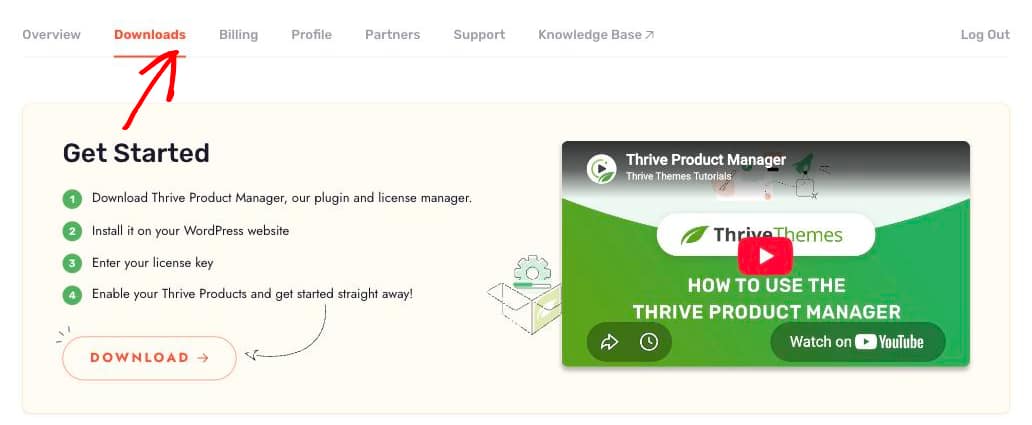
To see which websites are using your license, log in to your account at thrivethemes.com/login and click the Downloads tab in the menu at the top of your account dashboard:
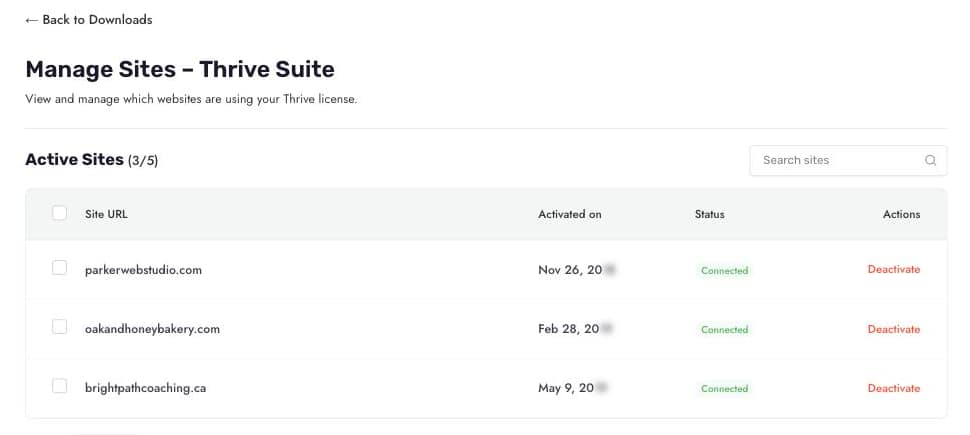
In the “My Licenses” table, the “Site activation” column shows how many websites are currently using your license out of the total your license allows. To view those websites, click Manage in your license’s row:

The “Manage Sites” page opens, listing every website your license is active on, along with its activation date and connection status:
Deactivating a Thrive License From a Website
Deactivating your license from a website frees up that activation slot so you can use it on another site. On the “Manage Sites” page, find the website you no longer want to use your license on, and click Deactivate in that site’s row:
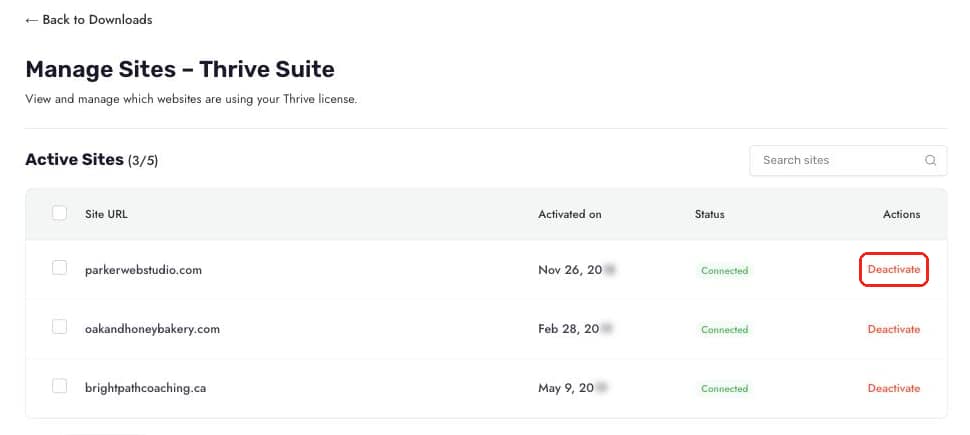
The site moves to the “Deactivated Sites” list at the bottom of the page.
Note: Deactivating a license does not remove any content from the website. Everything you built with Thrive products stays in place, but you will no longer be able to edit it with Thrive products, install new Thrive products, or receive updates on that site.
The website itself stays connected to your account. In Thrive Product Manager on that site, the license now shows an “Inactive” status on the License Selection screen. If you change your mind, click Reactivate in its row to open the license’s site list in your account.

Once the license is reactivated in your account, refresh your licenses on that screen so you can tick it again.
Freeing a License From a Website in Thrive Product Manager
Thrive Product Manager lets you free up a license from the website itself, for example when you switch the site to a different license.
From your WordPress admin sidebar, go to Product Manager. Next to “Licenses in use on this site”, click Manage licenses.

On the License Selection screen, click the checkbox next to the license you no longer want to use on this website to untick it.

Then, click Continue below the list.

Thrive Product Manager removes the website from that license in your account. That activation is then free for another site.
At least one license has to stay ticked, because the Continue button stays disabled until a license is selected. If the website uses only one license, free it by deactivating the site from your account instead. To free every license a website uses at once, deactivate the Thrive Product Manager plugin on that website.
That’s it! You now know how to activate your license and manage your site activations. Next, take a look at our guide on installing Thrive plugins with the Thrive Product Manager.
Frequently Asked Questions
How many websites can I activate my license on?
That depends on your license. The “Site activation” column on the Downloads tab shows your current usage next to your license’s total, for example “3/5”.
The license won’t activate on my website. What can I do?
Take a look at our troubleshooting guide for license activation and deactivation. If you’re still stuck, reach out to our team from the Support tab of your account dashboard.