Are you encountering issues activating or deactivating a Thrive license on your website? Or are you seeing a message saying no activations for your license? This can be resolved in just a few steps.
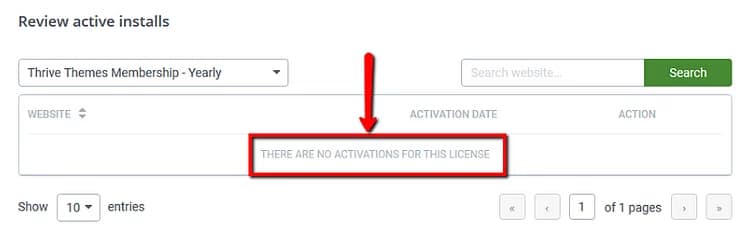
In this article, we’ll look at the troubleshooting steps that help you activate and deactivate your license.
- Checking your license status in Thrive Product Manager
- Making sure you’re using the new licensing system
- Updating all Thrive products
- Whitelisting licensing server IP
- Enabling cURL
- Getting in touch with us
1. Checking Your License Status in Thrive Product Manager
Thrive Product Manager shows the status of each of your licenses on its License Selection screen. From your WordPress admin sidebar, go to Product Manager. Next to “Licenses in use on this site”, click Manage licenses.

Then, click Refresh licenses at the top of the screen. This loads the latest license details from your account.

Now look at the “Status” column for the license you want to use. A license with an “Inactive” status is deactivated for this website in your account, so you can’t tick it. To use it here again, click Reactivate in its row. This opens the license’s site list in your account, where you can reactivate it for this website.

Once you’ve reactivated it, come back and click Refresh licenses so you can tick the license.
A license with an “Expired” status can’t be used until it’s renewed. To renew it, click Renew in its row.

If a license has already used all of its site activations, your account doesn’t add the website to it when you click Continue, and Thrive Product Manager shows a message saying so. Free up a site from that license first. Our guide on activating or deactivating a Thrive Themes license shows how.
A greyed-out license marked “Included in Suite” or “Spare” is already covered by another license you ticked. Our guide on choosing licenses in Thrive Product Manager explains these labels.
2. Making Sure You’re Using the New Licensing System
Our old licensing system (one before 18 October 2018) did not allow users to deactivate a license. This meant that you could not deactivate it from one website and activate it on another.
On the contrary, if you still have license installations/uses left or you buy new license installations, you will be able to deactivate licenses from one website and activate them on another. Again, this will be available only for the licenses not activated with the old system.
Note: Thrive products are now activated only through Thrive Product Manager, and license keys are no longer entered anywhere. If a website was activated with a license key, install Thrive Product Manager on it, connect the site to your Thrive Themes account, and choose your licenses. Our guide on installing a Thrive Themes plugin using the Product Manager covers each step.
3. Updating All Thrive Products
We strongly recommend updating your plugins and themes to their latest versions.
For more details, please check out our guide to updating Thrive products on your site.
4. Whitelisting Licensing Server IP
If updating all Thrive products didn’t help, your server may be blocking requests from our licensing server.
For this step, please ask your host to whitelist the licensing server’s IP address:
- 34.120.31.4
5. Enabling cURL
cURL is a transferring tool to ensure data moves to and from a server. Sometimes web hosts won’t automatically enable cURL, which can cause many issues on a website (including license issues).
If you’re still seeing issues after trying the steps above, please check with your host to ensure cURL is enabled.
6. Getting in Touch With Us
If the above steps don’t work for you, please open a support conversation, and we will look into it for you and help activate your product as soon as possible.
Please grant access to our support team when opening the thread.
That’s it!
These troubleshooting steps are most useful when you wish to deactivate a license on one website and activate it on another.
Did you know you can export and import content from one website to another too? Here’s an article that will help.