

TL;DR — How to Lock Content in WordPress (Without Hurting SEO or the Reader Experience)
If you want to lock content in WordPress without frustrating readers or confusing search engines, keep things simple:
Lock the bonus material, not the entire post.
Keep your intro and main points visible so Google understands the page.
Use an inline content lock rather than a full-screen mobile popup.
Wrap only the upgrade — the checklist, template, extra steps, or PDF — inside the shortcode.
Let the unlock happen instantly so the reader stays in flow.
Done right, a content lock becomes a gentle nudge instead of a barrier — a way to turn high-value posts into consistent conversions while keeping the whole experience smooth and trustworthy.
If you're anything like me, there’s a very specific irritation that comes from watching a great blog post perform beautifully… except for the part where nobody actually joins your email list. They read, they nod, they scroll, and then vanish — like the digital equivalent of ghosting.
Eventually, it hit me: the content isn’t the issue. The issue is how easy it is for readers to slip away without taking a single step closer.
That’s when I started using content locks in WordPress — not to hide entire articles, but to offer something meaningful inside the post. A quiet moment that says,
“If this helped, I’ve got something even better waiting for you.”
Most of my upgrades look like:
A simple checklist readers can apply right away
A deeper breakdown of the steps
A template or script that saves time
A bonus example that didn’t fit in the main post
A compact PDF version for later
Used well, a content lock turns casual readers into subscribers without interrupting the flow or overwhelming them with noise.
In this tutorial, I’ll show you exactly how to lock content in WordPress so you can turn your high-value posts into reliable conversion engines — without making the experience feel pushy or complicated.
Why Locking High-Value Content Still Works (and When It Actually Helps You)
Over the past few years, I’ve seen a clear pattern in how people read, save, and engage with content online — and it aligns with the data. Traffic alone rarely leads to anything meaningful. According to multiple industry reports, less than 2% of readers take action unless they’re given a clear next step. And for most blogs, the “next step” is buried so far below the fold that almost no one sees it.
That’s why locking part of a high-value post can be such a strategic move.
Not to create artificial scarcity — but to create intent.
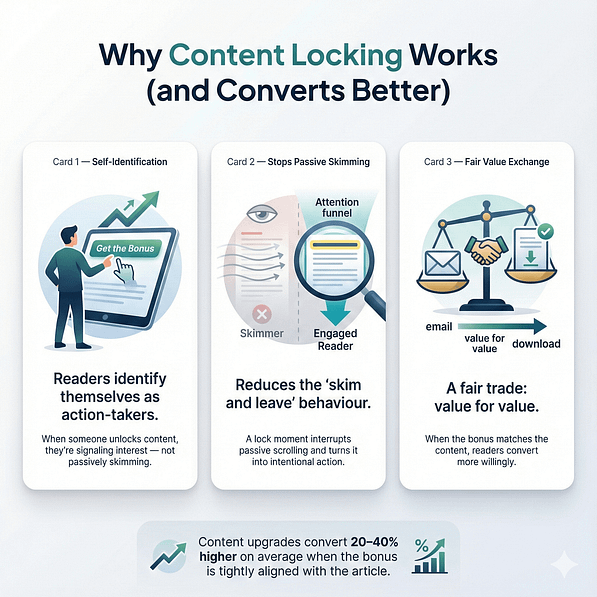
When you lock content in WordPress, you’re doing a few things at once:
Offering readers a moment to self-identify as people who want the deeper, more actionable version of what you just taught
Eliminating the passive “skim and leave” behaviour that drains so much of your traffic
Creating a natural value exchange that feels fair on both sides
And when the offer is genuinely useful, it works. Industry averages show that content upgrades convert anywhere from 20–40% better than generic sidebar forms. Readers respond differently when the bonus is tied directly to the thing they’re learning in that exact moment.
Of course, not every post should be gated — and I’ve learned that the hard way. Locking too much can frustrate readers and dilute trust. It also limits how much content is visible to search engines, which can work against your SEO goals.
So I keep content locking for moments where it actually strengthens the experience and justifies the friction:
High-value posts that already perform well and deserve a premium bonus
Content upgrades — checklists, templates, scripts, extra examples
Special events like challenges, webinars, launches, and time-sensitive campaigns
Long-form educational pieces where readers naturally want “the next layer”
Used intentionally, a content lock doesn’t block your audience — it guides the right people deeper into your world while giving them something genuinely helpful in return.
What You’ll Need Before You Lock Content in WordPress
Before jumping into the actual setup, it helps to have a few things ready. It keeps the process smooth and saves you from hopping back and forth later.
These are the essentials I keep on hand:
A WordPress website with Thrive Leads installed and activated — either as a standalone plugin or as part of Thrive Suite.
The bonus content you want to lock. This could be:
A downloadable PDF checklist or worksheet
A short video or mini walkthrough
Extra “pro tips” or deeper examples that didn’t fit in the main post
A simple template your readers can copy
An email marketing service already connected to Thrive Leads so new subscribers land in the right place and get whatever follow-up or download access they need.
If you’re still shaping your offer or deciding what kind of content upgrade makes the most sense, you’ll find a full breakdown of ideas in our Guide to Lead Magnets.
How to Set Up a Content Lock on Your WordPress Website
The best way to configure a content lock on your WordPress site is with a plugin that offers this functionality. There are a number of powerful WordPress plugins that offer this function, in addition to other useful lead-generation features. A couple of top options include Thrive Leads and a pro OptinMonster subscription.
This WordPress tutorial shows you how to create an easy, eye-grabbing content lock form with Thrive Leads, one of the best WordPress content lockers available.
1. Download & Install Thrive Leads: The Best Content-Locker Plugin
Thrive Leads is a solid choice if you're looking to create high-quality content lock forms and popups without a lot of fuss.
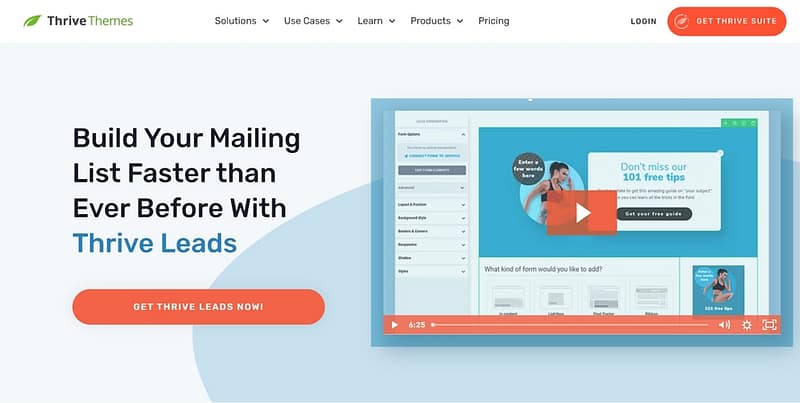
First off, you're going to love how easy it is to use. With its drag-and-drop editor, designing custom forms is a breeze, even for beginner
website owners.
This tool is all about making things simple and efficient for you. And with a variety of templates (450+ to be exact) that are not just eye-catching but conversion-optimized, you're set to capture your audience's attention.
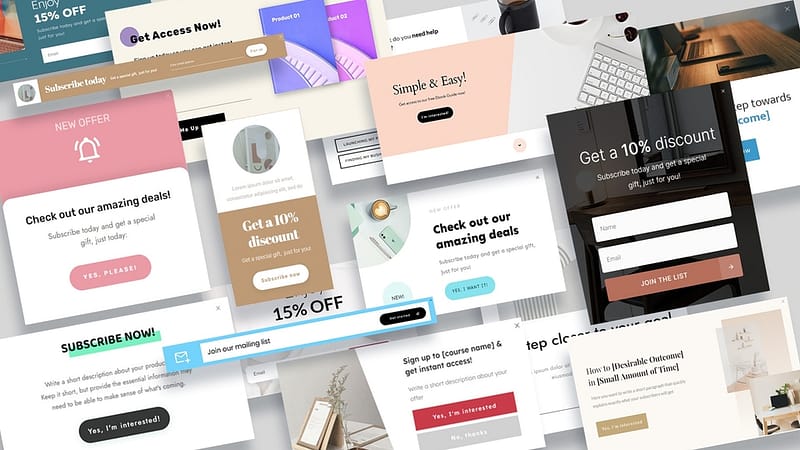
What's really cool about Thrive Leads is the way it lets you get specific with who sees your forms and popups.
You can tailor your content based on what your visitors are into, where they came from, and more. This means you can make your content super relevant to each visitor, increasing the chances they'll engage with it.
Also, it’s a-few-clicks easy to integrate with your favorite email marketing services.
This means you can manage your new leads easily and effectively. Plus, the plugin’s detailed analytics engine helps you keep track of how your forms are performing, giving you the insights you need to keep improving.
We know how important it is for your content to look good on every device, which is why everything you create with Thrive Leads is mobile-responsive.
Giving you everything you need to create high-converting opt-in forms and land more email subscribers.
2. Set Up Your Leads Shortcode
To add a content lock to your pages or posts, you’ll need to create a shortcode. This is super simple to do in Thrive Leads.
First, access your WordPress dashboard, navigate to the "Thrive Dashboard," and click on "Thrive Leads".
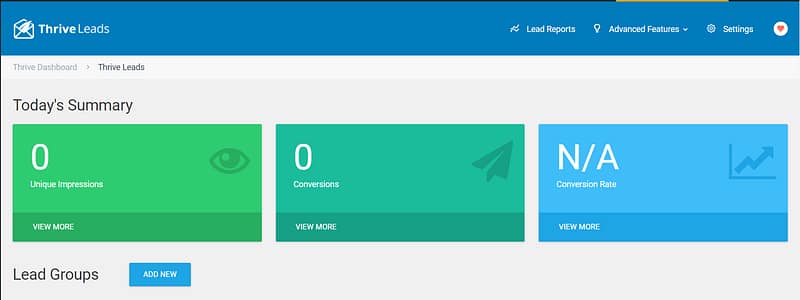
In the Thrive Leads dashboard, find the “Leads Shortcode” section and select “Add New”.

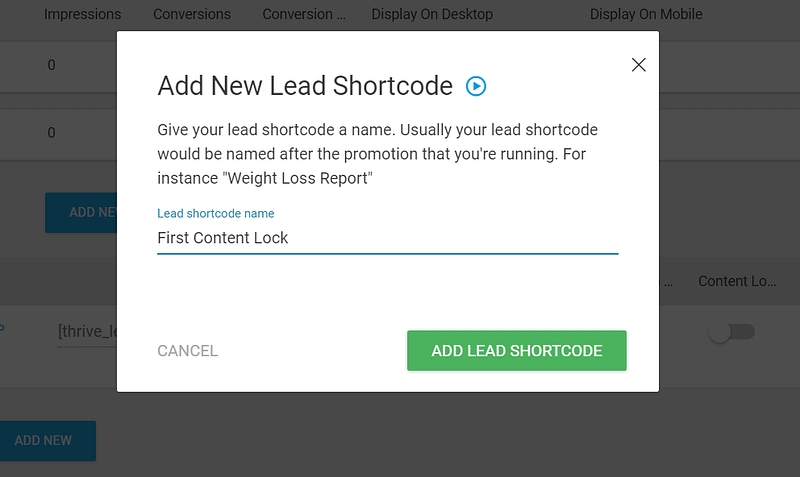
A popup will appear, asking you to name it. Give your shortcode a simple name and click the “Add Lead Shortcode” button.
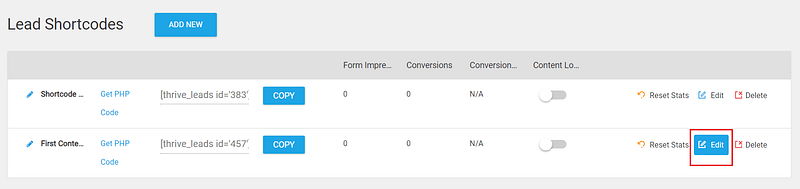
Next, click the “Edit” button in your Thrive Leads Dashboard. Now it’s time to design and customize your opt-in form.
3. Set Access Permissions by Activating the Content Locking Feature
After adding your shortcode, activate the toggle under the "Content locking" section.

This changes the shortcode's functionality to a content locking one.
4. Create and Customize Your Form
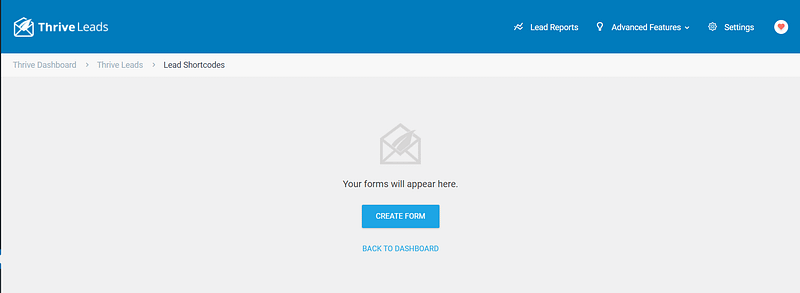
In the next screen, click the blue “Create Form” button, give it a name and click the green “Create Form” button.
Thrive Leads has hundreds of opt-in form
templates for you to choose from.
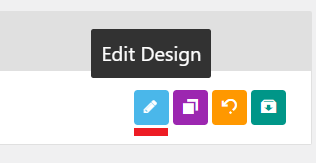
To select a template for your Lead Shortcode form, select the "Edit Design" option.
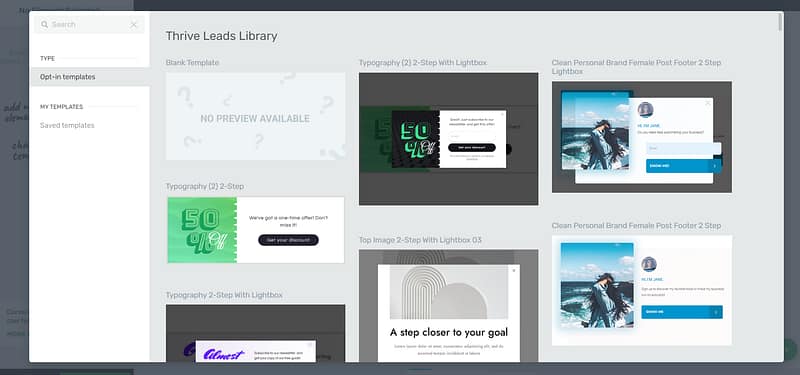
Scroll through our library of professionally designed templates until you find the perfect one for your offer.
Once you've selected a template, the Thrive Visual Editor will open, allowing you to customize your form.
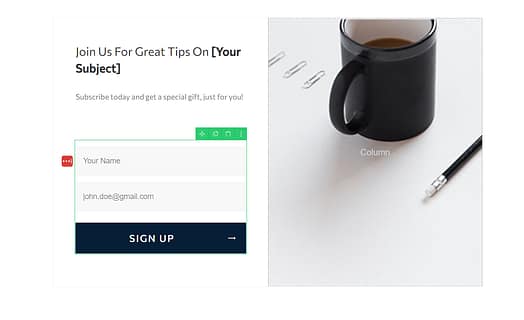
You can change every element of your pop-up including the text, colors, background image, and CTA button to make a visitor take a specific action - you're in control!
Save the form and exit the editor after you've customized your form.
How to Collect Payments Through Your Content Lock
Content locks are a great way to monetize your exclusive content.
To set up a paywall for your premium content, all you have to do is remove the form on your template and replace it with a CTA button, like in the image below:
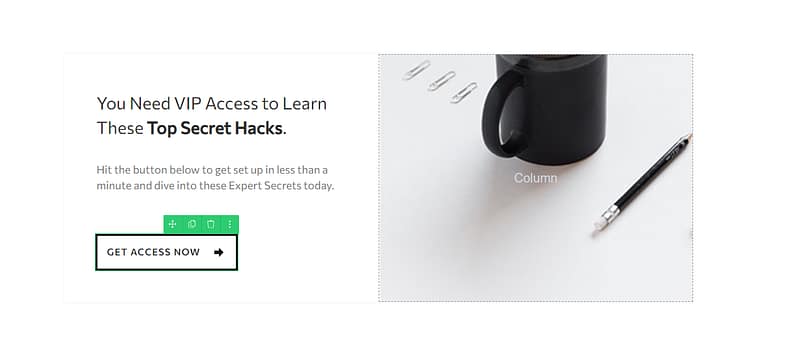
In the left sidebar, add a link to your checkout page for this post (you’ll need a WordPress payment plugin like WooCommerce or alternate checkout tool for this).
Also ensure that your customer is automatically redirected to the full-length content piece after payment.
Tip: If you’re a coach or online course creator, you can use a paywall to encourage readers to pay for access to your membership site, where they can access an array of other exclusive content. You can easily set a platform like this with a membership plugin like Thrive Apprentice or MemberPress.
5. Connect Your Form to Your Email Provider
You'll need to configure your email provider so that a confirmation email is sent and when clicking on the link in the email your subscribers are redirected to the full-length content piece, or a download page.
This is different for every email provider, but a quick Google search should help you out.
Example: “How to create a confirmation email in MailChimp”
Be sure to create a follow-up email sequence to engage your new leads and build a relationship with them. This strategy is a key part of the lead nurturing process.
And if you’re collecting payments for this piece, ensure that your checkout tool adds new customers’ email addresses and names to the right email list.
6. Save and Copy the Shortcode
When everything is set up and working properly, don't forget to click on "Save Work".
Next, back in your Thrive Leads dashboard, copy the shortcode of the form that you've just customized, as you will need it for the next step:
7. Set Up Lock Mode for Your Form
Lastly, there's one more thing you can set up here, and that is the "Lock Mode".

This is where you can set up how exactly you plan to hide your content - you can opt for hiding it entirely under your form, or you can also choose to blur it and give the visitor a hint at the content that can be unlocked:
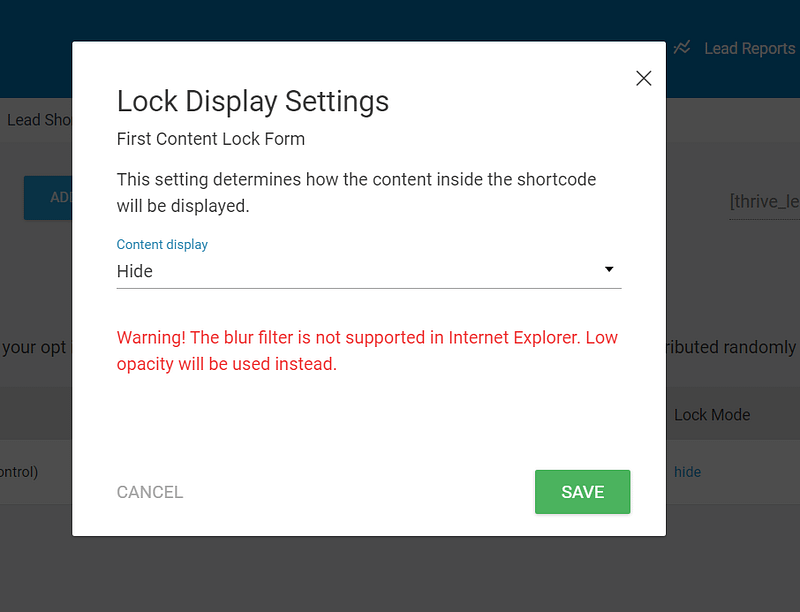
Note: The blur filter is not supported in Internet Explorer. Low opacity will be used instead.
8. Embed Your Shortcode Into Your Page or Post
Now open the page or post on which you want to set up your hidden content.
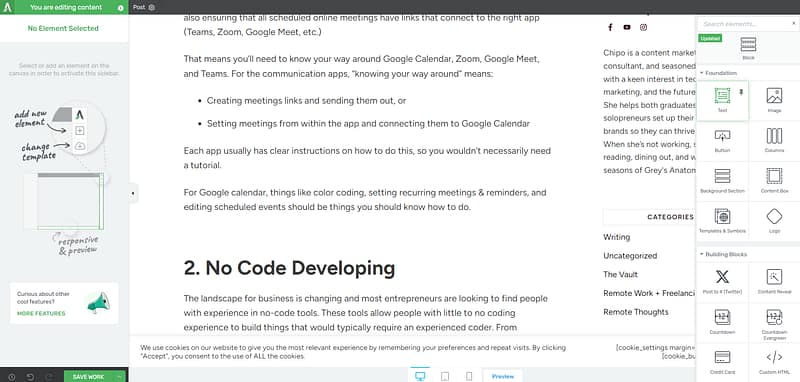
Drag and drop a "Text" element and paste the copied shortcode. Adding this element will depend on the page builder you’re using for your website.
In our example, we’re using Thrive Architect, but this content lock feature can work with most popular landing page plugins – and the WordPress Block Editor.
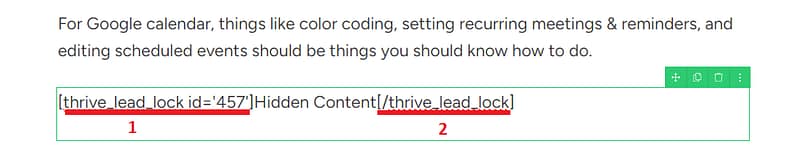
The shortcode consists of two parts - place the first part at the beginning of the content to be hidden and the last part at the end.
The "Hidden Content" text can be removed, and then the last part, also located between brackets, can be cut and pasted in another "Text" element, at the end of the hidden content.
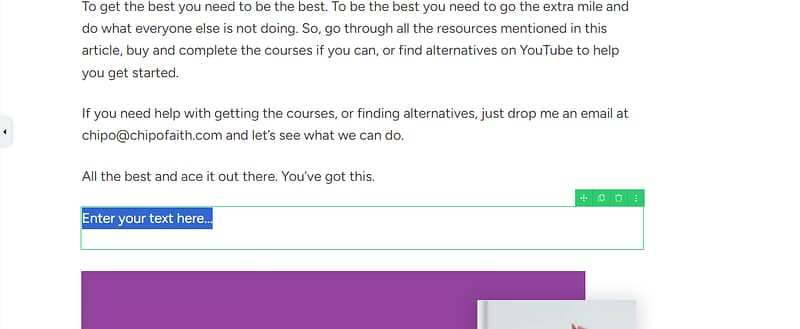
Add the second part of the short code to the end of the hidden content
The only thing left to do is to save your page and preview it. The page should now have a hidden section, that can only be unlocked via optin.
After the visitor fills in the form and submits it, the hidden content will automatically become available:
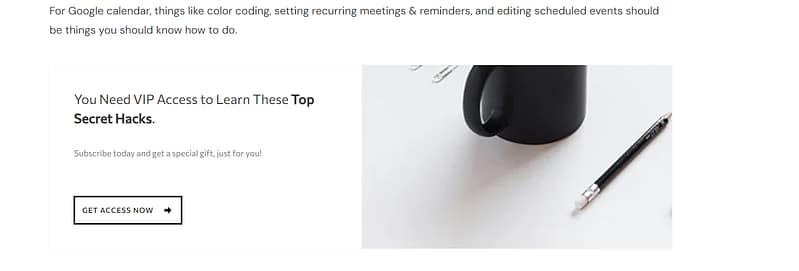
Reloading the page will not prompt the visitor to submit the form once more - the content will still be available.
Will Locking Content in WordPress Hurt Your SEO?
This question comes up every time I talk about content upgrades, and I understand why. The last thing any of us want is to finally get a post ranking… only to tank it by hiding too much behind a form.
The good news is, locking content isn’t a threat to your SEO when you use it intentionally. A few simple rules keep everything safe:
Keep the main content visible. Give Google (and your reader) enough to understand the topic before you introduce the gate. A strong intro and a few core sections go a long way.
Lock the bonus, not the basics. Use the gate for the upgrade — the checklist, the template, the deeper breakdown — not the entire article. This keeps your rankings intact and your reader supported.
Skip aggressive interstitials on mobile. Those full-screen, instant-load blockers can frustrate readers and send the wrong signals. Inline content locks — like the shortcode you’ll place inside your post — create a cleaner, more compliant experience.
When you use these principles, a content lock becomes an asset, not a risk.
Your public content can still rank, your best material stays protected, and the readers who want more get a clear, natural way to raise their hand.
Next Steps: Start Driving Traffic to Your Forms to Generate More Leads
Now that you’ve set up your content lock, it’s time to get it in front of your target audience.
As you share your content on social media, through email, and even via SEO, you need to make sure you’re targeting the right people (i.e. your ideal customer based on your buyer personas).
Here are 4 free tutorials to help you drive the right traffic to your website:
Ready to Create Your First Content Lock?
With this tutorial, you can turn your high-traffic blog posts into lead-generation or even sales opportunities.
And Thrive Leads helps you get this done fast and with ease. Our templates were built with conversion optimization in mind so you don’t have to spend hours figuring out how to turn social shares into more conversions.
The best part? You can get this plugin for a really great price.
But don’t just take our word for it.
Get Thrive Leads and start turning more visitors into subscribers today.


