


TL;DR: PayPal in Thrive Apprentice
In case you missed it: Thrive Apprentice now accepts PayPal natively, right alongside Stripe and Square. Your buyers get the payment option they already trust, and you get it without another plugin to manage or API keys to copy.
3 things worth knowing:
- More ways for buyers to say yes: one-time purchases take PayPal, cards, Apple Pay, Google Pay, Venmo and Pay Later (where PayPal makes them available to you), all in a checkout pop-up on your course page.
- Subscription revenue that doesn't depend on your site: renewals are charged by Thrive's servers, so they go through even if your site is down.
- Setup is a sign-in: connect your PayPal Business account from Settings → Payments → PayPal, add a PayPal price to a product, and you're selling.
If you sell subscriptions, the section on how they differ from one-time purchases is worth a careful read before you switch anything over.
A buyer lands on your sales page, reads through it, and decides your course is exactly what they need. So they click through to pay and look for the yellow PayPal button, but it isn't there. They hesitate for a moment, and then they close the tab to "think about it," and you never hear from them again.
And the only way around that used to be bolting on a third-party plugin or sending buyers off to an external checkout, which is a lot of extra setup for something your buyers expect to simply be there.
That's why I'm excited to share this one: Thrive Apprentice now has PayPal built in, as a third payment option next to Stripe and Square. If your plugins are up to date, it's already waiting in your settings.
Here's what that opens up for your business.
More Ways to Collect Payments, Exactly the Way You Want
With PayPal sitting next to Stripe and Square, you decide how each course gets paid for, and your buyers get more ways to say yes. That matters most at checkout, because it's the last step between a buyer who wants your course and a buyer who has it, and few things make someone change their mind faster than not seeing the way they like to pay.
Here's what PayPal puts in your hands:
Put together, that gives more of the people who reach your checkout an easy way to become students, so let's look at how each piece works.
Give Buyers the Payment Option They're Looking For
For one-time purchases, your buyer picks how they want to pay, right in the checkout pop-up on your course page:
Picture someone on their phone at the end of a long day, finally deciding to buy your course. They tap Apple Pay, confirm, and they're in, with no card to dig out of a bag and no account to create first, so the decision they made a second ago turns straight into a sale.
And access takes care of itself once they've paid:
So you don't lift a finger between "paid" and "learning."
Subscriptions That Keep Renewing, Even When Your Site Is Down
If you sell memberships or subscription courses, this is the part I'd most want you to know about. Anyone who's run subscriptions through an older PayPal setup knows renewals were the weak spot, and this integration handles them very differently.
Renewals run on Thrive's servers: when a buyer subscribes, their PayPal account is saved for future payments, and Thrive's servers charge it on schedule. The charge doesn't depend on your WordPress site, so it still goes through if your site happens to be down that day. Your site records the payment and extends the member's access once it's back up, because PayPal keeps resending the notice until your site accepts it.
Failed payments get two more tries: if a renewal fails, it's retried on day 3 and again on day 7, counted from the first failure. The member keeps access while those retries run, and only if the last one also fails is your site told to cancel that member's access.
Members can cancel on their own: PayPal subscriptions don't use the Stripe Customer Portal, so you give members a cancel link instead: in Thrive Architect, add a button or text link to your course or account page and set it to Dynamic Link → PayPal → Cancel subscription. Thrive Apprentice even reminds you about this when you choose a recurring PayPal price.
What that buys you is recurring revenue you can count on. A hosting hiccup on renewal day doesn't cost you a month's payment, a payment that fails once doesn't lock a loyal member out of your course, and members who want to leave can do it themselves without emailing you.
One-Time Sales and Subscriptions Work a Little Differently
Thrive Apprentice handles these two kinds of purchase differently, and it's worth knowing how before you move a subscription product over:
One-time purchase | Subscription or free trial | |
|---|---|---|
Where the buyer pays | A checkout pop-up on your course page | A short consent pop-up on your page, then PayPal's own checkout page, then back to your site |
Before buying | No login needed | The buyer must be logged in to your site |
Payment methods | PayPal, card, Apple Pay, Google Pay, Venmo, Pay Later | A PayPal account |
Billing | A single charge | Monthly or yearly |
The short version: one-time sales get every payment option and stay on your page, while subscriptions and free trials run through your buyer's PayPal account and are billed monthly or yearly.
Set It Up in Minutes, No Developer Needed
You'll need a PayPal Business account (you can create one during the connection process if you don't have one yet), the most up-to-date version of Thrive Suite, and at least one product in Thrive Apprentice.

Connect your account:
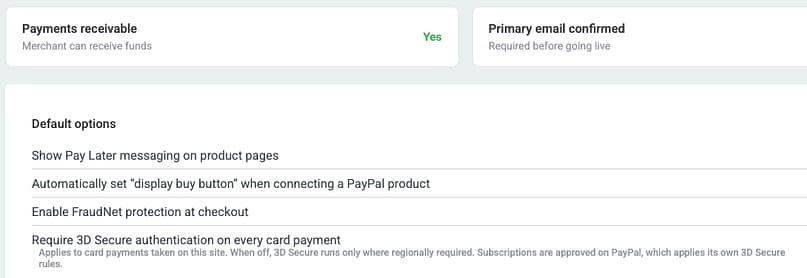
A few things to check once you're connected:
Add a PayPal price to a product:

You can also do two more things:
First, you can save more than one PayPal price for a product and switch which one is active, for example to run a launch price and then go back to your regular price.
Second, you choose the payment gateway for each product, so one product can sell through PayPal while another sells through Stripe or Square.
Everything After the Sale, in One Place
Once the sales start coming in, everything you need lives in the WordPress admin you already use:
So you're never logging in to a separate tool to work out who paid for what, because your PayPal sales sit right next to the rest of your course business.
Your Site Never Holds PayPal Secrets
Adding a payment gateway shouldn't add a security worry, and this one is built so it doesn't.
All communication with PayPal runs through Thrive's servers over a secure connection, so your WordPress site never stores PayPal secrets, which means that even if your site were ever compromised, it couldn't be used to reach PayPal.
You can switch on PayPal's fraud screening for every checkout with the Enable FraudNet protection at checkout setting. 3D Secure runs automatically on card payments wherever regional rules require it, such as in Europe, and if you'd rather have it on every card payment, the Require 3D Secure authentication on every card payment setting does that. And on top of all that, the integration has passed PayPal's compliance review.
Who Gets the Most Out of PayPal in Thrive Apprentice
Common Questions About PayPal in Thrive Apprentice
Adding a new payment gateway raises practical questions before you move any courses over, so here are straight answers to the ones you're most likely to have.
Do I need a third-party PayPal plugin?
No. PayPal is built into Thrive Apprentice, so you just update to the latest version, connect your PayPal account, and you're ready.
Which PayPal account do I need?
A PayPal Business account, and if you don't have one yet, you can create it during the connection process.
Does Thrive take a cut of my PayPal sales?
No. Thrive doesn't charge transaction fees, so you only pay PayPal's standard merchant fees, the same as connecting PayPal any other way.
Which payment methods work for subscriptions?
Subscriptions and free trials are paid with a PayPal account, while cards, Apple Pay, Google Pay, Venmo and Pay Later are there for one-time purchases.
Do buyers need an account on my site to subscribe?
Yes, buyers need to be logged in to your site before they start a subscription or free trial. One-time purchases are simpler, because Thrive Apprentice creates the account for them after they pay.
Can I use PayPal for some products and Stripe or Square for others?
Yes. The payment gateway is set on each product, so you can mix all three across your catalog.
Can I test before taking real payments?
Yes. Connect in Sandbox mode, run test purchases with PayPal's sandbox buyer account, and switch to Live once you're happy. The only exception is Venmo, which you can only fully test in Live mode.
What happens if a subscription renewal fails?
The payment is retried on day 3 and day 7 after the first failure. The member keeps access in the meantime, and if the final retry fails, their access is cancelled.
Head to Thrive Apprentice and Turn On PayPal Today
PayPal is live in the latest version of Thrive Suite, so there's a good chance it's already sitting in your WordPress dashboard.
Then keep an eye on your next launch, because when a buyer reaches your checkout and sees the way they like to pay, there's one less reason for them to walk away. I have a feeling you'll notice the difference.
We're always working to make Thrive Suite a better platform for your business, and updates like these are exactly how we do it — one well-built improvement at a time.
— Angie & The Thrive Themes Team
P.S. Don't have Thrive Suite yet? If PayPal support was the missing piece, it's here now, so join here and come build your course business with us.
