


TL;DR: Incoming Webhooks in Thrive Apprentice
New in Thrive Apprentice: the tool that takes your payments can now hand each buyer straight to their course. SamCart, a WooCommerce store on another site, Zapier, Make, your CRM: if it can send a webhook, it can now create the student's account and open their course as soon as a sale comes in.
3 things worth knowing:
- Buyers go straight from paying to learning: every new purchase creates the student's account if they need one and opens their course, with no one added by hand.
- Setup takes one test: paste a link into your tool, send a test, and Thrive Apprentice matches the student's email and name for you.
- Refunds are covered, and every request is logged: a refund can take access away while keeping the student's progress, and the log shows you what happened to each request.
If you sell your courses through a cart, a store on another site or an automation tool, this one is worth a few minutes of your time.
A buyer finds your course, pays on SamCart and gets their receipt. They're excited to start, so they head over to your site, but there's no login waiting for them, because nothing told Thrive Apprentice that a sale just happened. So they wait, and maybe they email you, while the course they've already paid for sits locked until you notice.
Until now, closing that gap was on you. You added students by hand, or you set up Thrive Automator or a different automation tool to pass each sale along. In fact, giving course access after a sale was one of the most-used automations in Thrive Automator. (If you still run that automation, this guide shows how to move it into Thrive Apprentice.)
So I'm really happy to share this one: Thrive Apprentice can now do that job itself, with Incoming Webhooks.
A webhook is a short message a tool sends when something happens, like a sale. Thrive Apprentice gives you a link, you paste it into your tool, and from then on every new purchase creates the student's account and opens their course, so your buyer can start right away and you never have to step in.
Keep the checkout you already use, and let Thrive Apprentice deliver the course. Here's what that opens up for your business.
Sell Wherever You Like, and Let Thrive Apprentice Deliver the Course
Your checkout and your courses can now live in different places and still work as one. You pick whatever checkout suits your offer, and Thrive Apprentice takes care of the part your students care about most, which is getting into the course they just bought.
Here's what that puts in your hands:
Buyers start learning straight away.
As soon as your tool reports a sale, the student's account is created and the course opens, so the excitement of buying carries right into the first lesson.
You keep the checkout you chose.
Whether you sell through SamCart, a WooCommerce store on another site, or a funnel you've built in Zapier or Make, there's nothing to rebuild before Thrive Apprentice can deliver your course.
Adding students by hand comes off your to-do list.
You stop copying names and emails out of sales notifications and into Thrive Apprentice.
Refunds can be handled for you too.
Set up a refund webhook and access is removed automatically, while the student's progress is kept in case they come back.
Leads can get a course as well.
A new contact in your CRM can be given an account and a course, which makes a free starter course an easy thing to hand out.
It all lives inside Thrive Apprentice.
It's in Thrive Apprentice's own settings, so there's no extra plugin to install or keep updated.
Put together, you can sell wherever it makes sense for your business, and every buyer still lands in the right course without waiting on you.
Works With the Tools You Already Use
Incoming Webhooks works with any tool that can send a webhook, and most checkouts, carts, CRMs and automation tools can. Our team tested it from start to finish with these five, and each one has its own step-by-step guide:
It also works with Lemon Squeezy, Memberful, MailerLite, Shopify and Typeform, plus CRMs and email tools that can send a webhook, and a developer can connect your own custom code the same way.
One thing to check first: if you already use Thrive Apprentice's own ThriveCart connection for a product, or you sell through WooCommerce on the same site as your courses, keep using those. Incoming Webhooks covers everything else, including a WooCommerce store on a different site. (This guide helps you pick the right option.)
Three Jobs a Webhook Can Do for You
Each webhook does one job for one Thrive Apprentice product, and you choose the job when you set it up:
Find or create user, then grant access (the default)
What happens
Thrive Apprentice looks up the student by email. If they don't have an account yet, it creates one, then opens the product.
Use it for
New purchases, new leads, new CRM contacts
Grant access (existing users only)
What happens
Opens the product only for students who already have an account. Unknown emails are turned away, and no account is created.
Use it for
Upsells and bonuses for current students
Revoke access
What happens
Removes access to the product. The account and all course progress stay.
Use it for
Refunds, chargebacks, removing someone from a CRM list
That covers a lot more than new sales. A new contact in your CRM can get your free starter course, and a current student who buys your advanced add-on gets it unlocked on the account they already have, while an email with no account behind it is turned away instead of getting one it shouldn't. And when a refund comes in, access goes back the other way.
So you can set up one webhook for each job, and between them they cover the whole life of a sale, from the first purchase to the occasional refund.
Set Up Your First Webhook With One Test
You don't need a developer for this, and the whole setup comes down to pasting one link and sending one test.
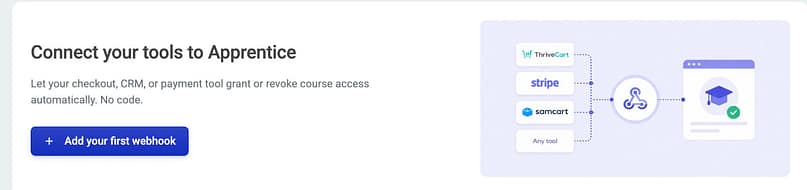
- In your WordPress dashboard, go to Thrive Dashboard → Thrive Apprentice → Settings → Incoming Webhooks and click Add your first webhook.
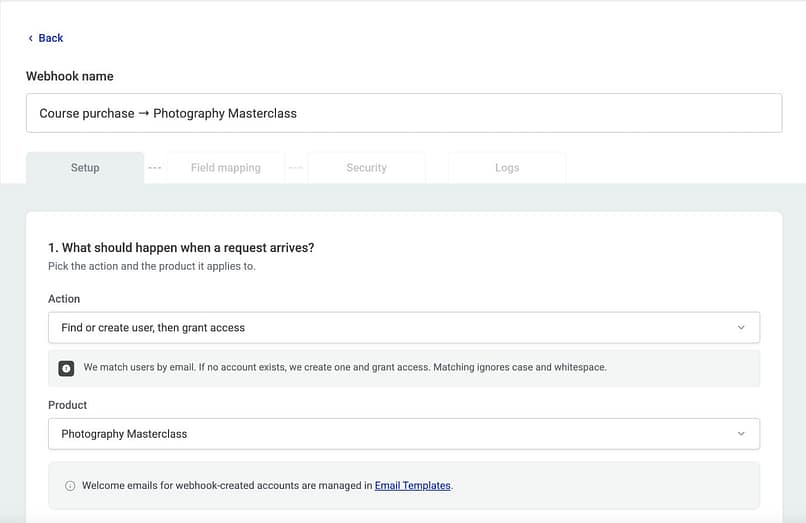
- Give the webhook a name, then choose the Action and the Product. For a new course sale, keep the default, Find or create user, then grant access.
- Click Copy URL and paste the link into your tool's webhook settings.
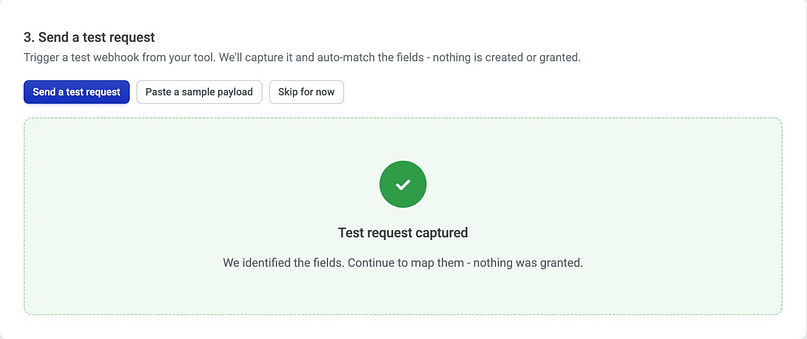
- Click Start Listening, then send a test from your tool within 60 seconds. Thrive Apprentice catches it and matches the fields, and nothing is created or granted.
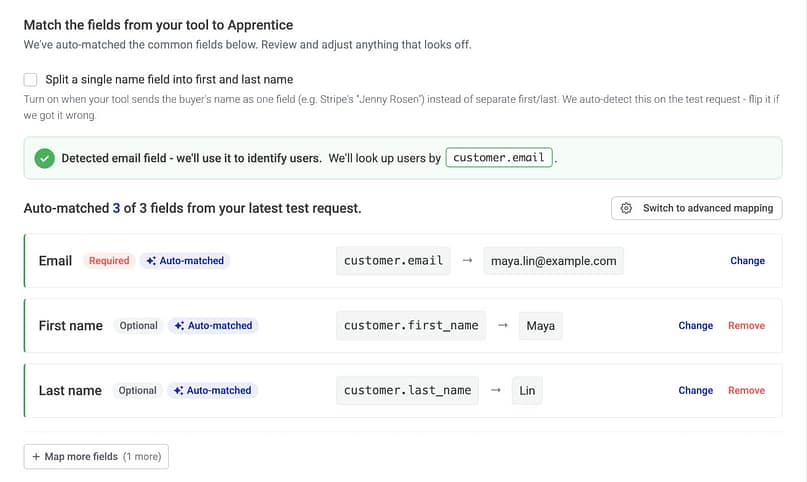
- On the Field mapping tab, check the fields. Thrive Apprentice has already matched the student's email, first name and last name, and it shows the real values from your test, so you can see at a glance that they're right. If your tool sends the full name as one field, switch on Split a single name field into first and last name.
- On the Security tab, set up how Thrive Apprentice checks that requests really come from your tool. For most tools, that means copying the secret Thrive Apprentice has already made into your tool, and your tool's guide shows exactly where it goes.
- Leave Activate on save switched on and click Save & activate.
Can't send a test from your tool? There are two other ways, covered in the questions at the end of this post.
Tests sent while Thrive Apprentice is listening never give anyone access. Once the webhook is switched on, any other request counts as real, including a test run from your tool, so send your tests while Thrive Apprentice is listening.
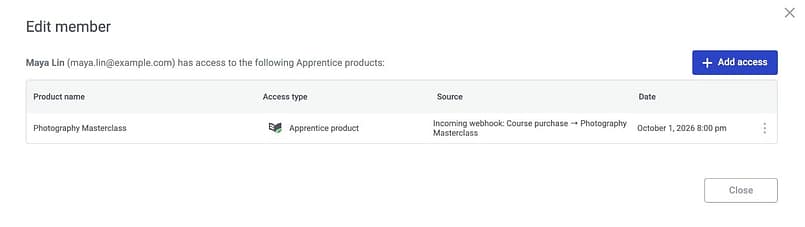
And that's the whole setup. The next time someone buys, their account and their course are waiting for them, and you'll see the sale land in the log.
For a full tour of every setting, check out How to Use Incoming Webhooks in Thrive Apprentice in our Knowledge Base.
Refunds Take Access Away, and Progress Stays Safe
If you sell through a cart, this is the part I'd set up on day one. Many checkouts send everything to the same link, purchases and refunds alike, so without a little care, a refund could end up granting access just like a sale. Two things handle that.
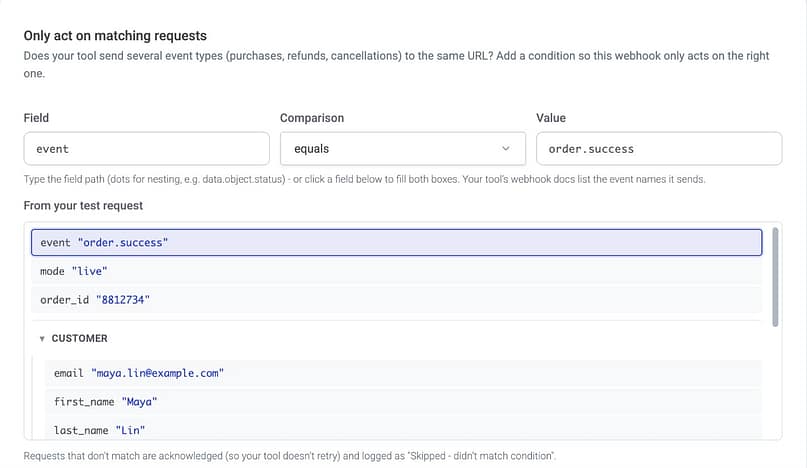
Act on purchases only: on the Field mapping tab, click Add a condition, then click the order type in your test data to fill it in. Anything that doesn't match, such as a refund sent to your purchase webhook, is skipped, and it still shows up in the log so you can see it arrived.
Remove access on a refund: open the menu next to your purchase webhook and click Duplicate. The copy keeps the same setup, including its fields, condition and secret, gets its own link, and starts paused. Change its action to Revoke access, change its condition to refunds, add its link to your tool, and switch it on.

Removing access never deletes the student's account or their course progress, and if the same refund arrives twice, nothing breaks. The log simply notes there was nothing left to remove.
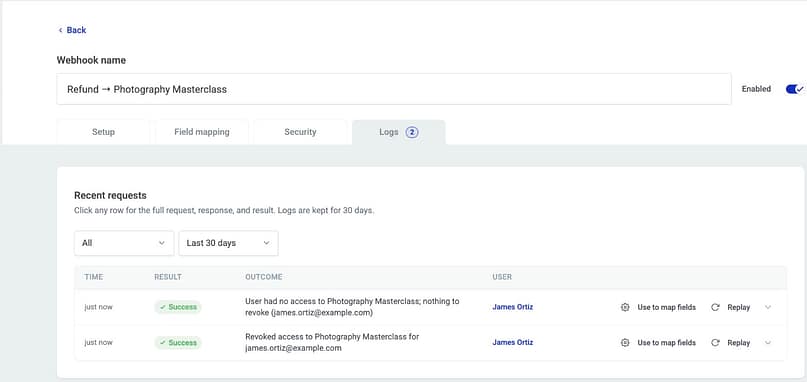
The result is a course that stays in step with your sales. Buyers get in, refunds are handled, and a student who comes back later picks up exactly where they left off.
Only Your Tool Can Unlock Your Courses
A link that hands out course access is worth guarding, so every new webhook starts protected, with its own secret already made and ready to copy. When your tool sends that secret with each request, Thrive Apprentice turns away anything that doesn't match.
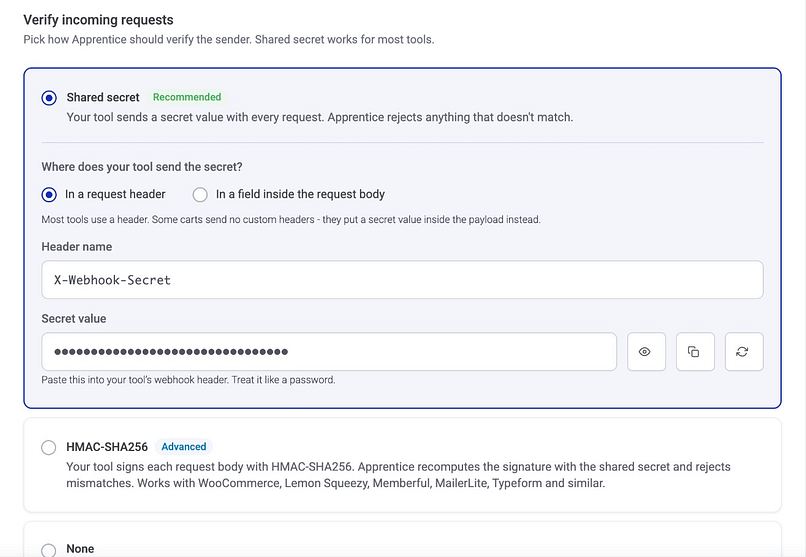
A few more safeguards sit behind it:
Signed messages: WooCommerce, Lemon Squeezy, Memberful, MailerLite, Typeform and similar tools sign what they send, and Thrive Apprentice can check that too.
Switching it off is a deliberate choice: you can turn protection off, but Thrive Apprentice marks that option Not recommended and warns you first.
A request limit: by default, a webhook accepts up to 60 requests a minute, so nobody can flood your site, and you can raise it if your tool sends a lot at once.
Safe to share with support: secrets are stored encrypted on your own site and only partly shown in the log.
If your tool can't send a secret, its guide covers the best way to set it up.
So with the secret in place, the link in your checkout settings works for your tool and nobody else, and you can send a log screenshot to support without giving anything away.
See What Happened to Every Request
Sooner or later, a student emails to say they paid but can't get into the course. Instead of digging through your sales tool and guessing, you open the webhook's Logs tab and see what happened to their request.
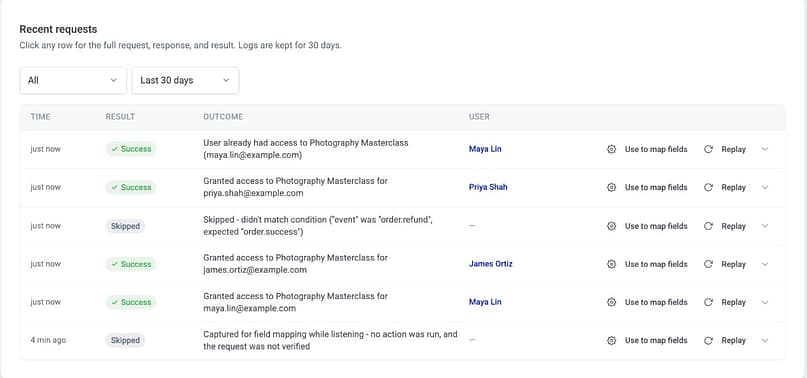
That turns a worried support email into a quick check you can do yourself, and a fix you can replay with one click.
For what each result means and what to do about it, see How to Read Incoming Webhook Logs in Thrive Apprentice.
The Details, Already Handled
A few smaller things are taken care of for you, and the first one is worth a look as soon as you update:
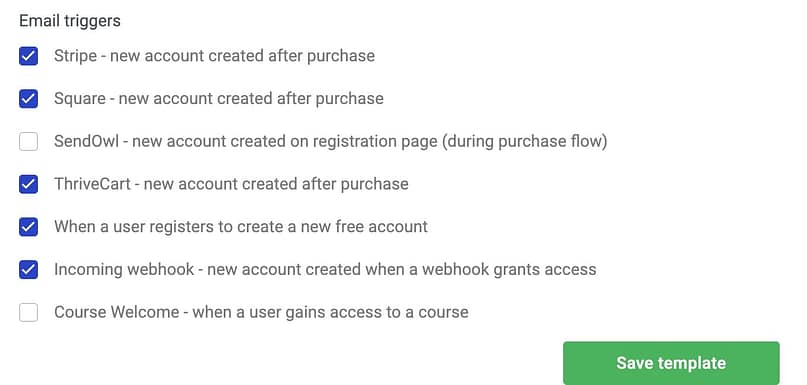
Welcome emails: students created by a webhook get your own New Account Created email. If you've customized that email before, its new Incoming webhook trigger starts switched off, so tick it in Settings → Email Templates. We set it up that way so your existing students don't get emails they aren't expecting, and on new sites it's already on.
Common Questions About Incoming Webhooks
Every tool works a little differently, so here are answers to a few questions you might have before you connect yours.
Do I need Zapier or Make?
No. If your tool can send webhooks itself, as ThriveCart, SamCart, WooCommerce and many others can, connect it directly. You only need Zapier or Make for tools that can't.
My tool can't send a test. Can I still set it up?
Yes. Choose Paste a sample payload, paste an example of your tool's data from its help docs, and click Use this payload. Or choose Skip for now: the webhook saves, and requests are logged without any action running until the fields are set. When your first real sale comes in, open it on the Logs tab, click Use to map fields and save, then click Replay on that sale so the buyer gets their access.
Does it handle subscription cancellations?
It can, if your tool sends a cancellation message that includes the customer's email. Not every tool does, so check what yours sends. If it does, a Revoke access webhook with a condition for cancellations handles it.
How many webhooks can I create?
As many as you need. You can set up one per product or one per tool, and if your tool sends refunds, you'll want a pair: one for purchases and one for refunds.
Turn On Incoming Webhooks Today
Incoming Webhooks is in Thrive Apprentice now, so if your plugins are up to date, it's already waiting in your settings.
- Update Thrive Apprentice to its latest version from your WordPress dashboard.
- Go to Thrive Dashboard → Thrive Apprentice → Settings → Incoming Webhooks.
- Click Add your first webhook, paste the link into your tool and send one test.
Then make a test purchase and open the log. When you see your new student's name next to "Granted access", that's one less job on your plate for every sale that follows.
We have more announcements coming, so stay tuned.
We're always working to make Thrive Suite a better platform for your business, and updates like these are exactly how we do it — one well-built improvement at a time.
— Angie & The Thrive Themes Team
P.S. Don't have Thrive Suite yet? If your checkout lives somewhere else, Incoming Webhooks is how it connects to your courses, so join here and come join the fun.
