


TL;DR: What's New in Thrive Apprentice
The short version: Thrive Apprentice now shows students the exact date their next lesson becomes available. You can also drip-feed entire chapters at once instead of wrestling with module-by-module or lesson-by-lesson rules.
Three things worth knowing:
- The course outline now shows unlock dates automatically: Students see exactly when locked content opens, right in the course outline. No setup required.
- You can drip-feed by chapter now: If your course is organized into chapters, you can unlock an entire chapter at once, with all its lessons. One rule per chapter instead of dozens per lesson.
- Both features work the moment you update: The unlock dates appear automatically. Chapter drip is available as a new option when you create a campaign. Existing courses and campaigns stay exactly as they are.
If you run a drip-fed course, the full breakdown below is worth a few minutes of your time.
If you've been managing a drip-fed course, you know the support email pattern: "When does my next lesson unlock?" followed by "Did I do something wrong?" followed by "I can't find the next module."
This update ends that pattern. It grew out of two problems that kept showing up in support threads, feature requests, and conversations with course creators: students in drip-fed courses had no way to see when locked content opens, and creators who organize courses by chapter had to schedule their drip module by module or lesson by lesson, one rule at a time.
Thrive Apprentice now shows students the exact unlock date in the course outline, and lets you drip-feed entire chapters at once. Both are live if your Thrive Apprentice plugin is up to date, and your existing campaigns stay exactly as they are.
Here's how each one works.
When Students Know What's Next, They Actually Show Up
The question course creators kept bringing to us was, "How do I stop students from asking when their next lesson unlocks?"
And the obvious answers used to be "write it in the welcome email," "add a note to your sales page," or "pin it in your community."
But none of those worked reliably, because students don't read welcome emails closely, they forget what the sales page said, and pinned posts get buried under everything else.
So creators kept fielding the same questions, and students who didn't know when to come back often didn't.
This update answers the question with a straightforward feature: automatic unlock date displays. Students now see the exact unlock date right in the course outline, next to the content that's still locked. The date is there the moment they open the course, so the question answers itself before it ever reaches your inbox.
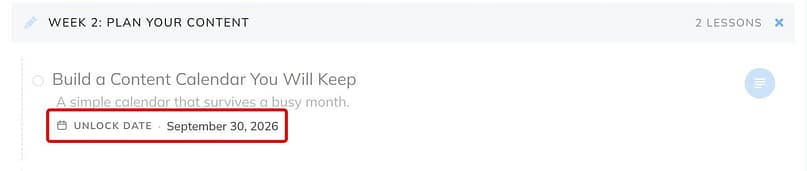
The date shows up automatically after you update. It uses your site's timezone and your WordPress date format, so it looks consistent with everything else on your site.
Which Drip Triggers Show Unlock Dates?
The unlock date appears for every time-based drip trigger:
If you're using a non-time-based trigger (like "unlock after completing prerequisite lesson"), the date won't show. That's intentional: the unlock time genuinely depends on student behavior, not the calendar, so there's no fixed date to display.
What Changes When Students See the Date
I've watched what happens when students don't know when to come back. They log in once, see locked content, assume they're doing something wrong, and disappear.
When they see "Unlock date: May 22, 2026," three things change:
There's nothing new to configure and nothing to explain. Update the plugin, and the dates appear on the locked items in your course outline. The one thing to check: the date sits on locked content in the outline, so your campaign needs Show locked content in lesson lists turned on. If locked items are hidden, there's nothing for the date to sit on.
Real-World Use Cases
- Certification programs: Students can align their study schedule with exam dates instead of constantly checking in to see if the next module is live.
- Fitness or wellness courses: When students know Week 2 unlocks next Tuesday, they finish Week 1 on purpose instead of letting it drift.
- Academic courses: Students juggling several courses at once can see unlock dates across all of them and plan their workload instead of reacting to whatever pops up.
- Membership sites: Clearer expectations reduce cancellations. When students feel in control of their schedule, they're less likely to bail because "it's too confusing."
You Can Finally Drip-Feed the Way You Actually Built Your Course
If you organize your courses by chapter, you've probably hit this wall: the drip campaign settings let you schedule by Module or Lesson, but not by Chapter. That left you with workarounds: reorganize the course, configure dozens of lesson-level unlock rules by hand, or give up and unlock everything at once.
Thrive Apprentice now lets you drip-feed entire chapters.
When a chapter unlocks, every lesson inside it becomes available at the same time. One rule per chapter instead of one rule per lesson.
How to Set Up a Chapter-Based Drip Campaign
Open a course that uses chapters, go to its Drip tab and click Add new. Pick a drip template (Scheduled repeating suits a weekly release). In the "Content to unlock" dropdown you'll see a new option: Chapters, alongside Lessons (and Modules, if your course uses them).
(If your course doesn't have chapters, the option won't appear. It's contextual. You can add chapters to your course structure if you want to use this feature.)
Choose Chapters. Set your schedule, for example: "unlock weekly, starting after Chapter 1."
Create the campaign, then assign it to your product (open the product and go to Drip) so it goes live. Chapter 1 is immediately available. Chapter 2 unlocks a week later. Chapter 3 unlocks a week after that. Every lesson inside each chapter unlocks with it.
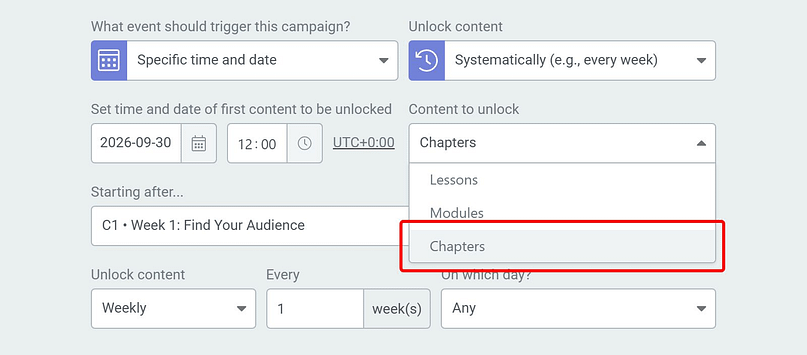
The flow is exactly like the existing module drip, just at the chapter level. If you've set up a module-based drip campaign before, this will feel familiar within about 10 seconds. (The drip content guide covers the full setup, chapter drip and unlock dates included.)
The Members Page Now Reflects Chapters Too
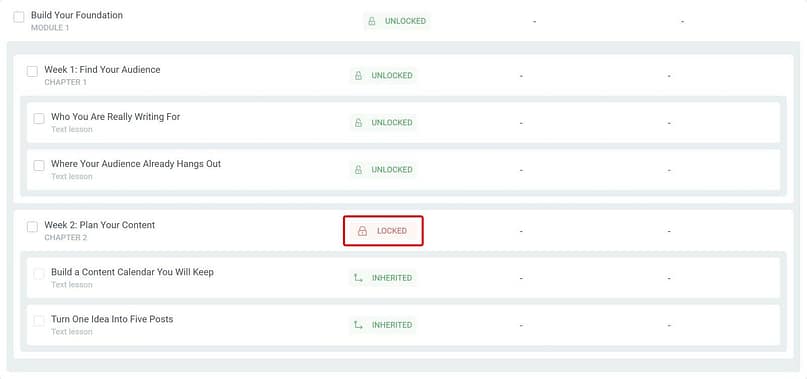
The Members → Course admin page now renders chapters as their own rows with Locked / Unlocked status. Each chapter sits inside its module, its lessons nest beneath it and follow the chapter's schedule, and you can one-click bypass a chapter for an individual member, same as you can with modules today.
That means if a student emails you saying "I already know everything in Chapter 2, can you skip me ahead?" you can grant access in two clicks instead of unlocking eight lessons manually.
And Your Existing Campaigns Don't Change
Chapter drip has been one of our most-requested features since March 2024, and we took the time to ship it carefully: we didn't want to bolt it on in a way that broke existing campaigns or made anyone rebuild their courses.
So chapter drip is purely additive. Which means your existing campaigns remain unchanged, and the new option only appears if your course structure includes chapters. If you're happy with module or lesson drip, nothing about your workflow changes.
The goal was to match the way creators actually think about course structure, and now the drip settings do.
Real-World Use Cases
- Academic courses: Release one chapter per week for a 12-week semester. Each chapter unlocks with all its lessons and resources at once.
- Corporate training: One chapter equals one competency. Employees complete Chapter 1 (onboarding), then move to Chapter 2 (tools training) a week later.
- Language learning: Chapters organized by grammar level or thematic unit. Students absorb one level before the next unlocks, pacing their learning naturally.
- Premium or cohort programs: Chapter reveals feel like milestones. Students know they're making progress through a structured curriculum instead of wondering where they are in the sequence.
What This Means If You're Running a Drip-Fed Course Right Now
Both features work automatically once you have the most current version of Thrive Apprentice.
If you've been manually explaining unlock schedules in welcome emails or support tickets, you can stop. The course does it for you now. And if you've been building workaround drip rules to mimic chapter-level unlocking, you can delete those and set up a cleaner campaign in about two minutes.
Common Questions About This Thrive Apprentice Update
An update that touches live courses raises practical questions. Here are direct answers to the ones that matter most.
Do I need to reconfigure my existing drip campaigns to show unlock dates?
No. The unlock dates appear automatically in the course outline. Your existing campaigns keep running exactly as they are, and students just see the dates now. The one setting that matters is Show locked content in lesson lists on the campaign: the date appears on locked items, so they need to be visible.
Will students in multiple timezones see different unlock dates?
They'll see the same date and time, formatted according to your site's timezone setting in WordPress. The unlock happens at a fixed moment, and students see that moment displayed in your site's timezone, not their local timezone. If you run a global program, pick a timezone (like UTC or your business's home timezone) and stick with it.
Can I drip-feed some chapters and leave others fully unlocked?
Yes. Chapter drip works campaign-by-campaign. You can create a campaign that drips Chapters 1-3, then leave Chapters 4-5 unlocked as bonus content. Or run one campaign for beginner chapters and a separate campaign for advanced chapters with a different schedule. The campaigns don't interfere with each other.
What happens if I unlock a chapter manually for one student? Do the lessons inside unlock too?
Yes. When you unlock a chapter for an individual student from the Members page, every lesson inside that chapter becomes available. It works the same way as unlocking a module, just one level down. If you want to unlock just one specific lesson, you can still do that at the lesson level.
Do unlock dates appear for courses with module or lesson drip, or only chapter drip?
Unlock dates come from time-based drip triggers, not from chapter drip specifically. Whatever level you drip by, a campaign that unlocks content on a schedule gives students a date to plan around in the course outline.
Can I hide the unlock date if I don't want students to see it?
Not easily. The date is part of how locked content shows in the course outline by design; it solves the "when does this unlock?" question before students ask it. If you genuinely don't want students to see unlock dates, you'll need to use non-time-based drip triggers (like prerequisite completion), which don't display dates anyway.
Update Your Thrive Apprentice Plugin Today
Both features are live in the latest version of Thrive Apprentice. Make sure your plugin is up to date, then open one of your drip-fed courses and look at the course outline: the unlock dates are already there. If your courses use chapters, create a new drip campaign and try the Chapters option while you're at it.
If you've been manually answering "when does my next lesson unlock?" emails, that job is over. And if you've been running dozens of lesson-level rules to fake a chapter schedule, your next campaign will take two minutes instead of an afternoon.
We're always working to make Thrive Suite a better platform for your business, and updates like these are exactly how we do it: one well-built improvement at a time.
— Angie & The Thrive Themes Team
P.S. Don't have Thrive Suite yet? Join here and Thrive Apprentice is yours the moment you log in, along with every other conversion-focused tool we've built to help grow a thriving business. Come join the fun.
