

TL;DR: The Exact Software I Use to Make Websites
I build websites for a living, and this article is my actual stack, layer by layer, plus the alternatives I've personally used at every stage. The quick version:
- Platform: WordPress.org. I've also used Wix, Squarespace, and WordPress.com, and I'll tell you who each one actually suits.
- Hosting: Hostinger, with Bluehost and SiteGround before it.
- Website building: Thrive Theme Builder + Thrive Architect (yes, they're ours, and yes, my own site runs on them). Elementor, Divi, and ClickFunnels came earlier in my journey.
- Forms and leads: Thrive Leads plus WPForms, doing different jobs. Gravity Forms and Formidable Forms in past lives.
- SEO: AIOSEO, with honest takes on Yoast and Rank Math.
- The extras: Kit for email, and WooCommerce or Shopify for stores (from my client work).
If you copied my exact stack today, you'd spend a little over $400 for the first year, and less if you lean on the free tiers. The thread through all of it: you're not choosing one tool. You're choosing a stack, and the pieces should work together.
Let me guess how you got here. You searched for the best software to make a website, and you've been swimming through lists ever since. Seventeen tools here, twenty tools there, half of them clearly never touched by the person writing about them.
This is not that.
I've been building websites for more than eight years: my own, and client sites across fitness, health, coaching, and more. For the past four-plus years, I've also been working at Thrive Themes, helping business owners and creators build websites that actually grow their businesses. That's my bias, declared upfront, and you'll see me disclose it again every time it matters.
So here's the rule this article runs on: everything in it is something I actually use, or have genuinely used. For each stage of the build, I'll show you what I use, what else I've used, and who each option is really for. And if you notice some big names missing (Framer, Webflow, and friends), that's on purpose. I haven't built real sites with them, so they don't get a spot.
Best Software to Make a Website: My Stack at a Glance
Build stage | What I use | Starts from | I've also used |
|---|---|---|---|
Platform | Free (software) | Wix, Squarespace, WordPress.com | |
Hosting | ~$3/mo (promo) | Bluehost, SiteGround | |
Website building | $199/yr | Elementor, Divi, ClickFunnels | |
Forms and lead capture | Free; paid from $39.50/yr | Gravity Forms, Formidable Forms | |
SEO | Free; paid from $49.50/yr | Yoast, Rank Math | |
Email (nice extra) | Free to 10,000 subscribers | AWeber, Drip | |
Ecommerce (client work) | Free plugin | Shopify |
Every price in this article is a "starts from" figure, checked in July 2026. Promos and renewal prices move, so treat these as the door price, not a quote.
Before We Start: You're Choosing a Stack, Not One Tool
No single piece of software "makes a website." What you're really choosing is a stack: a platform to build on, a place to host it, the tools you design with, and the essentials that turn a pretty site into a working one (forms, SEO, email).
The all-in-one platforms like Wix and Squarespace bundle those layers for you, and the trade is control. WordPress unbundles them, and the trade is a few more decisions. This article walks the WordPress path, because that's the one I build on, but at every stage I'll tell you when a bundled option genuinely serves you better.
Take it one layer at a time, in the order the stages appear. That's how a website actually gets built. (And if you want the hands-on walkthrough of the build itself, I've covered how to build a website separately.)
Stage 1: The Platform
You start here, before anything else, because every other decision in this article hangs off this one. If you're unsure of your platform, you can't build your tech stack: your hosting, your builder, your plugins, they all depend on where the website lives.
So in this section: the platform I build on, the three hosted alternatives I've personally used, and who each one actually suits. One piece of advice before we get into it: choose for the business you plan to have in two years, not just the site you need today. Platform migrations are doable, but they're the digital equivalent of moving house, and you don't want to do it twice.
What I Use: WordPress.org (Self-Hosted WordPress)
WordPress.org is home for me. That probably doesn't surprise you. You are, after all, reading this in a very pro-WordPress space.
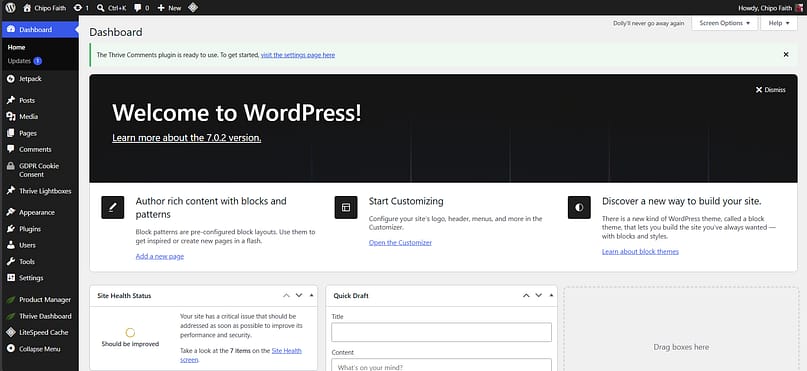
But here's the part that might surprise you: I avoided WordPress.org for years.
I didn't think I had what it took to build a website. Me? I wasn't a coder or a developer. A graphic designer, sure. But all I had ever designed were wireframes. Actual websites felt like they belonged to people with skills I didn't have.
Expanding my freelance skillset forced my hand. In 2020, I was working with two fitness influencers who were trying to break into the space. They were paying for high-end ClickFunnels subscriptions, losing money on them, and still feeling like the setup wasn't working for them.
So we tried WordPress.
It was a risk, if I'm being honest. I barely knew a thing. But we started with the hosting, I saw how easy it was to set up the WordPress backend, and I figured the rest out from there.
That was the moment it clicked: I didn't need to know how to code to build a website. I could even replicate what we had in ClickFunnels, and more. And if I could do that for clients, I could do it for myself. So I built my main professional site on WordPress, and it has lived there ever since.

Were there learning curves? Absolutely. My first personal website was a janky mess. It lagged, and some parts didn't match. But it was a start, and it was mine.
That last part matters more than people realize. I can leave my website alone for a year and know it's still there, doing its job (as long as I keep it updated and maintained, of course). I'm not worried about some random company closing down and taking my site with it. It's mine.
That's why I tell people to get on WordPress.org. It's not as hard as you think. There are so many avenues you can take to build your website, and you can make it look exactly how you want it to, on your own or with the help of a pro.
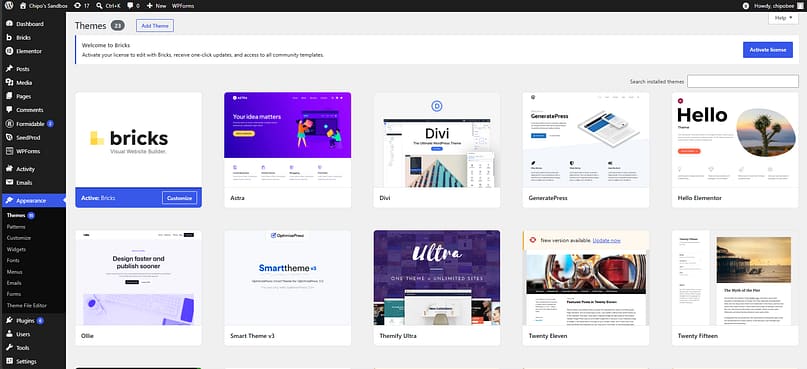
I will say this, though: WordPress is intimidating when you start. You log in for the first time and the dashboard might not make sense yet, there are so many tools to try, and it feels like there are a hundred decisions waiting on day one.
But that's why you take it a step at a time, which is exactly how this guide is built. At this point, you have your platform. Next, you sort out your hosting. Then you start looking for your theme and builder setup. One layer at a time, and none of them are as scary as they first look.
Starting Price: The WordPress software itself is free. You pay for hosting (more on that in the next section) and whatever tools you choose to build with.
Others I Have Used
I started using Wix back in 2013, and again in 2015. I had just closed my original blog over on WordPress.com (my writing was extremely immature, and while I appreciate that I somehow got it to 11,000 views in a year with no SEO or paid strategy, it needed to go). So I moved to Wix. I set up a site for myself, one for my mom's recycling business at the time, and a couple of starter blogs.
It was simple. It had templates. It was free.
But it felt limiting. Back then, a lot of the templates weren't editable, migrating a domain was a nightmare, and honestly, I wanted more.
Wix has definitely developed in the ten-plus years since. It offers a much more done-for-you experience now: a guided onboarding, built-in apps like Wix Blog, Wix Stores, and an Instagram feed, and it has gone very AI-forward, which I find to be a real plus for beginners.
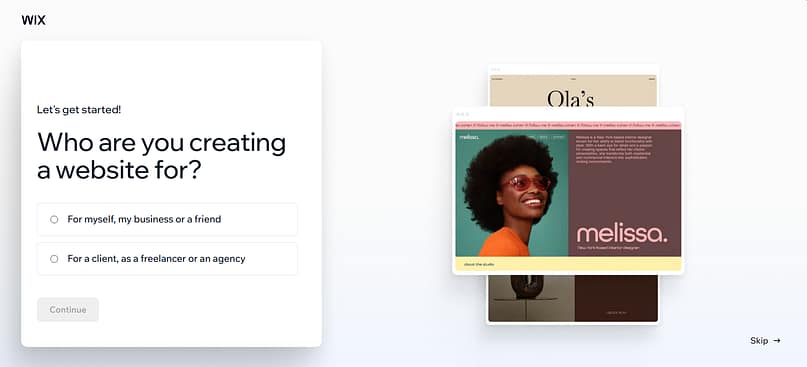
I still prefer having more control over my design, so many a wizard and chat got skipped on my end. But the templates are impressive, and I appreciate how committed Wix is to offering a personal, tailored experience. It genuinely helps with design and decision overwhelm. The editor is user-friendly too, if a little cluttered in my opinion.
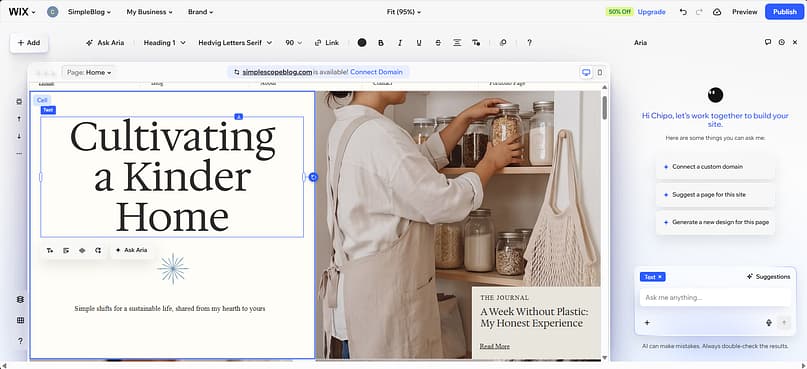
I have no real knocks against Wix. It's a solid platform, in my opinion built more for beginners or for people who aren't interested in DIY-ing their sites and want it all taken care of. If you have plans to scale, or you want a more custom and flexible design experience, this won't be for you, and you'll end up feeling limited or frustrated.
Starting Price: Wix has a free plan (on a Wix subdomain, with Wix branding). Paid plans with a custom domain start from $17/mo billed annually. [live-checked 2026-07; reconfirm at publish]
I keep a small personal blog on WordPress.com for my more emotion-led writing.
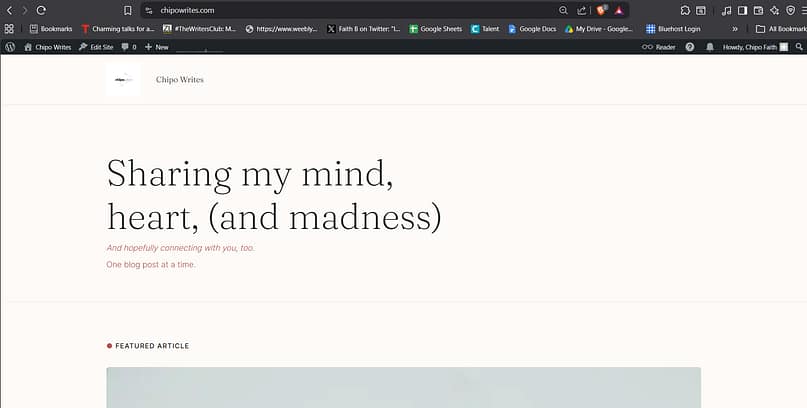
I wanted something simpler, I didn't want to build and maintain a whole site for it, and I liked what WordPress.com offered.
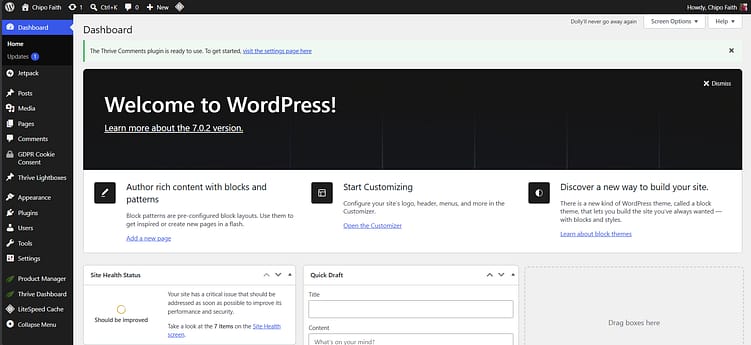
It's another good hosted option if you want a more done-for-you experience. It runs on the same block-based site editing WordPress.org uses, so if you're already a WordPress.org user, it will feel familiar. Coming from WordPress.org, though, customizing does feel a bit restricted, and the features you can access depend on the plan you're on.
One thing that has genuinely improved: plugin access used to be locked to the highest tier, but these days every paid plan, right down to Personal, lets you extend your site with WordPress plugins.
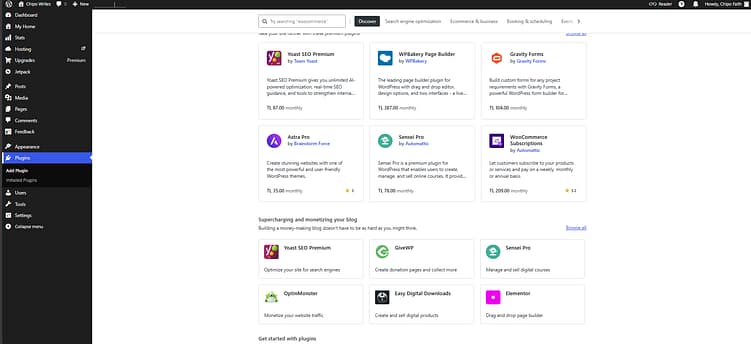
WordPress.com works for me here because I don't need it to do too much. I can hop in, quickly draft, publish, and go. The analytics are there, there are plenty of theme templates to pick from on the premium plans, and I'm happy. I do have to keep reminding myself, though: "This isn't WordPress.org. You don't have full flexibility here."
If you're like me, someone with multiple interests who doesn't want them all in one space and just needs a simple, premium blog experience, WordPress.com is worth exploring. And if you're new to websites and want a bit more ownership than Wix or Squarespace offer, but you aren't ready to dive into full-scale WordPress.org, this is a great place to start.
Starting Price: There's a free plan. Paid plans start from $4/mo billed annually, and every paid tier includes a free domain for the first year and plugin access. [live-checked 2026-07; reconfirm at publish]
I have always seen Squarespace as the cool, artsy kid on the block when it comes to website building platforms. It has a similar personalization flow to Wix, mixing templates with a bit of AI to help you land on a good site design to start from. It's pretty straightforward, and it gives you enough options to get going: you choose the types of pages you want, your colors, and by the end of it, the site is yours to customize and switch images out on.
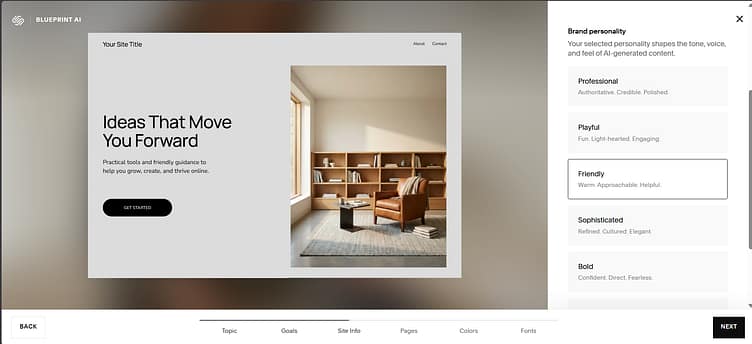
Again, it's good for people who don't want to get too involved with the backend of building a site. And I find their templates a bit more sophisticated than Wix's, to be honest.
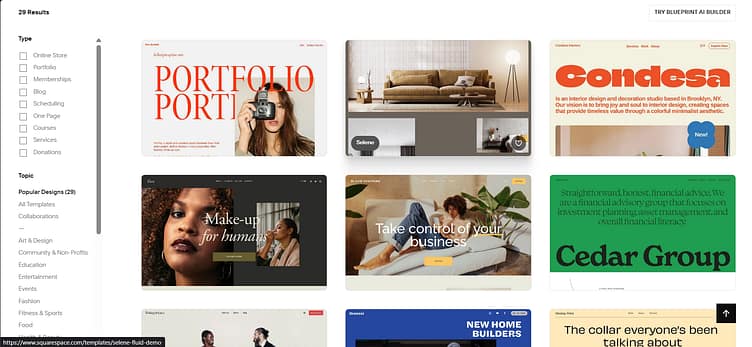
You'll need a paid plan to connect a custom domain and unlock the more advanced features, and Squarespace has a library of extensions for adding extra functionality to your site. There's no free plan, but there is a free trial.
At the beginning of my blogger phase, years back, this would have been a great option for me. But if you're someone who prefers a little more flexibility and room to design, or you just want more control over HOW your website works, then no, this is not for you.
Starting Price: starts from $19/mo billed annually, with a free trial to test it out. [live-checked 2026-07; reconfirm at publish]
Who Should Pick What
Platform | Really for | Think twice if |
|---|---|---|
WordPress.org | Ownership, growth, and full control over how your site looks and works | You never want to touch updates or maintenance |
Wix | Beginners who want the whole thing taken care of, with AI doing the heavy lifting | You plan to scale or want real design freedom |
WordPress.com | A simple, low-maintenance premium blog, or a stepping stone toward WordPress.org | You want the full flexibility of self-hosted WordPress |
Squarespace | Design-led sites, portfolios, and creatives who want sophistication without the backend | You want deep control over how the site functions |
Made your platform call? If it's WordPress.org, the next decision is where your website lives. That's hosting.
Stage 2: Hosting
Quick note before we start: if you landed on Wix, Squarespace, or WordPress.com in the last section, hosting is already handled for you. Skip ahead to the building stage. This section is for the WordPress.org crowd.
Your host is where your website actually lives, and the host you choose sets the tone for your whole website experience: how fast your pages load, whether your site stays online when it matters, and who you're talking to at 11pm when something breaks.
There's always the temptation to go cheap here. I get it. But cheap hosting has costly repercussions if you intend to build a site or business that needs to scale: slow pages, downtime at the worst possible moments, and support that leaves you on read. You don't need the priciest plan around. You need a known brand, a plan that fits what your website is actually going to do, and a dashboard that doesn't make you want to cry.
What I Use: Hostinger
I switched to Hostinger from another well-known hosting platform a couple of years ago. It was renewal time with the other platform, the price was insane, and I was not doing that. So I went looking for an alternative, and Hostinger looked good to me. (My own renewal is coming up in about a year, I think. Let's see if I'm still saying nice things then.)
It has been really straightforward for my use case. I needed a place to host a couple of websites, it helped me migrate my existing ones over, and buying a new domain is easy. WordPress is a one-click kind of install here, which is exactly what I wanted. I've never had a negative experience worth complaining about. Full transparency, though: I don't use mine for heavy-duty activities. My personal sites don't get a LOT of traffic, and I'm not hosting major media assets. For what I need, it's good.
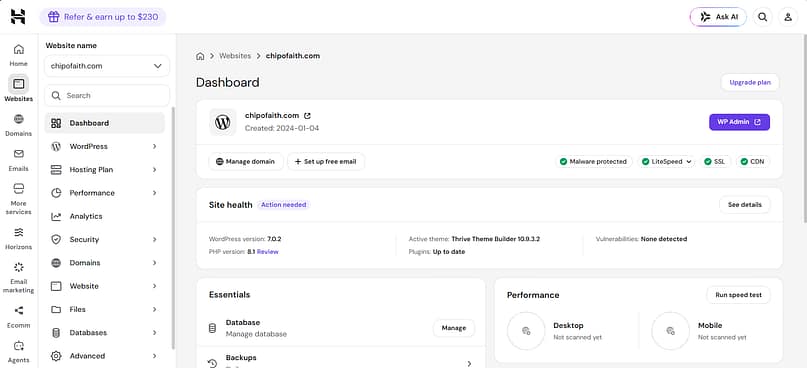
I didn't choose the cheapest plan, by the way. And that's something to know about hosting in general: cheaper will hurt you. I'm not saying go for the most expensive option around. Just aim for a known brand and a plan that aligns with your budget and what your website actually needs, not the smallest number on the pricing page.
Hostinger has also grown into more than a place to park a website. There's a website builder, AI agents, email marketing and SEO features, and more. That means it's tailored for new website builders, intermediates like me who don't want to do much beyond having a trusted place to house their sites, and super users with big website plans.
Starting Price: shared hosting starts from about $3/mo on the long-term promo terms, renewing at around $11/mo. That promo-then-renewal jump is normal across the industry, so read the renewal price before you buy, not after. [live-checked 2026-07; reconfirm at publish]
Others I Have Used
Well known, and it has been around forever. I used it for a while in 2020 and 2021, and to be honest, it did what needed to be done: buying domains was easy, migrating them to or away was easy, and setting up WordPress was easy. But the pricing and the upsells became a bit much for me (ay, we're doing full disclosure here), and I felt like I'd outgrown what it had to offer.
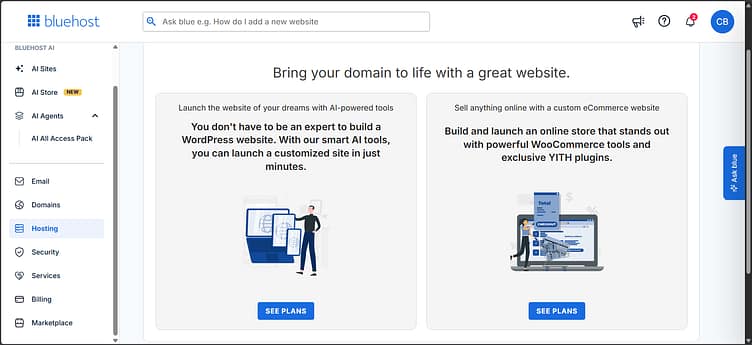
Still, there's a reason it's everywhere. Bluehost is one of the hosts officially recommended by WordPress.org, the entry-level pricing is friendly for new website owners (just keep an eye on that renewal pricing), getting a site started is easy, and their customer support is responsive. If you don't want to get into reviewing 101 different hosting platforms, you can start with Bluehost and be fine.
It has changed a bit since I used it, now boasting a host of AI features, website building tools, and more. A bit overwhelming, in my opinion, though that's not just Bluehost. Most hosting platforms are doing this now.
Starting Price: starts from $2.95/mo on the long-term promo, renewing at around $8.99/mo. [live-checked 2026-07; reconfirm at publish]
My SiteGround experience was brief, and it goes back to 2020. Remember the two fitness influencers from the platform section? They purchased SiteGround hosting themselves and handed me access while I built their websites, and that was my first time dealing with website hosting, full stop.
It was easier than I thought. Being new to the whole thing, it felt a bit overwhelming in the moment, but when I look back now, I'm like, well, it wasn't that bad.
SiteGround is another well-known platform, reliable for hosting a variety of sites, and the support is responsive, so if you need someone to hold your hand while navigating everything, they can. (Or at least they did back then, for me.) It runs on solid infrastructure with daily backups and its own speed tools, and it has a reputation for being one of the more dependable mid-range hosts.
One quirk from my experience: I couldn't use SiteGround for my own personal sites at the time because it wasn't available in my region (Turkey). Worth checking availability where you are. But if you're looking for a place to host a couple of sites, or you have bigger plans to scale, you'll be fine here.
Starting Price: starts from $2.99/mo on promo. Fair warning: the renewal is the steepest of the hosts here, at around $17.99/mo. [live-checked 2026-07; reconfirm at publish]
Who Should Pick What
Host | Really for | Think twice if |
|---|---|---|
Hostinger | Budget-friendly all-rounder for personal sites and small businesses, with easy migration and one-click WordPress | You're running heavy traffic or big media libraries |
Bluehost | First-timers who want the well-worn path (it's WordPress.org-recommended) | The upsells and renewal jump will annoy you |
SiteGround | People who want hand-holding support and room to scale | The steepest renewal here; check availability in your region |
Platform picked, hosting sorted. Now the part where your website starts to actually look like a website: the building layer.
Stage 3: Website Building (Theme + Page Builder)
This is the core of the stack, the layer where your website stops being settings and starts being something you can actually see. And it's really two decisions wearing one trenchcoat: your theme, which controls the site-wide design (headers, footers, layouts), and your builder, the tool you edit your pages with. The two work as a pair, and most setups need both. (If you want to go deeper on the editor side of that debate, I've broken down Gutenberg vs. page builders separately.)
One caution from years of doing this: I'm not keen on the classic advice of "just buy a theme off ThemeForest and start." Too often, what you see is not what you get. The polished demo you fell for is not what appears after you import it, and suddenly you're hunting down missing sliders, plugins, and placeholder sections before your site looks anything like the preview. I tell that story, with receipts, in my best WordPress themes guide. Here, I'll give you the short version of what I build with and what else I've used.
What I Use: Thrive Theme Builder + Thrive Architect
Full disclosure, one more time: I work for Thrive Themes. But the rule of this article is that everything in it is something I actually use, and my own website runs on this pair. It has for years. (Funny enough, Thrive Architect was the first page builder I ever touched, back in 2019, before I even knew what it was called. I tell that full-circle story in my themes guide.)
Here's how the two split the work. Thrive Theme Builder handles the website: your header, footer, blog post templates, page layouts, and all the site-wide design decisions that make every page look like it belongs to the same brand. Thrive Architect handles what goes on the pages: your homepage content, landing pages, sales pages, all visual, all drag-and-drop.
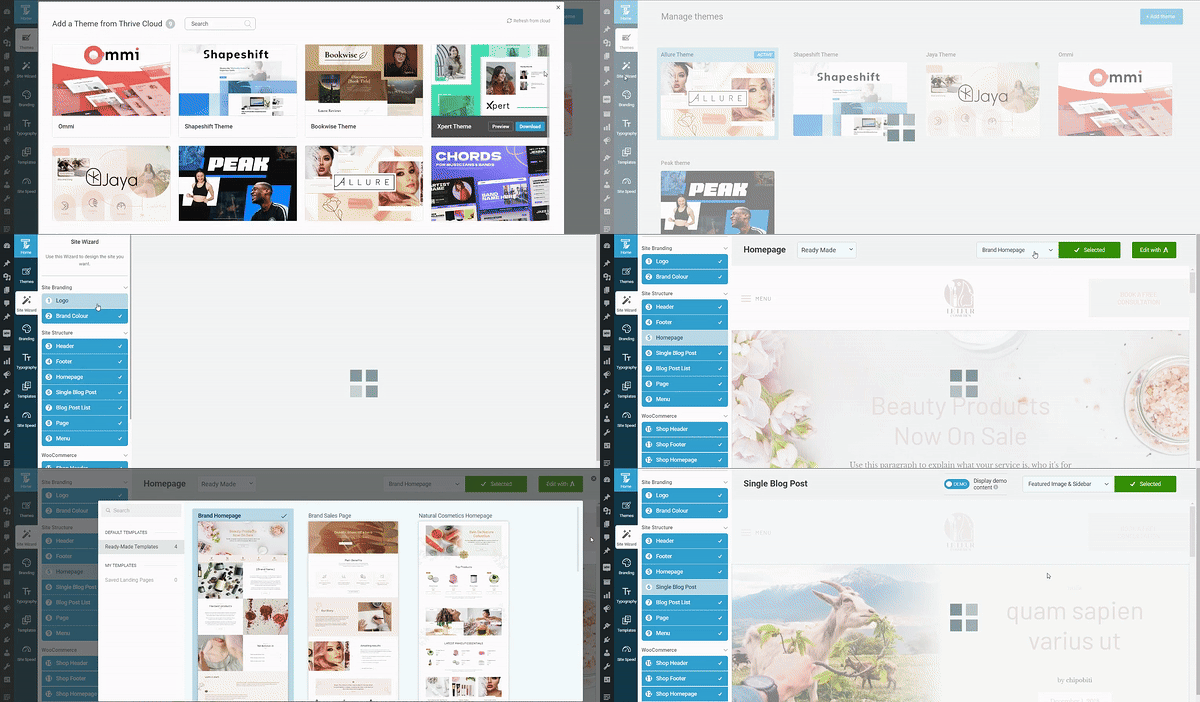
Thrive Theme Builder in Action
When I set up my professional site with Theme Builder, the Site Wizard walked me through it step by step: logo, brand color, header, footer, homepage, blog templates, menu. You can have the bones of a cohesive, professional-looking website in under 30 minutes. (All I'm left with is replacing the text and images on the actual pages)
That cohesiveness is the reason I stopped using Elementor for my own site. I was tired of having a good homepage next to a random-looking blog, and of opening page after page to change one design decision. With Theme Builder, my templates work together, and global changes happen in one place. And Architect is where I live day to day: it's what I build and edit my actual pages with, and it's the tool I reach for when a landing page needs to exist by the end of the day.
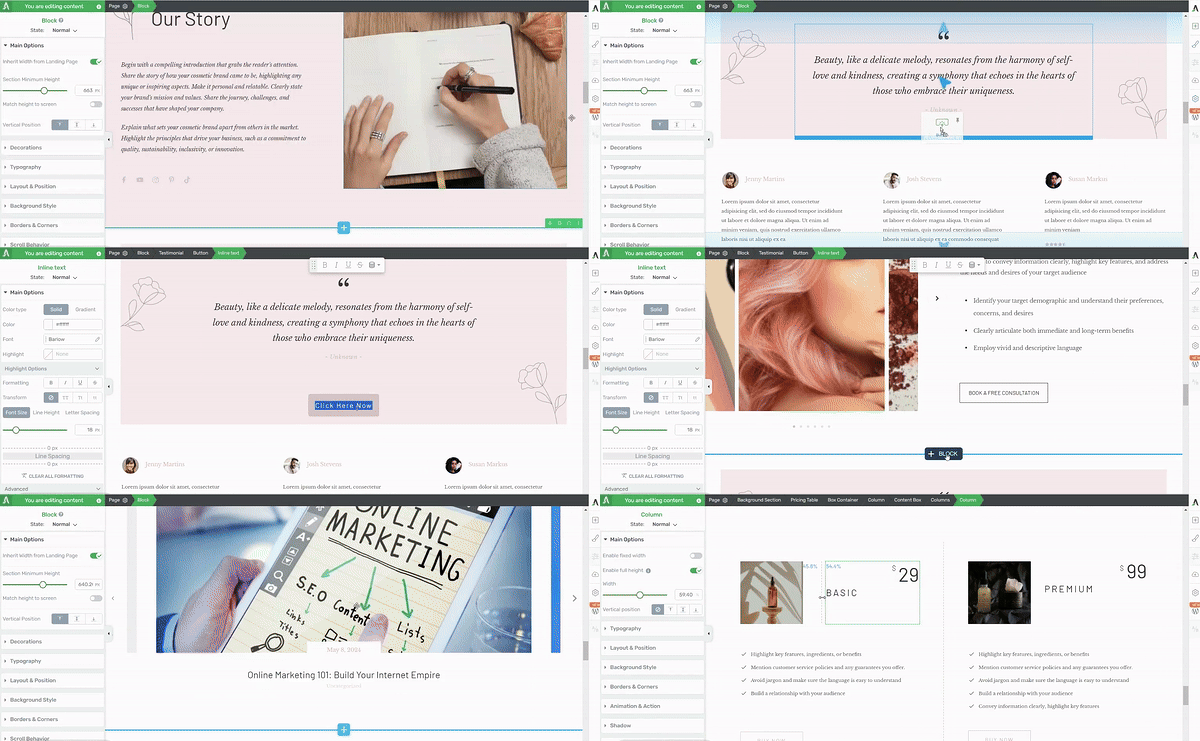
One honest note, because I've said throughout this article that most tools need a partner to shine, and I'm not changing the rules for ours: a standalone Theme Builder license includes Thrive Architect Lite, which covers theme customization and your key pages. If you want the complete page-building experience, you'll want full Architect, and at that point the Thrive Suite bundle usually makes more sense.
I also gave Thrive Theme Builder the same hands-on review treatment as everything else in my best WordPress themes guide, where I put it last on the list on purpose. If you want to see whether it earns that spot, read the other seven reviews first. That's the point.
Starting Price: A standalone Thrive Theme Builder + Thrive Architect license starts from $199/year.
Others I Have Used
Elementor was my introduction to WordPress page builders. When those fitness influencer sites moved off ClickFunnels, Elementor was the tool I used to replicate their funnels on WordPress, and my first personal website was an Elementor build too.
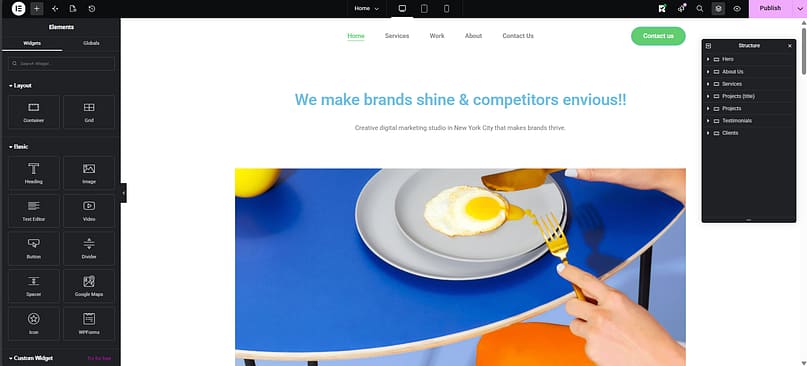
It's powerful, the ecosystem is massive, and the free version is genuinely usable, which is why it's the most popular visual builder in WordPress. My honest gripe from years of using it: the more granular I got with a design, the more it could feel like the website was being held together by duct tape. Features worked, but sometimes through workarounds.
I eventually moved on, but I'd still call it one of the easier starts in WordPress. I gave it a full hands-on review (along with its Hello Elementor theme) in my best WordPress themes guide, so I'll keep this short.
Starting Price: the builder is free; Elementor Pro starts from $60/yr for one site.
I'll keep this one short too, because I reviewed Divi 5 properly in the best WordPress themes guide: it's heavy machinery. A huge library of layouts, deep customization, real value for money, and genuinely smoother since Divi 5. But it's a system you have to learn, and I wouldn't hand it to a beginner as their first rodeo.
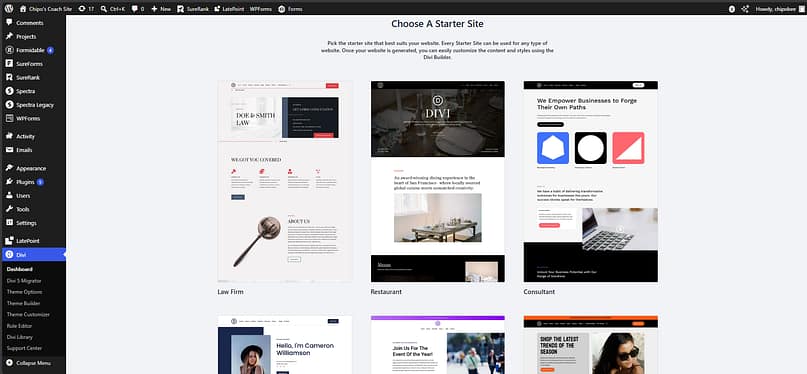
Starting Price: starts from $89/yr for unlimited websites.
Remember the fitness influencers from the platform section? Before WordPress, their business ran on ClickFunnels, and that was my introduction to it. During my freelance days I set up websites and funnels on it for clients, so this take comes from the backend, not the marketing page.
Credit where it's due: ClickFunnels is fast. Everything lives under one roof (hosting, funnel templates, the page builder, basic email tools), and if you need a funnel live by tomorrow, it will get you there quicker than almost anything else I've used.
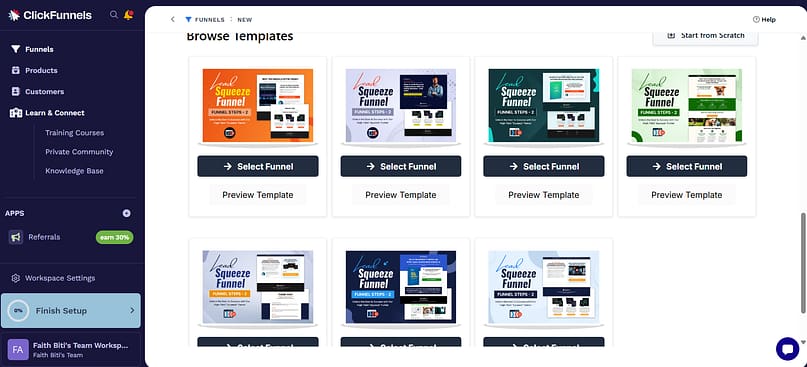
The problem is the math, and the ownership. Entry plans run about $97 to $147 a month, and the full feature set sits around $299 a month. That's roughly $1,200 to $3,600 a year, every year. My clients were paying that high-end subscription money and still feeling like it wasn't working for them. And the part that seals it for me: if you cancel, your funnels disappear with the subscription. You're renting the business, not building it.
That experience is literally what pushed us to WordPress, where I rebuilt their ClickFunnels setup for a fraction of the cost, on a site they owned.
Starting Price: starts from about $97/mo.
Who Should Pick What
Builder | Really for | Think twice if |
|---|---|---|
Thrive Theme Builder + Architect | Conversion-focused business sites where everything needs to look and work like one system | You want a free tier to start on; there isn't one |
Elementor | Beginners and busy owners who want the most popular builder with a real free version | You're a granular perfectionist; you may hit the duct-tape stage |
Divi | Designers and developers with the time to learn a deep system | You want quick and simple |
ClickFunnels | Funnel-first businesses that want speed and have the budget | You want to own your site and funnels long-term |
Your website can look like a real website now. Next up: making it actually capture leads. That's forms.
Stage 4: Forms and Lead Capture
A website that can't capture a lead is a brochure. This is the layer that turns visitors into subscribers, and it's also where WordPress stacks tend to get messy, so let me show you how I keep mine simple.
What I Use: Thrive Leads + Thrive Architect's Built-In Forms (and WPForms for the Extras)
This shouldn't surprise you after the last section. My priority, right after ease of use and design flexibility, is a cohesive tech stack. Back in my earlier WordPress days, I had eight different plugins running, didn't really know how they connected, and I'm very sure that contributed to the lagging and jankiness on my site. Thrive's appeal, to me, was a suite of tools that all work together.
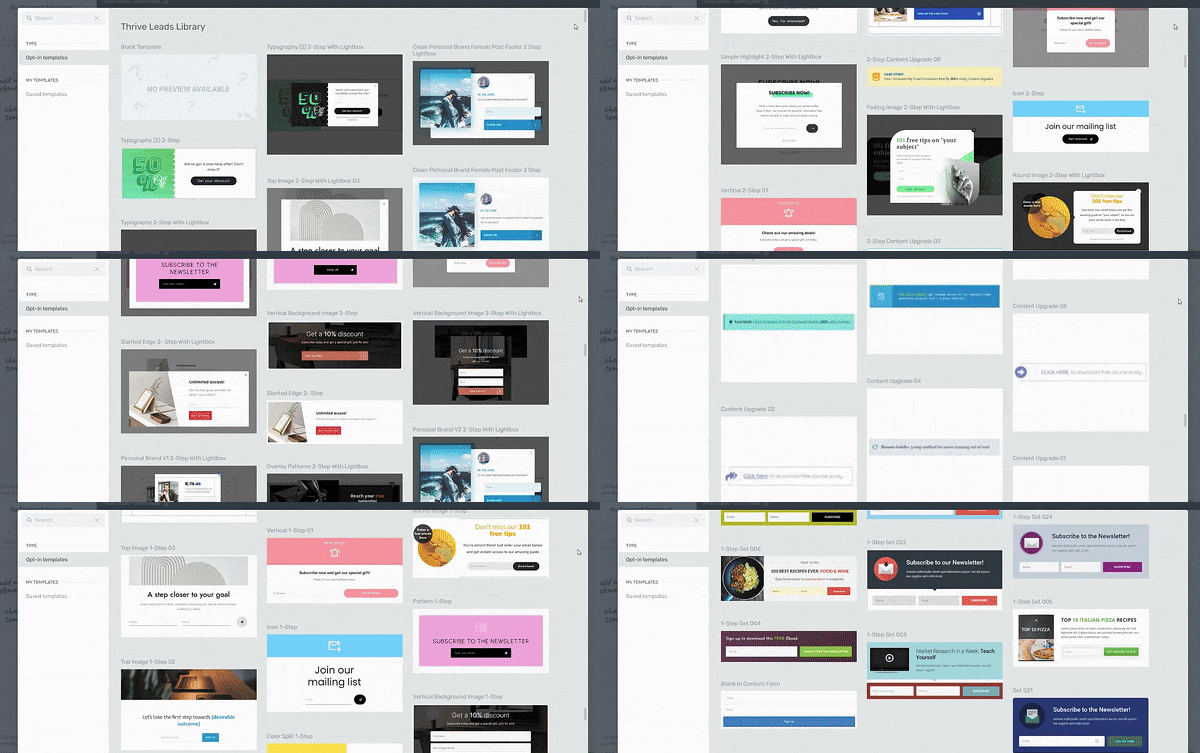
For forms, that plays out in two parts. Thrive Architect has forms built in, both inside its landing page templates and as design elements, and I use those for quick newsletter signups. Then Thrive Leads handles the more deliberate lead generation: forms built for specific groups and topics.
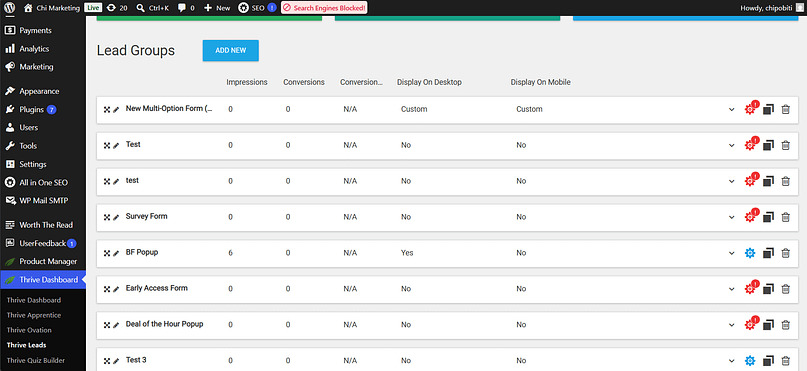
Here's a real example. I'm working on two newsletters right now, a personal development one I'm trying to revive, and one about building in this era (brands, tools, all of it). I can't have the same form serving both audiences, so I use Thrive Leads' targeting features to put the right form in front of the right readers.
I like Thrive Leads because it's simple and it works. It's not the flashiest plugin out there, but its features are reliable and it gives me a solid array of templates to work with. It's straightforward enough that in 10 or 15 minutes I have a form set up, its display settings configured, and boom.
I'm a function-first person. I've seen apps with flashier dashboards and a tonne of bells and whistles, but Thrive Leads integrates cleanly with my website, none of my lead gen funnels have been affected, and opening it doesn't feel like a chore.
And then there's WPForms. Thrive Leads is good, in my opinion, for rallying leads: getting visitors to sign up at the right place and the right time. But sometimes I want an interactive form, like a calculator or a super simple survey that doesn't warrant building an entire quiz with Thrive Quiz Builder. That's where WPForms comes in. Every now and then I whip up a survey with their templates, put it up, collect the data I need, and on I go. And I don't have to deal with the response limits some other platforms impose (cough cough, Typeform).
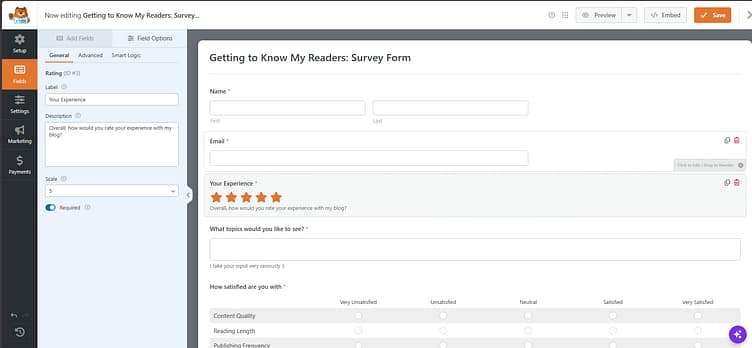
WPForms is straightforward and offers an insane number of options: a drag-and-drop builder, a huge template library, payment forms, conversational forms, calculators, and survey and poll reporting on the higher tiers.
My use cases are pretty simple, and I'm on their Pro plan, so take my experience with a grain of salt: some features are gated depending on your plan. Roughly: the free Lite version covers a basic contact form, Basic gets you simple forms with entries stored in your dashboard, and Pro is where the surveys, calculators, and integrations live.
Starting Price: Thrive Leads comes as part of Thrive Suite (from $299 for your first year) or standalone at $99/year. WPForms has a free Lite version; paid starts from $39.50 for your first year (Basic), with Pro at $199.50 first year. Renewals are roughly double, so budget for that.
Others I Have Used
I use Gravity Forms on my WordPress.com site (remember, paid plans there let you install plugins now). It's simple, works well there, and collects whatever submissions I get. It's definitely a different experience from the full suite I run on my WordPress.org sites, but that's the point: it does its one job.
You get a decent variety of templates, not as vast as WPForms', but enough to build signature consent forms, newsletter signups, quizzes, payment forms, and more. The builder is pretty standard: everything you need, no bells and whistles, gets the job done.
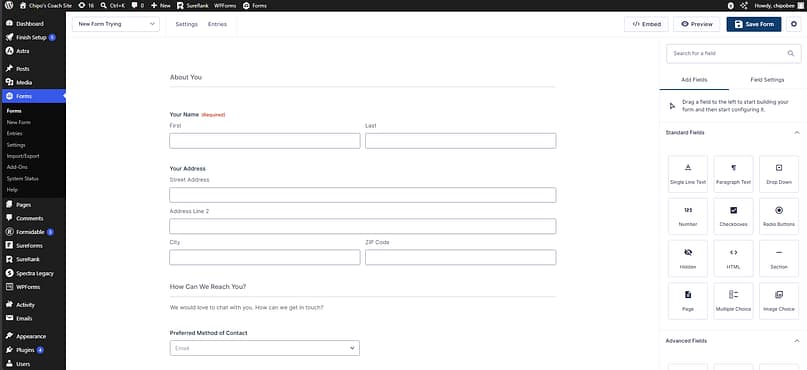
I'm not a big fan of the add-on system, though. Certain integrations are add-ons that come with different plan tiers and have to be installed separately. It's a small extra job, not a big difference maker, but I'm more of a fan of what-I-need-is-already-in-the-tool-I-purchased.
Starting Price: starts from $59/yr for one site.
Formidable Forms is very impressive, and more on the super-form-builder side of things. It boasts a lot of form templates covering a lot of use cases, a wide variety of fields including advanced ones, and the builder is straightforward. It runs a similar add-on setup to Gravity Forms, so the same caveat applies.
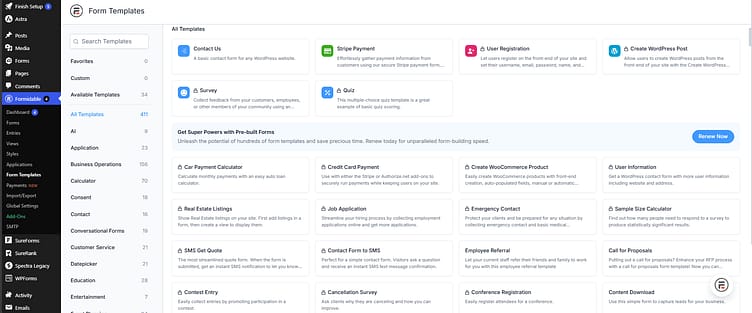
If your website is going to depend on a lot of forms, this is a good tool to build on. But if you're keeping it simple, it could be overkill.
Starting Price: starts from around $39.50 for your first year on promo.
Who Should Pick What
Tool | Really for | Think twice if |
|---|---|---|
Thrive Leads (+ Architect forms | Lead generation that targets the right visitor at the right time, inside a cohesive Thrive stack | You want flashy dashboards; this one just quietly works |
WPForms | Surveys, calculators, payment and contact forms, with a huge template library | You only need one basic contact form (the free Lite covers that) |
Gravity Forms | Dependable, standard forms with no drama | The add-on system annoys you like it does me |
Formidable Forms | Sites where forms do the heavy lifting | You're keeping it simple; it's overkill |
Leads are flowing. Now let's make sure people can actually find the site: SEO.
Stage 5: SEO
Your site looks good and captures leads. Now people need to actually find it. An SEO plugin won't do the ranking for you, but it handles the technical housekeeping (sitemaps, schema, meta) and keeps your on-page work honest.
What I Use: AIOSEO
We run AIOSEO on the Thrive Themes blog, and I use it on my own WordPress.org site, chipofaith.com.
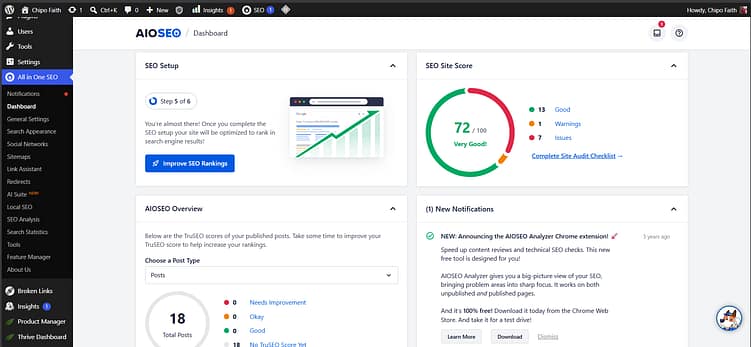
Now, driving thousands and thousands of visits isn't the priority for my personal site. But I'm a perfectionist when it comes to my work, so I like my content dialed in for SEO regardless. And for the Thrive blog? Non-negotiable.
I use most of what AIOSEO offers: the on-page checks, the headline analyzer, schema, sitemaps. It's simple, it's quick, it's efficient. You can get a lot out of the free plan, especially if you're not doing SEO at a big scale. The paid plans have some real gems too: Search Statistics pulls your actual Google Search Console data right into your WordPress dashboard, the Redirection Manager handles broken and changed URLs without another plugin, and Link Assistant suggests internal links between your posts (the tedious job nobody does manually).
Starting Price: there's a generous free version. Paid starts from $49.50 for your first year.
Others I Have Used
Well known, everywhere, and it's what I used first in my early WordPress days. It does the fundamentals fine, and its Premium tier adds things like redirect management and internal linking suggestions. But to me, it feels a little outdated now, and that's one of the reasons I was so ready to switch to AIOSEO. If you're already on Yoast and happy, no emergency. I just wouldn't start there today.
Starting Price: the free version covers basics; Premium starts from $118.80/yr per site.
Rank Math is a really good app, and very powerful. You get the standard on-page checks plus a famously generous free tier: schema support, basic keyword rank tracking, and features other plugins tend to gate behind paid plans. The Pro tier adds more advanced tracking and its Content AI tools. If I weren't in the AIOSEO ecosystem, this is the one I'd look at hardest.
Starting Price: free version available; Pro starts from about $6.99/mo billed annually.
Who Should Pick What
Plugin | Really for | Think twice if |
|---|---|---|
AIOSEO | A simple, quick, efficient all-rounder, with GSC data in your dashboard on paid plans | You want maximum free features; compare with Rank Math first |
Yoast | People already settled on it | You're starting fresh today |
Rank Math | The most generous free tier and power features | You prefer simpler over more |
One layer left in the essentials, and then a couple of extras. Let's talk about owning your audience: email.
Stage 6 (Nice Extra): Email Marketing
I'm calling this one a nice extra on purpose. You don't need an email platform on day one. You need it the day you decide you want to own your audience instead of renting it from an algorithm. Your forms (previous section) collect the subscribers; this is where they actually live.
What I Use: Kit (formerly ConvertKit)
For my personal projects, I'm on Kit. It's where both of the newsletters I mentioned back in the forms section land, and my use is pretty simple: broadcast emails. I hop in, write, send, and go.
Kit is built for creators first, which suits how I use it. It's simple to get a newsletter out, and the free plan is genuinely hard to argue with: up to 10,000 subscribers with unlimited sends, forms, and landing pages (you'll have Kit branding on your emails until you upgrade, and things like A/B testing sit in the paid tiers).
[MEDIA: screenshot of your Kit dashboard or a recent broadcast]
Starting Price: free up to 10,000 subscribers. Paid plans start from $39/mo for up to 1,000 subscribers, with roughly two months free on annual billing.
Others I Have Used
I used AWeber for my newsletters before I moved to Kit. It was fine, but it started to feel a bit limiting, and Kit met my needs better from a blogger, freelancer, and creator perspective. That said, AWeber is one of the longest-standing names in email marketing, and it stays a sensible pick for keeping things simple and affordable: the free plan covers up to 500 subscribers, and paid starts cheaper than most of the big names.
Starting Price: free up to 500 subscribers; paid starts from about $12.50/mo billed annually.
Drip is one I dabbled in, mainly during my other gigs as a marketer. It's good, and it plays a different game from the other two: it's built around ecommerce automation, with the segmentation and behavior-based flows an online store actually needs. But the editor was frustratingly limiting for me at times, and the way it handles workflows can be a bit confusing. I feel it's better suited to bigger businesses, and that focus is also why it costs more from the first dollar.
Starting Price: starts from $39/mo for up to 2,500 contacts.
Who Should Pick What
Platform | Really for | Think twice if |
|---|---|---|
Kit | Creators and newsletter-first projects; the 10k-subscriber free plan is the best on-ramp here | You need deep ecommerce automation |
AWeber | Budget-friendly simplicity for small lists | You'll outgrow simple quickly |
Drip | Store owners automating around buyer behavior | You're not selling products; it's overkill |
One more stage, and it's the one I'll be the most upfront about: selling things.
Stage 7: Ecommerce (From My Client Work)
Full transparency before this one: I have only ever built online stores for clients and employers, never for myself. I don't run a shop. So read this section as agency-side experience, the person setting the store up and handing over the keys, not the person running it day to day.
What I Reach For: WooCommerce
If you've read this far, you already know why: my world is WordPress. WooCommerce keeps the store on a site you own, next to the content and funnels that bring people to it. That combination, content and commerce in one place, is the whole argument for it. The plugin itself is free; you pay through hosting, payment processing, and whichever extensions your store actually needs.
Starting Price: the plugin is free. Realistically, budget for hosting, payment fees, and extensions on top.
Also Used: Shopify
My Shopify experience comes from two places: an FMCG company I worked for, and store setups for freelance clients.
Here's my honest take: Shopify is good. It works, and it works for small businesses and large businesses with thousands of customers alike. If you're a pure-play retailer whose main job is moving product, it's the path of least resistance: simple, reliable, and it handles the logistics side (inventory, checkout, payments) beautifully.
Two caveats from my side of the keyboard, though. As you scale, your stack can get more complicated, especially if you sell physical products, and the monthly costs stack with it. And if you sell digital products, Shopify may honestly be overkill; in my opinion, there are platforms better suited for that. If content marketing is going to drive your traffic, WooCommerce on WordPress gives you more room.
Starting Price: starts from $29/mo billed annually ($39 month-to-month), plus transaction fees depending on your payment setup.
Who Should Pick What
Platform | Really for | Think twice if |
|---|---|---|
WooCommerce | Content-driven stores on a site you own | You want zero setup decisions; it's a build, not a signup |
Shopify | Pure retail that wants to move product fast with logistics handled | Content and SEO will be your growth engine, or subscription creep bothers you |
And that's the stack, top to bottom.
Frequently Asked Questions
Quick answers to the questions people actually ask about website software, from my side of the keyboard.
Which software is best for creating a website?
There's no single best software for creating a website, only the best stack for what you're building. Mine is WordPress.org on Hostinger, designed with Thrive Theme Builder and Thrive Architect, with Thrive Leads and WPForms handling forms and AIOSEO on SEO. If you want everything handled for you, Wix and Squarespace are honest alternatives. If you're building a business you intend to grow, build on WordPress.
How much does it cost to build a website with this stack?
If you copied my exact stack today, you'd pay a little over $400 for your first year: Thrive Suite from $299 (which covers the theme builder, page builder, and lead generation), hosting from about $36, WPForms from $39.50, and AIOSEO from $49.50. You can trim that by leaning on the free tiers (AIOSEO, WPForms Lite, and Kit are all free to start), and renewals run higher than first-year promos, so budget for that. [confirm figures at publish]
Is Wix actually free?
Yes, genuinely free, with trade-offs. The free plan puts your site on a Wix subdomain with Wix branding on it. To connect your own domain and drop the branding, you need a paid plan, which starts from $17/mo billed annually. Free is fine for testing the waters. It's not how you'd run a business site.
Can ChatGPT actually create a website?
Not by itself, but AI is genuinely part of website building now. AI builders, like the ones Wix and Hostinger offer, can generate a decent starting layout in minutes, and AI tools can draft your copy and images. What they can't do is run the stack for you: hosting, design decisions, lead capture, SEO, and the upkeep that comes after launch. I've covered using AI on WordPress the smart way separately.
What's the cheapest way to build a website?
The cheapest real website is a free plan on WordPress.com or Wix, if you can live with their limits. The cheapest business website is WordPress on budget shared hosting with free plugin tiers, which can run you under $50 for the first year. Just remember what I said in the hosting section: cheap has repercussions once you need to scale. Treat the savings as a starting point, not a strategy.
Copy the Stack, or Build Your Own
That's everything: platform, hosting, building, forms, SEO, and the extras, each with what I actually use and what I'd tell a friend about the alternatives.
If there's one thing to take with you, it's this: stop looking for the one perfect tool. Choose a platform that matches the business you plan to have in two years. Put it on hosting that won't embarrass you. Pick a building setup that fits how you like to work. Then add the essentials as your website earns them.
If you want convenience, Wix and Squarespace are honest choices, and I've told you exactly where their walls are. If you're building a website that has to grow a business, do what I did: build on WordPress, keep the stack cohesive, and either copy my stack outright or swap any layer for one of the alternatives I've used.
Either way, you now know what I'd tell you over coffee. Go build.


