


TL;DR: How to Edit the Footer in WordPress (It Depends on Your Theme)
To edit the footer in WordPress, you first need to know which kind of theme you have, because that decides where your footer lives:
- Block theme (your Appearance menu shows Editor): go to Appearance → Editor → Patterns → Footer, change what you need and click Save
- Classic theme (you see Customize and Widgets): edit the footer widgets under Appearance → Widgets, and look for footer settings under Appearance → Customize
- Thrive Theme Builder: open a template, click the footer and choose Edit, and your change shows up on every page that uses that footer
- Code: edit footer.php in a child theme, but only if you're comfortable with code
Want to do it in a more seamless way, where you design the footer once and it keeps itself up to date? Jump straight to method 3.
If you're here, you probably want to change something at the bottom of your website. Maybe it's last year's copyright date, a "Powered by WordPress" line you never asked for, or contact details that aren't there at all. And WordPress doesn't make it obvious where the footer lives.
The footer used to be one of the things I thought about the least, until I realized how important it is. It completes your website. When I want to go through a website, I do check what's going on in their footer, because attention to detail matters.
And the tricky part is that there isn't just one place to edit it. Where you go depends on your theme, so I'll walk you through every way, one theme type at a time.
For the screenshots, I used Fieldbloom, a made-up skincare brand I first built for my beauty and cosmetics website tutorial. Fieldbloom isn't a real company. The WordPress screenshots come from a fresh test copy of WordPress 7.1 with its default theme, and the Thrive Theme Builder ones come from Fieldbloom's own site.
Your Footer Gets Checked More Than You'd Think (I Check It, Too)
It's easy to treat the footer as the place where leftover links go. But people use it on purpose.
In its research on website footers from 2019, Nielsen Norman Group found that people use the footer as a last resort when they can't find something higher up the page. They also found that a lot of people go straight to the footer to find contact details or a way to get customer support.
Google pays attention to the same thing. Its guidelines for search quality raters (the people who check the quality of Google's search results), last updated in September 2025, call contact and customer service information "extremely important" for websites that handle money, like online stores, because people need a way to get help when something goes wrong.
And a lot of the people who scroll down to your footer are doing it on a phone. In September 2026, 49.1% of US web traffic came from mobile devices, according to StatCounter. On a phone, a neat four-column footer stacks into one long column, so check it there too.
So it's worth getting right. And before you change anything, you need to find out which kind of theme you have.
First, Find Out Which Kind of Theme You Have (It Takes 10 Seconds)
In your WordPress dashboard, hover over Appearance in the left menu and look at what's listed underneath:
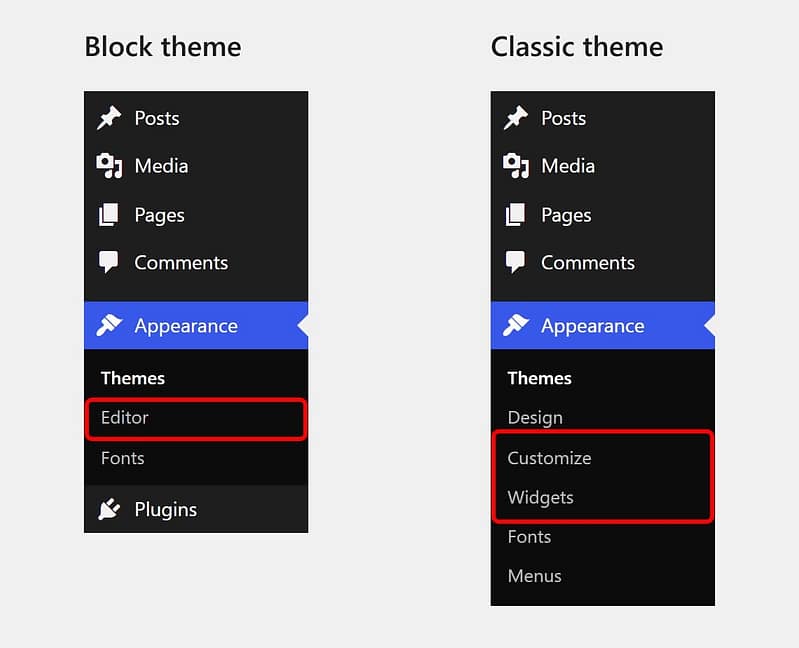
The Appearance menu in WordPress 7.1. A block theme (left) shows Editor, while a classic theme (right) shows Customize and Widgets.
The difference matters because the two kinds of theme handle the footer in different ways. Classic themes give you a familiar structure: a header you customize, a footer you edit separately, and theme settings that guide your design. Block themes let you edit your entire site (headers, footers, templates, page layouts) using the same block editor you use for your content. It's more flexible, like having a set of LEGOs to build your house from scratch, but it also asks you to be more hands-on.
Method 1: Edit the Footer in the Site Editor (If Your Menu Says "Editor")
If you have a block theme, your footer is what WordPress calls a template part: one shared piece of your site that shows up at the bottom of every page. Here's how to open it:
- Go to Appearance → Editor, then click Patterns
- Under the template parts, click Footer. You'll see every footer your theme comes with
- Click the footer you want to edit. In Twenty Twenty-Five, the one on every page is simply called Footer

Appearance → Editor → Patterns → Footer lists every footer that comes with your theme. Twenty Twenty-Five has three, and the one on every page is called Footer.
If your theme comes with more than one footer design, you'll find them in the Design panel on the right. Click one, and it replaces your footer, which is a quick way to start from a different layout.

The Design panel shows the other footer designs Twenty Twenty-Five comes with. Clicking one swaps it in.
Then click any text in the footer and type over it. To add something new, like your social media profiles or a contact paragraph, click the + button at the top left and pick a block, such as Social Icons or Paragraph. For Fieldbloom, I replaced Twenty Twenty-Five's credit line with a copyright line.

Fieldbloom's footer in the Site Editor, with the credit line replaced by a copyright line. Save is now active at the top right.
When you're done, click Save. Because the footer is shared, your change shows up on every page that uses it.
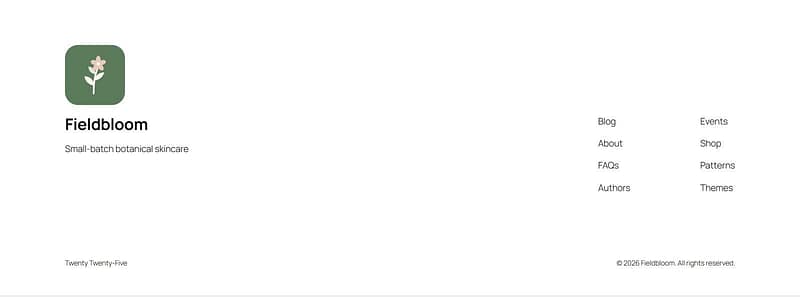
The saved footer on the test site, with Fieldbloom's logo, tagline, links and new copyright line.
Just keep in mind that the copyright line you type here is plain text, so every January, you'll need to come back and change the year yourself.
Method 2: Use Widgets or the Customizer (If You're on a Classic Theme)
Classic themes split the footer into widget areas that you fill with content. Go to Appearance → Widgets and open the area called Footer. Some themes have a few of them, like Footer 1, Footer 2 and Footer 3, one for each column.
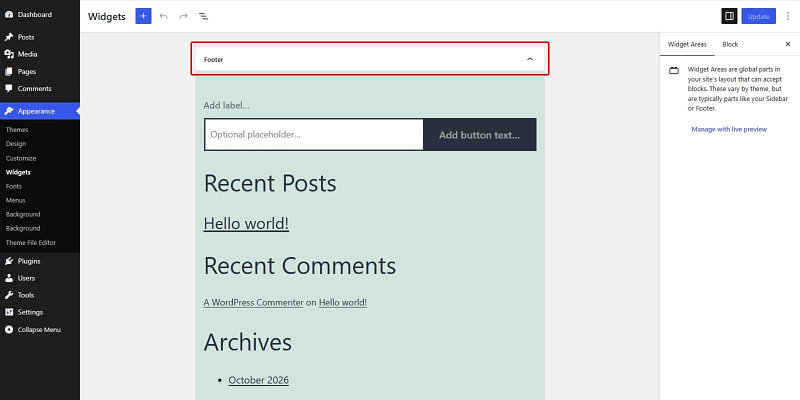
Twenty Twenty-One's Footer widget area, with the blocks WordPress adds to a new site.
Click the + to add a block, like a paragraph with your contact details or a navigation menu, then click Update.
If you'd rather see your changes as you make them, go to Appearance → Customize instead. You'll find the same widget areas under Widgets, with a live preview of your site on the right.
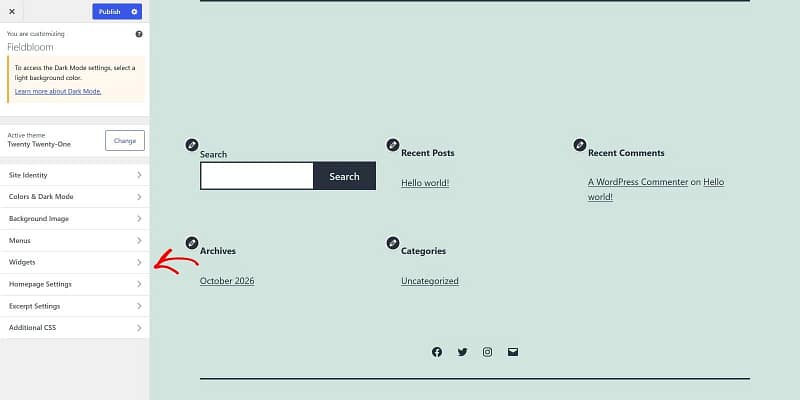
The Customizer in Twenty Twenty-One. Your footer widgets are under Widgets, and the preview on the right shows the footer as you edit it.
Some classic themes also add their own footer settings to the Customizer, like the copyright text, the number of columns or the colors. Every theme does this differently, so if you don't see a footer section, check your theme's documentation.
And if your theme has neither a footer widget area nor footer settings, you're left with two options: editing the theme's code (method 4) or using a tool that lets you design the footer yourself (method 3).
Method 3: Build Your Footer in Thrive Theme Builder (The Way I Do It)
This is the way I'd do it, because the footer is one design you control completely, and you only ever change it in one place.
Thrive Theme Builder controls your whole site's design: your templates, headers, footers, blog layouts and other site-wide elements. I don't want to set up one part of the site, go somewhere else for another part and then start wondering where the footer lives now.
I built Fieldbloom's footer both ways for this guide, and the difference showed up in the details. In the Site Editor, the copyright line I typed was plain text, so the year won't change unless I change it. In Thrive Theme Builder, the year updates itself, and Fieldbloom's contact details come from one place, so I change them once and every footer that uses them updates.
If you're setting up Thrive Theme Builder for the first time, its Site Wizard has a Footer step where you pick a design to start from. Fieldbloom started from Allure's "About Company - Links" footer, and these steps pick up from there.
Step 1: Open a Template and Click Edit on the Footer (Any Page Template Works)
In your WordPress dashboard, go to Thrive Dashboard → Thrive Theme Builder, click Templates, then hover over a template and click Edit. Any page template works, because your footer is shared between them. I opened Title Banner - Boxed, the page template Fieldbloom's pages use.
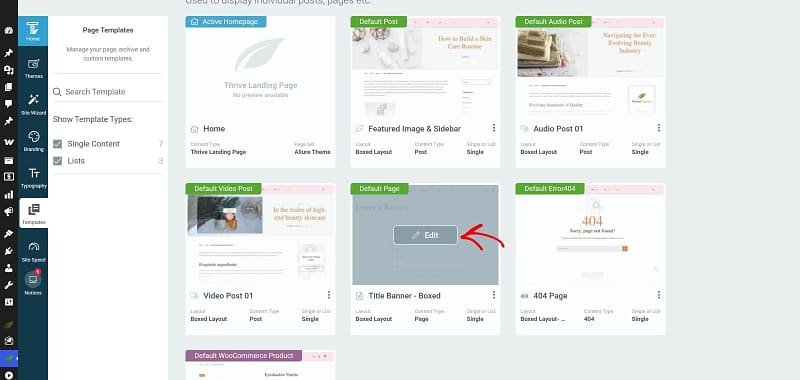
Thrive Theme Builder's Templates screen. Hover over a template to see its Edit button.
Scroll down and click the footer. Its options open on the left, and under Footer Section, you'll see the footer's name (Fieldbloom's is Default Footer for Allure Theme) with an Edit button underneath. Click Edit.
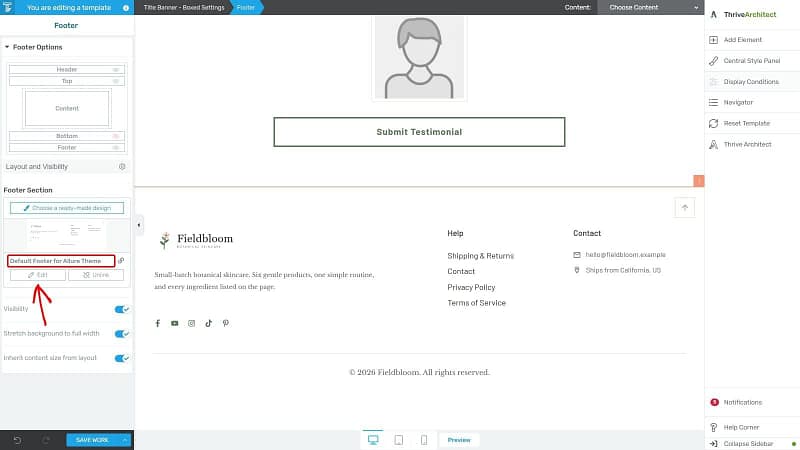
Fieldbloom's footer selected in Thrive Theme Builder. The footer's name and its Edit button are on the left.
The name also tells you this footer is linked, so any change you make here shows up on every template that uses it, which is what you want for most of your site.
Step 2: Add What Your Footer Needs (I Kept Most of Allure's)
You're now in Edit Mode. Click Add Element on the right, and drag in what you need: a Text element for a short line about your business, a Custom Menu, Social Follow icons or a Lead Generation form for email signups. To change something that's already there, click it, and its settings open on the left.
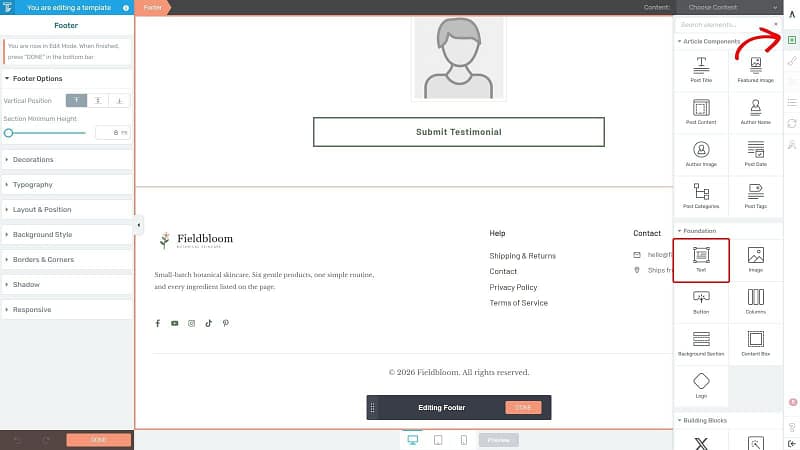
Edit Mode, with the elements panel open on the right. The Text element is under Foundation.
Allure's footer already had Fieldbloom's logo, a short line about the brand, a Help menu and a Contact column, so I kept those and added a Text element underneath for the copyright line.
Step 3: Fill In Your Details Once With Smart Site (Then Change Them in One Place)
Your contact details are much easier to keep up to date when they live in one place. Go to Thrive Dashboard, scroll down to Smart Site and click Smart Settings. Then fill in the Global Fields: your company name, address, phone number and email, links to your legal pages and your social profiles.
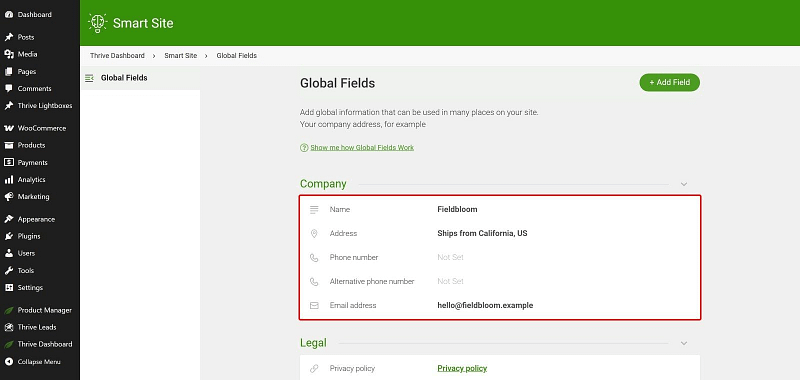
Fieldbloom's company details in Smart Site's Global Fields.
Then, back in the footer, click into a line of text, click the Dynamic text icon in the text toolbar (it looks like a small stack of discs), choose Global fields and the field you want, then click Insert. Fieldbloom's email address, location and social icons all come from Smart Site, so if Fieldbloom ever changes its email, I change it once in Smart Site, and every footer that uses it updates.
Step 4: Make the Copyright Year Update Itself (No More January Edits)
Type your copyright line, like "© 2026 Fieldbloom. All rights reserved." Then:
- Select the year
- Click the Dynamic text icon
- Choose Time & date, then Year
- Click Insert
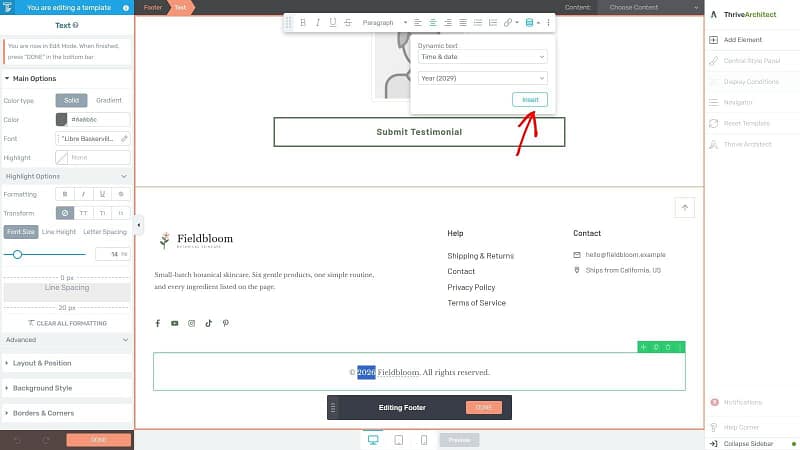
Turning the copyright year into dynamic text: Time & date, then Year, then Insert.
I did the same for the business name, with Global fields and Name, so the year and the name both fill themselves in. Now the year changes by itself every January.
Step 5: Check It on a Phone, Then Save (About Half Your Visitors Will See It There)
Before you save, click the phone icon in the bottom bar to see how your footer looks on a phone. Your columns stack on top of each other there, so check that nothing looks cramped or too long. If it does, you can adjust the spacing while you're in the phone view.
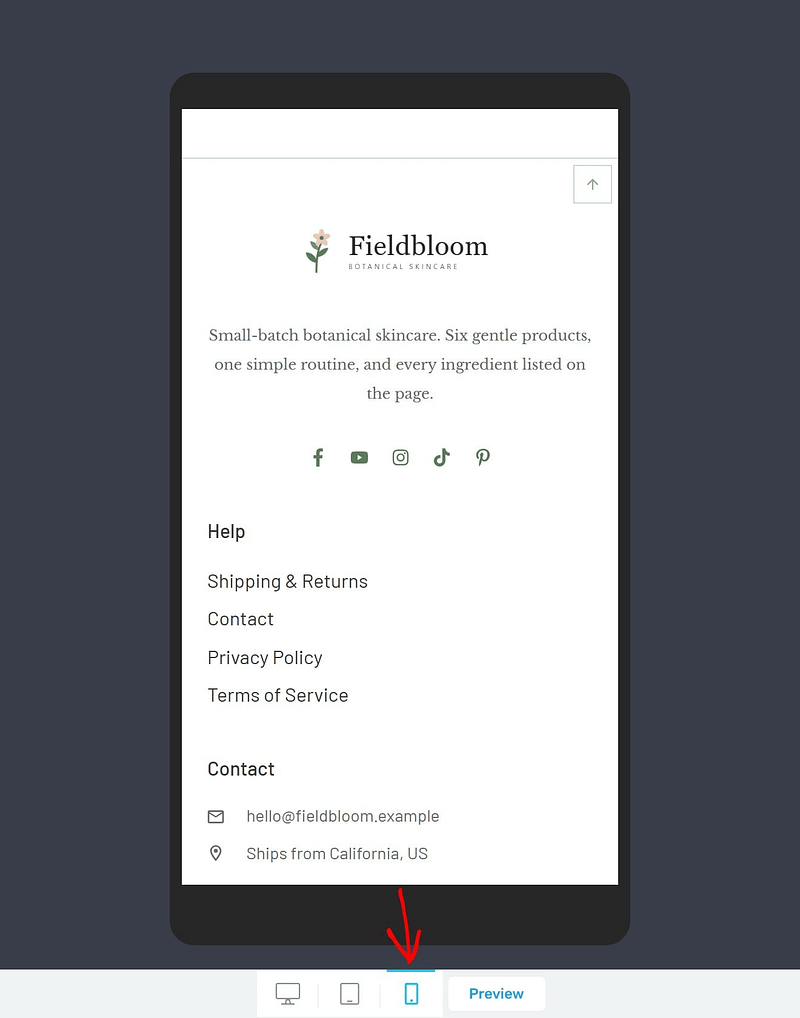
Fieldbloom's footer in the phone view, with the columns stacked on top of each other.
When it looks right, click DONE in the bottom bar, then SAVE WORK.
Step 6: Give One Page Its Own Footer (I Did This for Fieldbloom's Checkout)
Sometimes one page needs a different footer. For Fieldbloom, I gave the checkout a slimmer one, so shoppers still see the links they might need, like shipping and returns, without the rest of the footer pulling them away from paying.
To do this, open that page's template (for Fieldbloom, WooCommerce Checkout 01), click the footer and click Choose a ready-made design. Under Theme Footer Sections, you'll find every footer that comes with your theme, and My Saved Footer Sections holds the ones you've saved. I picked Menu Footer.
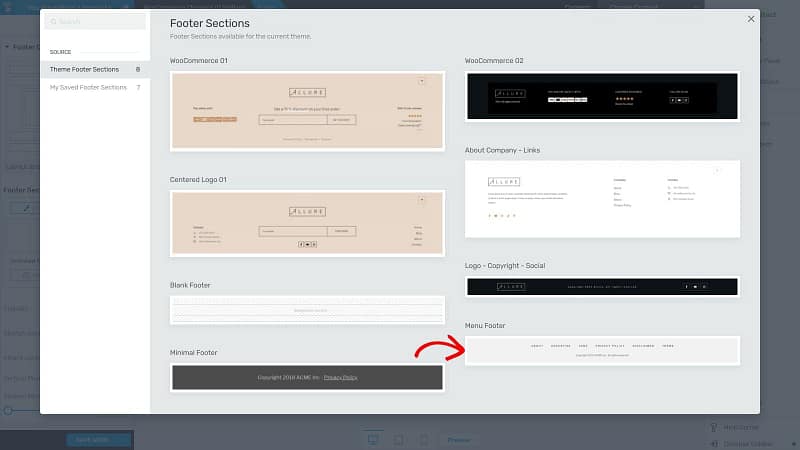
The footer designs that come with Allure. I picked Menu Footer for Fieldbloom's checkout.
Thrive Theme Builder adds it as an unlinked footer, which means it only changes this one template. It also picked up Fieldbloom's footer menu and copyright line on its own. If you want to use it on other templates later, click Save current design for reuse, then click SAVE WORK.
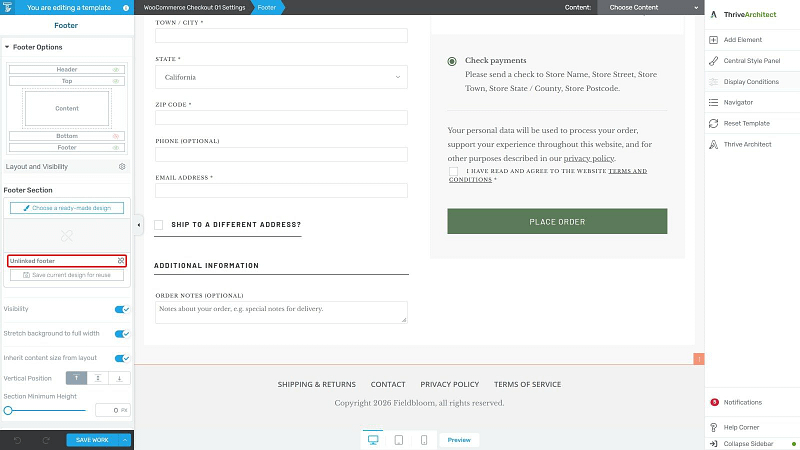
The checkout template's new footer: one row of links and a copyright line. On the left, it's marked as an unlinked footer.
Method 4: Edit footer.php (Only If You're Comfortable With Code)
Every classic theme has a file called footer.php that holds the footer's code. You can open it under Appearance → Theme File Editor, but don't edit your theme's own copy, because the next theme update replaces the file, and your changes disappear with it.
So do it this way instead:
- Back up your site first
- Create a child theme, so your changes live separately from the theme
- Copy footer.php from your theme into the child theme, and make your changes there
- Leave the
<?php wp_footer(); ?>line where it is, because plugins use it to load what they need
This only applies to classic themes. Block themes keep their footer in a template part, which you edit in the Site Editor (method 1).
And if all you want is to add a script to your footer, like a tracking code, you don't need to touch footer.php at all. A code snippet plugin like WPCode can add it for you, and it stays in place when you update your theme.
How to Remove "Powered by WordPress" (And Keep Your Copyright Year Current)
A lot of themes add a small credit line to the footer, like "Proudly powered by WordPress" or "Designed with WordPress", and you're allowed to remove it. Here's where to find it:

Twenty Twenty-Five's "Designed with WordPress" credit line, selected in the Site Editor.
While you're down there, check your copyright year. In the Site Editor and in classic theme widgets, it's plain text, so you'll need to update it every January. In Thrive Theme Builder, you can make it update itself (step 4 of method 3).
What I Put in Fieldbloom's Footer (And What You Can Skip)
There's no single right footer, but most good ones have the same few things in them. Here's what's in Fieldbloom's:
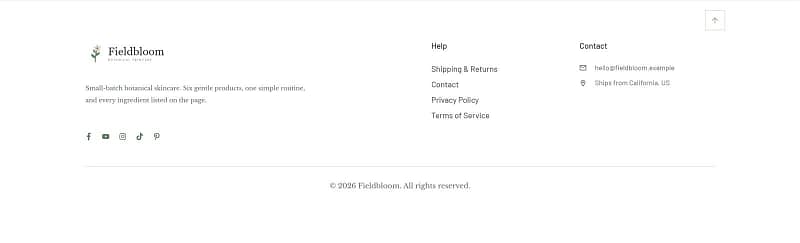
Fieldbloom's finished footer, built in Thrive Theme Builder.
Fieldbloom doesn't have an email signup in its footer, because it already has a first-order popup, but a footer signup is a good option if you don't have one anywhere else.
What you can skip is a full list of every page on your site. Nielsen Norman Group suggests putting a sitemap in the footer only for small sites, with about 25 pages or fewer. Most sites are better off with a short, organized set of links.
Frequently Asked Questions About Editing the WordPress Footer
These are the questions people ask most about the WordPress footer, with short answers that point you to the right part of this guide.
Where Is the Footer in WordPress?
It depends on your theme. In a block theme, it's under Appearance → Editor → Patterns → Footer. In a classic theme, it's split between Appearance → Widgets and Appearance → Customize. In Thrive Theme Builder, you edit it from any template under Thrive Dashboard → Thrive Theme Builder → Templates.
How Do I Edit the Footer on Just One Page?
In a block theme, create a template for that page in the Site Editor (Appearance → Editor → Templates), then swap its footer for a different one. In Thrive Theme Builder, open that page's template, click the footer and then Choose a ready-made design, which adds a footer that only changes that template.
How Do I Remove the Footer in WordPress?
In a block theme, open the template in the Site Editor, select the footer, delete it and save. That removes it from every page that uses the template. In Thrive Theme Builder, click the footer in the template and turn off Visibility on the left. With a classic theme, check the Customizer for a setting first, and otherwise you'd remove it in a child theme.
Why Don't My Footer Changes Show Up?
The most common reason is caching, so clear your caching plugin's cache and your browser's, then reload the page. If that doesn't fix it, check that you edited the footer the page actually uses, since some themes have more than one, and that you clicked Save or Update when you finished.
How Do I Change the Copyright Text in My WordPress Footer?
Open your footer wherever your theme keeps it (see the methods above), click the copyright text and type over it. Some classic themes have a copyright setting under Appearance → Customize. In Thrive Theme Builder, you can make the year update itself with dynamic text, so you never have to change it by hand.
Your Footer Completes Your Website (So Give It a Few Minutes)
It's the last thing people see on every page, and a lot of them scroll down there on purpose, to find your contact details or your policies.
So start by finding out which kind of theme you have, because that tells you where your footer lives. Then make sure it has the basics: your contact details, your help links and a copyright year that's current.
And if you're working on the rest of your site's layout, these will help too:
Ready to Build Your Footer With Thrive?
Fieldbloom's footer, including the copyright year that updates itself and the slimmer checkout footer, was built in Thrive Theme Builder, with its contact details coming from Smart Site in Thrive Dashboard. If you want the rest of Thrive's tools as well, like Thrive Architect and Thrive Leads, they all come together in Thrive Suite.
Set up your details in Smart Site first, and the next time something about your business changes, you'll only have to change it once.


