


TL;DR: How to Build a Beauty and Cosmetics Website (I Built a Skincare Brand to Show You)
To build a beauty and cosmetics website, you need WordPress, a theme designed for beauty brands, a shop, and product pages that answer every question a careful shopper has. For this guide, I'm using Thrive Theme Builder with its Allure theme, and WooCommerce for the shop, all on a demo skincare brand I built from scratch. The build comes down to twelve steps:
- Install Thrive Theme Builder and Allure: the Site Wizard sets up your logo, colors and templates in one pass
- Make the homepage yours: in Thrive Architect, by swapping in your own words and photos
- Add your shop: with WooCommerce, which Allure has already styled
- Write product pages that answer every question: what it does, key ingredients, how to use it, who it's for, and the full ingredient list
- Set up payments and shipping: in WooCommerce's settings
- Cover the legal basics: your product claims, FDA rules and your policy pages
- Collect and show reviews: with Thrive Ovation
- Add a skin-type quiz: with Thrive Quiz Builder, so shoppers find the right product
- Grow your email list: with a first-order discount popup in Thrive Leads
- Answer questions before they're asked: FAQ, shipping and contact pages
- Bring your social feeds in: Instagram and TikTok
- Test it on your phone: and place a test order before you launch
Steps 1 to 5 give you a working shop, and steps 6 to 12 help a shopper who's never heard of you decide to buy. Click any step to jump straight to it.
If you're here, you probably have skincare, makeup or cosmetics that people love (or will, once they find them), and you want a website that sells them without hiring an agency or fighting with a website builder for weeks.
And the website matters more than you might think, at least to shoppers like me. One thing I don't joke about is my skincare. If I see a product in a store that I like, I will go back home and I will look it up. Not only do I look at reviews, I go to the website and see what the company is about.
Because it matters that much to me, and I can guarantee your customers are doing the same thing.
So a lot of buying decisions happen on your website, even for people who first saw your products on a shelf or in their feed.
To show you how to build one, I made up a brand and built its whole site for this tutorial: Fieldbloom, a small-batch botanical skincare line with six products, a skin-type quiz, customer reviews and a 10% first-order offer. Fieldbloom isn't a real company, but every screenshot in this guide comes from its site, so you can see exactly what each step looks like once it's done.
Almost Half of Beauty Shopping Happens Online Now, and Indie Brands Are Winning It
If you're wondering whether a small brand still has room online, the numbers are on your side.
In the year to September 2025, 47% of US beauty and personal care spending happened online ($58.0 billion of $122.6 billion), according to NielsenIQ data in NIQ and Acosta Group's "Beyond the Label" report from March 2026. Online sales grew 20.0% that year, while in-store sales grew 1.7%.
And the growth isn't all going to the biggest names. In the same report, independent beauty brands grew their sales 22.6% in the 52 weeks to July 2025, compared with 5.5% for the big conglomerates.
There's a newer reason to get your website right, too, because shoppers have started asking AI. In Criteo's June 2026 shopper survey across six countries, including the US, 38% of shoppers said they already use AI assistants while shopping for beauty and personal care, and 57% of them said the products AI recommends influence what they buy. Criteo's takeaway is that the stronger your product content is, the more likely your brand is to show up when shoppers ask AI for help, and that's exactly what step 4 is about.
So there's room for a small brand online. You just need a site that's built to sell, and that starts with a few decisions before you open WordPress.
Three Calls to Make Before You Open WordPress (And What Fieldbloom Went With)
Almost every step below comes back to one of these, so it's worth making the calls first:
What you sell
This tutorial is for brands that sell products online. If your business runs on bookings, like a salon or a spa, How to Create a Salon Website on WordPress is the better fit. Fieldbloom sells six products: a cleansing balm, a face oil, a daily moisturizer, an overnight mask, a lip balm trio and a starter set, from $14 to $58.
How it should look
Your colors, fonts and photo style. If your skincare line is all about clean, minimalist routines, your design should breathe: white space, muted colors, sharp imagery. If your makeup brand is about self-expression, lean into bold type and color. Fieldbloom went with sage green, cream and a soft blush, a serif logo with a small sprig, and photos of unlabeled bottles and jars on plain backgrounds.
Where you'll sell
Your own shop, on your own website. Marketplaces can come later, but the site you own is where you keep your customer list and decide how everything looks and works.
Once you've written those down, you're ready to build.
How to Build a Beauty and Cosmetics Website in WordPress (I Built Fieldbloom Step by Step)
Fieldbloom runs on WordPress, with Thrive Theme Builder and its Allure theme for the design, Thrive Architect for editing pages, and WooCommerce (free) for the shop. The reviews, the quiz and the popup come from Thrive Ovation, Thrive Quiz Builder and Thrive Leads, and all of the Thrive tools come together in Thrive Suite. You'll need WordPress installed on your hosting before step 1, so if you haven't done that yet, start with how to install WordPress.
Step 1: Install Thrive Theme Builder and Pick Allure (Thrive's Beauty Theme)
Allure is the Thrive Theme Builder theme made for beauty and cosmetics brands, so it's the one I built Fieldbloom on. Before you install it, though, install WooCommerce, because the Site Wizard only adds its shop steps when WooCommerce is already there:
- In WordPress, go to Plugins → Add Plugin, search for WooCommerce, then install and activate it. It's free
- Install Thrive Theme Builder through Thrive Product Manager: download Thrive Product Manager from your Thrive Themes account, upload it under Plugins → Add Plugin → Upload Plugin, log in, and select Thrive Theme Builder
- Go to Thrive Dashboard → Thrive Theme Builder, open Themes, click + Add theme, then Load from the Thrive Cloud, and click Download on Allure
- Click Activate on the Allure card
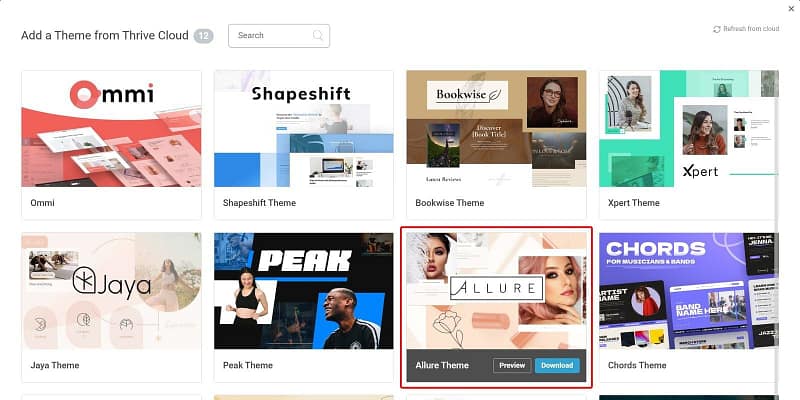
Allure in the Thrive Cloud theme library, next to Thrive Theme Builder's other themes.
Activating Allure opens the Site Wizard, and this is where your site starts to look like your brand. It walks you through your logo and brand color first, then asks you to pick a header, a footer, a homepage, your blog and page templates, and your menus. With WooCommerce installed, you also get steps for the shop header and footer, the shop page, the product page, the cart and the checkout.
Each step shows you Allure's options for that part of the site. Pick one, click Choose, then Continue.
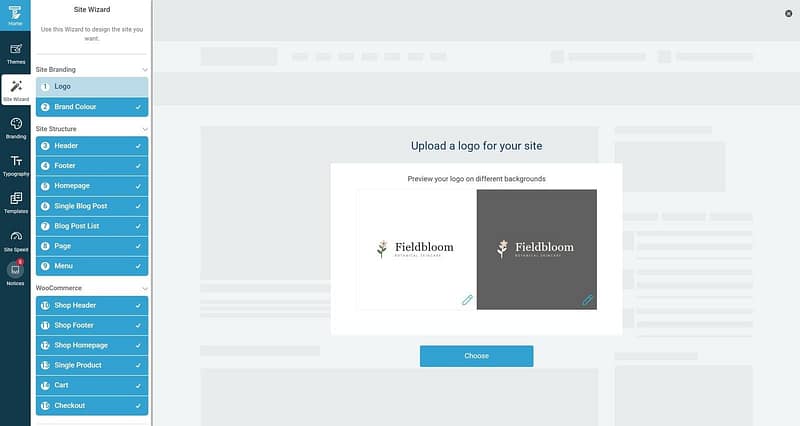
The Site Wizard's first step previews your logo on a light and a dark background. The WooCommerce steps are at the bottom of the list.
For Fieldbloom, I uploaded a light and a dark version of the logo, set the brand color to sage green, and picked Allure's Natural Cosmetics Homepage, Shop 01 for the shop page and Product Page 01 for the products. The brand color is the one to get right, because Allure's templates are built around it, so one choice gives every page the same green.
When the wizard's done, everything it set up lives under Templates in the Thrive Theme Builder dashboard. And if you came here looking for a beauty website template, this is it: Allure comes with its own templates for the homepage, pages, blog posts, the shop and every product page, so you're editing a finished design instead of starting from a blank page.
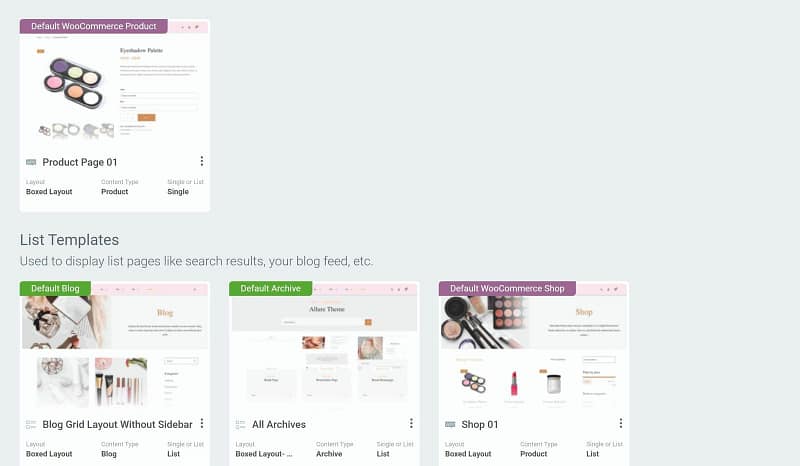
A few of Allure's templates: Product Page 01 for every product, plus the blog, archive and Shop 01 templates.
If you're still deciding on a theme, here are 15 of the best WordPress beauty and cosmetics themes to compare.
Step 2: Make the Homepage Yours in Thrive Architect (Keep the Layout, Swap the Words and Photos)
The wizard gives you Allure's homepage, already laid out, so your job is to make it say what your brand says. Go to Pages, hover over your homepage and click Edit with Thrive Architect. Then click any text to change it, click any image to swap it, and delete the sections you don't need.
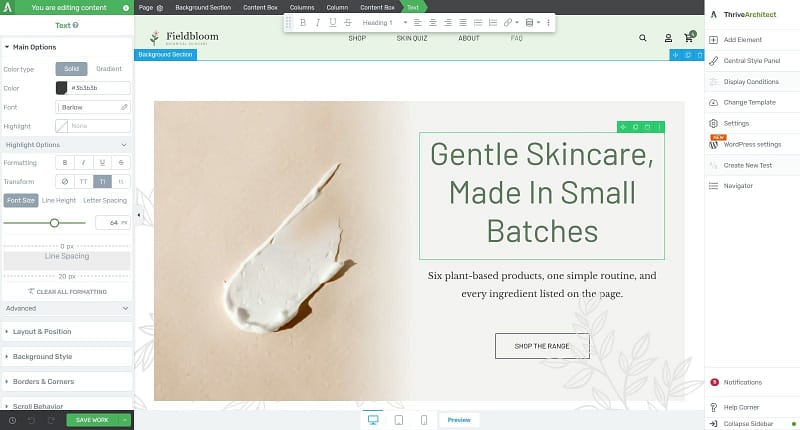
Fieldbloom's homepage in Thrive Architect, with the hero headline selected. The settings for whatever you click open on the left.
This is what I changed on Fieldbloom's homepage:
One thing to watch for: template copy is sample copy. Allure's hero came with a "100% natural organic" badge, and I took it off, because that's a claim Fieldbloom would need to be able to back up. So read every line before you publish, including the little badges.
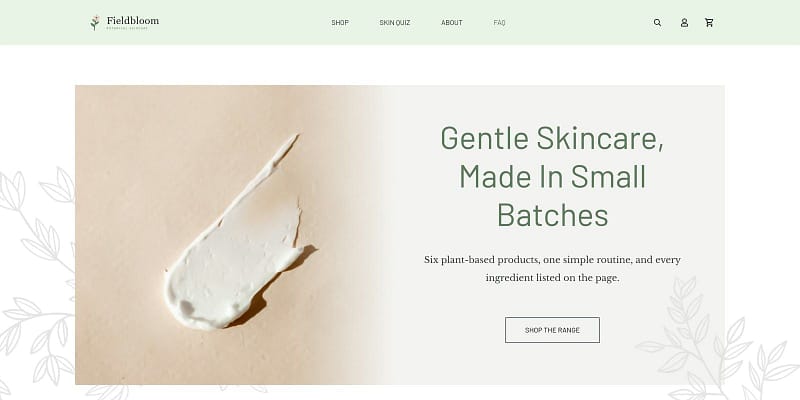
The finished hero on Fieldbloom's homepage.
Then do the same on your About page. Remember what I said about going to the website to see what the company is about? This is the page that answers that, so tell your story there: who's behind the brand, how the products are made, and what you stand for. Fieldbloom's is short: one founder, small batches, six products, and every ingredient listed on the page.
Step 3: Add Your Shop With WooCommerce (Allure Has Already Styled It)
Because WooCommerce was installed before the wizard, your shop, product, cart and checkout pages already match the rest of your site. What they need now is products.
Go to Products → Add new product and fill in:

The Product data panel for the Meadow Cleansing Balm: a simple product with a regular price of $28.
Fieldbloom's six products run from $14 for the Lip Balm Trio to $58 for The Starter Ritual, which puts three of the products in one box.
Before anyone can buy, there's one setting that's easy to miss. WooCommerce starts new stores in "coming soon" mode, so visitors see a placeholder page until you change it. When you're ready to open, go to WooCommerce → Settings → Site visibility and choose Live.
Your shop page uses Allure's Shop 01 template: a banner, the product grid, a price filter and your categories. I rewrote the banner's text to say what Fieldbloom is about, and you can do the same by editing Shop 01 under Templates in Thrive Theme Builder.

Fieldbloom's shop on Allure's Shop 01 template.
Step 4: Write Product Pages That Answer Every Question (Because Your Customers Will Look)
This is the page your customer lands on when they go home and look you up, so it has to answer what they came to find out. Every Fieldbloom product page covers the same five things, in the same order:

The Meadow Cleansing Balm's description: what it does, then a heading for its key ingredients, how to use it, who it's for and the full ingredient list.
Put each part under its own heading in the product's description, like in the screenshot above, so people can skim straight to the part they care about. It also makes the page easier for AI assistants to read and recommend, which is the Criteo point from earlier. And if writing product copy isn't your favorite thing, these copywriting tips for beginners will help.
Step 5: Set Up Payments and Shipping (I Used WooCommerce's Own Settings)
For this tutorial, I'm using WooCommerce, so both of these live under WooCommerce → Settings.
Start with the Payments tab. WooCommerce lists the payment providers you can add there: its own payments (Accept payments with Woo), PayPal, and under More payment options, Stripe, Square and others. Each one installs as a plugin and then connects to your account with that provider.
Fieldbloom lives on a test site that real payment providers can't connect to, so for the demo I turned on Check payments, under Take offline payments, which WooCommerce itself says you can use to test purchases. On your live site, connect the provider you want instead, and use its test mode for your first order.
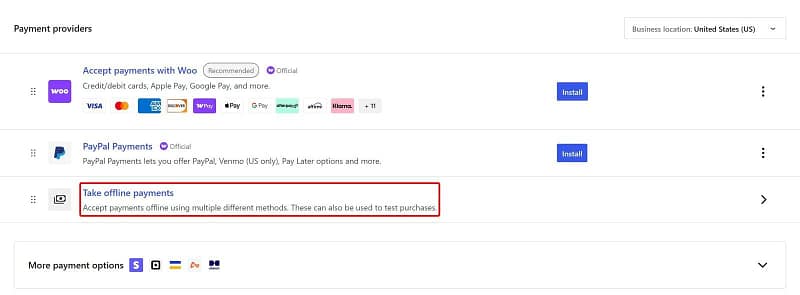
WooCommerce's Payments settings. Fieldbloom's demo checkout uses Check payments, inside Take offline payments.
Then open the Shipping tab and add a shipping zone. Give it a name, choose the regions it covers, and add your shipping methods. Fieldbloom ships within the United States with two methods:
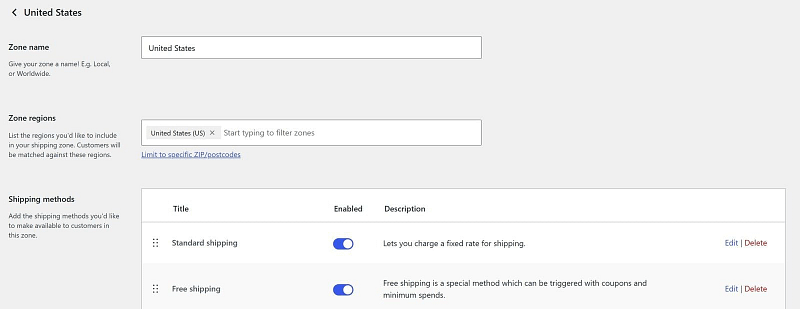
Fieldbloom's United States shipping zone, with Standard shipping and Free shipping turned on.
I left taxes off for the demo, but your store probably can't. Check what you need to collect where you sell, then turn on tax rates in WooCommerce's general settings.
Step 6: Cover the Legal Basics Before You Launch (I Know, It's Not the Fun Part)
This part isn't glamorous, but it matters, especially when you're selling something people put on their skin. These are the basics to check before you launch. None of it is legal advice, so check the details for your own products with someone who knows cosmetics regulation.
Your claims decide what you're selling. In the US, the FDA decides whether a product is a cosmetic or a drug by its intended use, and the claims you make are part of that, including the ones on your website. A cosmetic cleanses, beautifies or changes how someone looks, so "moisturizes", "softens" and "smooths the look of" are cosmetic claims. Claims to treat or prevent a condition, or to change how the body works, make a product a drug in the FDA's eyes, so stay away from words like "treats", "heals" and "repairs" unless your product is approved as one. The FDA's page Is It a Cosmetic, a Drug, or Both? walks through it.
The 2022 cosmetics law (MoCRA). Under the Modernization of Cosmetics Regulation Act, the company whose name is on the label has to keep records that support each product's safety, and report serious adverse events to the FDA within 15 business days. Facilities that make or process cosmetics register with the FDA, and each product is listed with the FDA, ingredients included.
Small businesses get a break on part of that. If your average yearly US cosmetics sales over the last three years are under $1 million (adjusted for inflation), you're exempt from registration and listing. That exemption doesn't cover products that touch the eye, are injected, are meant for internal use, or are meant to change how someone looks for more than 24 hours without being removed. And the safety records and adverse event reports still apply to everyone.
Selling in the EU or the UK. Each product needs a Responsible Person based there, a Product Information File (PIF) that includes its safety report, and a notification before it goes on sale: through the EU's CPNP portal, or to the UK's Office for Product Safety and Standards for Great Britain. In the EU, you keep the PIF for ten years after the last batch goes on the market.
Your policy pages. You need a Privacy Policy, Terms and Conditions, and a Shipping & Returns page. Thrive Theme Builder doesn't write these for you, so create each one as a regular page and put your policy text on it (Allure's page template makes them match the rest of the site). WordPress drafts a privacy policy you can start from under Settings → Privacy, and WooCommerce creates a "Refund and Returns Policy" draft you can rename and fill in. Then choose your terms page in WooCommerce → Settings → Advanced, under Terms and conditions, so shoppers see it at checkout.
Get these out of the way early, and you'll thank yourself later.
Step 7: Put Reviews Where Shoppers Decide (I Read Them Before I Buy, Too)
I said I look at the reviews before I buy, and your customers will too. So give them reviews on your site, where they're deciding, instead of making them go looking somewhere else.
Thrive Ovation collects reviews and shows them anywhere on your site. Install it through Thrive Product Manager, then set up both halves.
To collect reviews, create a page called something like Leave a Review, open it in Thrive Architect, and add the Capture Testimonials element. Pick a template (Fieldbloom uses Capture Testimonial 02), and new reviews will come into Thrive Ovation, where you decide which ones are ready to show. Then send the page's link to customers once their order has arrived, in a follow-up email or on a card in the box. If asking feels awkward, here's how to ask for testimonials without making it weird.

Fieldbloom's Leave a Review page, with Thrive Ovation's Capture Testimonials form.
To show reviews, add the Display Testimonials element wherever shoppers are deciding. Fieldbloom shows its review on the homepage, under the benefit strip, with the Text Only 04 template in one centered column and Fieldbloom's colors.

A review on Fieldbloom's homepage, shown with Thrive Ovation. Maya R. is demo content, written for my demo brand.
About that review: Maya R. isn't a real customer. Fieldbloom is a demo brand, so its review is demo content too, written to show what a helpful review looks like, one that names the product and says what it did. On your site, show only real reviews, and if you don't have any yet, leave the element off until you do.
WooCommerce also keeps its own Reviews tab on every product page, so customers can review a product right where they bought it.
Step 8: Add a Skin-Type Quiz So Shoppers Don't Have to Guess Which Product Is Theirs
With six products, a new visitor's first question is usually "which one is for me?" So Fieldbloom answers it with a four-question quiz that recommends a routine for dry, combination or sensitive skin, with links straight to those products.
I built it in Thrive Quiz Builder like this:
- Create the quiz: go to Thrive Dashboard → Thrive Quiz Builder, add a new quiz, and start from the Build from scratch template
- Choose the quiz type: Category, with one category for each result. Fieldbloom's are Dry skin, Combination skin and Sensitive skin
- Write the questions: four multiple-choice questions, with each answer pointing to one result. For example, "How does your skin feel by midday?" has "Tight and dry" for Dry skin, "Shiny in places, usually my nose and forehead" for Combination skin, and "Fine, until I try something new" for Sensitive skin
- Set up the results page: open it in Thrive Architect and add a Dynamic Content element, which shows different content for each result. Each result gets its own tab, and that's where you write the routine and link the products
- Put the quiz on a page: Fieldbloom's is called Skin Quiz, and it's in the main menu
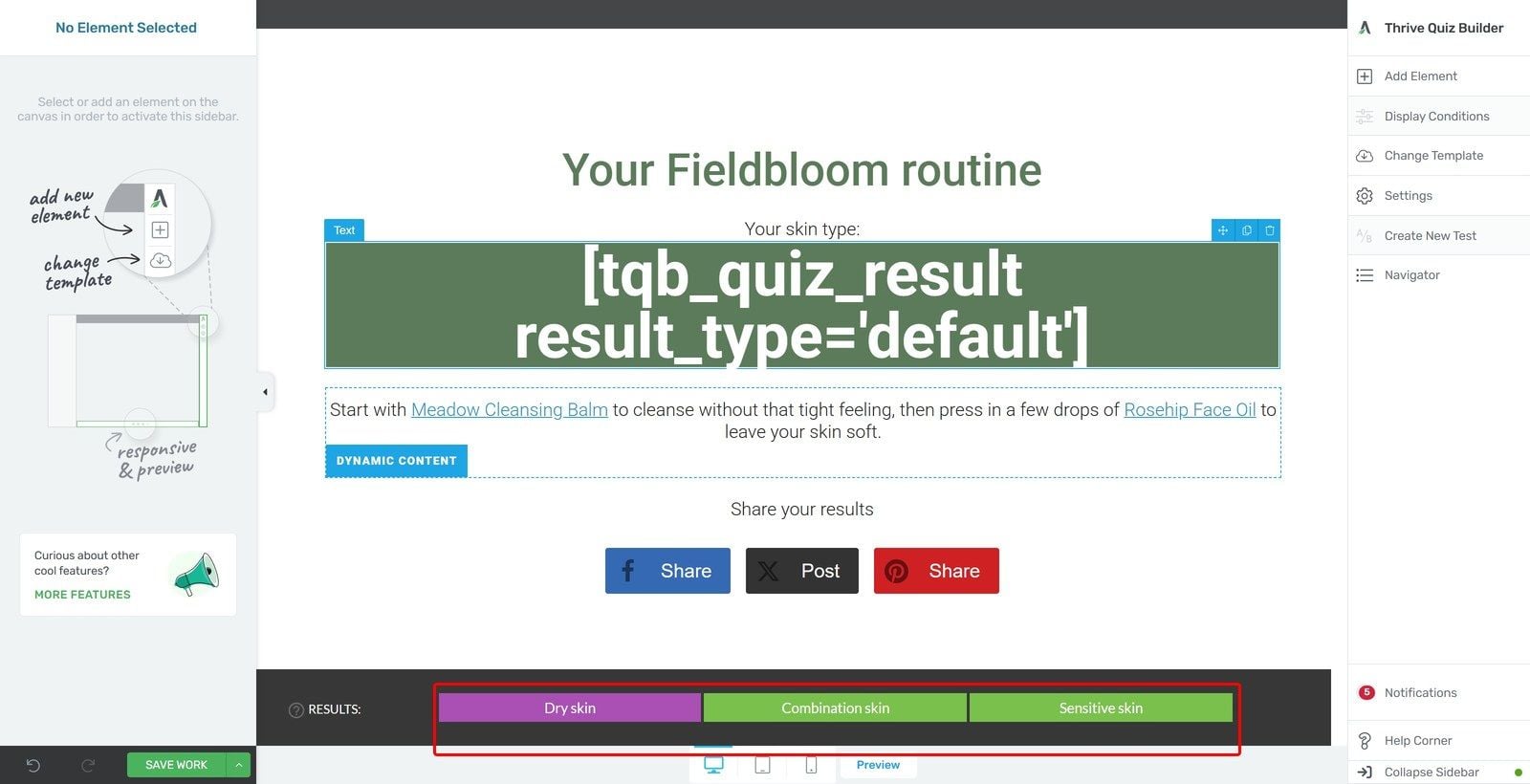
The quiz's results page in Thrive Architect. Each tab in the Results bar holds the routine for one skin type.
So someone with dry skin gets the Meadow Cleansing Balm and the Rosehip Face Oil, combination skin gets the balm and the Daily Oat Moisturizer, and sensitive skin gets The Starter Ritual.

What a shopper sees at the end of the quiz: their skin type and a routine that links to two Fieldbloom products.
And if you want the quiz to grow your email list too, Thrive Quiz Builder can ask for an email address before it shows the result. My step-by-step guide on how to make a quiz in WordPress covers that and the rest of Thrive Quiz Builder, and this one on personality quizzes covers writing results people want to share.
Step 9: Grow Your Email List With a First-Order Offer (Fieldbloom's Is 10% Off)
A discount on the first order gives a new visitor a reason to join your list before they've bought anything. And once they're on your list, you can tell them about your next launch yourself.
Fieldbloom's offer is a popup built with Thrive Leads. It shows on the shop and on product pages, offers 10% off the first order, and gives the code once someone signs up. This is how it's set up:
- Create the discount code in Marketing → Coupons. Fieldbloom's is FIELD10: 10% off, one use per customer
- Create the popup in Thrive Leads: add a new form, choose Popup, and pick a template. Fieldbloom uses Coupon 1-Step, rewritten to say "Join our emails and get 10% off your first Fieldbloom order", with an email field and a Claim button
- Connect your email service in Thrive Dashboard → API Connections, so new subscribers land on your list and you can email them the code. Fieldbloom's demo site has no email service connected, so after signing up, people go to a Welcome to Fieldbloom page that shows the code instead
- Choose where it shows: on the Post Types tab, tick Products to show the popup on every product page. Then add your shop page's address on the Other tab, because WooCommerce's shop page is a list of products rather than a regular page, so ticking it under Pages won't catch it
- Check the trigger and publish: Fieldbloom kept the template's defaults, so the popup shows when the page loads, and a visitor sees it at most once every seven days

The popup's display rules in Thrive Leads: Products ticked on the Post Types tab, plus the shop's address on the Other tab.

Fieldbloom's first-order popup on the shop page.
One tip for testing: if you don't see your popup while you're logged in to WordPress, open your shop in a private browser window. That's how I checked Fieldbloom's. And for more on getting popups right, see these popup best practices.
Step 10: Answer Questions Before Anyone Has to Ask (FAQ, Shipping and Contact Pages)
Some shoppers will still have questions after reading your product pages, and some of them won't email you to ask. So put the answers where they'll find them. Fieldbloom has three pages for that, linked in the footer under Help, next to the privacy policy and terms:
If you want a head start, see how to create an FAQ section in WordPress and how to create a contact page in WordPress.
Step 11: Bring Your Instagram and TikTok In (Fieldbloom Skipped This One)
If you post your products on Instagram or TikTok, a feed on your homepage shows shoppers there's a real, active brand behind the site. A feed needs a live account to pull from, so my demo brand doesn't have one, but this guide to adding a social media feed to your website walks you through it.
Step 12: Test It on Your Phone Before You Launch (Then Buy Something From Yourself)
Before you tell anyone about your site, look at it the way a lot of your shoppers will: on a phone.
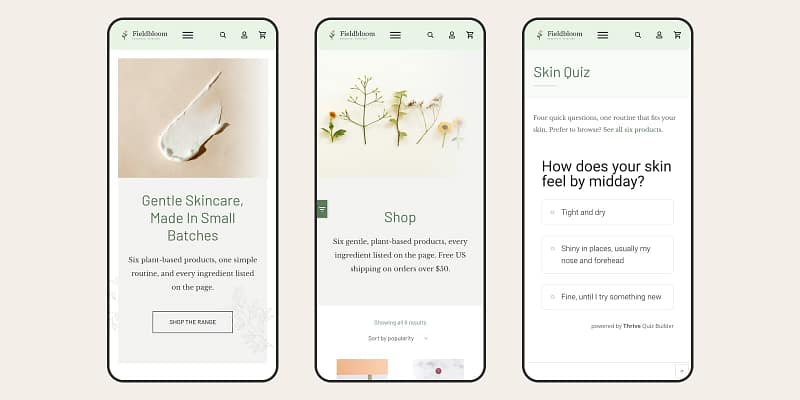
Fieldbloom on a phone-sized screen: the homepage, the shop and the skin quiz.
Walk through it the way a new customer would:
Then place a test order, with your payment provider in test mode, and check that the order email arrives and your discount code works.
Last, check your speed. Run your homepage and a product page through PageSpeed Insights. Google's targets for a good experience are the main content loading within 2.5 seconds, the page responding to a tap in 200 milliseconds or less, and a layout shift score of 0.1 or less. If you're not there yet, these quick tips to fix your WordPress site speed are a good place to start.
Frequently Asked Questions About Building a Beauty Website
A few questions come up every time someone starts a website for a beauty brand, so here are straight answers (prices checked in October 2026). Click a question to jump to its answer:
How Much Does It Cost to Build a Beauty Website?
On WordPress, you pay for hosting, a domain name and the tools you build with. As of October 2026, Thrive Theme Builder on its own, with the Allure theme, is $99 for the first year (renewals are $199 a year). Everything in this tutorial, including Thrive Architect, Thrive Leads, Thrive Quiz Builder and Thrive Ovation, comes with Thrive Suite, which is $299 for the first year (renewals are $599 a year). WooCommerce is free, and your payment provider takes a fee on each sale.
Can I Make a Beauty Website for Free?
Not completely. WordPress and WooCommerce are free, so you can keep your costs low, but you'll still pay for hosting and a domain name. What you get from premium tools like Thrive Theme Builder is the design and setup work already done, so you can spend your time on your products and your customers.
Should I Use Shopify or WordPress for My Beauty Brand?
Shopify is quicker to start, because it's hosted for you and everything's in one place, and you pay a monthly plan plus any apps you add. WordPress with WooCommerce takes a little more setup, and in return, you own your site and choose every tool on it, like the quiz and the popup in this tutorial. I compare the two side by side in Shopify vs WordPress.
What Pages Does a Beauty Website Need?
At a minimum, you need a homepage, a shop page, a page for each product, an About page, an FAQ, a Shipping & Returns page, a Contact page, a Privacy Policy and Terms and Conditions. A skin-type quiz and a page for collecting reviews are worth adding once those are in place.
Can I Start With Just a Few Products?
Absolutely. Launch with one to five hero products, get the sales side working, then expand. That lets you test your messaging, photos, pricing and shipping before you commit to a full catalog.
Do I Need to Register My Cosmetics With the FDA?
It depends on your size and what you make. Under MoCRA, facilities that make cosmetics register with the FDA and each product is listed, but small businesses with under $1 million in average yearly US cosmetics sales over the last three years are exempt from both, unless they make eye-area, injected, internal-use or long-wear products. Everyone still has to keep safety records and report serious adverse events. Step 6 has the details, with links to the FDA's own guidance.
Your Customers Are Going to Look You Up (Make Sure They Like What They Find)
Building a beauty website can feel like a lot, because there's so much more to it than a pretty homepage. But every step in this guide comes back to one person: the shopper who saw your product somewhere, went home and looked you up.
Give that person a product page that answers their questions, reviews they can trust, a quick way to find the right product and a checkout that works on their phone, and you've done the hard part.
When you're ready for what comes next, these will help you bring more of those shoppers in:
Ready to Build Your Beauty Brand's Website With Thrive?
Fieldbloom's whole site runs on Thrive Theme Builder and its Allure theme, with every page edited in Thrive Architect. The reviews come from Thrive Ovation, the skin quiz from Thrive Quiz Builder and the first-order popup from Thrive Leads, and all of them come together in Thrive Suite.
Start with your best product, write its page like your most careful customer is reading it, and build out from there.


