


TL;DR: How to Build a Black Friday Landing Page in WordPress
A Black Friday landing page is a standalone page with one offer, one deadline and one button, built so a visitor who arrives from an email or an ad can buy in under a minute. Here is the build, in the order I'd do it in Thrive Architect:
- Start from a sales page template, not a blank page, and let the navigation go.
- Write the hero so the deal is the headline and the button says what you get.
- Add the countdown and give it a real end date.
- Show the offer as a pricing table, with the regular price next to the sale price.
- Put the proof next to the price, not three scrolls below it.
- Add a pop-up and a ribbon in Thrive Leads for the people who scroll past.
- Check it on a phone before anyone else does.
- Save it, publish it, and keep the URL for next year.
The page in the screenshots below is one I built for this article, with a made-up 40% off course sale on it. The sale is invented. The steps aren't.
Black Friday 2026 falls on November 27, and if you sell anything online, the page you send people to that weekend is doing more work than any email, ad or post that points at it. The email gets the click. The page gets the sale, or loses it.
I've written before about what a landing page is and how to build one, and everything in that guide still applies here. But a Black Friday page has a harder job than a normal landing page, because the pressure is higher on both sides. Your visitor has twelve tabs open and a budget they're guarding. You have one weekend to make the offer land. So this one is less about the theory and more about the build: what to put on the page, in what order, and where each piece lives in Thrive Architect.
If you want to build along, open a new page in Thrive Architect and start at step one. If you'd rather read first, the whole thing takes about ten minutes.
Three Decisions to Make Before You Open the Editor
The page itself goes quickly once you know what's going on it. The slow part is deciding, and I'd rather you decide now than in the editor at 11pm on the Thursday before the sale. So here are the three things I'd settle first.
Pick one offer, and write it in one sentence
Before you touch a template, write the offer as a single sentence a stranger would understand: "40% off every course until Cyber Monday at midnight." If you can't get it into one sentence, the page will struggle too, because the headline has to carry it in even fewer words.
And resist the urge to put three different deals on one page. A Black Friday page with one offer and three ways to buy it (one course, a bundle, everything) converts better than a page with three unrelated offers competing for the same button. That's the shape I used for the demo page, and it's the shape I'd use for most online businesses.
Set a real deadline, down to the hour
Pick the exact moment the sale ends and write it down, timezone included. The countdown in step three needs it, your emails need it, and your visitors will test it. If the timer says midnight and the discount still works on Tuesday, the next sale you run will be a little less believable.
Cyber Monday at midnight is the obvious choice for most of us, and it's what I set the demo page to. But if your audience is spread across time zones, say which one you mean somewhere on the page.
Know where the traffic is coming from, because it sets the length
A page that will mostly be reached from your own email list can be short and direct, because those people already know you. A page that will take cold traffic from ads needs more proof and more explanation before the price. So think about where the clicks will come from and let that set how much you put between the headline and the buy button.
For the demo page I assumed a warm audience: people who already know the courses exist and are waiting for a deal. That's why it gets to the price quickly.
The Build, Step by Step in Thrive Architect
Now to the editor. I'm going to walk through this in the order I actually built it, with a screenshot at each point where you have to make a choice. The page uses one of Thrive Architect's own sales page templates, so most of the design was done before I touched anything. My job was to take out what a Black Friday page doesn't need and change the words on what's left.
Step 1: Start From a Sales Page Template, Not a Blank Page
When you open a brand-new page in Thrive Architect, the first thing it asks is what kind of page you want to create. Pick Pre-built Landing Page. The other options keep your theme's header and navigation, and a Black Friday page shouldn't have either, because every link in a menu is a way to leave without buying.

That opens the Landing Page Library, which is organized into sets. Each set is a family of pages designed to match each other, and the ones marked Smart pick up your site's colors automatically.
I expanded the Hydrogen Smart set and chose its Video Sales Page (the set has two sales page layouts, and either one works here), because a Black Friday page is a sales page with a clock on it. Select the card and click Apply Template.
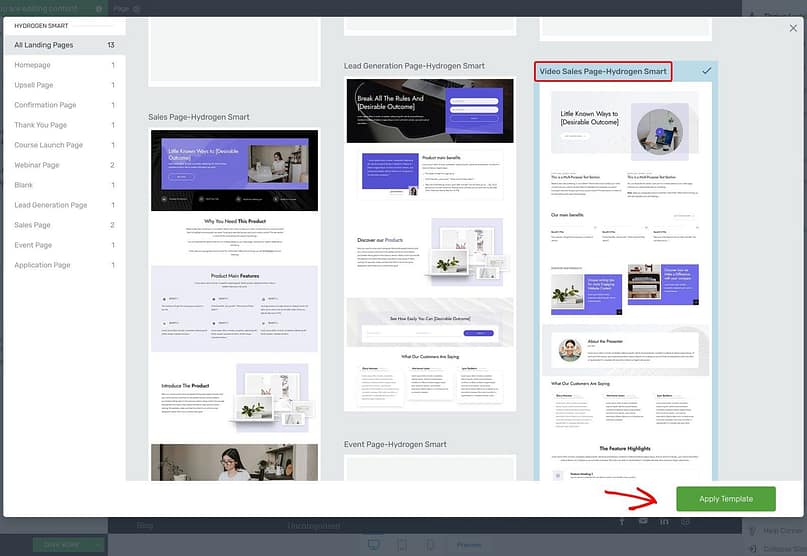
The template that lands on your page is longer than you need. Mine came with a presenter section, two feature sections and a block of "learning topics" at the bottom, all of which belong on a course sales page and none of which belong on a Black Friday page. So the first real edit was deleting.
Click into a section, use the breadcrumb at the top of the editor to select the whole Block, and click the trash icon in its toolbar. I removed five blocks and kept six: the hero, a benefits row, testimonials, a bonus banner, the pricing section with its guarantee, and the FAQ.
I think that order is close to right for most Black Friday pages, and I didn't have to design any of it.
Step 2: Write the Hero So the Deal Is the Headline
The template's headline said "Little Known Ways to [Desirable Outcome]," which is a fine sales page headline and a terrible Black Friday one. On a sale page, the offer is the headline. Click the headline, type over it, and keep it to one line of thought: Black Friday Sale: 40% Off Every Course.
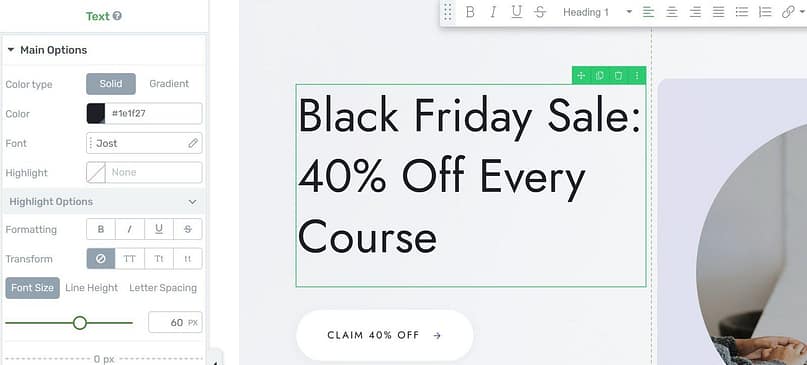
Then the button. Templates ship with "Get Started Now," and I'd change that every time, because the button is the last thing someone reads before they decide. Say what they get: Claim 40% Off. Two words, the discount repeated, no mystery about what happens next.
Everything else in the hero can stay as the template made it. The image, the layout, the spacing: none of it is what sells on Black Friday, so I'd leave it alone and spend the time on the words.
Step 3: Add the Countdown and Give It a Real End Date
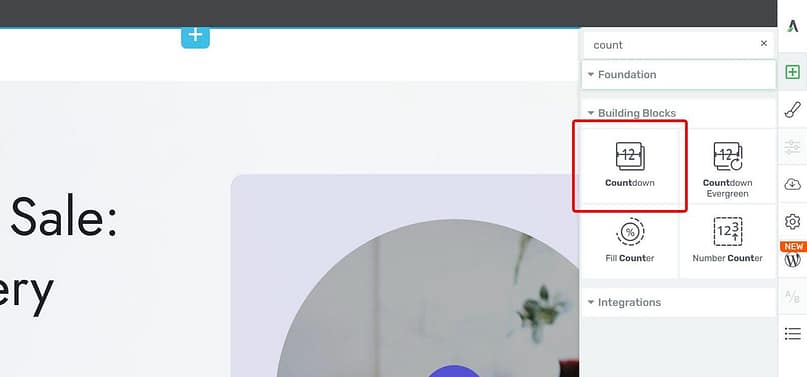
This is the one element a Black Friday page has that your other pages don't, and Thrive Architect has it built in. Click Add Element in the right-hand sidebar, type "count" into the search box, and drag the Countdown element onto the page. I dropped mine into the hero, under the image.
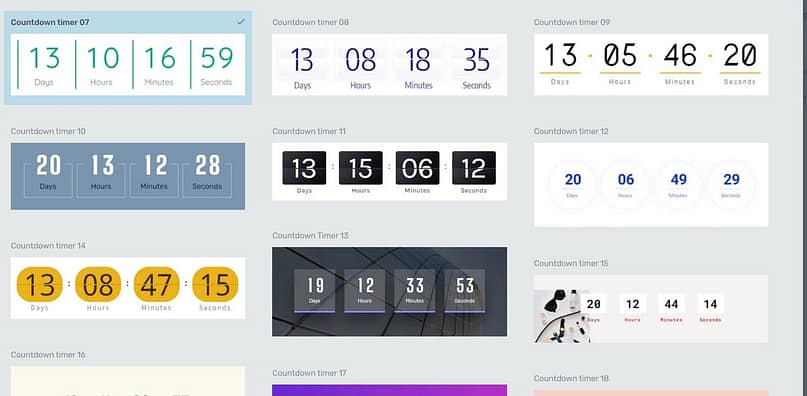
The moment it lands, a library of countdown styles opens. There are sliding, flipping and static designs, and because this is a Smart template, whichever one you pick inherits the page's colors. I chose a plain one. The timer should read as information, not decoration, and the quieter styles do that better.
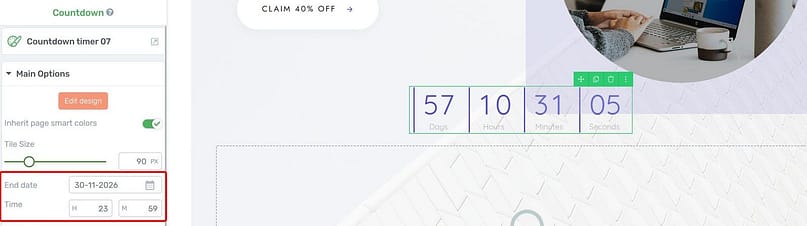
With the countdown selected, the sidebar shows its Main Options: an end date, a time, and the timezone it's counting in, and this is the setting the whole element exists for. I set mine to November 30, 2026 at 23:59 UTC, which is the Cyber Monday deadline from the decisions section. Type the real end of your sale here and nowhere else, so the page and your emails can't disagree.
One note on honesty, because it comes up every year.
This countdown ends once, on a date, for everyone. Thrive Architect also has a Countdown Evergreen element that starts fresh for each visitor, and it's useful for things like a 48-hour welcome offer. It is not for Black Friday. A sale that ends on Monday has to end on Monday. If you want to run the same deadline across several pages, or show a different offer once the sale closes, that's what Thrive Ultimatum is for, and I've covered the setup in my guide to adding a countdown timer to a sales page.
Step 4: Show the Offer as a Pricing Table (This Is Where Tiers Come In Handy)
The Hydrogen sales page comes with a pricing section near the bottom, and I kept it, because a pricing table is the clearest way to show a Black Friday offer. People want to see what it costs, what it used to cost, and which option most people pick. A table answers all three at a glance.
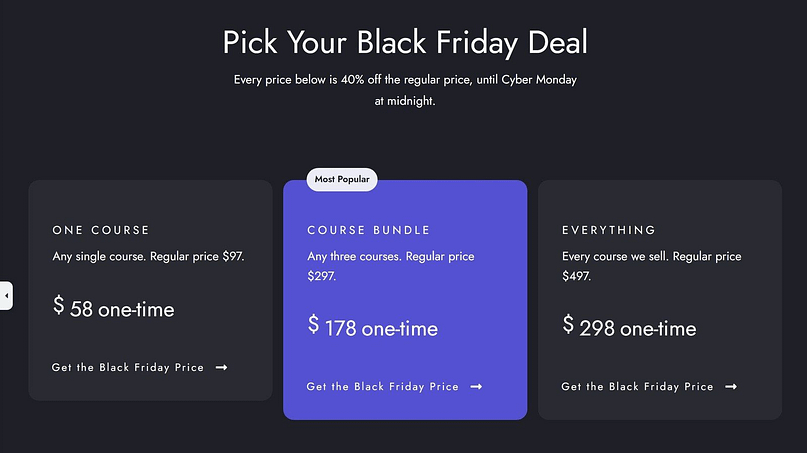
I renamed the three columns One Course, Course Bundle and Everything, put the sale price in large type with "one-time" next to it, and wrote the regular price into the small description line under each name ("Any single course. Regular price $97."). That last detail is the one I'd fight for. A sale price with nothing to compare it to is just a price. The template's "Best Price" badge became "Most Popular" on the middle option, which is the one I'd want most people to choose.
This is also where tiered discounts work hardest. If you'd rather not discount everything by the same amount, make the discount grow with the tier: 30% off one course, 40% off the bundle, 50% off everything. The person who came for one course can see, in one row, exactly what one more step up buys them. Thrive Architect's Pricing Table element handles all of this with its own settings, and if you want to go deeper on laying out prices, my guide to pricing pages that convert has the long version.
And change every button in the table. Mine all said "Get Offer." They now say Get the Black Friday Price.
Step 5: Put the Proof Next to the Price
The template places a testimonials section above the pricing section and a money-back guarantee directly under it, and I'd keep both exactly where they are. On Black Friday your visitor is comparing you against four other tabs, and the moment of doubt arrives right as they read the price. Proof belongs within one scroll of that moment, not in a section at the bottom they'll never reach.
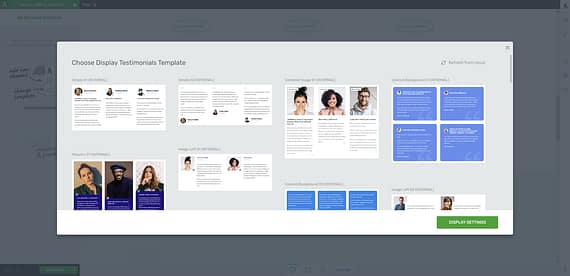
On the demo page the testimonials are still the template's placeholder quotes, because it's a demo. On yours, use real ones, and pick the ones that mention a result rather than a feeling. "I finished the course and launched in three weeks" does more work than "Loved it." If you have photos or posts from customers, Thrive Architect's Testimonial element takes an image, and if you run a lot of social proof, I've written about adding a social media feed to your website too.
The guarantee is worth a sentence of its own. The template's text said "this amazing plugin," which tells you it was written for a software page. Read every line of placeholder copy before you publish, because that's the kind of thing you stop seeing after the third edit and a visitor spots in one.
Step 6: Add a Pop-Up and a Ribbon in Thrive Leads
Not everyone who lands on the page scrolls to the pricing table, and not everyone who arrives on your blog that weekend will find the page at all. So the second half of the Black Friday build happens in Thrive Leads, which has a set of Black Friday templates ready to go: lightbox pop-ups and a ribbon that sits across the top of every page.

I'd use them for two jobs. The ribbon runs sitewide for the whole sale and sends anyone, on any page, to the landing page. The pop-up goes on the landing page itself and fires on exit intent, so the person who read the price and started to leave gets one more look at the deadline. That's the only pop-up I'd put on the page. A page that opens with a pop-up before the headline has loaded is a page people close.
Both are set up in Thrive Leads rather than on the page, so they can be scheduled to appear and disappear with the sale. If you haven't built one before, the walkthrough on creating an exit-intent pop-up in WordPress covers it, and my pop-up best practices will keep you out of trouble with Google's rules on intrusive interstitials.
Step 7: Check It on a Phone Before Anyone Else Does
Most Black Friday shopping happens on a phone, usually while the person is doing something else, so the mobile version of this page is the version. Thrive Architect has three device toggles in the bar under the canvas. Click the phone, and the whole page re-flows to phone width right there in the editor.
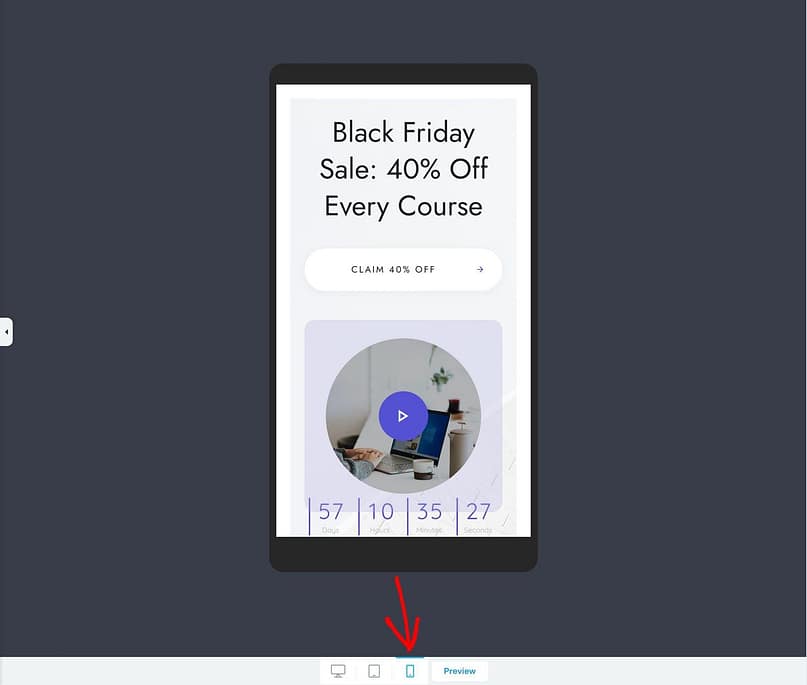
Three things I check in this view, every time. Does the headline still read as one thought, or has the line break landed in a silly place? Is the button visible without scrolling? And does the countdown fit, or do four tiles squeeze into a strip nobody can read? Anything you change in the mobile view stays in the mobile view, so you can fix a font size for phones without touching the desktop page. If mobile layout is new to you, my mobile landing page best practices go through the rest.
Step 8: Save It, Publish It, and Keep the URL for Next Year
Click Save Work in the bottom left, preview it once more as a visitor, then publish from WordPress like any other page. Here's the finished demo as someone arriving from an email would see it.

And then one decision that pays off every November. Instead of creating a new landing page each year, build one URL, something like /black-friday, and keep it live all year. This is an evergreen URL strategy, and it preserves the links and authority the page earns over time. In the off-season, turn it into an early-access signup: "Black Friday is coming. Get the deal a day before everyone else." When the sale comes around, switch the content back. It's simple, it's clean, and the page starts every year with the ranking the last one earned.
Other Black Friday Landing Page Add-Ons You Can Consider
Everything above is the page. Everything below is the version of the page I'd build in year two, once the first one has run and you know what people actually did on it. None of these will rescue a weak offer, and all of them add something to maintain on the busiest weekend of your year, so add them when there's a reason to.
The Technical Checklist I Run Before I Hit Publish
Black Friday traffic is fast, impatient and mostly on phones, and a lovely page with a slow load or a jumping pop-up loses sales for reasons that had nothing to do with the offer. So before this page goes live, I run through the same short list.
Ten minutes, once, and it saves the usual Black Friday heartbreak of a good offer held back by a small technical thing that didn't need to exist.
Frequently Asked Questions About Black Friday Landing Pages
These are the questions that come up every year when Black Friday pages are being planned, so here are the short answers. Most of them are covered in more depth in the steps above.
What makes a Black Friday landing page different from a regular landing page?
The pressure. A regular landing page can take its time to persuade. A Black Friday page has one offer, a real deadline and a visitor who is comparing you against four other tabs, so it has to say the deal in the headline, show the price with the regular price beside it, put the proof next to the price, and give one clear button. Everything that would be reasonable on a normal page, like navigation or three different offers, is a leak on this one.
Do I need a countdown timer on a Black Friday landing page?
Yes, if the deadline is real, and only if the deadline is real. A countdown turns "sale ends Monday" into something a visitor can feel, and it's the single most effective thing you can add to a sale page. But it has to end when it says it does. Set it once, to the actual end of the sale, and don't run an evergreen timer that restarts for each visitor on a Black Friday page.
How early should I set up my Black Friday landing page?
Build it in October, so the page is published and indexed weeks before the sale and you have time to test it on a phone. If you reuse the same URL every year, the page is already there; you're just updating the offer and the date. Start telling your list about it two to three weeks out, and if you can, open the sale to subscribers a day early.
Can I get a free Black Friday landing page template?
If you already use Thrive Architect, yes: the landing page library it comes with includes sales page templates in every set, and that's what the page in this article was built from. Thrive Leads includes the Black Friday pop-up and ribbon templates shown above. Outside Thrive, most landing page tools offer a few free templates with their branding on them; the question is less whether a template is free and more whether you can edit every word on it without fighting the layout.
How much should a Black Friday landing page cost?
If you build it yourself on WordPress with a page builder you already own, the page costs you an afternoon. If you hire it out, a single landing page from a freelancer typically runs a few hundred dollars and up, and you'll pay again next year unless they build it on a tool you can edit. My honest advice is to build it yourself once, with a template, and keep the URL. The second year costs you an hour.
What tools do I need to build a Black Friday landing page on WordPress?
Three, and they're the ones I used here. Thrive Architect builds the page and includes the countdown, pricing table and testimonial elements. Thrive Leads handles the pop-up and the sitewide ribbon. And if you want the same deadline to run across several pages, or a different offer to appear when the sale closes, Thrive Ultimatum manages the campaign. All three come with Thrive Suite.
Build the Page Once, and Point Everything at It
If you remember one thing from this build, make it the order. Decide the offer and the deadline before you open the editor, start from a sales page template so the design is already done, and spend your time on the words: the headline, the button, the prices with the regular price next to them. The page in these screenshots took me longer to write about than to build, and the build is the part most people put off.
So build it this month. Publish it, test it on your phone, and keep the URL. Then every November after this one, you're changing a date and a discount instead of starting over.
Ready to Build Yours With Thrive?
Everything on the demo page came from Thrive Architect: the sales page template, the Countdown element, the Pricing Table and the Testimonial element. The Black Friday pop-up and ribbon live in Thrive Leads, and Thrive Ultimatum is there when one deadline needs to run across your whole site. All three are part of Thrive Suite, so if you're starting from nothing, that's the one license to get.
Start with the template. The page is faster than you think, and the deadline is closer than it looks.


