

TL;DR: How to Edit Your WordPress Header (Start With Your Theme)
Where you edit your header depends on the kind of theme your site runs on:
- Block theme (your Appearance menu shows Editor): go to Appearance → Editor → Patterns → Header, change your logo, title or menu and click Save
- Classic theme (you see Customize): change your logo and site title under Appearance → Customize → Site Identity, and your menu under Menus
- Thrive Theme Builder: open a template, click the header, choose Edit, and your change shows up on every page that uses that header
- Code: edit header.php in a child theme, or add scripts to your header with a code snippet plugin
You can also make your header sticky, so it stays on screen as people scroll.
If you'd rather design your header once and stop hunting for settings, jump straight to method 3.
If you're here, you probably want to change something at the top of your website. Maybe it's a new logo, a menu that needs a new link, a button you want people to see, or a header that stays put while people scroll. And depending on your theme, WordPress keeps those settings in different places.
When I set up my professional site with Thrive Theme Builder, the Site Wizard walked me through it step by step: logo, brand color, header, footer, homepage, blog templates, menu. But not every setup puts the header somewhere that obvious, so in this guide I'll show you every way to edit it, one theme type at a time.
Every screenshot here comes from Fieldbloom, the made-up skincare brand from my beauty and cosmetics website tutorial (it isn't a real company). I used a fresh test copy of WordPress 7.1 for the WordPress screens and Fieldbloom's own site for the Thrive Theme Builder ones. And if you're working on the bottom of your site too, I covered that in how to edit the footer in WordPress.
Your Header Is Where People Look First (And Where They Expect Your Logo)
Your header sits at the very top of every page, and the top of the page is where people spend most of their time looking. In its 2018 eyetracking study, Nielsen Norman Group found that people spent 57% of their page-viewing time above the fold, and 74% within the first two screenfuls.
Where you put your logo up there matters, too. In a 2016 Nielsen Norman Group study on logo placement, people remembered the brand 39% of the time when the logo sat in the top-left corner, compared with 21% when it was on the right. That's an 89% lift.
And your header has to work on a small screen. About half of US web traffic now comes from phones (49.1% in September 2026, according to StatCounter), and that's where most headers fold their menu into a little icon.
So before you change anything, find out which kind of theme you have, because that decides where your header lives.
First, Check Which Kind of Theme You Have
Hover over Appearance in your WordPress dashboard. If you see Editor, you have a block theme (method 1). If you see Customize and Widgets, you have a classic theme (method 2). And if your site runs on Thrive Theme Builder, your header lives in its templates (method 3).
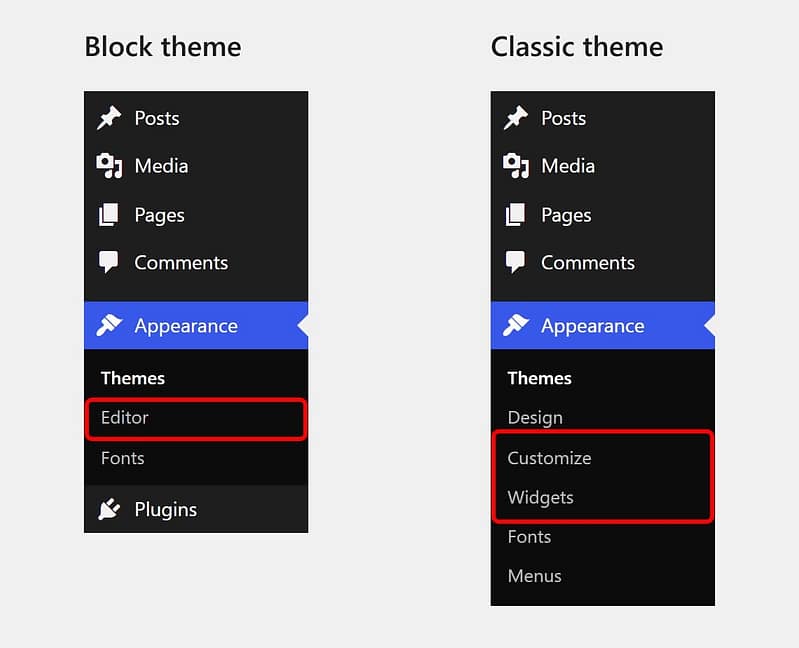
The Appearance menu in WordPress 7.1. A block theme (left) shows Editor, while a classic theme (right) shows Customize and Widgets.
Method 1: Edit the Header in the Site Editor (Block Themes)
In a block theme, your header is a template part: one shared piece that sits at the top of every page. To open it:
- Go to Appearance → Editor, then click Patterns
- Under the template parts, click Header to see every header your theme comes with
- Click the header you want to edit. Twenty Twenty-Five, WordPress's default theme, has three, and the one on every page is simply called Header
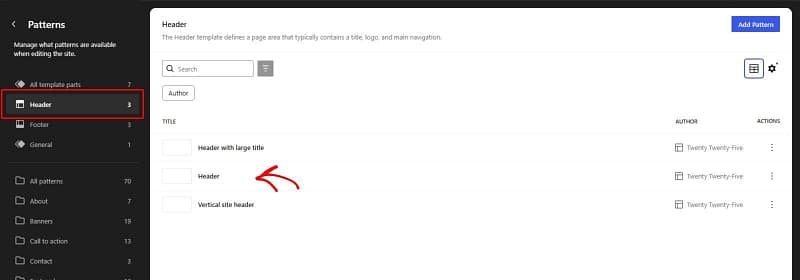
Appearance → Editor → Patterns → Header lists the headers your theme comes with. Twenty Twenty-Five's main one is called Header.
If you'd like a different layout, the Design panel on the right shows the other header designs your theme comes with, and clicking one swaps it in.
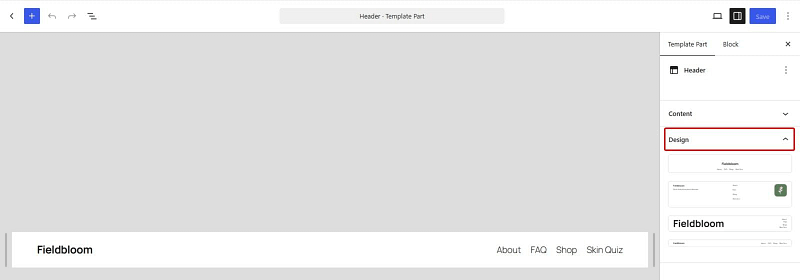
Twenty Twenty-Five's header open in the Site Editor, with its other designs in the Design panel.
To change your menu, click it. It's a Navigation block, and its links show up on the right, where you can add, remove or rearrange them. In Twenty Twenty-Five, the menu starts as a list of your pages, so Fieldbloom's About, FAQ, Shop and Skin Quiz pages showed up on their own.
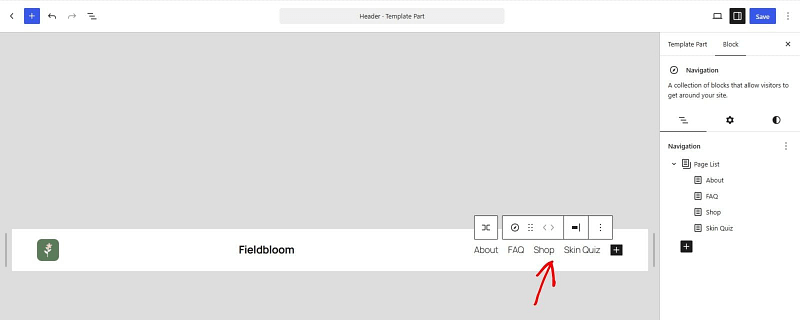
The header's Navigation block selected. Its links are listed on the right.
Twenty Twenty-Five's main header doesn't come with a logo, so I added one: I clicked the + button, picked the Site Logo block and put it in front of the site title. Then click Save, and because the header is shared, your change shows up on every page that uses it.
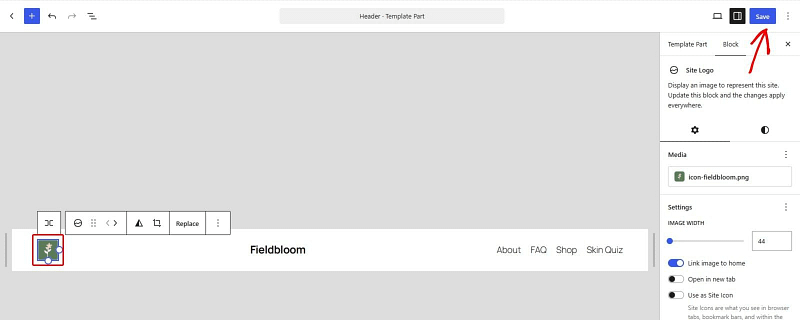
Fieldbloom's logo added to the header with the Site Logo block. Save is at the top right.

The saved header on the test site: Fieldbloom's logo, its name and the menu.
I will say that I probably still wouldn't choose the WordPress Site Editor over a dedicated page builder. But that's because I'm very set in my ways. I like page builders. That's my thing.
Still, I think WordPress definitely has something to be proud of here. Any WordPress veteran will know how hard it used to be to customize a theme using only the Customizer, and with what WordPress has now, it is much easier to customize quite a few key elements of your website from one place.
Method 2: Use the Customizer (Classic Themes)
In a classic theme, your header is built from a few separate settings, and most of them live under Appearance → Customize.
Start with Site Identity. That's where you upload your logo, change your site title and tagline, and add a site icon (the little picture people see in their browser tab).
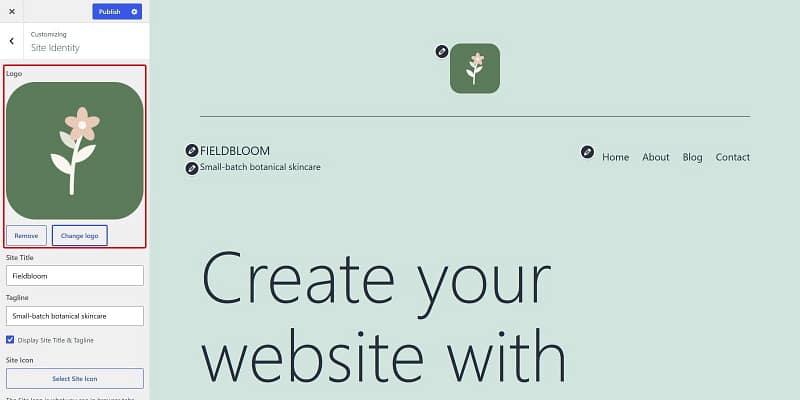
Site Identity in the Customizer for Twenty Twenty-One: the logo, site title and tagline, with a live preview on the right.
Then open Menus to change the links in your header. Click your menu to add, remove or reorder its items, and under Menu Locations, tick the spot your theme uses for the header (in Twenty Twenty-One, it's called Primary menu). The preview on the right updates as you go, and nothing goes live until you click Publish.
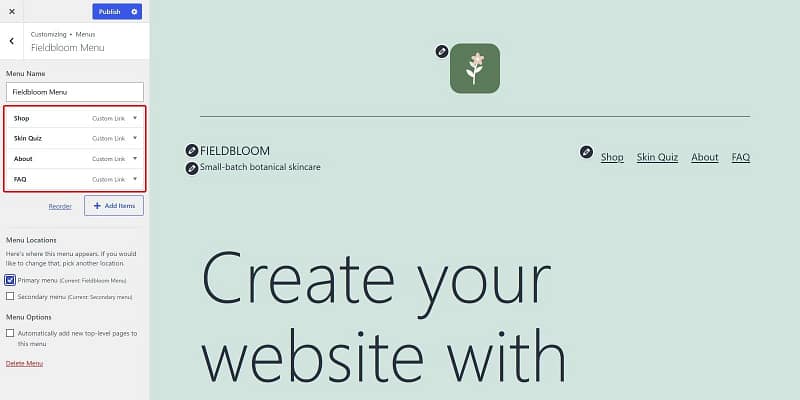
Fieldbloom's menu in the Customizer, set as the Primary menu. The links show up in the header on the right.
Some classic themes add more header settings to the Customizer, like a header image, a layout choice or colors, and every theme does it differently. If you're looking for something that isn't there, check your theme's documentation.
Method 3: Design Your Header in Thrive Theme Builder (My Pick)
Thrive Theme Builder is what I'd use, because the whole header is yours to design (logo, menu, icons, buttons and colors), and you change it in one place for your whole site.
I built Fieldbloom's header both ways for this guide. In the Site Editor, changing the logo, the title and the menu was easy, but making the header sticky took a workaround, and it had to be done template by template. In Thrive Theme Builder, sticky is a setting on the header itself, and I could give one page its own header and check the phone view from the same editor.
Step 1: Open a Template and Click Edit on the Header (It's Linked Across Your Site)
Go to Thrive Dashboard → Thrive Theme Builder, click Templates, then hover over a template and click Edit. I opened Title Banner - Boxed, the page template Fieldbloom's pages use.
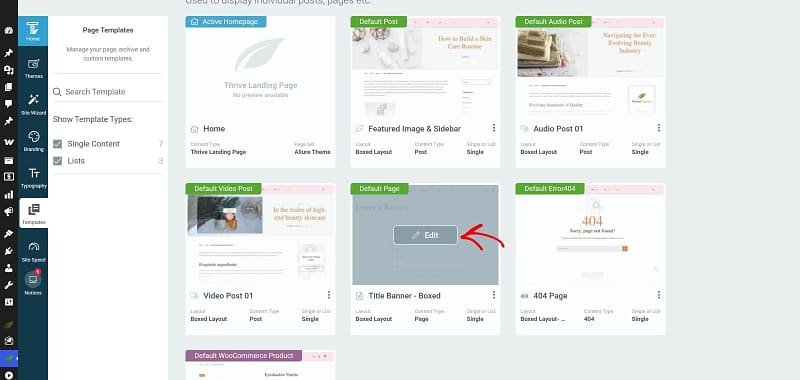
Thrive Theme Builder's Templates screen. Hover over a template to see its Edit button.
Click the header. Its options open on the left, and under Header Section, you'll see its name (Fieldbloom's is Default Header for Allure Theme) with an Edit button underneath. Click Edit.
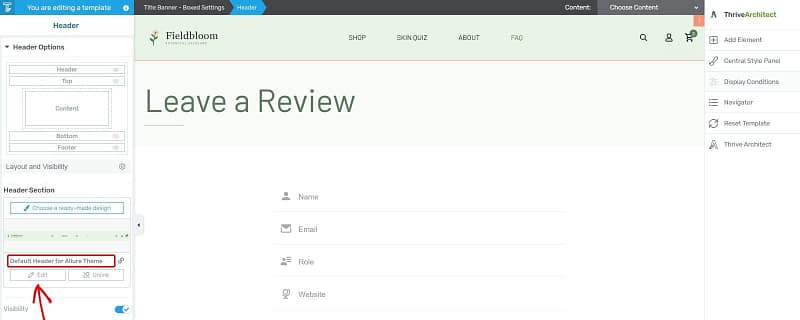
Fieldbloom's header selected in Thrive Theme Builder, with the header's name and its Edit button on the left.
This header is linked, so any change you make here shows up on every template that uses it. Allure also has a second header for the shop pages, Default Header for WooCommerce, and you edit it the same way.
Step 2: Change Your Menu (It Comes From Your WordPress Menus)
Click the menu in your header. Its settings open on the left, and Menu source shows which WordPress menu it uses. Fieldbloom's uses Fieldbloom Menu. To add, remove or reorder links, click Click here to edit this WordPress menu, and it takes you straight to that menu.
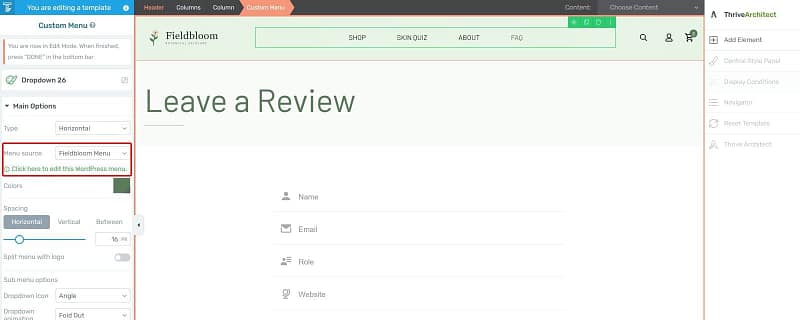
The header's menu selected. Menu source shows the WordPress menu it uses, with a link to edit it.
Step 3: Add a Button or Icons If You Need Them
Allure's header already had Fieldbloom's logo, plus a search icon, an account icon and the cart, which is everything a small shop needs, so I kept those. The logo comes from the one you set in the Site Wizard, so you only change it in one place.
If your site has one main thing you want people to do, like book a call or take a quiz, a button in your header is a good spot for it. Click Add Element and drag in a Button, or pick a ready-made header design that already has one (Allure's Logo - Menu - CTA does).
Step 4: Check It on a Phone, Then Save (The Menu Turns Into an Icon There)
Click the phone icon in the bottom bar to see your header on a phone. Fieldbloom's menu folds into a menu icon, and the search, account and cart icons stay where shoppers can tap them. If anything looks squeezed, you can adjust it while you're in the phone view.

Fieldbloom's header in the phone view: the logo, the menu icon, then search, account and the cart.
When it looks right, click DONE in the bottom bar, then SAVE WORK.
Step 5: Give One Page Its Own Header (Fieldbloom's Checkout Only Shows the Logo)
Sometimes one page needs a different header. For Fieldbloom's checkout, I wanted just the logo, so shoppers aren't pulled away by the menu while they're paying.
Open that page's template (for Fieldbloom, WooCommerce Checkout 01), click the header and click Choose a ready-made design. Under Theme Header Sections, you'll find every header that comes with your theme. I picked Blank Header, then clicked Add Element and dragged in a Logo, which shows your site logo and links back to your homepage.
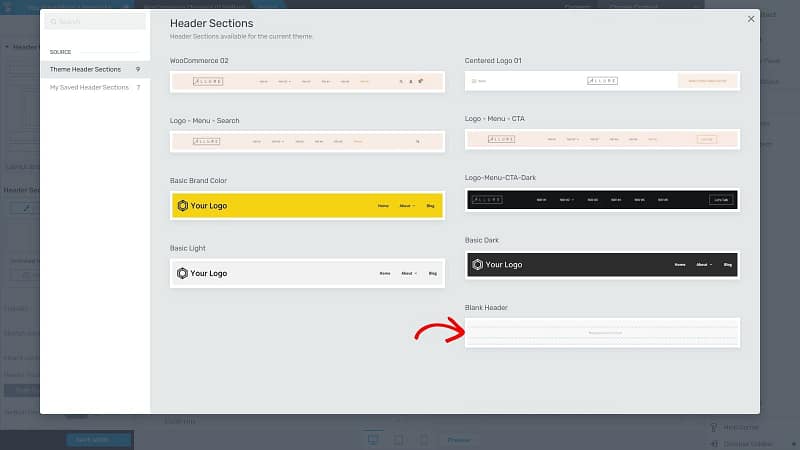
The header designs that come with Allure. I started Fieldbloom's checkout header from Blank Header.
Because it came from the ready-made designs, it's an unlinked header: it belongs to this template only, and the rest of your site keeps its usual header. To reuse it somewhere else later, click Save current design for reuse. Then click SAVE WORK.
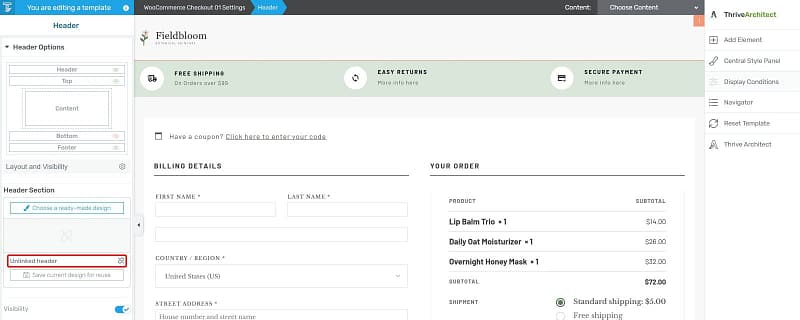
Fieldbloom's checkout template with its logo-only header. On the left, it's marked as an unlinked header.
You can even change what the header shows depending on who's looking. In my membership site tutorial, the header shows different links once a member logs in.
Method 4: Edit header.php (Or Add Code to Your Header Without Touching It)
Every classic theme has a file called header.php that holds the top of every page. You can open it under Appearance → Theme File Editor, but don't edit your theme's own copy, because the next theme update replaces the file and your changes disappear with it.
Instead, use a child theme:
- Back up your site
- Create a child theme, which keeps your changes safe from theme updates
- Copy header.php from the parent theme into your child theme and edit that copy
- Keep the
<?php wp_head(); ?>line, since plugins rely on it to add their code to your pages
Block themes don't use header.php, so if you're on one, edit your header in the Site Editor (method 1).
A lot of the time, though, people go looking for "the header" in code because they need to add a snippet to it, like a Google Analytics tag or a verification code from Google Search Console. You don't need to touch header.php for that. A code snippet plugin like WPCode adds it for you, and it stays in place when you update your theme.
How to Make Your Header Sticky (So It Stays on Screen as People Scroll)
A sticky header stays at the top of the screen while people scroll, so your menu is always one tap away.
In Thrive Theme Builder, open your header in Edit Mode (step 1 of method 3) and click Scroll Behavior on the left. You'll see three options:
Once you pick Sticky, you can choose which devices it's sticky on, how far from the top of the screen it sits, and how long it stays (Fieldbloom's stays until the end of the page). There's also Switch on scroll, which changes how your header looks once people have scrolled down a set distance. I made Fieldbloom's header sticky on every device and kept the other settings as they were.
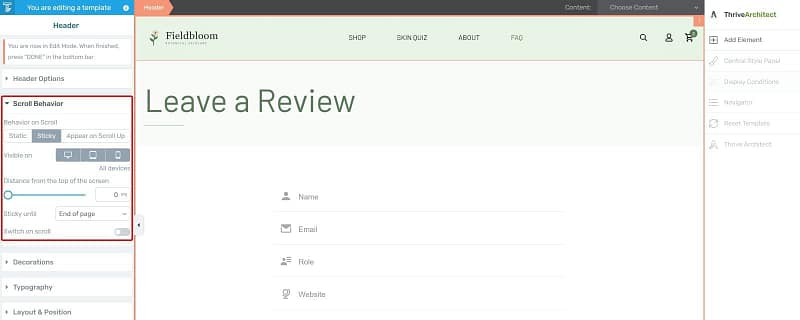
Scroll Behavior set to Sticky for Fieldbloom's header, with its options underneath.
In the Site Editor, it takes a couple more clicks, because you can't make the header itself sticky:
- Open a template, for example Pages, under Appearance → Editor → Templates
- Select the header, click the three dots in its toolbar and choose Group, so the header sits inside a Group block at the top level of the template
- With the Group selected, set Position to Sticky in the settings on the right, then click Save
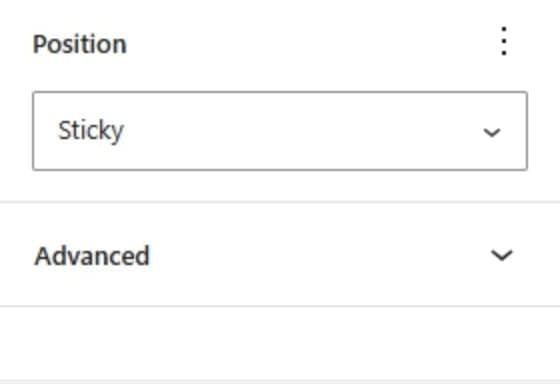
The Position setting for the Group block that holds the header, set to Sticky.
This only works when the Group sits at the top level of the template, not inside another block, and it applies template by template. So if you want a sticky header on your blog posts too, do the same in that template. I tested it on the test site, and the header stayed at the top of the screen as I scrolled.
Whichever way you do it, check it on a phone. A tall sticky header can take up a lot of a small screen, which is where Appear on Scroll Up comes in handy.
What I Put in Fieldbloom's Header (Less Is More Here)
With headers, less is often more. Before you throw in features like a header image, animations or a toolbar, be sure that it's completely necessary. Your header must be easy to read and even easier to navigate, on all devices.
Here's what's in Fieldbloom's:

Fieldbloom's finished header, built in Thrive Theme Builder.
If your site does have one main thing you want people to do, like book a call or start a free trial, that's what a header button is for. Just keep it to one.
Frequently Asked Questions About Editing the WordPress Header
Here are quick answers to the header questions that come up most, with links to the right part of this guide when you need the full steps.
How Do I Change the Header on a Specific Page?
In a block theme, create a template for that page in the Site Editor (Appearance → Editor → Templates), then swap its header for a different one. In Thrive Theme Builder, open that page's template, click the header and then Choose a ready-made design, which adds a header that only changes that template.
How Do I Turn Off the Header in WordPress?
In Thrive Theme Builder, click the header in the template and turn off Visibility on the left. In a block theme, open the template in the Site Editor, select the header, delete it and save. That removes it from every page that uses the template. On a classic theme, look in the Customizer for an option to hide it first, and if there isn't one, you'd remove it in a child theme.
How Do I Change the Header Font?
In a block theme, open Styles in the Site Editor and go to Typography, or select a block in the header, like the site title or the menu, and change its font in the settings on the right. In Thrive Theme Builder, select the menu or text in your header in Edit Mode and use the Typography settings on the left. In a classic theme, it depends on the theme, so look in the Customizer first.
How Do I Change My Site Title in WordPress?
Go to Settings → General and change the Site Title field (the tagline is right under it). You can also change it under Appearance → Customize → Site Identity in a classic theme, or by editing the Site Title block in a block theme, which changes it everywhere.
How Do I Create a Custom Header and Footer in WordPress?
You edit them in the same place: template parts in the Site Editor, the Customizer and widgets in a classic theme, or the header and footer sections of your templates in Thrive Theme Builder. I walk through the footer step by step in how to edit the footer in WordPress.
Your Header Is the First Thing People Use, So Keep It Simple
People look at the top of your page first, and they use your header to find their way around. So start by finding out which kind of theme you have, because that tells you where your header lives. Then keep it simple: your logo on the left, a short menu, and one button if you really need it.
These will help with the rest of your site:
Ready to Build Your Header With Thrive?
Fieldbloom's header, including the sticky setting and the logo-only checkout header, was built in Thrive Theme Builder. And when you're ready for more than the header, Thrive Suite brings Thrive Theme Builder together with Thrive Architect, Thrive Leads and the rest of Thrive's tools.
Pick the header that fits your site, set it up once, and change it in one place whenever your business does.


